32 Powerful Copilot Excel Data Cleaning Prompts for Messy Spreadsheets
Copilot Excel data cleaning prompts turn the most tedious part of spreadsheet work into a short conversation. Every analyst knows the feeling: a CSV export lands in your inbox with trailing spaces, three spellings of the same city, dates stored as text and a handful of duplicate customers. Before you can build a single chart, you lose an hour fixing it by hand.
Copilot in Excel can take a big share of that hour back. It can spot inconsistencies, suggest formula columns that standardize values, flag duplicates and explain what it changed. This guide gives you 32 copy-ready Copilot Excel data cleaning prompts grouped by the kind of mess you are dealing with, plus a repeatable workflow so you clean data the same reliable way every time.
Why Cleaning Data With Copilot Beats Doing It by Hand
Manual cleanup is slow for a simple reason: every fix needs you to remember a function, write it, fill it down, check it and then paste values. TRIM, PROPER, TEXTBEFORE, SUBSTITUTE, DATEVALUE and UNIQUE are all useful, but stringing them together for twelve columns is draining.
Excel data cleaning with Copilot flips the effort. You describe the outcome in plain English (“make every state a two-letter code”) and Copilot proposes a formula column or a highlight rule you can review before inserting. You still make the call, but you skip the syntax hunting.
It also helps you see problems you did not know existed. Asking Copilot what looks inconsistent in a column often surfaces issues like mixed units or hidden leading zeros that a quick scroll would miss.
If you are newer to the assistant, start with our broader list of Copilot prompts for Excel and then come back here for the cleanup specifics.
Before You Prompt: Set Your Sheet Up for Success
Copilot in Excel works best when it can clearly read your data. A few minutes of setup avoids most failed attempts and makes Copilot Excel data cleaning prompts far more reliable. It also prevents most “I can’t help with that” replies.
- Save the workbook to OneDrive or SharePoint with AutoSave on. Copilot in Excel needs a cloud-saved file.
- Format the range as a table (Ctrl+T) or make sure it is a clean, contiguous range with one header row. Merged cells and blank header cells confuse it.
- Work on a copy. Duplicate the raw tab first so you always have an untouched original to compare against.
- Keep one header row with clear names. “Order Date” is better than “Col F” or a two-row merged heading.
Microsoft’s own guide to getting started with Copilot in Excel covers licensing and file requirements in more detail.
Step 1: Audit Prompts That Find the Mess First
Do not start fixing before you know what is broken. These audit-style Copilot Excel data cleaning prompts give you a quick inventory of problems so you can plan the cleanup instead of chasing issues one at a time.
1. The full data health check
Review this table and list every data quality issue you can find. Group them by column and include: blank cells, inconsistent spelling or capitalization, extra spaces, numbers stored as text, mixed date formats and possible duplicates. Show the result as a table with Column, Issue and Example.2. Inconsistent category values
In the [Region] column, list every distinct value and how many rows use it. Point out values that look like the same thing written differently.This one quickly reveals entries like “N. America”, “North America” and “NA” sitting side by side.
3. Blank and missing data map
Count the blank cells in each column and show the percentage of rows affected. Highlight any column where more than 10% of values are missing.4. Outlier spotter
Look at the [Amount] column and flag values that look unusual compared with the rest, such as negatives, zeros or numbers far above the typical range. Highlight those rows in light red.5. Data type check
Which columns contain numbers or dates that Excel is treating as text? Explain how you can tell and suggest a fix for each.Step 2: Copilot Excel Data Cleaning Prompts for Text
Text columns cause most cleanup pain. Names, addresses, product codes and free-text fields collect stray spaces and random capitalization over time. These prompts standardize them without a nest of formulas.
6. Remove extra spaces
Add a new column next to [Customer Name] that removes leading, trailing and double spaces. Keep the original column so I can compare.7. Fix capitalization
Create a column that converts [Customer Name] to proper case, but keep common acronyms like LLC, USA and IBM in uppercase.8. Split a full name
Split the [Full Name] column into First Name and Last Name columns. If there is a middle name or initial, put it in a separate Middle column.9. Combine columns cleanly
Create a Full Address column that joins [Street], [City], [State] and [ZIP] with commas, and skip any part that is blank so there are no double commas.10. Strip unwanted characters
Add a column that removes symbols like #, *, and extra hyphens from [Product Code], leaving only letters and numbers.11. Standardize category labels
Add a Clean Region column that maps every variation in [Region] to one of these values: North America, Europe, Asia Pacific, Latin America. Show me the mapping you used.Asking Copilot to show its mapping matters. It lets you catch a wrong guess before it spreads across a few thousand rows.
12. Extract part of a string
From the [Email] column, create a Domain column that contains only the text after the @ sign, in lowercase.Prompts for Numbers, Dates and Formats
Imported numbers and dates are the second biggest headache. A system export might send amounts with currency symbols, or dates in day-month order when your locale expects month-day. These prompts convert them into values Excel can actually calculate with.
13. Convert text to numbers
The [Revenue] column has values like "$1,250.00" stored as text. Add a column that converts them to real numbers without the currency symbol or commas.14. Fix mixed date formats
The [Order Date] column mixes formats like 03/04/2026, 2026-04-03 and 3 Apr 2026. Create a column that converts all of them into proper Excel dates. Assume day-first when the order is ambiguous, and list any rows you could not convert.15. Restore leading zeros
Some ZIP codes in [ZIP] lost their leading zero. Add a column that formats every ZIP as a five-digit text value.16. Standardize phone numbers
Create a column that rewrites every number in [Phone] in the format (XXX) XXX-XXXX. Flag any that do not have 10 digits.17. Unify units
The [Weight] column mixes values in kg and lb, like "12 kg" and "30 lb". Add a column with every value converted to kilograms as a plain number, rounded to two decimals.18. Round consistently
Round every value in [Unit Price] to two decimal places in a new column, and tell me how many values changed.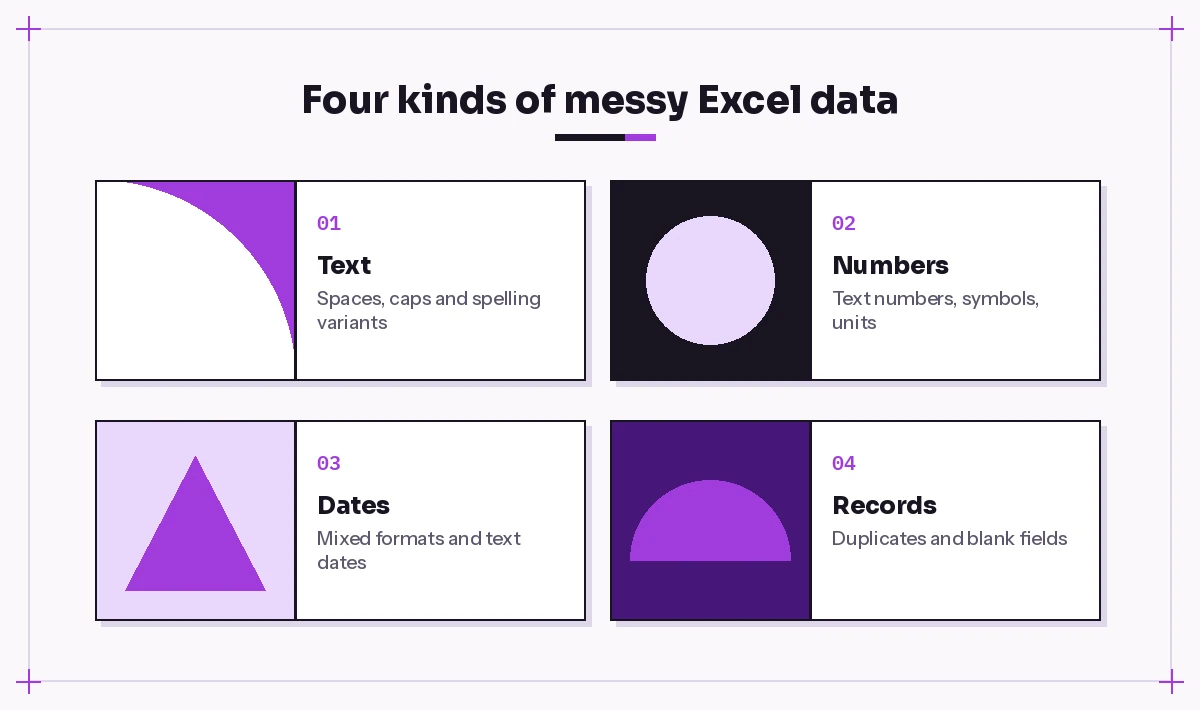
Prompts to Remove Duplicates and Fix Blanks
Duplicates and blanks quietly break totals, lookups and pivot tables. The Copilot Excel data cleaning prompts below find them, but you should always review before anything gets deleted.
19. Find exact duplicates
Highlight every row that is an exact duplicate of another row in this table. Do not delete anything yet.20. Find near-duplicates
Find customers that are probably the same person even though the names are written differently, for example "Jon Smith" and "John Smith " with the same email or phone. List the pairs and explain why you matched them.21. Keep the latest record
For rows with the same [Customer ID], show me how to keep only the row with the most recent [Last Updated] date. Explain the steps before making changes.22. Count duplicates per key
Add a column that shows how many times each [Invoice Number] appears in the table, so I can filter for values greater than 1.23. Fill blanks from the row above
In the [Department] column, blanks mean "same as the row above". Create a column that fills each blank with the last non-blank value above it.24. Flag incomplete records
Add a Status column that says "Incomplete" when any of [Email], [Phone] or [Country] is blank, and "Complete" otherwise.Once your records are tidy, building summaries gets much easier. Our guide to Copilot pivot table prompts picks up exactly where this cleanup leaves off.
Validation Prompts to Double-Check the Cleanup
Cleaning is only finished when you can trust the result. These final Copilot Excel data cleaning prompts compare your cleaned columns with the originals and set guardrails so the mess does not come back.
25. Before-and-after comparison
Compare [Customer Name] with [Clean Customer Name] and highlight rows where the values differ by more than spacing or capitalization.26. Totals sanity check
Sum [Revenue] and [Clean Revenue] and tell me if the totals match. If they do not, list the rows causing the difference.27. Rule-based highlighting
Highlight any email in [Email] that does not contain an @ sign followed by a dot, so I can review possible typos.For more highlight rules like this, see our walkthrough of Copilot conditional formatting in Excel.
28. Set up a dropdown list
Explain how to add a dropdown to the [Status] column that only allows Open, In Progress and Closed, so new entries stay consistent.29. Cleanup summary for your team
Write a short summary of the cleanup steps applied to this table: which columns changed, what rules were used and how many rows were affected. Keep it under 120 words so I can paste it into an email.Advanced Prompts for Repeat Cleanup Jobs
If you clean the same export every week, the goal shifts from fixing data to never fixing it twice. These prompts help you build something reusable.
30. Build a reusable formula set
I receive this same export every Monday. Suggest a set of formula columns I can keep in a template so the cleaned values update automatically when I paste new raw data into the first columns.31. Power Query steps
Explain the Power Query steps I would use to clean this table automatically: trim text, fix data types, remove duplicates by [Order ID] and replace blanks in [Region] with "Unknown". List them in order.Power Query is often the better long-term home for cleanup rules because the steps re-run with one Refresh. Copilot can explain the steps even if you then click through them yourself.
32. Python in Excel for heavy cleanup
Using Python in Excel, clean this table: standardize column names to lowercase with underscores, strip whitespace from all text columns, convert [Order Date] to dates and drop exact duplicate rows. Show the code and explain each step.Python in Excel availability depends on your Microsoft 365 plan and channel, so check that it appears in your ribbon before relying on this one.
How to Write Your Own Cleanup Prompts
The Copilot Excel data cleaning prompts above cover the common cases, but your data will have its own quirks. A strong cleanup prompt usually includes four parts:
- The column name, in square brackets or exactly as it appears in the header.
- The problem, described with a real example from your sheet, like “some rows say ‘n/a’ instead of being blank”.
- The target format, such as “two-letter state codes” or “dates as yyyy-mm-dd”.
- A safety instruction, like “add a new column” or “highlight, don’t delete”.
That last part is easy to skip and worth keeping. Asking for a new column instead of overwriting gives you an instant undo and an easy before-and-after check. If you want a deeper framework, our guide on how to write Copilot prompts breaks down goal, context, source and expectations.
Common Mistakes to Avoid
A few habits trip people up when they first lean on Copilot for cleanup.
Cleaning the whole sheet in one prompt. “Clean this data” is too broad. Copilot does better with one column or one issue at a time.
Skipping the review. Copilot can misread an ambiguous date or merge two customers who are actually different. Spot-check a sample of rows after every change.
Forgetting to paste values. Formula columns depend on the original columns. If you plan to delete the raw columns, copy the clean ones and paste them as values first.
Expecting it to read everything. Very large workbooks, multiple messy tables on one tab or heavily merged layouts can limit what Copilot handles well. Split the data into a clean table first.
Putting It All Together
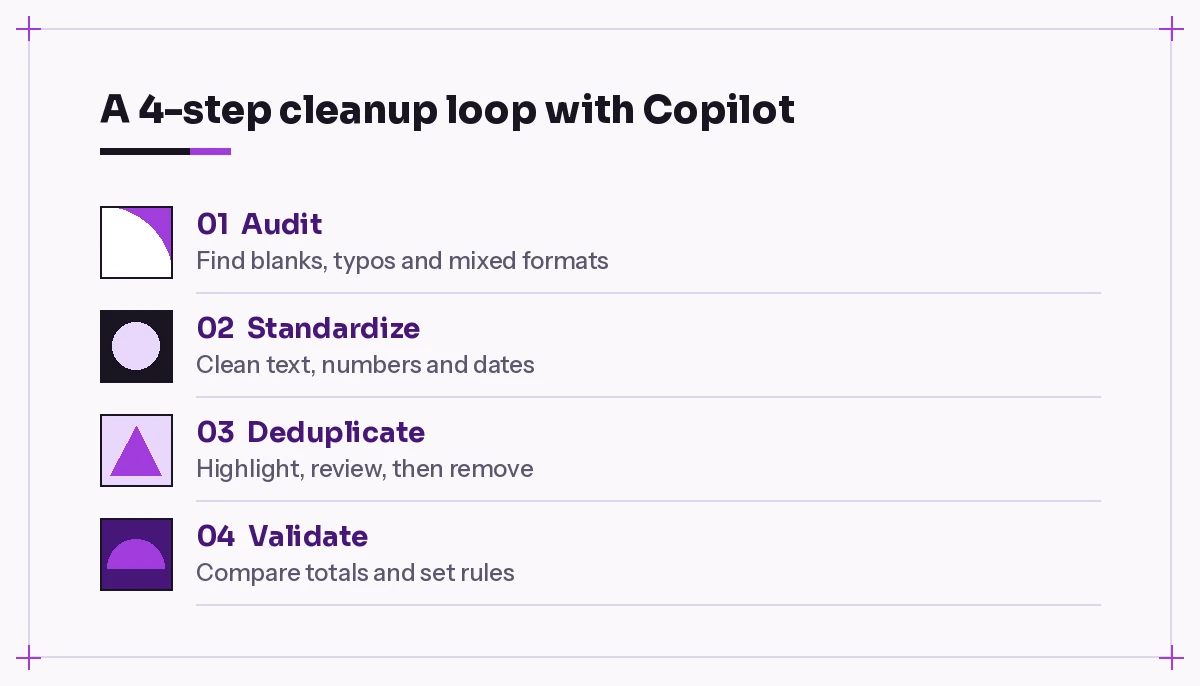
The best way to use these Copilot Excel data cleaning prompts is as a loop rather than a list. Audit the table, standardize text and numbers, handle duplicates and blanks, then validate before you analyze. Run that loop on a copy, keep the originals beside the clean columns until you are confident, and save the prompts that work for your exports so next week’s cleanup takes minutes.
When the data is clean, move on to analysis with our Copilot prompts for Excel data analysis and turn those tidy rows into answers.
Frequently Asked Questions
Can Copilot in Excel clean data automatically?
Mostly yes. With the right Copilot Excel data cleaning prompts, Copilot can suggest and insert formula columns, highlight problems and explain fixes, but you stay in control. It usually adds new columns or proposes changes for you to review rather than silently rewriting your original data, so always check the results before deleting anything.
Does my data need to be in a table for Copilot to clean it?
Copilot works most reliably on data formatted as an Excel table or a clean, contiguous range with a single header row. Press Ctrl+T to convert a range to a table and make sure the file is saved to OneDrive or SharePoint.
Can Copilot remove duplicates in Excel?
Yes, Copilot can highlight exact duplicates, count how often a key value appears and explain how to keep only the latest record. It is safest to ask it to highlight duplicates first, review them, and then remove them.
How do I fix dates stored as text with Copilot?
Describe the formats you see and ask Copilot to add a column that converts them into proper Excel dates. Tell it whether ambiguous dates are day-first or month-first, and ask it to list any rows it could not convert.
Is Copilot better than Power Query for data cleaning?
They work well together. Copilot is fast for one-off fixes and for explaining what to do, while Power Query is better for cleanup you repeat every week because the steps re-run with a single refresh. You can ask Copilot to outline the Power Query steps for you.
Will Copilot change my original data when cleaning?
Not if you ask it not to. Include an instruction such as “add a new column” or “highlight, don’t delete” in your prompt, and work on a copy of the raw tab so you always have the untouched original.