30 Proven Copilot Prompts for Teams Chat to Catch Up and Reply Faster
Copilot prompts for Teams chat turn a wall of unread messages into a short, useful briefing you can act on. Group chats grow fast. One morning of meetings can leave you with 80 new messages, three side conversations, a decision you were supposed to weigh in on, and a link somebody shared that you will never find again by scrolling.
Copilot in Microsoft Teams is built for exactly that mess. It reads the thread you open it in, pulls out the main points, and answers questions about who said what. It can also help on the other side of the conversation: drafting replies, softening a blunt message, or turning a long chat into a clean list of next steps.
Below you will find 30 copy-ready Copilot prompts for Teams chat, grouped by the job you are trying to get done. Swap the bracketed parts for your own names, dates and topics, and you are good to go.
How Copilot Works Inside a Teams Chat
Before the prompts, it helps to know what Copilot can actually see, because that shapes how you should ask.
When you open a one-on-one or group chat and select Open Copilot in the upper-right corner, Copilot works from the messages in that specific thread. According to Microsoft’s guide to using Copilot in Teams chats and channels, the default window is the last 30 days unless you name a different time frame. Each answer includes Sources you can click to jump straight to the original message.
A few limits are worth remembering:
- In the chat pane, Copilot summarizes the messages themselves. Images and Loop components inside the thread are not part of that summary.
- In a meeting chat, Copilot uses the transcript when the meeting was transcribed, and falls back to the chat messages when it was not.
- It only sees chats you are part of. It cannot read a conversation you were never added to.
That last point matters for trust. Copilot is not a surveillance tool. It is a faster way to read what you already have access to.
Three Habits That Make Every Prompt Better
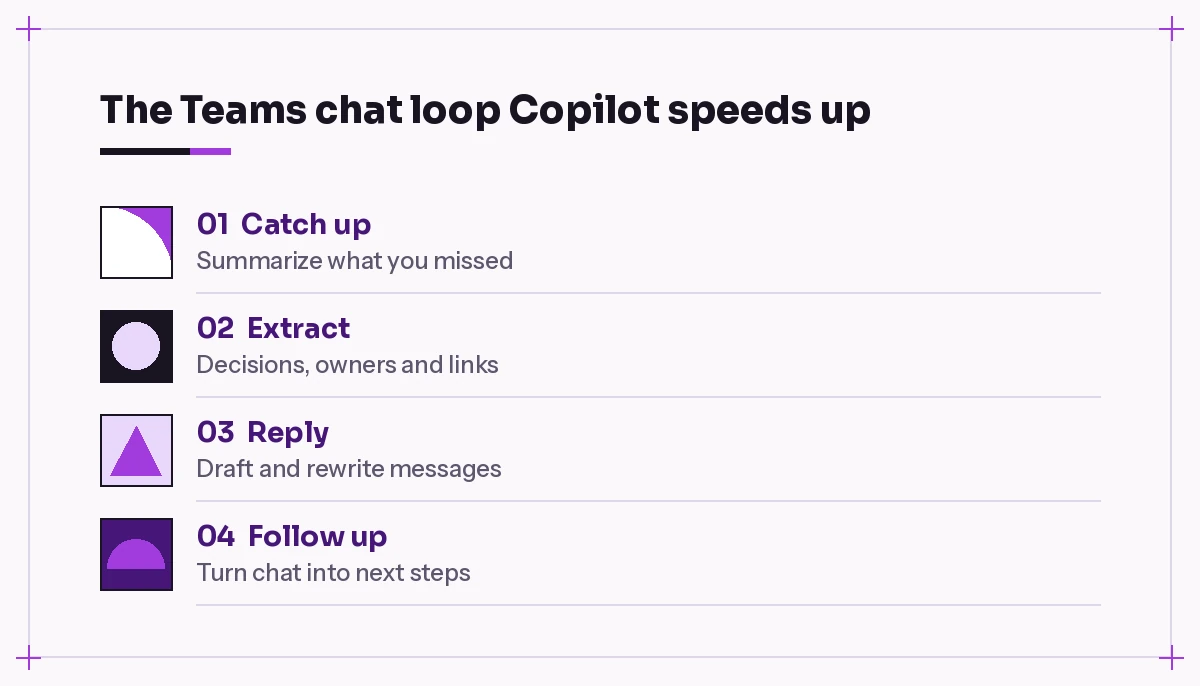
The Copilot prompts for Teams chat in this guide work on their own, but these small habits make the answers sharper.
Give a time window. “Summarize this chat” is fine. “Summarize this chat since Monday at 9 AM” is better, because Copilot will only consider messages in that range.
Name people when it matters. If you want one colleague’s position, say their name. Copilot can filter by speaker much more reliably when you are explicit.
Ask for a shape. Bullets, a table, or “three lines max” are easier to scan on a phone between meetings than a long paragraph.
If you are newer to prompting in general, our Copilot prompt cheat sheet covers the goal, context, source and expectations pattern that all of these templates follow.
Copilot Prompts for Teams Chat When You Missed Everything
This is where most people start using Copilot in Teams chat, and it is where it saves the most time.
1. The classic catch-up
Summarize what I've missed in this chat since [yesterday at 5 PM]. Group it into decisions, open questions and anything that mentions me.2. The 30-second version
Give me the three most important things from this chat in the last [2 days]. One line each, no more than 20 words per line.Use this one when you are walking into a meeting and only have a moment.
3. Catch up after time off
I was out from [date] to [date]. Summarize the key updates in this chat during that period, then list anything that still looks unresolved or is waiting on me.If you are coming back from a longer break, pair this with our prompt for returning from vacation so your inbox gets the same treatment.
4. What changed since my last message
Find my last message in this chat and summarize everything that happened after it. Highlight any replies to what I said.5. Catch up by topic
In this chat, summarize only the discussion about [topic, e.g. the Q4 launch budget] over the last [two weeks]. Ignore unrelated conversations.Group chats wander. This prompt filters out the lunch plans and keeps the project discussion.
6. Monthly recap
What were the key takeaways from this chat in [last month]? Organize them by theme and note the date each decision was made.Prompts to Pull Out Decisions, Owners and Deadlines
A summary is nice, but the best Copilot prompts for Teams chat go further.
They give you a list of who agreed to do what by when. These prompts treat the chat like a set of meeting notes.
7. Decision log
List every decision made in this chat since [date]. For each one, include what was decided, who proposed it and who agreed. Present it as a table.8. Action items with owners
Extract all action items from this chat in the last [week]. For each, show the task, the person responsible and any deadline mentioned. Mark items with no clear owner.That “no clear owner” line is the useful part. Tasks without a name attached are the ones that quietly disappear.
9. My personal to-do list
What has anyone asked me to do in this chat over the last [10 days]? Include the exact request, who asked and whether I've already replied.10. Open questions nobody answered
Find questions in this chat from the last [week] that never got a clear answer. List the question, who asked it and when.Run this before a team sync and you have a ready-made agenda.
11. Disagreements and positions
Summarize where people disagreed in this chat about [topic]. For each person involved, give their position in one sentence. Stay neutral and don't pick a side.12. What did a specific person say
What did [Name] say in this chat about [topic] since [date]? Quote their key points and include the date of each message.Prompts for Finding Things Buried in the Thread
Scrolling up through hundreds of messages to find one file or link is a classic time sink. Copilot is quicker.
13. Every link that was shared
List all the links shared in this chat in the last [30 days]. For each link, add who shared it and a short note on what it was about.14. Find a specific reference
Someone mentioned [a vendor name / a ticket number / a document] in this chat. Find that message and tell me who said it, when, and what the surrounding conversation was about.15. Numbers and figures mentioned
Pull out any numbers, prices, dates or metrics mentioned in this chat about [project]. Show them in a table with the context and who mentioned them.Always click Sources to check figures against the original message before you reuse them anywhere official.
16. Timeline of a discussion
Build a short timeline of how the conversation about [topic] developed in this chat, from the first mention to the latest message.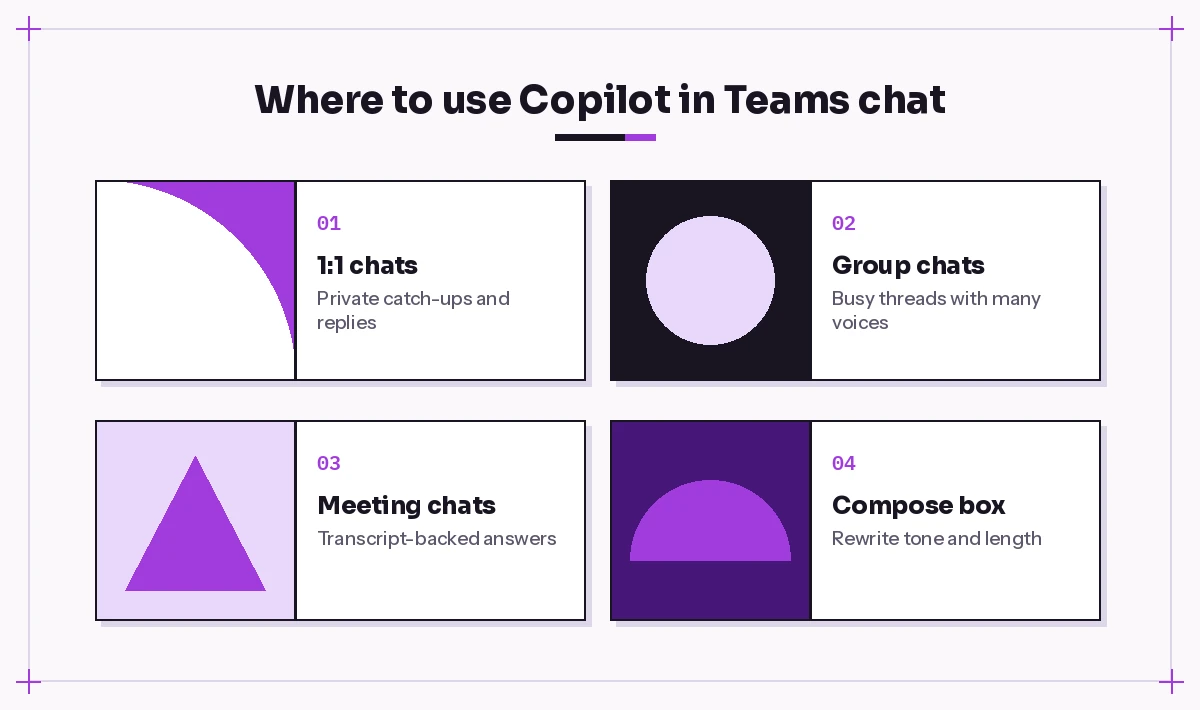
Prompts for Writing Better Replies
Catching up is only half the job. You still have to answer. Teams lets you use Copilot right in the compose box to rewrite and adjust a draft, and you can also ask Copilot Chat to write a reply from scratch.
17. Draft a reply from context
Based on the last [10] messages in this chat, draft a short reply that answers [Name]'s question about [topic]. Keep it friendly and under 60 words.18. Make it shorter
Rewrite my draft so it's half the length but keeps the key point and the ask: [paste draft]19. Soften a blunt message
Rewrite this message so it sounds collaborative instead of frustrated, without losing the point that the deadline has to move: [paste draft]This is a lifesaver for tense threads. For longer conversations of the same kind, see our Copilot prompts for difficult emails.
20. More confident, less apologetic
Rewrite this so it sounds confident and direct. Remove extra apologies and hedging words like "just" and "maybe": [paste draft]21. Say no politely
Help me reply to [Name] in this chat and decline their request to [task] this week. Offer one alternative and keep the tone warm. Two or three sentences.22. Explain something technical simply
Rewrite this explanation for a non-technical group chat. Use plain words, one short example and no jargon: [paste text]Prompts for Group Chats and Team Coordination
Group chats with five to fifteen people need slightly different Copilot prompts for Teams chat, because they have their own problems: duplicated questions, people talking past each other, and nobody sure whether the plan changed.
23. Current status of the plan
Based on this chat, what is the current plan for [event / project]? Note anything that changed in the last [3 days] compared with the original plan.24. Who still needs to respond
In this chat, [Name] asked everyone to confirm [availability / approval] on [date]. Who has confirmed and who hasn't responded yet?25. Turn the chat into a status update
Turn the discussion in this chat from the last [week] into a status update I can post in our team channel. Use headings for progress, risks and next steps.If that update belongs in a channel, our guide to Copilot prompts for Teams channels has more templates for posts and announcements.
26. Brief a new member
[Name] just joined this chat. Write a short catch-up message for them that explains what this group is working on, the key decisions so far and what they should read first.Prompts for Meeting Chats
Every scheduled Teams meeting has its own chat, and Copilot in that chat can work with the transcript when one exists. That makes it a handy companion to the meeting recap.
27. What did I miss in the meeting
I joined this meeting [15 minutes] late. Summarize what was discussed before I joined and any decisions made.28. Questions raised in the meeting chat
List the questions people posted in the meeting chat and whether each one was answered during the meeting.29. Follow-up message
Draft a follow-up message for this meeting chat that thanks everyone, recaps the three main decisions and lists action items with owners.For deeper meeting workflows, including prep and live prompts, see our full set of Copilot prompts for Teams meetings.
30. Prep for the next session
Based on this meeting's chat and transcript, what topics are still open and should go on the agenda for our next meeting? Suggest a 30-minute agenda.Quick Reference: Which Copilot Prompts for Teams Chat to Use When
| Situation | Best prompt | Why it helps |
|---|---|---|
| Back from a day of meetings | 1 or 2 | Fast summary of what you missed |
| Back from vacation | 3 | Time-boxed catch-up plus open items |
| Planning a team sync | 8 and 10 | Owners, tasks and unanswered questions |
| Hunting for a file or link | 13 or 14 | Skips the endless scrolling |
| Tense conversation | 19 | Keeps the point, drops the heat |
| Someone new joins | 26 | One message instead of a long backstory |
| Joined a meeting late | 27 | Covers the part you missed |
Mistakes to Avoid With Copilot in Teams Chat
Copilot is fast, but a few habits can undercut even well-written Copilot prompts for Teams chat.
Trusting a summary without checking sources. Copilot can misread sarcasm, inside jokes or a message that was later corrected. For anything that goes to a manager or customer, click Sources and confirm.
Asking about content it cannot read. If the important detail lived in a screenshot or a Loop component, the chat summary will not reflect it. Open the item directly or ask about the file separately.
Using vague time frames. “Recently” can mean different things. Dates and specific windows give consistent results.
Pasting a reply without reading it. A drafted response can sound polished but miss the actual question. Read it once out loud in your head before you hit send.
Forgetting who is in the chat. If you copy a Copilot summary into a different chat, make sure the new audience should see everything in it.
Making These Prompts Part of Your Daily Routine
The people who get the most out of Copilot in Teams chat tend to use it at the same few moments every day. First thing in the morning, they run a catch-up prompt on their two or three busiest chats. Before a sync, they pull open questions and action items. At the end of the day, they ask what they promised to do and check nothing slipped.
You can save your favorite Copilot prompts for Teams chat in the Copilot prompt gallery or simply keep them in a OneNote page for quick pasting. Over a week, that habit saves a surprising amount of scrolling, and it makes you the person who always knows where things stand.
If your mornings also start with a crowded inbox, our prompt for unread emails does the same job for Outlook. For the full picture of how to phrase requests, Microsoft’s guide to writing prompts in Microsoft 365 Copilot is a useful companion read.
Frequently Asked Questions
How do I use Copilot in a Teams chat?
Open the chat in Teams, select Open Copilot in the upper-right corner, then pick a suggested prompt or type your own in the compose box. Copilot answers based on the messages in that thread and shows sources you can click.
How far back can Copilot read in a Teams chat?
By default, Copilot looks at the last 30 days of the thread. You can name a specific time frame, such as a month or a date range, and Copilot will focus on messages from that period.
Can Copilot summarize images or files shared in a Teams chat?
The chat summary works from the text of the messages, so images and Loop components in the thread are not included. To get details from a shared file, open it or ask Copilot about that file directly.
Can other people in the chat see my Copilot questions?
No. When you open Copilot in the side pane of a chat, your questions and Copilot’s answers are visible only to you unless you copy and paste them into the conversation.
Can Copilot write replies for me in Teams chat?
Yes. You can use Copilot in the compose box to rewrite a draft, change its tone or adjust its length, and you can ask Copilot to draft a reply based on recent messages. Always read the draft before sending.
Do I need a license to use Copilot in Teams chats?
Copilot in Teams chats and channels is part of Microsoft 365 Copilot, so your organization needs to assign you that license. Available features can also depend on settings your admin controls.