Copilot Prompts for Difficult Emails: 32 Calm, Proven Templates for Tough Messages
Copilot prompts for difficult emails help you get past the blank screen when the message in front of you feels heavy: turning down a request, admitting a mistake, chasing an unpaid invoice or replying to someone who is clearly upset. Instead of rewriting the first line ten times, you describe the situation and the outcome you want, and Copilot gives you a calm first draft to shape.
The draft is never the finished product. Tough messages carry relationships, money and sometimes legal weight, so you stay in charge of every word. What Copilot removes is the dread of starting and the risk of sending something written while annoyed. Below are 32 copy-ready prompts grouped by situation, a simple structure for writing your own, and a review routine to run before you press Send. Replace anything in square brackets with your own details.
Why Hard Emails Go Wrong (and Where Copilot Helps)
Most hard emails fail for one of three reasons. They bury the main point under apologies, they sound colder or angrier than the writer meant, or they promise something to smooth things over that the writer can’t actually deliver. All three are easier to spot in someone else’s draft than in your own, which is exactly why a second “writer” helps.
Copilot in Outlook gives you two tools for this. Draft with Copilot writes a new message from your prompt, and you can then adjust length and tone. Coaching by Copilot reviews a message you’ve already written and suggests changes to tone, clarity and reader sentiment. Microsoft’s guide to email coaching with Copilot in Outlook walks through the steps, including the option to apply all suggestions at once.
For sensitive messages, coaching is often the better starting point. You write the honest version yourself, then ask Copilot how it might land. If you’d rather start from a draft, the prompts below give Copilot enough context to avoid generic, overly cheerful text.
If you’re new to email prompting in general, our broader collection of Copilot prompts for Outlook covers everyday drafting, summarizing and inbox cleanup.
The Five-Part Structure for Tough-Email Prompts
A vague request like “write a polite email saying no” produces a vague email. A strong request gives Copilot the same briefing you’d give a trusted colleague who was helping you write it.
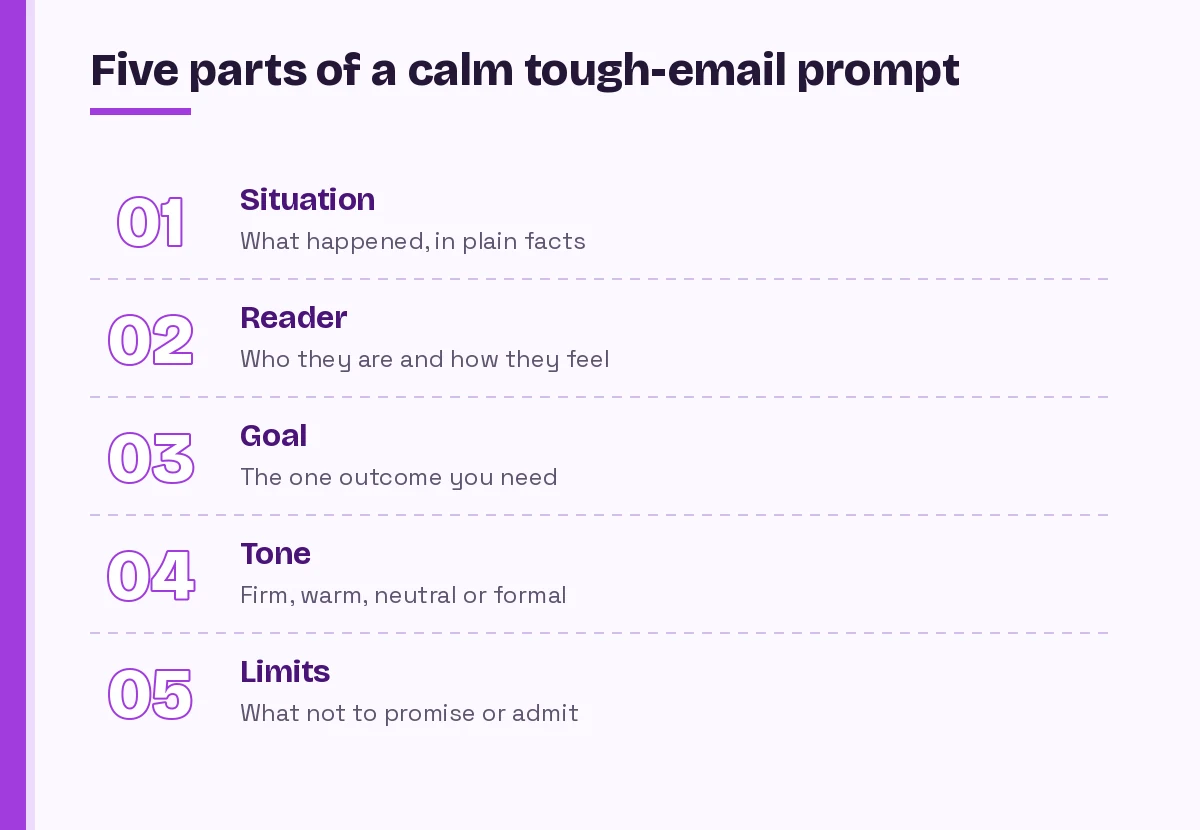
- Situation. What happened, stated as plain facts with dates and amounts.
- Reader. Who they are, your relationship with them and how they probably feel right now.
- Goal. The single outcome you need from this message: a decision, a payment, a reset, an apology accepted.
- Tone. Pick specific words: firm but warm, neutral, formal, reassuring. “Professional” alone is too broad.
- Limits. What the email must not do, such as admit liability, offer a refund, name a colleague or commit to a date.
Here is the structure as a reusable template:
Draft an email to [recipient and role]. Situation: [facts, with dates and numbers].
They are likely feeling [frustrated / anxious / disappointed].
My goal is [one clear outcome]. Tone: [firm but warm / calm and neutral].
Do not [promise X / admit fault for Y / mention Z].
Keep it under [150] words and end with one clear next step.
The word limit matters more than people expect. Difficult messages get worse as they get longer, because every extra sentence is another chance to over-explain or sound defensive.
Prompts for Saying No Without Burning Bridges
Declining is the most common hard email. The goal is a clear no that leaves the door open where it makes sense.
1. Declining an extra project
Draft a reply declining [manager/colleague]'s request to take on [project]. I'm at capacity with [current priorities] until [date]. Be clear that the answer is no for now, show I value being asked, and suggest [alternative: a later start / a colleague / a smaller piece I can do]. Under 120 words.2. Turning down a vendor or sales pitch
Write a short, polite email turning down [vendor]'s proposal for [product]. We've chosen another direction because [brief reason]. Thank them for their time, don't invite further follow-up, and keep it to four sentences.3. Saying no to a client’s out-of-scope request
Draft a reply to [client] explaining that [request] is outside the agreed scope in our [contract/statement of work]. Keep the tone helpful, not defensive. Offer to send a quote for the extra work and give a rough timeline for when we could start. Don't apologize more than once.4. Declining a meeting invitation
Write a brief note declining the [meeting name] on [date]. I can't add value because [reason]. Ask them to send notes or the decision afterward, and offer to answer questions by email.5. Refusing a discount request
Draft a firm but friendly reply to [customer] who asked for a [percentage] discount. We can't lower the price, but we can offer [alternative: extended payment terms / an added service]. Explain the value briefly without sounding salesy.6. Declining a job candidate after interviews
Draft a respectful rejection email to [candidate] who interviewed for [role]. Thank them for their time and specific strengths we noticed: [strengths]. Don't give a detailed reason. Keep the door open for future roles. Warm, human tone, under 130 words.Prompts for Delivering Bad News
Bad news should arrive early in the email, stated plainly, followed by what happens next. These Copilot prompts for difficult emails keep the order right.
7. Announcing a project delay
Draft an email to [stakeholders] explaining that [project] will be late. New date: [date]. Cause: [brief, factual reason]. State the delay in the first two sentences, then explain the impact, what we're doing to recover and when they'll hear from me next. No blame, no excuses.8. Telling a client about a price increase
Write an email informing [client] that our rates for [service] will rise from [old price] to [new price] starting [date]. Reason: [rising costs / expanded service]. Thank them for the relationship, give the change clearly in one sentence and invite them to a call if they have questions.9. Reporting a mistake you made
Help me write an email to [person] owning a mistake: [what happened]. Impact: [impact]. Take responsibility in one clear sentence, explain what I've already done to fix it, and what I'll change so it doesn't happen again. Don't over-apologize or blame anyone else.10. Sharing that a budget request was denied
Draft a message to my team explaining that our request for [budget/resource] was not approved. Acknowledge the disappointment, share the reason leadership gave: [reason], and outline what we can still do with current resources. Encouraging but honest.11. Cancelling an event or commitment
Write a short email cancelling [event/commitment] on [date] because [reason]. Apologize once for the inconvenience, confirm any refunds or next steps: [details], and suggest a new date if one exists.Prompts for Pushing Back and Setting Boundaries
Pushback emails need to be firm without turning into an argument. If the person is your manager, our guide to Copilot prompts for managers has more prompts for the other side of that conversation.
12. Pushing back on an unrealistic deadline
Draft a reply to [manager] about the [date] deadline for [task]. Explain that delivering by then would mean [trade-off: lower quality / dropping X]. Offer two options: [option A with date] or [option B with reduced scope]. Ask them to choose. Respectful and solution-focused.13. Disagreeing with a decision
Help me write an email respectfully disagreeing with [decision]. My concerns: [concern 1], [concern 2]. Acknowledge the reasoning behind the decision first, then state my view with evidence, and finish by saying I'll support whatever is decided after we discuss.14. Protecting your time after hours
Draft a polite note to [colleague] explaining that I'm not able to respond to messages after [time] or on weekends, except for [true emergencies]. Suggest how to reach me for urgent issues and when they can expect replies. Friendly, not preachy.15. Correcting someone who took credit for your work
Write a calm email to [colleague], copying no one, about the [presentation/report] where my contribution on [specific part] wasn't mentioned. Stick to facts, assume good intent, and ask that future updates credit each person's part. Under 120 words.16. Saying a request should go through the proper process
Draft a reply redirecting [person] to submit their request for [thing] through [process/form/team]. Explain briefly why the process exists, link to [where], and offer to help if they get stuck.Prompts for Angry Customers and Complaints
When someone writes in angry, the first reply sets the tone for everything after. Paste their email or reply from the thread so Copilot can see what they actually said. Never paste details you aren’t allowed to share with an AI tool under your company’s policy.
17. First reply to an angry customer
Read this customer email and draft a reply. Acknowledge their frustration in the first sentence without repeating their harsh wording. Confirm what we understand the problem to be, say what we'll do next and by when: [action, date]. Don't admit fault beyond the facts we've confirmed. Calm and human.18. Responding to a public-style complaint forwarded to you
Draft a reply to [customer] whose complaint about [issue] was escalated to me. Thank them for raising it, apologize for the experience, explain the specific fix: [fix], and give them my direct contact for anything else.19. Refusing a refund that doesn’t meet the policy
Write an email explaining that [customer]'s refund request doesn't meet our policy because [reason]. Quote the relevant policy point in plain words. Offer [store credit / repair / partial goodwill gesture] if appropriate. Empathetic but clear that the decision stands.20. De-escalating a heated email thread
Summarize the disagreement in this thread in three neutral bullet points, then draft a short reply that suggests moving the discussion to a 15-minute call. Don't take sides or restate anyone's accusations.21. Following up after the problem is solved
Draft a short follow-up to [customer] confirming that [issue] is resolved. Thank them for their patience, explain one change we've made to prevent it happening again and invite them to reply if anything else comes up.Prompts for Money, Payments and Chasing People
Money emails are uncomfortable because they can feel personal. Clear numbers and dates make them less so. For gentler nudges that aren’t about money, see our Copilot prompts for follow-up emails.
22. First reminder for an overdue invoice
Draft a friendly reminder to [client] that invoice [number] for [amount], due [date], is now [X] days overdue. Assume it was an oversight. Include payment details: [details]. Ask them to confirm the expected payment date.23. Second, firmer payment reminder
Write a firmer follow-up about invoice [number] for [amount], now [X] days overdue after a reminder on [date]. State that we need payment by [date] and that [consequence from our terms, e.g. late fee / paused work] will apply after that. Professional, no threats beyond our written terms.24. Asking for a raise or rate increase
Help me draft an email to [manager] requesting a meeting to discuss my compensation. Summarize my key results in the last [period]: [results]. Keep it confident and brief; the details are for the meeting, not the email.25. Chasing someone who stopped replying
Draft a short, final follow-up to [person] about [topic]. I've written on [dates] without a reply. Make it easy to answer with a yes/no question, and say I'll assume [default outcome] if I don't hear back by [date]. No guilt-tripping.Prompts for Sensitive Personal and Team Messages
Some of the hardest emails involve people’s feelings rather than business outcomes. These need the lightest touch, and often a conversation should come before or instead of the email. HR-specific scenarios are covered in our Copilot prompts for HR.
26. Condolence message to a colleague
Help me write a short, sincere condolence note to [colleague] whose [relation] passed away. Avoid clichés and religious language. Let them know they don't need to reply and that [practical support, e.g. their work is covered] is in place.27. Announcing your resignation
Draft a resignation email to [manager]. My last day will be [date]. Thank them for [specific things], offer to help with the handover and keep the reason brief and positive. No complaints about the company.28. Giving tough feedback in writing
Help me write follow-up notes after a conversation with [team member] about [issue]. Summarize what we agreed: [points], the support I'll provide and when we'll check in. Specific, fair and focused on behavior, not personality.29. Telling the team about a reorganization or role change
Draft a team email announcing that [change] takes effect on [date]. Explain what changes for them, what stays the same, and where to ask questions. Acknowledge that change can be unsettling. Don't speculate beyond what's been confirmed.Prompts for Reviewing a Draft You Already Wrote
Sometimes you already know what to say and only need a sanity check. Microsoft’s guide to drafting an email with Copilot in Outlook notes that you can select text in a message and ask Copilot to modify just that part, which is handy for one sharp sentence.
30. Tone check
Read my draft below and tell me how it might come across to [recipient]. Point out any sentence that sounds passive-aggressive, defensive or cold, and suggest a calmer version of each. Don't change the meaning.31. Make it shorter and clearer
Shorten this email by about 40% without losing any facts, dates or requests. Put the main point in the first two sentences and the action I need in the last one.32. Cool-down rewrite
I wrote this while frustrated. Rewrite it so it's firm and professional, keeps every legitimate point, removes sarcasm and emotional language, and ends with a constructive next step.That last one is worth saving as a favorite. A “cool-down” pass before sending is the cheapest insurance you’ll ever buy for a working relationship.
Make Copilot Sound Like You
Tough emails written by AI often have a giveaway: they’re too smooth. Over-polished apologies and phrases like “I hope this finds you well” can make a sensitive message feel scripted, which is the opposite of what you want.
Two fixes help. First, give your preferences once. Outlook has a setting for draft instructions, described in Microsoft’s article on how to make email drafts sound like you, where you can describe your usual style, such as short sentences, no exclamation marks and signing with your first name. Second, edit the draft yourself before sending. Change at least one sentence into words you would actually say out loud.
Your Pre-Send Checklist
Before any difficult message leaves your outbox, run through four checks. They take two minutes and catch most problems.
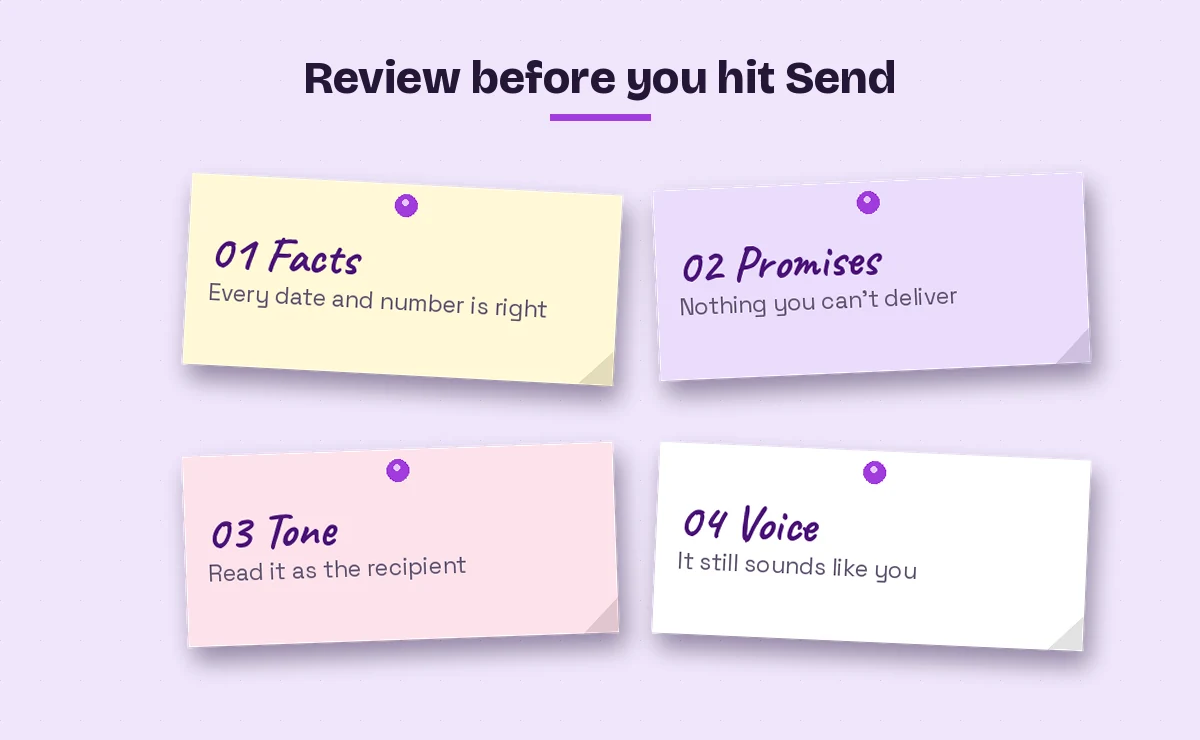
| Check | What to look for | Quick prompt if it fails |
|---|---|---|
| Facts | Dates, amounts, names and references match your records | “List every date, number and name in this draft so I can verify them.” |
| Promises | No refunds, deadlines or admissions you didn’t approve | “Highlight any sentence that commits me to something.” |
| Tone | Reads as respectful from the recipient’s side | “How would a frustrated customer read this?” |
| Voice | Sounds like a person, not a template | “Make this sound less formal and more like me.” |
A few more habits worth keeping:
- Sleep on it when you can. If the email isn’t urgent, save the draft and reread it later.
- Check who’s copied. Removing someone from CC often lowers the temperature more than any wording change.
- Pick up the phone when stakes are high. Firing, serious conflict and legal disputes usually deserve a conversation, with email used to confirm what was said.
- Keep sensitive data out of prompts unless your organization has approved Copilot for that kind of information.
Common Mistakes to Avoid
Even well-written prompts can lead to weak tough emails if a few traps go unnoticed.
Accepting the first draft. The first version is usually generic. Ask for one change at a time: “make the opening more direct,” then “cut the second paragraph.”
Leaving out the reader’s feelings. If you don’t tell Copilot the customer is furious, it may write a breezy reply that reads as dismissive.
Over-apologizing. One clear apology carries more weight than three. Tell Copilot “apologize only once.”
Hiding the point. Bad news buried in paragraph three feels evasive. Ask for the key message in the first two sentences.
Forgetting what not to say. Without limits in the prompt, Copilot may offer a fix, a discount or a deadline you never agreed to.
Final Thoughts
Hard emails don’t get easy, but they do get faster and calmer. Start with the five-part structure, save the prompts you use most, and treat every draft as a first pass you’ll shape yourself. Over time, these Copilot prompts for difficult emails become a quiet routine: describe the situation, set the limits, review, then send something you’re proud of.
Frequently Asked Questions
What are good Copilot prompts for difficult emails?
Good prompts describe the situation in plain facts, say who the reader is and how they feel, name the one outcome you need, set the tone and list what the email must not promise or admit. Adding a word limit, such as “under 150 words,” keeps the reply focused.
Can Copilot in Outlook check the tone of my email?
Yes. Coaching by Copilot reviews a message you’ve written and suggests improvements to tone, clarity and reader sentiment. You can apply all suggestions at once or pick the ones you like and edit the rest yourself.
Is it safe to use Copilot for sensitive emails?
It depends on your organization’s policies. Work accounts with Microsoft 365 Copilot follow your company’s data protections, but you should still avoid pasting confidential details your employer hasn’t approved, and you should always review the draft before sending.
How do I stop Copilot emails from sounding robotic?
Give Copilot your style preferences, for example short sentences and no exclamation marks, and edit at least one or two sentences into your own words. In new Outlook you can also save draft instructions so Copilot follows your style every time.
Should I use Draft or Coaching for a hard email?
Use Draft with Copilot when you don’t know how to start, and Coaching by Copilot when you’ve written the honest version yourself and want to know how it might land. For very sensitive messages, writing first and then using coaching keeps the message closer to what you mean.
What should I never let Copilot write for me?
Don’t send anything you haven’t read in full, and be careful with emails that involve legal disputes, terminations or formal complaints. Use Copilot for a first draft or tone check, then have the final wording reviewed by the right person, such as HR or legal, when the stakes are high.