Copilot Prompts for Customer Service: 35 Proven Prompts for Faster Replies
Copilot prompts for customer service help support agents and team leads draft clear replies, summarise long ticket threads, build knowledge base articles and spot patterns in feedback without starting every task from a blank screen. Below you will find 35 copy-ready prompts grouped by the real moments of a support shift, plus the guardrails that keep answers accurate, empathetic and on brand.
Support work is a strange mix of the urgent and the repetitive. One minute you are calming down a customer whose order vanished, the next you are writing the twentieth “how do I reset my password” answer of the week. An AI assistant will not fix a broken refund policy, but it is very good at the writing, reading and summarising that fills most of a support day.
Why Copilot Prompts for Customer Service Save Time
Most service teams already live inside Microsoft 365. Escalations arrive in Outlook, colleagues swarm on tricky cases in Teams, macros and canned responses sit in Word or OneNote, and weekly ticket exports land in Excel. Microsoft 365 Copilot works inside those apps and can draw on the emails, chats and files you already have permission to open, which makes it a natural helper for:
- Drafting replies. First responses, follow-ups, apologies and closing messages in a consistent voice.
- Catching up on long threads. Turning a 40-message email chain into a short timeline before you reply.
- Writing help content. Converting solved tickets into knowledge base articles and FAQ entries.
- Analysing feedback. Grouping survey comments or ticket exports into themes you can act on.
- Coaching and quality. Building review checklists and turning call notes into feedback for agents.
If your organisation uses Dynamics 365 Contact Center or Customer Service, there are also built-in agent assist features such as case summaries and suggested replies. Microsoft documents those in its guide to using Copilot features in the contact center. The prompts in this article are written for Microsoft 365 Copilot Chat and the Copilot experiences in Outlook, Teams, Word and Excel, so they work even if your ticketing tool is something else entirely.
A Simple Formula for Support Prompts
Microsoft’s own advice on writing good Copilot prompts boils down to four ingredients: goal, context, expectations and source. For a support reply, that translates into something like this:
- Goal: “Draft a reply to this customer.”
- Context: what happened, what the customer wants, what you can and cannot offer.
- Expectations: tone, length, reading level, whether to include steps or a link.
- Source: the email thread, the policy document or the knowledge base page Copilot should rely on.
The source part matters more in support than almost anywhere else. If you do not point Copilot at your actual refund policy, it may write a perfectly polite reply that promises something your company does not offer. Our Copilot prompt template has a fill-in-the-blanks version of this structure you can save for the whole team.
Prompts for First Responses and Everyday Replies
The first reply sets the tone for the whole conversation. These prompts focus on acknowledging the issue quickly and clearly, without the stiff, scripted feel customers notice straight away.
1. Acknowledge and set expectations
Draft a first reply to the customer in this email. Thank them for reaching out, restate their issue in one sentence so they know we understood, and tell them we will update them within 24 hours. Keep it under 90 words, warm but not overly apologetic.2. Answer a how-to question from a help article
Using the steps in /Password Reset Guide, write a reply that walks this customer through resetting their password. Use a numbered list, plain language, and end by asking them to reply if the reset link does not arrive within 10 minutes.3. Ask for missing information
The customer reported a billing error but did not include an invoice number or the email on their account. Write a short, friendly reply asking for both, and explain in one sentence why we need them.4. Turn a canned response into a personal one
Here is our standard shipping-delay macro: [paste text]. Rewrite it for this customer, mentioning their order and the date they placed it from the email thread. Keep the facts identical but make it sound like a real person wrote it.5. Simplify a technical answer
Rewrite this engineering explanation for a non-technical customer at about an 8th-grade reading level. Keep every step accurate, remove jargon, and add a one-line summary at the top.6. Reply in another language
Translate my reply below into Spanish for this customer. Keep the tone friendly and professional, keep product names in English, and flag any sentence where the meaning might be ambiguous after translation.A quick habit worth building: always read the draft against the source before sending. Copilot is good at tone, but you are the one who knows whether the promised timeline is realistic.
Prompts for Upset Customers and Escalations
Angry messages are where a good draft saves the most emotional energy. The aim is not to sound like a robot apologising, it is to show the customer you understand and to move toward a fix. For more examples of tricky wording, see our guide to prompts for difficult emails.
7. De-escalate a frustrated message
This customer is angry about a delayed refund. Draft a reply that acknowledges their frustration without being defensive, explains the current status from the thread, gives a specific next step, and avoids phrases like "we apologise for any inconvenience". Under 120 words.8. Say no politely
The customer is asking for a refund outside our 30-day window described in /Refund Policy. Draft a reply that clearly declines the refund, explains the policy briefly, and offers the alternatives the policy allows. Respectful, not cold.9. Summarise an escalation for a manager
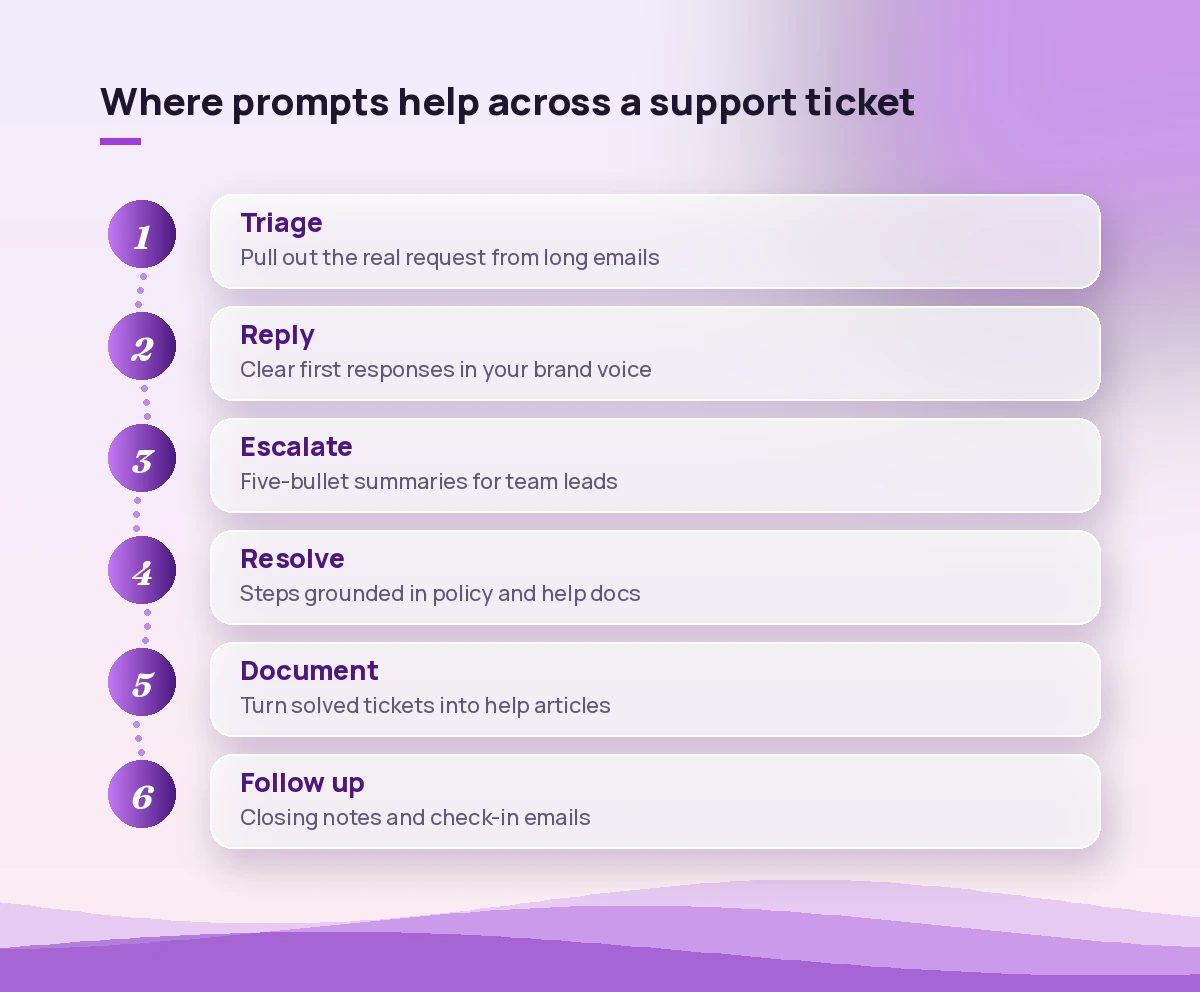
Summarise this email thread for my team lead in five bullet points: what the customer wants, what we have already tried, what they have been promised, the risk if it is not resolved, and the decision we need from the lead.10. Rewrite a reply that sounds defensive
Review my draft reply below. Point out any sentences that could sound defensive, blaming or dismissive, then give me a revised version that keeps the same facts.11. Prepare for a difficult call
I am calling a customer who has had three failed deliveries. Based on this thread, give me a short call plan: opening line, two questions to ask, what I can offer, and how to close the call with clear next steps.12. Write a public social media response
Draft a short public reply to this customer complaint posted on social media. Acknowledge the issue, avoid sharing any account details, and invite them to send us a direct message. Under 280 characters.Prompts for Summarising Tickets and Threads
Picking up a case from a colleague, or coming back to one after a weekend, often means wading through dozens of messages. These prompts help you get context in seconds. If you handle a lot of internal chat around cases, our Teams chat prompts pair well with this section.
13. Build a case timeline
Create a timeline of this email thread with dates, who said what, and any promises made by our team. Finish with the open questions that still need an answer.14. Write a handover note
I am handing this case to a colleague on the next shift. Write a handover note with the customer's goal, current status, steps already taken, next action and anything they should avoid repeating.15. Catch up on a Teams swarm
Summarise the discussion in this Teams chat about the payment outage. List the root cause if it was identified, the workaround agreed for customers, and who owns the customer update.16. Pull out the customer’s real request
Read this long customer email and tell me in one sentence what they actually want us to do. Then list any secondary requests separately.17. Draft internal case notes
Turn my rough call notes below into clean case notes for our ticketing system: issue, troubleshooting performed, outcome, follow-up required. Neutral tone, no opinions about the customer.Prompts for Knowledge Base and Self-Service Content
Every solved ticket is a potential help article. Writing them is usually the task that gets pushed to “later”, which is exactly why handing the first draft to Copilot is so useful.
18. Turn a solved ticket into an article
Using this resolved email thread, draft a knowledge base article. Include a clear title phrased as the customer's question, a short summary, numbered steps, and a "still stuck?" section pointing to contact support. Remove all customer names and account details.19. Write FAQ entries
From /Q3 Ticket Export.xlsx, identify the ten most repeated customer questions and draft a short FAQ answer for each. Keep each answer under 60 words.20. Audit an existing article
Review this help article for clarity. Point out outdated steps, missing screenshots we should add, and any sentence a new customer might misread. Then suggest a tighter version.21. Create a troubleshooting decision tree
Create a simple troubleshooting flow for customers whose app will not sync. Use yes/no questions, no more than six steps, and end every branch with either a fix or "contact support".22. Build a new macro library
Based on the ten replies I sent most often this month (pasted below), write a set of reusable response templates with placeholders in square brackets for names, order numbers and dates.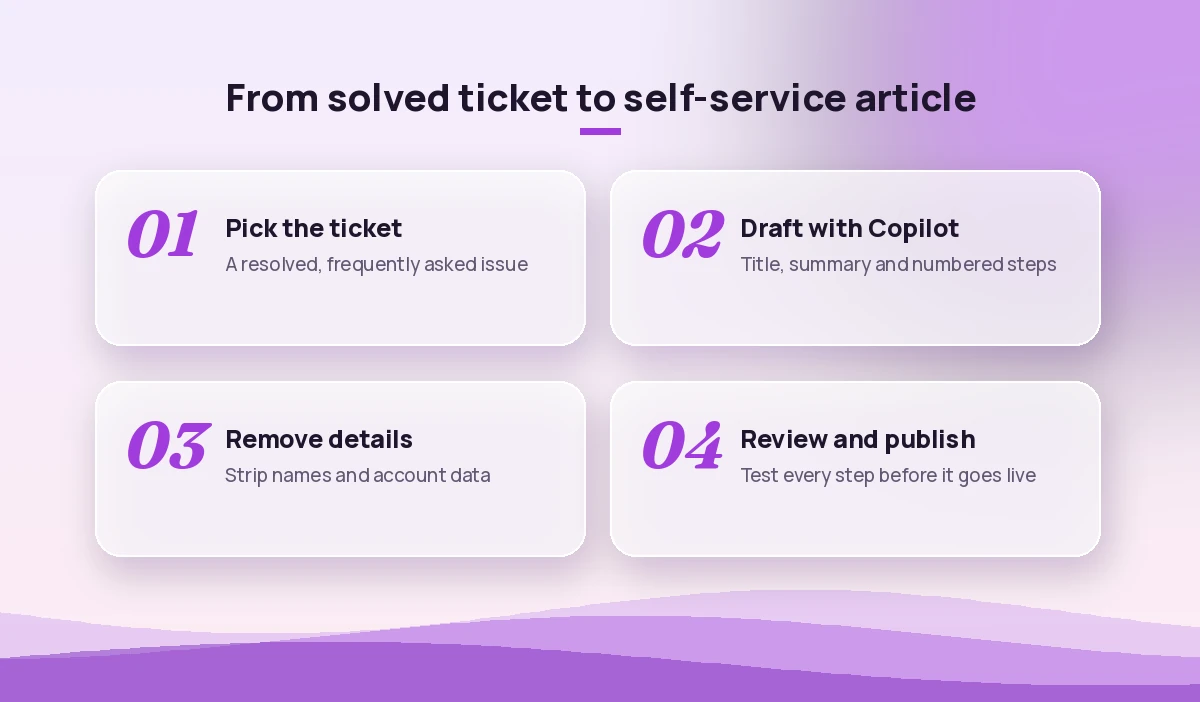
Prompts for Feedback and Ticket Analysis
Team leads and support operations folks can use Copilot in Excel or Copilot Chat to make sense of ticket exports and survey comments. Always check the numbers it reports against the source sheet; summaries are a starting point, not an audit. Our Excel data analysis prompts go deeper on the spreadsheet side.
23. Find themes in survey comments
Analyse the comments column in this customer satisfaction survey table. Group the comments into five to seven themes, give a short description of each theme, and quote two representative comments for each.24. Spot rising issues
Compare ticket categories in this table between last month and this month. Which categories grew the most, and what might explain it based on the ticket subjects? Show the result as a small table.25. Summarise negative reviews
From these product reviews, list the top complaints, how often each appears, and one concrete improvement our product team could consider for each.26. Draft a weekly support report
Write a weekly support summary for leadership using this ticket data: volume, top issues, notable escalations, and two recommendations. Keep it to one page and avoid jargon.27. Turn feedback into a product request
Based on the customer feedback in these emails about the export feature, write a short product request for the engineering team: problem, who is affected, example quotes, and suggested priority with reasoning.Prompts for Training, Quality and Coaching
New agents ramp up faster with good examples, and quality reviews go better when feedback is specific. These prompts suit team leads, trainers and anyone running onboarding.
28. Create a quality review checklist
Create a quality checklist for reviewing customer support emails. Cover accuracy, tone, empathy, clarity, policy compliance and next steps. Format it as a table with a 1-3 scoring scale and a description for each score.29. Give coaching feedback
Review this reply written by a new agent. Give feedback in three parts: what worked well, one thing to improve, and a rewritten example. Be encouraging and specific.30. Build role-play scenarios
Write three role-play scenarios for training new support agents: an angry customer with a billing issue, a confused first-time user, and a customer asking for a feature we do not have. Include the customer's opening message and what a good response should achieve.31. Create an onboarding quiz
Using /Support Handbook, create a 10-question multiple choice quiz for new hires on our refund, shipping and escalation policies. Include the correct answer and a one-line explanation for each.32. Summarise a policy change for the team
Summarise the changes in the new returns policy compared with the old one. Write it as a short Teams post for the support team with what changed, what to tell customers, and the date it takes effect.Prompts for Follow-Ups and Closing the Loop
The end of a case is easy to rush, yet it is often what customers remember. A good closing message and a well-timed check-in can turn a frustrating experience into a loyal customer. For more on timing and structure, read our follow-up email prompts.
33. Close a resolved case
Draft a closing message confirming the issue is resolved. Briefly recap what we fixed, tell the customer how to reach us if it happens again, and thank them for their patience. Under 80 words.34. Check in after a fix
Write a short check-in email to send one week after we fixed this customer's integration problem. Ask whether everything is still working and invite feedback in one question.35. Proactive outage update
Draft a proactive update to customers affected by today's login outage, based on the incident notes in this Teams chat. Explain what happened in plain language, what we have done, and what they should do now. No technical blame, no speculation about causes not confirmed in the notes.Guardrails: Keeping AI Support Replies Accurate and Safe
Support replies carry your company’s promises, so a few rules keep Copilot useful without creating new problems:
- Ground every factual answer. Reference the policy, help article or thread instead of asking Copilot to answer from general knowledge.
- Never send unread drafts. Check names, dates, amounts and promises before anything reaches a customer.
- Protect personal data. Follow your organisation’s rules about what customer information can be shared in prompts, and strip identifiers when creating public content.
- Keep humans on judgement calls. Refund exceptions, legal threats and safety issues should go to the right person, not to an AI draft.
- Watch the tone. Ask Copilot to avoid clichés and over-apologising, and keep a short style guide it can reference.
If your team also handles internal tickets, our IT support prompts use the same approach for helpdesk work.
How to Roll These Prompts Out Across a Team
A shared library of copilot prompts for customer service works better than everyone improvising. Start with five or six prompts that match your highest-volume tasks, store them in a OneNote section or a pinned Teams post, and ask agents to suggest tweaks after a week. Swap in your own document names, tone rules and service level targets so each prompt reflects how your team actually works.
It also helps to agree on one or two house rules, such as “every reply must reference a source” or “escalations are summarised in the same five bullets”. Consistency is what turns a handful of handy prompts into a real productivity gain for a support desk.
Final Thoughts
The best AI-assisted support still feels human. Use these copilot prompts for customer service to handle the drafting, summarising and analysis, then spend the time you save on the conversations that need real judgement and empathy. Pick three prompts from this list, try them on today’s queue, and refine them until they sound like your team.
Frequently Asked Questions
Can Microsoft 365 Copilot reply to customers automatically?
Not on its own in Outlook or Teams. Microsoft 365 Copilot drafts replies for you to review and send. Automated responses usually need a dedicated service platform or a custom agent built and approved by your organisation.
Is it safe to paste customer details into Copilot?
Microsoft 365 Copilot with a work account respects your organisation’s permissions and data protections, but you should still follow your company’s data policy and only include the customer information the task genuinely needs.
What is the best prompt for an angry customer email?
Ask Copilot to acknowledge the frustration, restate the issue, give the current status from the thread and offer one specific next step, while avoiding defensive or clichéd phrases. Prompt 7 in this guide is a good starting point.
Can Copilot write knowledge base articles from tickets?
Yes. Point it at a resolved email thread or ticket export and ask for a titled article with steps and a summary. Remove customer names and check every step before publishing.
Does Copilot work with ticketing tools like Zendesk or ServiceNow?
Microsoft 365 Copilot works inside Microsoft apps, so you can paste ticket text or exported data into it. Direct connections depend on the connectors or agents your organisation has set up, so check with your IT admin.
How do I keep Copilot replies in our brand voice?
Keep a short style guide in a Word document and reference it in your prompts, for example “follow /Support Tone Guide”. Add examples of replies you like so Copilot can match the tone.