30 Powerful Copilot Excel Charts Prompts for Clear, Fast Visuals
Copilot Excel charts prompts turn a wall of numbers into a picture your manager can read in five seconds. Instead of clicking through Insert, Recommended Charts, Format Axis and a dozen other menus, you describe the story you want the data to tell and let Copilot build the first version.
The catch is that a vague request gives you a vague chart. Ask for “a chart of sales” and you might get a cluttered column chart with every product, every month and a legend nobody can decode. Ask for “a line chart of monthly revenue for 2026, one line per region, highlight the region that grew fastest” and you get something you can paste into a deck.
Below you will find 30 copy-ready Copilot Excel charts prompts, grouped by the job you are trying to do, plus the setup steps that stop Copilot from saying it cannot find your data. Swap the bracketed parts for your own column names and ranges.
Before You Prompt: Get Your Sheet Chart-Ready
Copilot reads the structure of your workbook before it reads your words, so even the best Copilot Excel charts prompts fail on a messy sheet. A few minutes of setup saves a lot of back-and-forth.
- Save the file to OneDrive or SharePoint. Copilot in Excel works on cloud files with AutoSave turned on. A local copy usually shows the Copilot button greyed out.
- Use clear headers. One header row, no merged cells, and names like
Order DateorRegionrather thanCol1. - Format the data as a table where you can. Select the range and press Ctrl+T. Recent versions also work with plain ranges, but tables still give the most predictable results.
- Keep one fact per column. A column that mixes “Q1 2026” and “March” will produce a messy axis.
- Remove subtotal rows. Totals sitting inside the data get plotted as if they were another month or product.
If your data needs a tidy-up first, our guide to Copilot Excel data cleaning prompts walks through fixing dates, duplicates and inconsistent labels.
Microsoft keeps an up-to-date list of requirements and supported features on its Copilot in Excel help hub, which is worth a look if a feature seems missing in your version.
How Copilot Builds a Chart From Your Words
When you ask for a visual, Copilot does three things in order. It finds the data it thinks you mean, it summarises or pivots that data if needed, and it picks a chart type. Many times it adds the result to a new sheet as a PivotChart, so your original data stays untouched.
That means good Copilot Excel charts prompts cover four things:
- Data: which table, range or columns to use
- Measure: what is being counted, summed or averaged
- Breakdown: how to split it (by month, region, product)
- Visual: the chart type and any emphasis you want
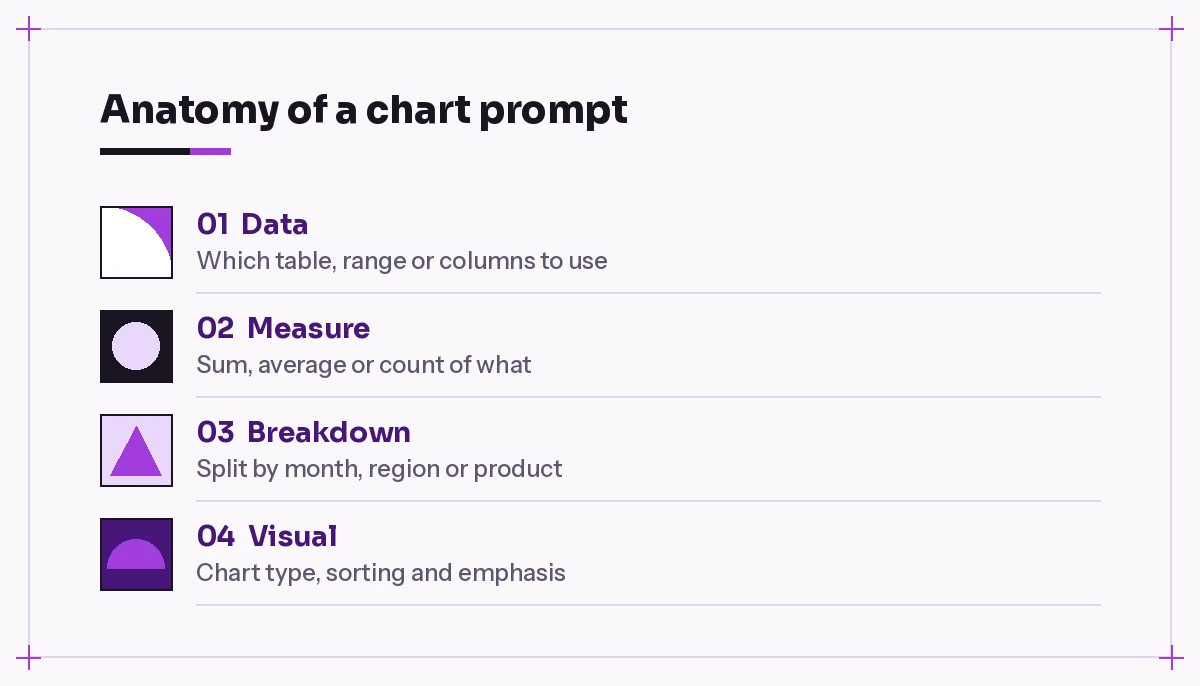
Leave one of these out and Copilot guesses. Sometimes the guess is fine. When it is not, you know which part to add.
Quick-Start Prompts for Your First Chart
These five Copilot Excel charts prompts are good when you just need a picture fast and want Copilot to do most of the thinking.
1. Let Copilot suggest the best chart
Look at the data in [Table1] and suggest the best chart to show the main trend. Explain in one sentence why you picked that chart type, then add it.2. Chart one measure over time
Create a line chart of total [Revenue] by month using the [Order Date] column. Sort months in calendar order.3. Compare categories
Create a clustered column chart comparing total [Sales] for each [Region]. Sort the columns from highest to lowest.4. Show share of a total
Show what percentage of total [Revenue] comes from each [Product Category]. Use a chart that makes the largest share obvious.5. Get insights plus a visual
Analyze [Table1] and show me the three most important insights as charts. Put each chart on its own sheet.The last one is a good starting point when you open an unfamiliar workbook and want to know what is worth looking at.
Copilot Excel Charts Prompts for Trends Over Time
Time-series charts are where most people start, and where small details matter most. Missing months, fiscal years and moving averages all need to be spelled out.
6. Year-over-year comparison
Create a line chart with months on the x-axis and one line for each year in [Order Date]. Show [Revenue] for 2025 and 2026 so I can compare year over year.7. Smooth out noisy data
Plot weekly [Website Visits] as a line chart and add a 4-week moving average as a second line. Make the moving average line thicker.8. Fiscal year view
Our fiscal year starts in [July]. Create a column chart of total [Expenses] by fiscal quarter, labelled FY Q1 to FY Q4.9. Cumulative progress against a target
Add a helper column for running total of [Sales] by month, then chart the running total as a line against a flat target line of [500000].10. Spot seasonality
Create a chart that shows average [Units Sold] by month of the year across all years, so I can see which months are usually strongest.Prompt 9 is a useful pattern in general: ask Copilot to create the helper column first, then chart it. Copilot is better at building one clear calculation and plotting it than at doing hidden maths inside a chart.
Comparison and Ranking Prompts
When the question is “who is ahead?”, bar and column charts usually win. These Copilot Excel charts prompts keep rankings readable.
11. Top 10 only
Create a horizontal bar chart of the top 10 [Customers] by total [Revenue]. Sort from largest at the top to smallest at the bottom.12. Grouped comparison
Create a clustered column chart showing [Sales] by [Region], with one column per [Quarter] inside each region.13. Part-to-whole across groups
Create a 100% stacked bar chart showing the mix of [Product Category] within each [Region].14. Actual vs budget
Compare [Actual] and [Budget] for each [Department] in a clustered column chart. Add data labels showing the difference as a percentage.15. Highlight one item
Create a column chart of [Revenue] by [Sales Rep]. Color [Rep Name] in purple and every other column in light grey.If you build these comparisons often, pair them with a summary table. Our Copilot Excel pivot table prompts show how to get the numbers behind the chart into a clean pivot first.
Distribution and Relationship Prompts
Some questions are not about totals at all, and these Copilot Excel charts prompts handle them. You want to know how values spread out, or whether two measures move together.
16. Histogram of values
Create a histogram of [Order Value] with sensible bin sizes. Tell me where most orders fall.17. Correlation check
Create a scatter chart with [Marketing Spend] on the x-axis and [Leads] on the y-axis. Add a trendline and tell me in plain words how strong the relationship looks.18. Outliers at a glance
Show the spread of [Delivery Days] for each [Warehouse] using a box and whisker chart, and list any warehouse with unusual outliers.19. Two measures, two scales
Create a combo chart with [Revenue] as columns on the primary axis and [Profit Margin %] as a line on the secondary axis, by month.20. Breakdown of a change
Create a waterfall chart showing how [Net Profit] moves from [Revenue] through [Cost of Goods], [Operating Costs] and [Tax].Box and whisker, histogram and waterfall charts are all built-in Excel chart types. If you are unsure which one fits, Microsoft’s overview of available chart types in Office explains what each is for. Support for asking Copilot to build every type can vary by version, so if one does not appear, ask Copilot to prepare the data and insert that chart yourself from the Insert tab.
Prompts to Format and Polish a Chart
Copilot’s first draft is rarely presentation-ready, so the most useful Copilot Excel charts prompts are often follow-ups. Use follow-up prompts in the same chat to tidy it instead of starting again.
21. Clean, minimal styling
Make this chart cleaner: remove gridlines, remove the chart border, use one color for all columns, and add data labels on top.22. Better titles and labels
Give this chart a title that states the main finding, not just the metric name. Add axis titles and format the y-axis as [currency in thousands].23. Fix a crowded axis
The x-axis labels overlap. Shorten the month labels to three letters and show every month.24. Brand colors
Recolor this chart using [#A13CDD] for the main series and [#C9C9C9] for the comparison series.25. Explain the chart for a slide
Write a two-sentence caption I can put under this chart in a presentation. Mention the biggest change and one possible reason, and say clearly that the reason is a guess.Some formatting requests may land as instructions rather than direct edits, depending on your Excel version. When that happens, Copilot usually tells you the exact menu steps, which still beats searching for them.
Dashboard and Reporting Prompts
Single charts answer single questions. Reports need a few charts that work together, and these Copilot Excel charts prompts build them as a set.
26. A one-sheet overview
Create a new sheet called Overview with four charts from [Table1]: monthly revenue trend, revenue by region, top 5 products, and order count by channel.27. Consistent set of charts
Create one column chart of [Sales] by month for each [Region]. Use the same y-axis scale on every chart so they are easy to compare.28. Interactive filter
Create a PivotChart of [Revenue] by [Product Category] and add a slicer for [Region] so I can filter the chart.29. Weekly report refresh
I paste new data into [Table1] every Monday. Set up the charts on the Overview sheet so they update automatically when the table grows.30. Executive summary chart
Pick the single chart from this workbook that best answers "Are we on track for the year?" and explain what a busy executive should take from it.For a full layout with KPIs, slicers and multiple visuals, see our step-by-step guide on Copilot prompts for an Excel dashboard.
Choosing the Right Chart Type
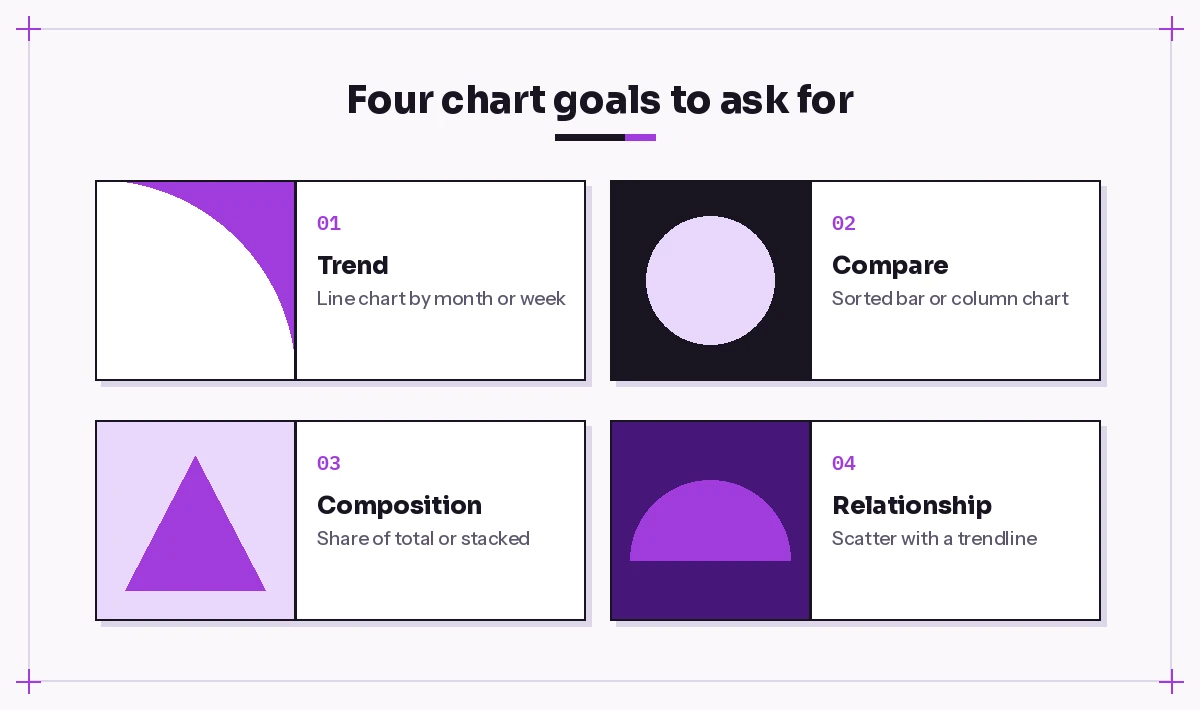
If you are not sure what to ask for, match the chart to the question you are answering. This table helps you adapt Copilot Excel charts prompts to any dataset.
| Your question | Chart to ask for | Example phrase |
|---|---|---|
| How did it change over time? | Line or area chart | “line chart by month” |
| Which is biggest? | Bar or column chart | “sorted horizontal bar chart” |
| What is the mix? | Pie, donut or 100% stacked | “share of total by category” |
| Do two measures move together? | Scatter chart | “scatter with a trendline” |
| How are values spread out? | Histogram or box plot | “histogram with sensible bins” |
| What drove the change? | Waterfall chart | “waterfall from revenue to profit” |
A simple rule: if you would need more than five slices for a pie chart, ask for a sorted bar chart instead. Your audience will thank you.
Common Problems and How to Fix Them
Even well-written Copilot Excel charts prompts run into the same handful of issues. Here is what usually causes them.
“I can’t find data to chart.” Copilot did not recognise your range. Convert it to a table, check that the header row is a single row, and mention the table name in your prompt.
The months are in alphabetical order. April before January is a sign the dates are stored as text. Ask: Convert [Month] to real dates, then sort the chart in calendar order.
Too many series. If the legend has 40 entries, ask Copilot to keep the top items and group the rest: Show the top 6 products and combine all others into "Other".
Numbers look wrong. Check whether Copilot summed when you wanted an average, or counted rows instead of adding values. Name the calculation directly: “average”, “sum”, “distinct count”.
The chart lands on a new sheet. That is normal behaviour for many requests. You can cut and paste it next to your data, or ask Copilot where it placed it.
Results change between attempts. AI output is not identical every time. Once you get a chart you like, keep it, and copy the prompt into a notes tab so your teammates can reuse it.
Writing Your Own Chart Prompts
The 30 Copilot Excel charts prompts above cover most everyday needs, but the best prompts come from your own data. A simple formula works well:
Create a [chart type] of [measure] by [breakdown] using [table or columns]. [Sort / filter / highlight instruction]. [Formatting or caption request].For example: “Create a sorted bar chart of average resolution time by support agent using the Tickets table. Only include tickets closed in October. Highlight anyone above 48 hours in purple.”
Three habits make a big difference:
- Name real columns. Copy header names exactly as they appear in your sheet.
- Say what to emphasise. A chart should make one point, so tell Copilot which point.
- Iterate in the same chat. Copilot remembers the chart it just made, so “make the bars horizontal” works as a follow-up.
If you are still building your prompting basics, our Copilot prompts for Excel guide and the deeper Excel data analysis prompts are good next reads. Together with these chart templates, they cover the full path from raw data to a finished visual.
Final Thoughts
Charts are where analysis turns into a decision, and that is exactly why they deserve a clear request. Treat Copilot as a fast assistant that drafts the visual, then use your judgement on whether it tells the truth about the data. Check the numbers behind every chart, keep the formatting simple, and save the prompts that work. After a week of using these Copilot Excel charts prompts, you will have your own small library that makes every report quicker.
Frequently Asked Questions
Can Copilot in Excel create charts automatically?
Yes. You can ask Copilot to add a chart from your table or range, and it will usually summarise the data and insert a chart or PivotChart, often on a new sheet. You can then ask follow-up questions to change the type, sorting or formatting.
Why does Copilot say it cannot find data to chart?
Usually the data is not in a structure Copilot recognises. Save the file to OneDrive or SharePoint with AutoSave on, use a single header row with no merged cells, and convert the range to a table with Ctrl+T before trying again.
Which chart types can I ask Copilot to make?
Common types such as column, bar, line, pie and scatter work well. Support for other types like waterfall, histogram or box and whisker can depend on your Excel version, so if Copilot cannot build one, ask it to prepare the data and insert that chart from the Insert tab.
Do I need a Microsoft 365 Copilot license for charts in Excel?
Copilot in Excel needs a Microsoft 365 subscription that includes Copilot, such as a Microsoft 365 Copilot business license or an eligible personal or family plan. Check Microsoft’s Copilot in Excel help pages for the current plan list in your region.
Can Copilot format a chart with my brand colors?
You can ask for specific hex colors, titles, labels and gridline changes. In some versions Copilot applies the change directly, and in others it explains the menu steps. Either way, naming the exact colors in your prompt gives the most consistent result.
How do I make Copilot charts update with new data?
Keep your source data in an Excel table and ask Copilot to build the chart from that table. When you add new rows, the table expands and the chart or PivotChart can be refreshed to include them.