32 Best GitHub Copilot Agent Prompts That Ship Clean Code
The best GitHub Copilot agent prompts read less like a wish and more like a work ticket: a clear goal, the files in play, the rules to respect, and a way to prove the job is done. Agent mode can open files, edit across your project, run terminal commands and fix its own errors, so a vague request no longer just produces a weak answer. It produces a weak change, spread across a dozen files.
This guide explains how agent mode thinks about a task, how to brief it so it stays on track, and then gives you 32 copy-ready prompts grouped by the work you actually do: building features, fixing bugs, writing tests, cleaning up code and handling the boring project chores. Replace anything in square brackets with your own details.
What Makes Agent Mode Different From Regular Chat
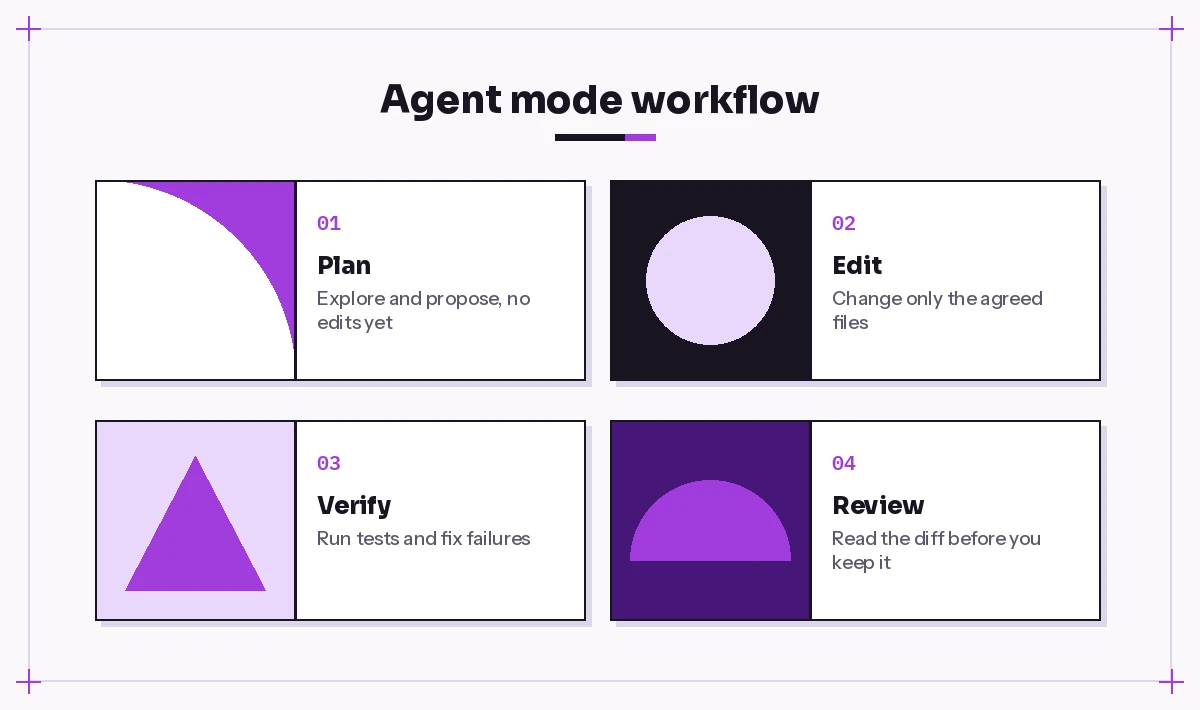
In ask mode, Copilot answers a question and you decide what to do with the answer. In agent mode, Copilot decides what to do next. It plans steps, searches your workspace for relevant code, edits several files, proposes terminal commands, reads the output and loops until it believes the task is finished.
That loop is powerful, and it changes how you should write a request. That is why the best GitHub Copilot agent prompts look different from chat questions. Three things matter far more than they do in a normal chat:
- Scope. The agent will touch anything it thinks is related unless you draw a boundary.
- Stop conditions. It needs to know what “finished” looks like, otherwise it either stops too early or keeps “improving” things.
- Verification. It can run your tests, linter or build, but only if you tell it which command proves success.
The VS Code team documents how the chat modes and agent tools work, including how you approve terminal commands before they run. Mode names and menus shift between releases, so treat the screenshots in any guide, including this one, as a rough map rather than gospel.
Agent Mode vs Coding Agent: Which One Are You Prompting?
GitHub uses the word “agent” for two related but different things, and the prompts that work best differ slightly between them.
| Agent mode in your editor | Copilot coding agent on GitHub | |
|---|---|---|
| Where it runs | Inside VS Code or another supported IDE | In a cloud environment GitHub manages |
| How you start it | Pick Agent in the chat mode menu and type a prompt | Assign an issue to Copilot or ask it from a pull request |
| What you get | Live edits you review and keep or undo | A pull request you review like a teammate’s |
| Best prompt style | Conversational, iterative, step by step | A complete, self-contained issue description |
Everything below works in both places, because the best GitHub Copilot agent prompts describe outcomes rather than editor buttons. For the coding agent, paste the prompt into the issue body and add any acceptance criteria as a checklist. The official GitHub Copilot documentation covers plan availability and setup for each.
The Five-Part Brief Behind the Best GitHub Copilot Agent Prompts
When you look at agent requests that land a clean diff on the first try, they almost always contain the same five ingredients.
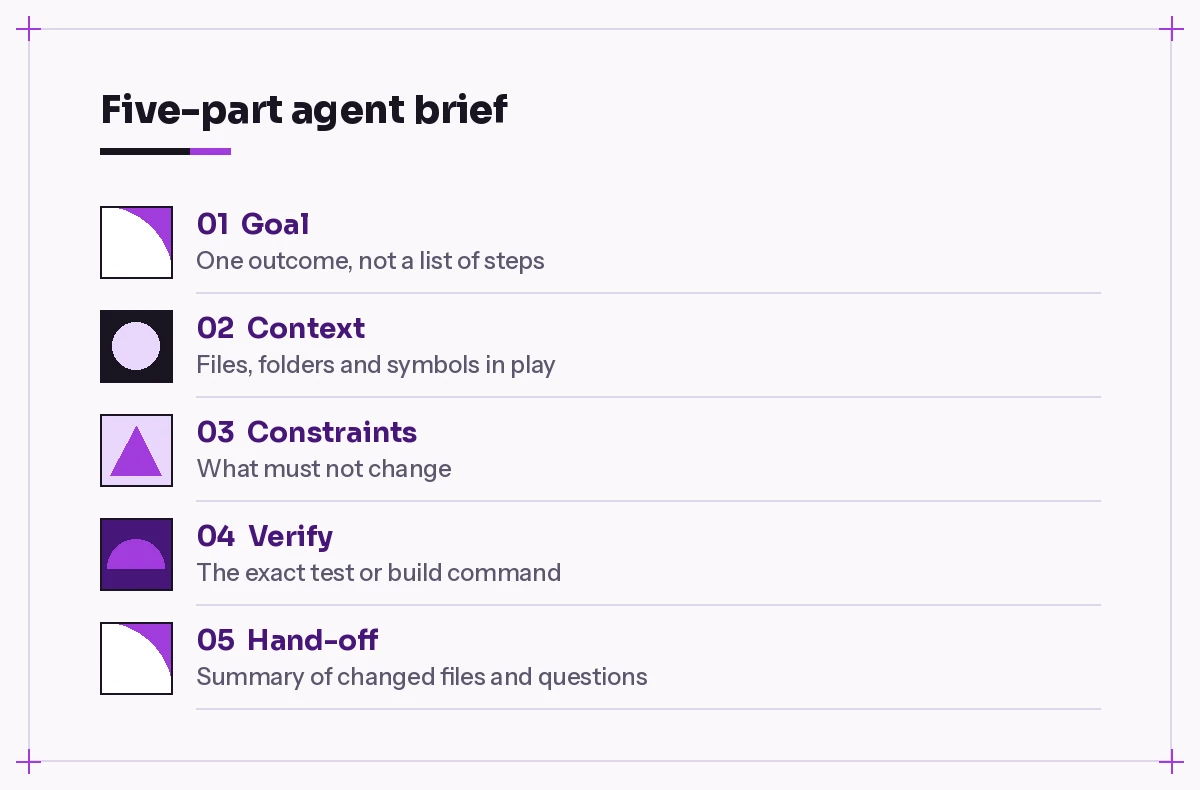
- Goal. One sentence describing the outcome, not the steps. “Users can reset their password by email” beats “add some reset stuff.”
- Context. The files, folders or symbols that matter, attached with
#file,#codebaseor by naming paths. - Constraints. What must not change: public APIs, database schema, dependencies, coding style.
- Verification. The exact command that proves it works, such as
npm testorpytest -q. - Hand-off. How you want the result summarized, for example a list of changed files and any open questions.
You do not need all five in a two-line fix. Every template later in this list of best GitHub Copilot agent prompts uses some mix of them, so you will start to recognize the pattern. For anything that touches more than one file, leaving out constraints or verification is the most common reason an agent run goes sideways.
Prompts for Planning Before Any Code Changes
The cheapest mistake to fix is the one that never gets written. These prompts make the agent think out loud first, which is also the easiest way to catch a misunderstanding.
1. Plan first, edit later
I want to [describe the feature or change]. Do not edit any files yet.
Explore the codebase and give me a numbered plan: which files you will
change, what you will add to each, and any risks or open questions.
Wait for my "go" before making changes.
2. Map an unfamiliar repository
Read through this repository and explain how it is organized: the main
entry points, how a request flows from [route/CLI command] to the
database, and where configuration lives. Keep it under 300 words and
link each point to a file path.
3. Estimate the blast radius
Before we change [function or module], find every place that calls or
imports it. List each caller with its file path and say whether the
proposed change to [describe change] would break it.
4. Turn an issue into tasks
Here is an issue description: [paste issue]. Break it into small,
independently testable tasks in the order you would implement them.
Flag anything ambiguous that I should decide first.
Prompts for Building Features
Feature prompts are where scope creep hurts most. Notice how each one names the boundary and the finish line, a habit shared by nearly all the best GitHub Copilot agent prompts.
5. Add a feature end to end
Implement [feature] so that [user-visible outcome].
Touch only files under [src/feature-folder] and [tests folder].
Follow the patterns already used in [example file].
When done, run [test command] and fix any failures you caused.
Summarize the changed files at the end.
6. Add an API endpoint
Add a [GET/POST] endpoint at [path] that [what it does].
Validate input the same way as [existing endpoint file].
Return errors in our existing error format. Add tests covering the
happy path, invalid input and a missing record. Run the test suite.
7. Build a UI component from a description
Create a [component name] component that shows [data] with [behavior,
e.g. sorting and empty state]. Use our existing [design system / CSS
approach] and match the style of [similar component]. No new
dependencies. Add a basic render test.
8. Wire up a configuration flag
Put [feature] behind a config flag named [FLAG_NAME], defaulting to off.
Read it the same way other flags are read in [config file]. Make sure
both on and off paths are covered by tests.
9. Extend an existing feature safely
Extend [feature] to also support [new case]. Existing behavior for
[current cases] must stay identical, so run the existing tests before
and after your change and show me both results.
Prompts for Fixing Bugs
Agents are surprisingly good at bug hunting because they can reproduce, read logs and retry. Give them the symptom and a way to confirm the fix, and keep them from rewriting half the module along the way. For a deeper set focused only on this job, see our GitHub Copilot prompts for debugging.
10. Reproduce, then fix
Bug: [describe what happens and what should happen].
Steps to reproduce: [steps].
First write a failing test that reproduces it. Then make the smallest
change that makes the test pass without breaking other tests.
Explain the root cause in two or three sentences.
11. Fix from a stack trace
Here is an error and stack trace: [paste]. Find the root cause, not
just the line that throws. Propose the fix, apply it, and run
[test command] to confirm.
12. Fix failing CI
Our CI job [job name] fails with this output: [paste log].
Reproduce the failure locally with the same command, fix it, and tell
me whether the cause was the code, the test or the environment.
13. Chase a flaky test
The test [test name] fails roughly one run in [N]. Run it repeatedly,
look for timing, ordering or shared-state issues, and suggest a fix.
Do not simply add retries or longer timeouts.
14. Clear the Problems panel
Look at the current errors and warnings in #problems for [folder or
file]. Fix the errors first, then the warnings, one file at a time.
Do not change behavior; if a warning needs a design decision, list it
for me instead of fixing it.
Prompts for Writing and Fixing Tests
Tests are the agent’s best friend, because they give it a way to check its own work. These prompts pair well with our dedicated list of GitHub Copilot prompts for unit tests.
15. Fill coverage gaps
Find the functions in [folder] that have no tests. For each one, write
tests in our existing framework and style ([framework]), covering
normal input, edge cases and errors. Run them and fix only the tests,
not the source, unless you find a real bug, which you should report.
16. Pin current behavior before a change
I am about to refactor [module]. Write characterization tests that
capture what it does today, including odd behavior. Do not change the
module. Run the tests and confirm they pass.
17. Repair broken tests after an intended change
I intentionally changed [describe change]. Update the tests that now
fail so they match the new behavior. For each test you change, say
why the old expectation was wrong.
18. Add an integration test
Write an integration test for [flow, e.g. sign-up to first login]
using [test tools]. Use the existing test database setup in [file].
Keep it independent of other tests and run it twice to check it is
stable.
Prompts for Refactoring and Cleanup
The golden rule is that refactoring must not change behavior. Say so explicitly, and give the agent tests to lean on. If you want more depth, our guide to GitHub Copilot prompts for refactoring covers smaller, single-function cleanups.
19. Split a large file
[file] is too large. Split it into smaller modules by responsibility.
Keep every public export working from the original import path.
Run the tests after each move, not just at the end.
20. Remove dead code
Find unused functions, exports and files in [folder]. List them with
evidence that they are unused before deleting anything. After I
confirm, remove them and run the build and tests.
21. Migrate a pattern across the codebase
Replace [old pattern, e.g. callback-style API] with [new pattern] in
[folder]. Do it file by file, run tests after each file, and stop to
ask me if any file needs a judgment call.
22. Upgrade a dependency
Upgrade [package] from [old version] to [new version]. Read the
changelog for breaking changes, update our code where needed, and run
the full test suite. List anything you could not resolve.
23. Improve naming and readability
Improve readability in [file] only: clearer names, smaller functions,
fewer nested conditionals. No behavior changes, no new dependencies,
and keep the diff focused. Show the test results at the end.
Prompts for Project Chores and Documentation
These are the tasks nobody volunteers for, and the ones where an agent saves the most time.
24. Write a README from the code
Write a README for this repository based on the actual code: what it
does, how to install, how to run it locally, how to run tests, and the
main configuration options. Do not invent features that are not in
the code.
25. Document an API
Add doc comments to every public function in [folder] in our existing
style. Describe parameters, return values and thrown errors. Do not
change any code logic.
26. Set up a dev environment script
Create a [script type] that sets up a fresh development environment:
install dependencies, create the local database, seed sample data and
start the app. Test it by running it, and document it in the README.
27. Add linting or formatting
Add [linter/formatter] with a config that matches our current style as
closely as possible. Run it, but only auto-fix formatting. List any
rule violations that would need code changes instead of fixing them.
28. Draft a pull request description
Summarize the changes on this branch compared with [main branch] as a
pull request description: what changed, why, how it was tested, and
anything reviewers should look at closely.
Prompts That Keep the Agent in Check
Sometimes the best prompt is a follow-up that steers a run that is drifting. Keep these alongside your other best GitHub Copilot agent prompts so you can paste them the moment a run wanders. Keep these handy.
29. Stop and report
Pause. Before changing anything else, list every file you have
modified so far and why. Then tell me what you plan to do next.
30. Undo the scope creep
You changed files outside [allowed folder]. Revert those changes and
redo the task touching only [allowed folder].
31. Ask before running commands
For the rest of this task, show me each terminal command and explain
what it does before running it. Never run commands that delete files,
push to remote or change global settings.
32. Self-review the diff
Review your own changes as a strict senior reviewer would. Look for
missed edge cases, leftover debug code, inconsistent naming and
missing tests. Fix what you find and list what you changed.
Make Good Habits Permanent With Instructions and Prompt Files
If you find yourself pasting the same rules into every request, move them out of your prompts and into the repository.
A .github/copilot-instructions.md file gives Copilot standing rules for the whole project, such as your test command, coding conventions and folders that are off limits. Our guide to the Copilot instructions file walks through what to include and what to leave out. VS Code’s documentation on custom instructions explains which files are picked up and how they are combined.
For repeatable tasks, save a prompt as a .prompt.md file and run it by name, so a whole team uses the same tested wording. See how to set those up in our article on Copilot prompt files.
Moving the rules into files has a nice side effect: your day-to-day requests get shorter, and the best GitHub Copilot agent prompts in your team’s library become the ones that only describe the task, while the files carry the house rules.
Common Mistakes With Agent Mode Requests
Even experienced developers trip over the same few issues, and spotting them is half of writing the best GitHub Copilot agent prompts. Here is what to watch for and how to rephrase.
| Mistake | What happens | Better approach |
|---|---|---|
| “Make it better” | Broad, unfocused edits everywhere | Name one measurable outcome |
| No folder boundary | Unrelated files get changed | State which folders it may touch |
| No test command | Agent declares victory without checking | Give the exact command to run |
| Huge multi-feature request | Half-finished work across many areas | One feature per run, plan first |
| Approving every command blindly | Risky commands slip through | Read each command before you allow it |
| Never reviewing the diff | Subtle bugs get committed | Review it like a colleague’s pull request |
A useful mental test: if you handed your prompt to a new teammate with no context, could they finish the job and know they were done? If not, the agent will struggle too. That simple test separates the best GitHub Copilot agent prompts from the ones that waste an afternoon.
How to Review What the Agent Produced
An agent finishing a task is not the same as the task being correct. Build a short review routine:
- Read the summary, then open every changed file, not just the ones it mentions.
- Rerun the tests yourself rather than trusting the transcript.
- Check that no new dependencies, secrets or config changes slipped in.
- Use source control to stage hunks you like and discard the rest.
For a structured approach to reviewing changes, our Copilot prompt for code review guide includes prompts you can point at the agent’s own diff. And if you want a broader starting library beyond agent work, browse our main collection of GitHub Copilot prompts.
Final Thoughts
Agent mode rewards the same habits that make you a good engineering lead: clear goals, explicit boundaries and a definition of done. Start with the planning prompts, keep a test command in every request, and move your house rules into instruction files once they settle. Do that, and the best GitHub Copilot agent prompts stop feeling like magic phrases and start feeling like ordinary, well-written tickets that happen to get finished in minutes.
Frequently Asked Questions
What are the best GitHub Copilot agent prompts for beginners?
Start with planning prompts that ask the agent to explore the code and propose a numbered plan without editing anything. They show you how the agent understands your project and let you correct it before any files change.
How is agent mode different from ask mode in Copilot Chat?
Ask mode answers questions and suggests code you apply yourself. Agent mode plans steps, edits multiple files, proposes terminal commands and iterates on errors until it considers the task complete, so it needs clearer scope and a way to verify the result.
How do I stop Copilot agent mode from changing too many files?
Name the folders or files it may touch, say that everything else is off limits, and ask it to list planned changes before editing. If it drifts, tell it to revert out-of-scope changes and redo the task within the boundary.
Can Copilot agent mode run my tests automatically?
It can propose terminal commands such as your test command and read the output, and depending on your settings you approve commands before they run. Include the exact command in your prompt so the agent knows how to check its work.
Should I use the same prompts for the Copilot coding agent on GitHub?
Yes, with one change: write them as a complete, self-contained issue. The coding agent works in the background and opens a pull request, so include acceptance criteria and the test command up front instead of relying on follow-up messages.
Where should I store prompts I reuse often?
Put project-wide rules in a .github/copilot-instructions.md file and save repeatable tasks as prompt files. That keeps individual requests short and gives your whole team the same tested wording.