Copilot Prompts for PowerPoint Design: 40 Proven Prompts for Polished Slides
Copilot prompts for PowerPoint design work best when they describe the look you want in concrete terms: the layout, the visual hierarchy, the colors and the amount of text on each slide. “Make it look better” gives Copilot nothing to aim at. “Turn this text-heavy slide into three icon columns with one short line each” gives it a clear target it can actually hit.
This guide collects 40 copy-ready Copilot prompts for PowerPoint design, covering slide redesigns, consistent layouts, color and type choices, visuals, and messy-deck cleanup. Along the way you will find a reusable design brief, a sensible order for fixing a presentation, and the limits worth knowing before you hand Copilot your next deck.
What Copilot Can and Cannot Do for Slide Design
Copilot in PowerPoint can create a new deck from a prompt or a file, add slides, rewrite and shorten text, organize content into sections, and suggest or insert images. Microsoft’s guide to creating a presentation with Copilot in PowerPoint walks through the basics, and the features you see depend on your license and app version.
Design is shared between two tools. Copilot handles content, structure and visual suggestions, while PowerPoint’s built-in Designer pane offers ready-made layout ideas for the slide you are on. Microsoft explains how Designer creates professional slide layouts, and in practice the two work well together: Copilot reshapes the content, then Designer offers layouts that fit it.
A few honest limits help set expectations:
- Copilot follows the theme and template your file already uses, so a strong template does a lot of the heavy lifting.
- It may not change every font size, shape or color exactly as asked; some fine adjustments still need a click or two.
- Results are much better on slides with short, structured text than on dense paragraphs.
If you are starting from zero rather than polishing, our guide to the Copilot prompt to create a PowerPoint presentation covers outlines and first drafts.
The Design Brief Behind Good Copilot Prompts for PowerPoint Design
Most weak slide designs come from missing instructions rather than a weak tool, which is why the best Copilot prompts for PowerPoint design start with context. Before you ask for a redesign, give Copilot a short design brief. You can paste it at the start of a session and refer back to it later.
I'm designing a presentation. Please follow this design brief for every slide:
Audience: [who will see it]
Tone: [e.g. calm and corporate / bold and energetic / friendly and simple]
Colors: [brand colors or hex codes], with one accent color for highlights
Fonts: [heading font] for titles, [body font] for text
Text limit: one idea per slide, no more than [5] short bullets
Visual style: [flat icons / real photos / simple line illustrations]
Avoid: clip art, drop shadows, more than two fonts, full-sentence bullets
Confirm the brief in one paragraph before you change anything.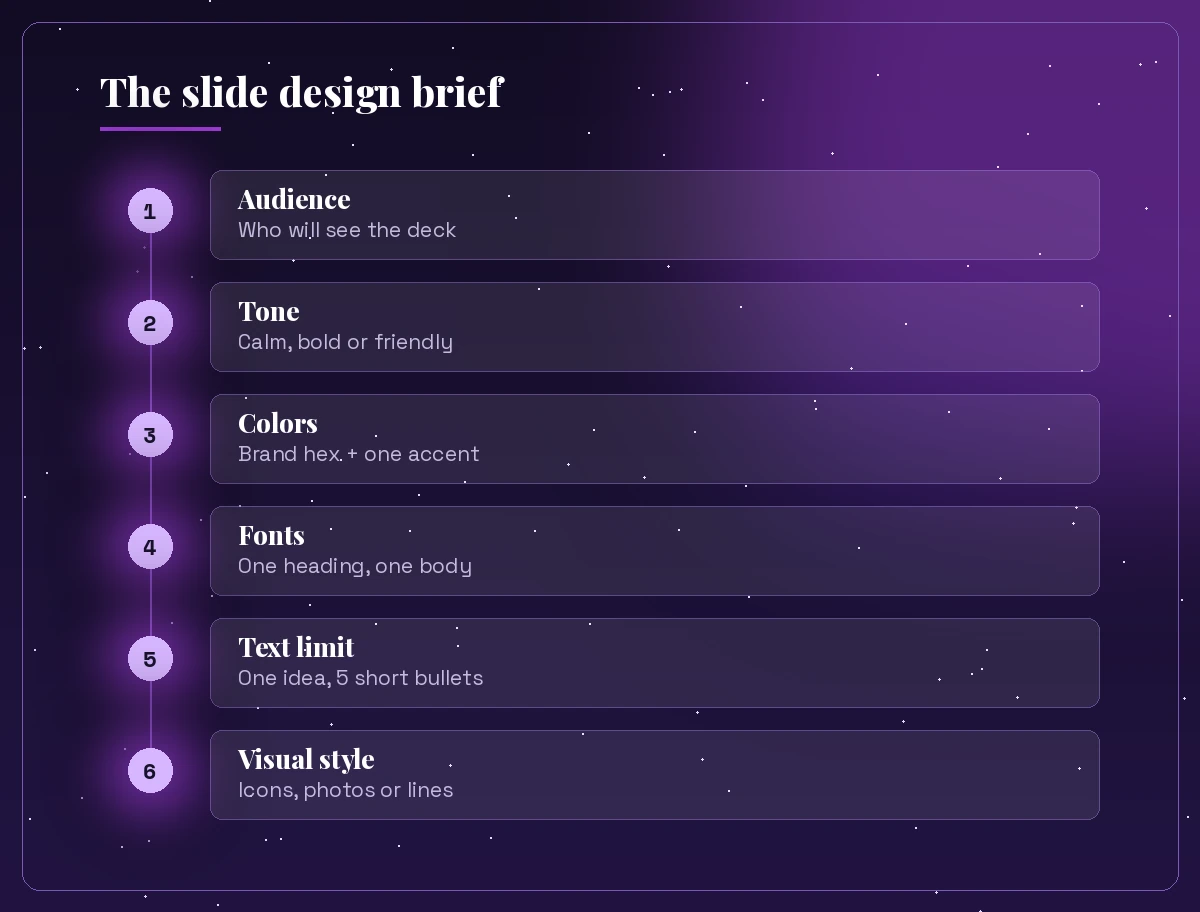
The last line is a small but useful habit. When Copilot repeats the brief back, you catch misunderstandings before they spread across twenty slides. The same thinking about goal, context and expectations sits behind our breakdown of Copilot prompt ingredients.
Prompts to Redesign a Single Slide
Start small. These Copilot prompts for PowerPoint design target one slide at a time. Redesigning one slide at a time keeps you in control and shows you quickly which instructions Copilot follows well in your file.
Redesign this slide so the main message is obvious in three seconds. Keep the
title, cut the body text to three short points, and suggest a layout that gives
the key number the most visual weight.
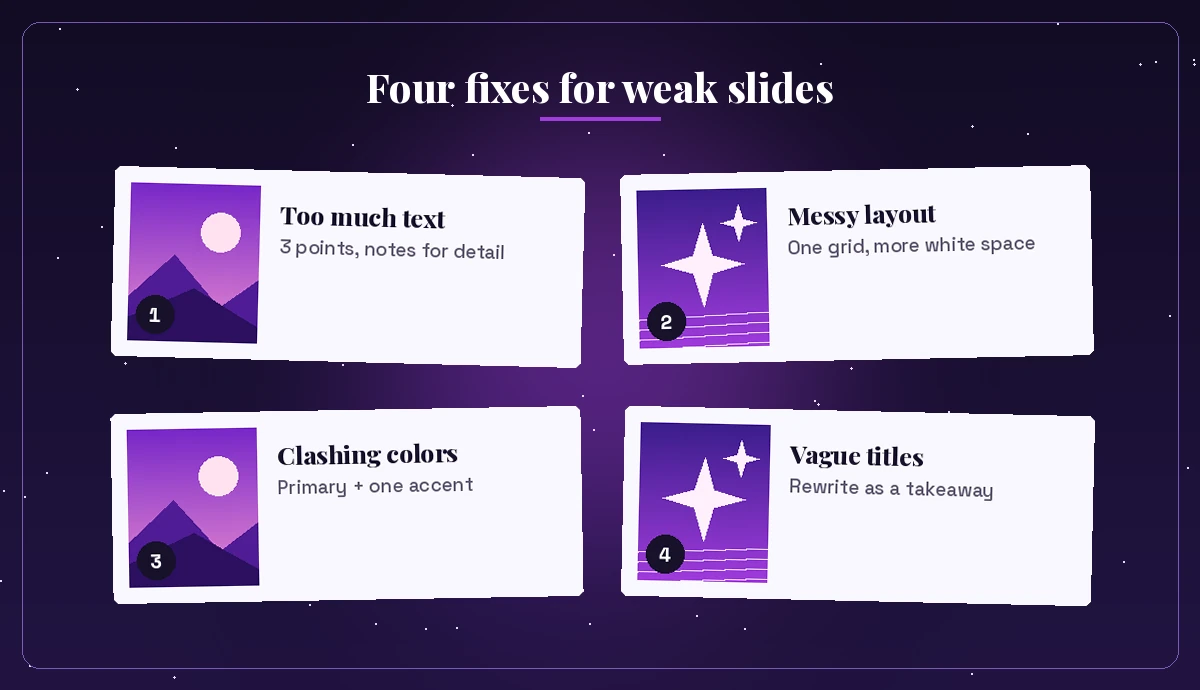
This slide has too much text. Turn it into a three-column layout with an icon,
a two-word heading and one short line in each column. Keep the meaning.Convert these bullets into a simple visual: a numbered process with arrows if the
points are steps, or a 2x2 grid if they are separate ideas. Tell me which you
chose and why.Make this slide feel less crowded. Increase white space, align everything to a
clear grid, and move supporting details into the speaker notes.Turn this paragraph into a quote slide: one strong sentence in large text, the
speaker's name and role underneath, and plenty of empty space around it.Rework this comparison slide as a two-column layout with matching headings,
parallel bullets, and one highlighted row showing the biggest difference.Rewrite this slide's title as a clear takeaway rather than a topic label. For
example, "Sales" becomes "Sales grew in every region this quarter" if the data
supports it.That last prompt is easy to overlook, yet it often helps more than any visual change. A title that states the point does half of the design work.
Layout and Structure Prompts for the Whole Deck
Once single slides look right, the next job is consistency. A deck where every slide uses its own layout feels busy even if each slide is fine on its own. These Copilot prompts for PowerPoint design focus on structure across the full presentation.
Review this presentation and group the slides into sections. Suggest a section
divider slide for each group with a short title and a consistent layout.
List every slide that uses a different layout from the rest, and suggest which
standard layout each one should switch to so the deck feels consistent.Create an agenda slide based on the section titles in this deck, then add a
matching progress marker idea I can repeat on each section divider.Suggest a simple layout system for this deck: one layout for title slides, one
for content, one for data, one for quotes and one for the closing slide.Check the order of these slides. Recommend a flow that moves from problem to
solution to evidence to next steps, and point out any slide that breaks it.Add a clean closing slide with a one-line summary, three key takeaways and a
clear call to action. Match the style of the title slide.Color, Font and Brand Prompts
Copilot works inside your theme, so the most reliable way to get on-brand slides is to start from your company template. When that is not available, these prompts help you set and check a visual identity.
Suggest a color palette for a presentation about [topic] aimed at [audience].
Give me one primary color, one accent, two neutrals and the hex code for each,
plus where to use each color.
Review this deck for color consistency. List any slide where colors clash, where
there are more than three colors in use, or where text contrast looks weak.Recommend a font pairing for a [corporate / creative / academic] presentation:
one for headings and one for body text, with suggested sizes for titles, body
and captions.Apply a consistent style to all slide titles in this deck: same position, same
length range, sentence case, and no punctuation at the end.Make this slide match our brand: purple as the accent color, white background,
dark grey text, and simple line icons. Point out anything I need to change by hand.A quick tip on contrast: ask Copilot to flag light text on light backgrounds. It is one of the most common readability problems in shared decks, and it is easy to miss on a bright laptop screen.
Visual and Image Prompts
Good visuals support the message instead of decorating it. These prompts help Copilot pick, place and create imagery that earns its space on the slide.
Suggest one image idea for each slide in this deck that directly supports its
main point. Avoid generic stock photo ideas like handshakes or lightbulbs.
Add an image of a modern open office with natural light to this slide and
place it on the right half, leaving the text on the left.Create a simple flat illustration of a team planning on a whiteboard in our
brand colors, suitable as a full-width background with space for a title.Replace the photos in this deck with a consistent icon style: simple line icons,
same stroke weight, one accent color.Turn this data into the clearest chart type for a presentation. Explain your
choice, remove gridlines and extra labels, and highlight the single most
important bar or point.Design a big-number slide for this statistic: the number very large, a short
label under it, and one line of context. Use only the figure I provided.For flat graphics that summarize a process or timeline, our guide to the Copilot prompt to generate infographic visuals has prompts built for that format.
Prompts to Clean Up a Messy Deck
Inherited decks are often the hardest to fix: mixed fonts, copied slides from older files, and text boxes in slightly different places. These prompts work as a cleanup checklist for presentation design with Copilot.
Audit this presentation for design problems. List issues by slide number under
these headings: too much text, inconsistent fonts, misaligned elements, low
contrast, and off-brand colors.
Shorten every bullet in this deck to 10 words or fewer without losing meaning.
Move the extra detail into each slide's speaker notes.Find slides that cover the same point and suggest which ones to merge or delete
so the deck is tighter.Check that every slide has a clear title, and rewrite any vague titles as
takeaways based on the slide content.Identify any slide with more than one main message and suggest how to split it
into two simpler slides.Create a one-page summary of the design changes you recommend for this deck,
ordered from biggest impact to smallest, so I can work through them in order.A Practical Order for Redesigning a Deck
Running prompts at random can undo earlier work. A steady order keeps changes building on each other:
- Set the brief. Paste the design brief template so Copilot knows the audience, tone and limits.
- Fix the story. Reorder slides, merge duplicates and rewrite titles as takeaways.
- Cut the text. Shorten bullets and move detail into speaker notes.
- Choose layouts. Redesign key slides, then apply the same layouts across the deck.
- Add visuals. Bring in charts, icons and images that support each point.
- Polish. Check colors, contrast, alignment and fonts, then use Designer for final layout ideas.
Content comes before decoration for a reason. A slide with the right message and little text is easy to make attractive. A slide with five long bullets stays hard to read no matter how good the colors are.
Prompts for Specific Presentation Types
Different talks need different visual priorities, so Copilot prompts for PowerPoint design should change with the audience. These short prompts adapt the same design thinking to common situations.
Design this as an investor deck: bold title slide, one big number per key metric,
minimal text, and a clean traction chart. Keep a confident, simple tone.
Make this training presentation easy to follow: numbered modules, a recap slide
after each module, plenty of visuals and short instructions per slide.Style this internal update for a quick read: a summary slide up front, then one
slide per team with a status color (green, amber, red) and three short points.Prepare this deck for a large conference screen: larger fonts, fewer words,
high-contrast colors and one image or chart per slide.Adapt this deck for reading without a presenter: complete sentences where
needed, clear labels on charts and a short summary on each slide.For fundraising decks in particular, the Copilot prompts for pitch deck guide goes deeper on structure and investor expectations, and the wider Copilot PowerPoint prompts library covers everyday slide tasks beyond design.
Mistakes That Hold Back AI Slide Design
A few habits make results noticeably worse:
- Vague requests. “Make it pop” or “make it modern” mean different things to different people. Describe the layout, the color and the text limit instead.
- Asking for everything at once. A single prompt that rewrites, redesigns, recolors and adds images usually does each part halfway. Split the work into steps.
- Ignoring the template. If the file starts on a plain default theme, Copilot has little to build on. Apply your brand template first.
- Trusting generated numbers. When a visual needs a statistic, give Copilot the exact figure. Never let a chart or big-number slide invent data.
- Skipping the human check. Read every slide before presenting. Check names, dates, figures and image choices, especially in client-facing decks.
Good slide design is mostly restraint: fewer words, fewer fonts, more space and one clear message per slide. With the right Copilot prompts for PowerPoint design, Copilot handles much of the repetitive cleanup, and you keep the final say on what the audience sees.
Frequently Asked Questions
Can Copilot redesign an existing PowerPoint slide?
Yes. You can ask Copilot to simplify text, change the structure into columns, steps or a grid, and suggest visuals for the slide you have open. For final layout options, the Designer pane in PowerPoint works well alongside Copilot’s changes.
What is the best prompt to make PowerPoint slides look more professional?
Be specific. A prompt such as “Cut this slide to three short points, give each an icon, increase white space and rewrite the title as a takeaway” works far better than asking Copilot to make the slide look better.
Does Copilot use my company’s PowerPoint template?
Copilot works within the theme or template your file uses, and some organizations can make branded templates available to it. Starting from your official template is the most reliable way to keep slides on-brand.
Can Copilot change fonts and colors across a whole deck?
Copilot can review the deck, flag inconsistent fonts and colors and suggest a palette or font pairing. Some precise formatting changes may still need to be applied by hand or through the slide master.
Why does Copilot struggle with some of my design requests?
The most common causes are dense slides, vague instructions and asking for many changes in one prompt. Shorten the text first, describe the exact layout you want and make one type of change at a time.
Should I use Copilot or Designer for slide layouts?
Use both. Copilot is strongest at reshaping content and structure, while Designer offers ready-made layout ideas for the current slide. Restructure with Copilot first, then pick a layout in Designer.