Copilot Prompts for Excel Data Analysis: 36 Powerful Templates for Faster Insights
Copilot prompts for Excel data analysis work best when they read like a question a sharp colleague would ask, not a command to “analyze this.” Ask Copilot to analyze a sheet with no direction and you usually get a polite summary of things you already knew. Ask which three regions explain most of last quarter’s drop, and you get something you can act on.
This guide collects 36 prompts that cover the whole analysis job: getting to know a new dataset, checking whether it can be trusted, finding trends and outliers, comparing groups, testing what-if questions and writing up the result. Each prompt sits in a copyable block, with square brackets marking the parts you should swap for your own column names and goals.
If you are building a visual report rather than answering questions, our companion guide on Copilot prompts for Excel dashboard builds on the same ideas. This article stays focused on the thinking that comes before the charts.
What Copilot in Excel Needs Before You Start
A few setup details decide whether your requests work at all, so it is worth checking them first.
- Format the data as a table. Select your range and press Ctrl+T, then give the table a clear name such as
Sales2026. Copilot reads tables far more reliably than loose ranges, and a named table lets you point at it in a prompt. - Use clean headers. One header row, no merged cells, and names that explain themselves. “Order Date” beats “Col F”.
- Save to OneDrive or SharePoint. Copilot in Excel works on files stored in the cloud with AutoSave on.
- Expect some variation. Features differ by license, Excel version (Windows, Mac or web) and the settings your admin controls. If a request comes back as instructions instead of a finished result, that is normal behavior, not a failure.
Microsoft keeps an up-to-date overview of supported features in its guide to getting started with Copilot in Excel. Read it once if you are unsure what your version can do.
How to Use These Copilot Prompts for Excel Data Analysis
Good analysis follows a loop: understand the data, check it, explore it, explain what you found, and report it. Copilot is useful at every stage, but it is most useful when you move through them in order.
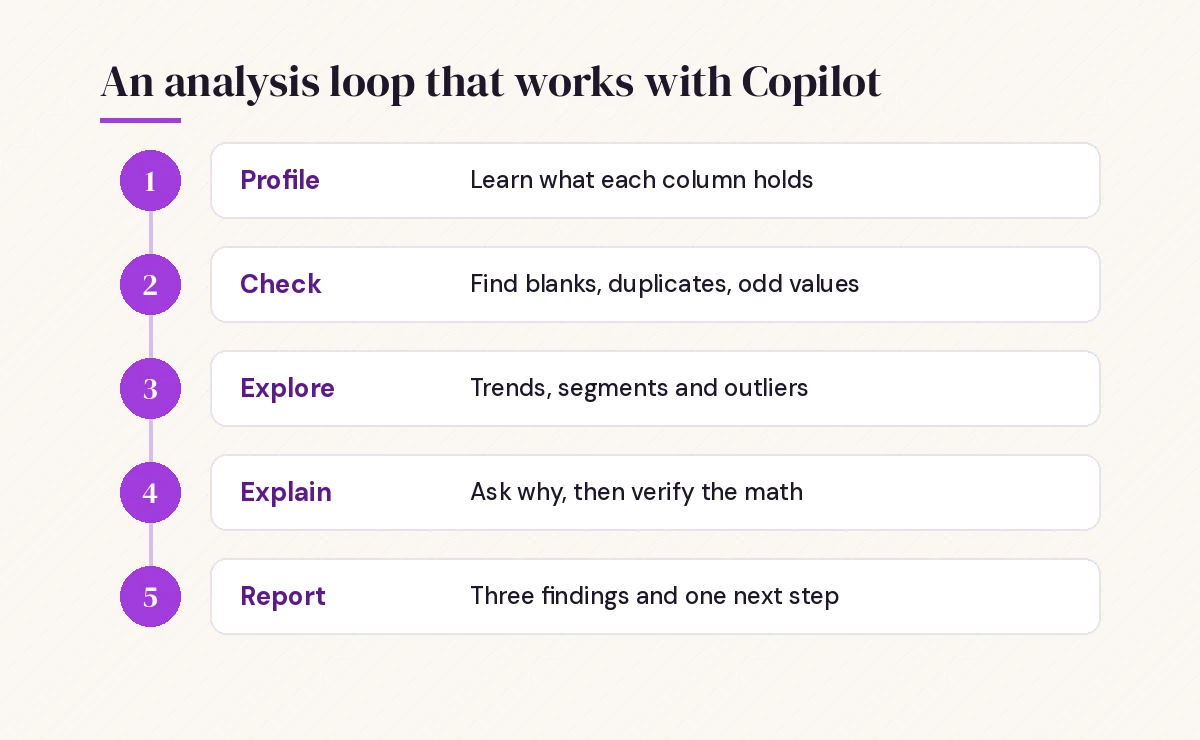
Most prompts in this guide follow the same shape:
- The question you actually want answered.
- The scope: which table, columns, dates or filters.
- The output: a number, a ranked list, a new column, a chart or a short explanation.
Keeping all three in one request saves you from a long back-and-forth. If you want the fuller version of this method, our walkthrough on how to write Copilot prompts covers goal, context, source and expectations in more depth.
Prompts to Profile a New Dataset
When someone sends you a spreadsheet you have never seen, the first job is simply to understand it. These five requests are the first Copilot prompts for Excel data analysis you should run, because they give you a map before you start digging.
1. Describe the dataset
Describe the table [TableName]. For each column, tell me the data type, what it seems to represent, and how many blank cells it has.2. Find the grain
What does one row in [TableName] represent? Is it one order, one customer, one day, or something else? Explain how you can tell.3. Get summary statistics
Give me the count, minimum, maximum, average and median for every numeric column in [TableName]. Show the results in a small table.4. Check the date range
What is the earliest and latest date in [Date Column]? Are there any months with no rows at all?5. Suggest useful questions
Based on the columns in [TableName], suggest five business questions this data could answer, and name the columns each question would use.The fifth prompt is underrated. It often surfaces a relationship you had not thought to test, and it tells you quickly whether the data can support the question your manager is really asking.
Data Quality Checks Before Any Analysis
Even the best Copilot prompts for Excel data analysis cannot rescue messy data. Insights built on it fall apart the moment someone checks them. Spend five minutes here and you avoid an awkward meeting later.
6. Find duplicates
Are there duplicate rows in [TableName] based on [ID Column]? List any duplicates and how many times each appears.7. Spot inconsistent labels
List every unique value in [Category Column] with a count. Flag values that look like the same thing spelled differently, such as "N. America" and "North America".8. Catch impossible values
Highlight rows where [Quantity] or [Price] is zero or negative, or where [End Date] is earlier than [Start Date].9. Standardize text
Add a column that cleans [Customer Name] by trimming extra spaces and using consistent capitalization.10. Summarize data issues
Summarize the data quality problems in [TableName] in a short list, ordered by how much they could distort totals.If your cleanup involves joining a second sheet, such as pulling region names from a lookup table, the patterns in our Copilot prompt for VLOOKUP guide cover XLOOKUP and fixing missing matches.
Prompts to Find Trends Over Time
Time-based questions are where Copilot saves the most clicking, because it can group dates, build the summary and chart it in one pass.
11. Monthly trend
Show total [Revenue] by month for the last 12 months as a line chart, and tell me whether the overall direction is up, down or flat.12. Period comparison
Compare [Revenue] for [this quarter] with the same quarter last year. Show the difference as a value and a percentage.13. Seasonality check
Is there a repeating seasonal pattern in [Units Sold] by month across all years in the table? Which months are consistently highest and lowest?14. Growth rate column
Add a column that calculates month-over-month growth in [Revenue] as a percentage, and highlight months where growth was below -10%.15. Rolling average
Add a three-month rolling average of [Revenue] so I can see the trend without the month-to-month noise.A rolling average is especially helpful with weekly or daily data, where a single unusual day can make a trend look worse or better than it really is.
Prompts to Compare Segments and Groups
Most business questions are really comparisons, which is why this group of copilot prompts for Excel data analysis gets used the most: this region against that one, new customers against returning ones, one product line against the rest.
16. Rank the groups
Rank [Region] by total [Revenue] and show each region's share of the total as a percentage.17. Find what drives a change
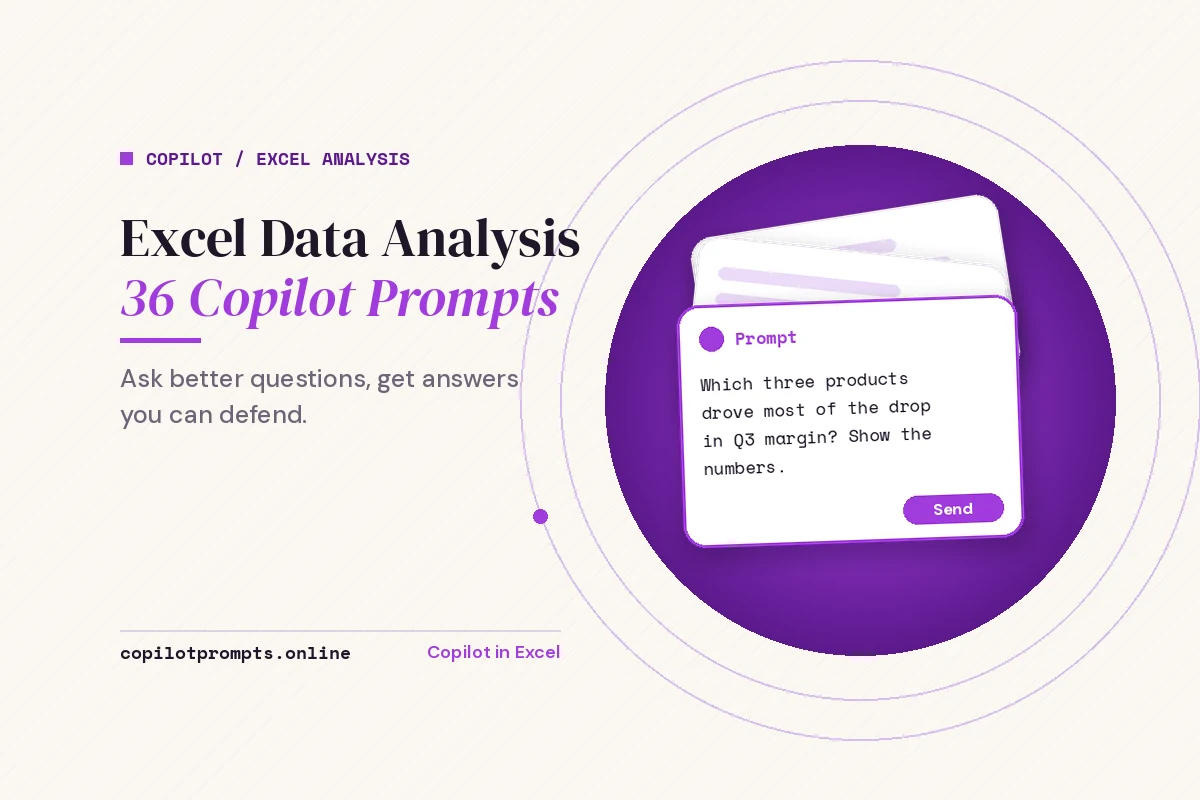
[Profit] fell between [Q2] and [Q3]. Break the change down by [Product Category] and tell me which categories account for most of the drop.18. Cross-tabulate two fields
Create a PivotTable that shows average [Order Value] by [Region] in rows and [Customer Type] in columns.19. Concentration check
What percentage of total [Revenue] comes from the top 10% of [Customers]? Show the customers in that group.20. Compare averages fairly
Compare average [Delivery Days] across [Warehouse], and include the number of orders for each so I can see which averages rest on small samples.That last detail matters more than it looks. An average built on eight orders should not carry the same weight as one built on eight thousand, and asking Copilot to show the counts makes the difference obvious.
Prompts to Spot Outliers and Anomalies
Outliers are either errors to fix or stories to tell. Either way, you want to find them before your audience does.
21. Flag unusual values
Highlight rows in [TableName] where [Amount] is unusually high or low compared with the rest of the column, and explain the rule you used.22. Outliers within groups
Within each [Department], find the [Expense] entries that are far above that department's typical amount.23. Sudden jumps
Look at daily [Website Sessions] and list any day where the value changed by more than [30%] compared with the day before.24. Explain one anomaly
Row [number] shows [Amount] of [value], which looks unusual. What other columns in that row might explain it?Treat the answer to prompt 24 as a lead, not a verdict. Copilot can only see what is in the sheet, so a refund, a typo or a one-off bulk order may need a quick check with whoever owns the data.
Prompts for What-If Questions and Forecasts
Once you understand what happened, the next question is usually what happens next or what happens if something changes.
25. Simple scenario
If [Price] increased by 5% and [Units Sold] dropped by 2%, what would total [Revenue] be? Add a column showing the new revenue per row.26. Relationship between two measures
Is there a relationship between [Discount %] and [Units Sold]? Describe how strong it looks and create a scatter chart.27. Basic forecast
Based on monthly [Revenue] for the past two years, project the next three months and explain the method and its limits.28. Break-even style question
How many [Units] would we need to sell each month to cover [Fixed Costs] of [amount], given the average [Margin per Unit] in the table?Keep forecasts humble. Copilot can extend a pattern, but it cannot know about a new competitor or a price change next month. Ask it to state its assumptions, then sense-check them yourself, as with every other result in this list of Copilot prompts for Excel data analysis. Finance teams will find more variance and budgeting requests in our list of Copilot prompts for finance.
Going Deeper With Python in Excel
Some versions of Copilot in Excel can write and run Python code inside your workbook for more advanced work, such as statistical tests, clustering or more flexible charts. Availability depends on your license and version, so if these prompts do nothing, that feature may not be enabled for you yet.
The results land on a new sheet with the code visible, which is helpful: you can see exactly what was calculated. Microsoft’s introduction to Python in Excel explains how the feature works and where the code runs.
29. Advanced analysis request
Using Python, analyze [TableName] and identify which columns have the strongest relationship with [Churned]. Explain the results in plain language.30. Group customers
Using Python, group customers in [TableName] into a few segments based on [Order Frequency] and [Average Order Value], and describe each segment.31. Distribution chart
Using Python, create a histogram of [Delivery Days] and tell me whether most orders fall within [3] days.32. Significance check
Using Python, test whether the difference in average [Conversion Rate] between [Version A] and [Version B] is likely to be real or just noise. Explain the result for a non-technical reader.You do not need to read Python to use these, but it helps to glance at the code and the comments. If a step looks wrong, say so in a follow-up prompt and ask Copilot to rerun it.
Prompts to Explain and Report Your Findings
An analysis only matters once someone else understands it. These four prompts turn numbers into a short, clear message.
33. Plain-language summary
Summarize the three most important findings from this analysis in plain language for a manager who has two minutes. Include one number per finding.34. Recommend a next step
Based on these results, suggest one practical action and one question we should investigate next.35. List the caveats
What are the limitations of this analysis? Mention missing data, small groups and anything that could change the conclusion.36. Write the formula behind a number
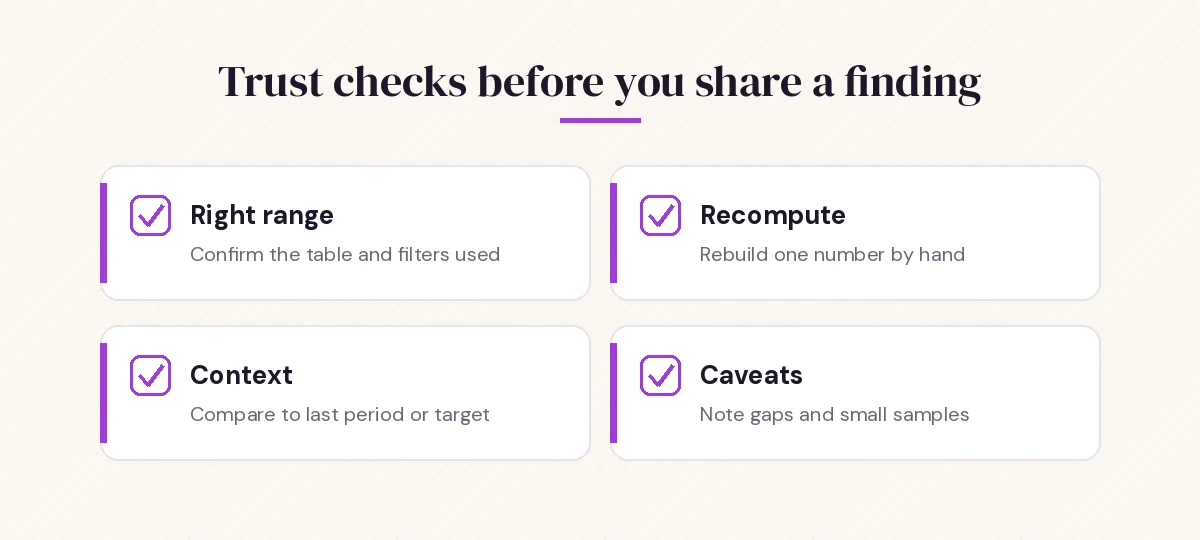
Write the Excel formula that calculates [the top region's share of revenue] so I can check it and reuse it.Prompt 36 is your trust check. Rebuilding a key number with a formula you can see, rather than taking a summary at face value, is the habit that separates a quick answer from a finding you can defend.
When the findings need to go into a longer document, our collection of Copilot prompts for report writing picks up from here and helps you shape them into a clear written report.
A Worked Example: Why Did Returns Go Up?
Here is how the prompts fit together on a realistic question. Imagine an online store’s operations lead notices that product returns seem higher this quarter and wants to know why.
- Profile. They run prompts 1 and 2 on the
Orderstable and learn that each row is one order line, with aReturnedcolumn marked Yes or No. - Check. Prompt 7 shows the
Categorycolumn has both “Footwear” and “Shoes” for the same products, so they merge them before going further. - Explore. Prompt 12 confirms the return rate is higher than the same quarter last year. Prompt 17, adapted to return rate, shows most of the increase sits in one category.
- Explain. Prompt 22 highlights that within that category, a single new supplier’s items are returned far more often than the rest.
- Report. Prompts 33 and 35 produce a three-line summary with a clear caveat that the supplier has only been active for a few weeks.
The whole loop takes far less time than building each PivotTable by hand, and every step leaves something the lead can check.
Quick Reference: Copilot Prompts for Excel Data Analysis by Question
| Your question | Start with | Expected output |
|---|---|---|
| What is in this file? | Prompts 1 to 5 | Column guide and summary stats |
| Can I trust this data? | Prompts 6 to 10 | List of issues and cleaned columns |
| Is it going up or down? | Prompts 11 to 15 | Trend chart and growth figures |
| Who or what is different? | Prompts 16 to 20 | Ranked list or PivotTable |
| What looks wrong or unusual? | Prompts 21 to 24 | Highlighted rows with a reason |
| What if something changes? | Prompts 25 to 28 | Scenario column or projection |
| I need stronger statistics | Prompts 29 to 32 | Python results on a new sheet |
| How do I tell people? | Prompts 33 to 36 | Short summary, caveats and a formula |
For everyday spreadsheet chores beyond analysis, such as formulas, formatting and sorting, browse our main list of Copilot prompts for Excel.
Common Problems and Quick Fixes
Copilot says it cannot find the data. Make sure the range is formatted as a table and the file is saved to OneDrive or SharePoint. Mention the table name directly in the prompt.
The answer uses the wrong column. Name the exact header in your prompt, in quotes if it contains spaces, such as “Net Revenue” rather than “revenue”.
The result ignores your filters. Copilot may work on the whole table rather than what you have filtered on screen. State the filter in words: “only rows where Region is West.”
You get a generic summary. Replace “analyze this” with a specific question and a specific output, like “rank” or “compare” plus the measure you care about.
The numbers look slightly off. Ask Copilot which rows and calculation it used, then use prompt 36 to rebuild the figure with a visible formula.
Large files respond slowly or partially. Narrow the scope to the columns and date range that matter, or split the question into two smaller requests.
Final Thoughts
The difference between a vague answer and a useful one is almost always in the question. Start every session by profiling and checking the data, ask one specific question at a time, and verify the number that matters most before you share it. Save the Copilot prompts for Excel data analysis that work for your team’s recurring reports, and you will spend far less time building summaries and more time deciding what to do about them.
Frequently Asked Questions
What are the best Copilot prompts for Excel data analysis?
The most useful ones ask a specific question about a named table and request a clear output. Good starting points are prompts that profile a dataset, check data quality, rank segments, highlight outliers and summarize findings in plain language, like the 36 templates in this guide.
Does my data need to be in a table for Copilot to analyze it?
In most cases, yes. Formatting your range as an Excel table with clear headers gives Copilot the structure it needs, and naming the table lets you refer to it directly in your prompts.
Can Copilot in Excel find outliers automatically?
Copilot can highlight values that are unusually high or low compared with the rest of a column or group. Ask it to explain the rule it used, then confirm whether each flagged row is an error or a genuine event.
Is Copilot accurate enough to trust for analysis?
It is a fast starting point, but you should verify the numbers that drive a decision. Ask which rows and calculations it used, and rebuild key figures with a visible formula before sharing them.
What is Python in Excel used for with Copilot?
In versions where it is available, Copilot can write and run Python code in your workbook for deeper work such as statistical tests, customer segmentation and distribution charts. The code appears on the sheet so you can review what was calculated.
Why does Copilot give me a generic summary instead of real insights?
Broad requests like “analyze this” produce broad answers. Name the measure, the grouping and the output you want, for example “rank regions by profit and show each one’s share of the total.”