Copilot Prompts for Teams Meetings: 44 Effective Recap Ideas
Looking for copilot prompts for teams meetings that save real time? Meetings are where decisions happen, but they are also where details get lost. Copilot in Microsoft Teams can summarize a meeting, list action items, tell you what you missed and answer questions about what was said. This guide gives you copy-ready Copilot prompts for Teams meetings, for before, during and after the call.
Key takeaways
- The copilot prompts for teams meetings below are grouped by task so you can find the right one fast.
- Each of the copilot prompts for teams meetings uses [brackets] you replace with your own details.
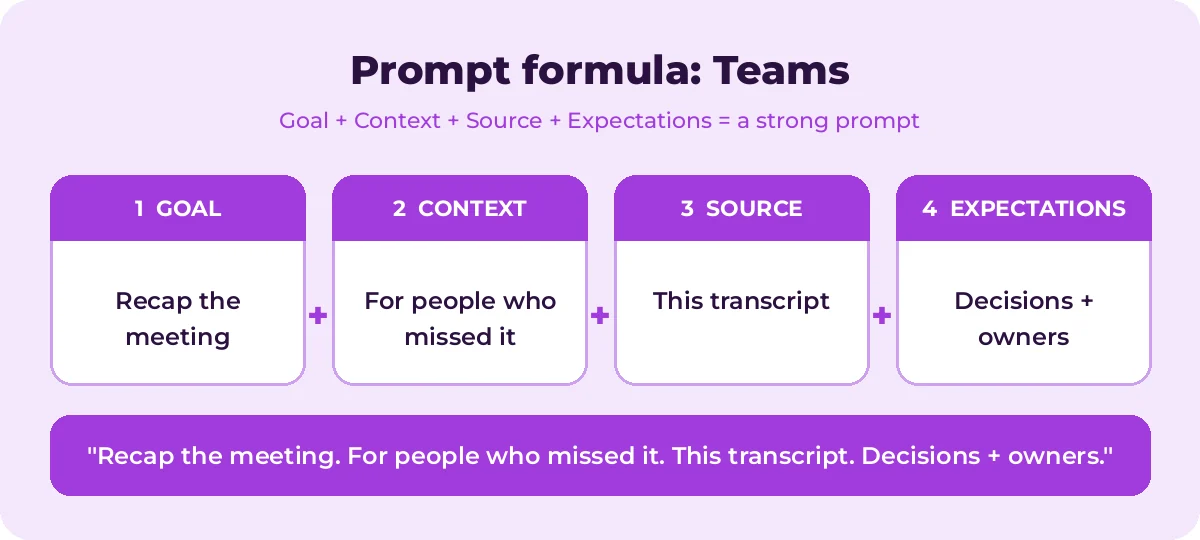
- Pair the copilot prompts for teams meetings with the four-part formula below for sharper answers.
How Copilot works in Teams meetings
With a Microsoft 365 Copilot license, you can open Copilot during or after a Teams meeting and ask questions about the conversation. A few things to know:
- Transcription matters. In most setups, Copilot uses the meeting transcript, so transcription needs to be on. Some organizations also allow Copilot to work during the meeting without saving a transcript, depending on meeting settings.
- Intelligent recap. After a meeting, the Recap tab may show AI-generated notes, tasks and chapters, depending on your license.
- Permissions apply. Copilot respects meeting settings and your organization’s policies. Organizers can control whether Copilot is available.
- Chat too. Copilot in Teams chat can summarize long chat threads and channel conversations.
Feature names and availability vary, so check what you see in your Teams client.
The quick prompt formula for meetings
| Part | In Teams | Example |
|---|---|---|
| Goal | What you need from the meeting | List action items |
| Context | Why, and for whom | For a recap email to people who missed it |
| Source | The meeting, chat or files | This meeting’s transcript |
| Expectations | Format | A table with task, owner and due date |
For the full method, see How to Write Copilot Prompts.
Before the meeting
Use these in Copilot Chat (in Teams or the Microsoft 365 Copilot app) to prepare.
Create an agenda for a [length]-minute meeting about [topic] with [attendees]. Include time for each item and the decision we need to make.Summarize recent emails, chats and files about [project] so I can prepare for my meeting with [name].What open questions about [project] should I raise in tomorrow's meeting?Draft a meeting invitation for [topic] with a short description of the goal and what attendees should prepare.Suggest 5 questions to ask in a kickoff meeting for [project].Write a short pre-read that explains [topic] for attendees who are new to it.During the meeting
Open Copilot from the meeting toolbar and try these while the meeting is happening.
Summarize the meeting so far.I joined late. What have I missed?What questions have been asked that haven't been answered yet?What are the different viewpoints on [topic] so far?List the decisions made so far.What has [name] said about [topic]?Are there any action items assigned to me so far?Suggest a good question I could ask next to move this discussion forward.Where do people seem to agree and disagree?Summarize the last 10 minutes.After the meeting
Use these from the meeting chat, the Recap tab or Copilot Chat.
Recaps
Recap this meeting in 5 bullet points.Write a summary of this meeting for people who couldn't attend. Include decisions, open questions and next steps.Summarize this meeting in three sentences for my manager.Create meeting notes with sections for attendees, topics discussed, decisions and action items.Action items
List all action items from this meeting in a table: task, owner, due date.What did I agree to do in this meeting?Which action items don't have a clear owner or due date?Turn the action items from this meeting into a checklist I can paste into Planner or To Do.Decisions and follow-up
What decisions were made, and what was the reasoning for each?What topics were raised but not resolved?Draft a follow-up email to all attendees with the recap, action items and the date of our next meeting.Draft a message to [name] following up on their action item from this meeting.Suggest an agenda for our next meeting based on the open items from this one.Analysis
Which topics took the most time in this meeting?Summarize the main concerns raised by [team/customer].What feedback was given about [product/proposal]?Create a list of risks mentioned in this meeting with who raised each one.Need a formal record rather than a quick recap? Our guide to the Copilot prompt for meeting minutes has templates for board meetings, stand-ups and client calls.
Prompts for Teams chats and channels
Long chat threads can be as hard to follow as meetings. Try these in Copilot in Teams chat.
Summarize this chat from the last [7 days].What decisions were made in this chat?Are there any questions directed at me that I haven't answered?List the links and files shared in this conversation and what each one is about.Draft a reply to this thread that answers [question] and proposes [next step].Prompts by meeting type
Weekly team meeting
Summarize updates from each person in this meeting and list blockers that need help.Client call
Summarize what the client asked for, any concerns they raised and what we promised to deliver, with dates.Project standup
List what each person completed, what they are working on next and any blockers, in a table.Brainstorming session
List every idea suggested in this meeting, group similar ideas and note which ones got the most support.Interview debrief
Summarize each interviewer's feedback on [candidate] and list strengths and concerns. Keep it factual.Training session
Create a short study guide from this training session with key concepts, steps and 5 review questions.Tips for better meeting results
- Turn on transcription (or confirm Copilot is enabled) at the start of the meeting. Without it, Copilot may have nothing to work from after the call.
- Say names and decisions out loud. “So, Priya owns the budget review by Friday” makes action items much easier for Copilot to capture accurately.
- Ask specific questions. “What did finance say about the Q4 budget?” works better than “what happened?”
- Check before you share. AI recaps can misattribute comments or miss nuance. Review recaps before sending them to clients or leadership.
- Respect privacy. Tell attendees when meetings are transcribed, and follow your organization’s policies.
- Close the loop. Turn action items into tasks immediately so nothing slips.
Example workflow: from meeting to follow-up in 5 minutes
- During the call: “List the decisions made so far” to confirm before wrapping up.
- After: “List all action items in a table: task, owner, due date.”
- “Which action items don’t have a clear owner?” Fix these with the team.
- “Draft a follow-up email to attendees with the recap and action items.” Polish it with our Outlook prompts.
- “Suggest an agenda for our next meeting based on open items.”
Weak vs. strong meeting prompts
| Weak prompt | Strong prompt |
|---|---|
| What happened? | List the decisions made and who is responsible for each |
| Summarize | Summarize this meeting in 5 bullets for my manager, focusing on budget and timeline |
| Any tasks? | List action items in a table with task, owner and due date, and flag any without an owner |
Small changes in wording make a big difference. Name the topic, the audience and the format, and Copilot’s answer becomes something you can paste straight into a follow-up.
Common mistakes to avoid
- Forgetting to start transcription. It is the most common reason Copilot has nothing to say after a meeting.
- Asking vague questions. “What happened?” returns a generic recap. Ask about decisions, owners, risks or a specific person’s view.
- Sending recaps unedited. Speaker names, numbers and commitments can be wrong. A 60-second review prevents awkward corrections.
- Ignoring unresolved items. Ask Copilot what was left open, then schedule a follow-up or assign an owner before the momentum fades.
- Over-relying on recaps. Copilot helps you catch up, but it does not replace attending the meetings where your input matters.
How to Use Copilot Prompts for Teams Meetings Effectively
The copilot prompts for teams meetings in this guide are starting points, not finished scripts. Treat each one as a template: swap the bracketed parts for your own meeting goal, attendees and decisions, then review what Copilot in Teams returns.
Most weak results come from missing context. The graphic below shows how the four prompt parts fit together for Teams tasks.
A simple routine works for nearly every request:
- Start with one clear goal per prompt.
- Name the exact source: the meeting transcript or chat.
- Describe the output you want, including length, format and tone.
- Refine with a follow-up instead of starting over.
A few Teams-specific tips make a big difference:
- Turn on transcription so Copilot has the full conversation.
- Ask “what did I miss?” when you join late.
- Request action items as a table with owners and due dates.
Save the copilot prompts for teams meetings you use most in a shared note so your team can reuse them. That list soon becomes a playbook that keeps quality consistent.
Mistakes That Weaken Your Results
- Being vague about the goal or the audience.
- Pasting sensitive data without checking your organization’s policy.
- Accepting the first answer without checking facts, numbers and names.
- Cramming several unrelated tasks into one request.
Avoid these and even short copilot prompts for teams meetings will give you cleaner, more reliable answers.
Build a Repeatable Teams Workflow
Single prompts help, but chaining them is where the real time savings appear. The diagram shows a four-step flow you can follow.
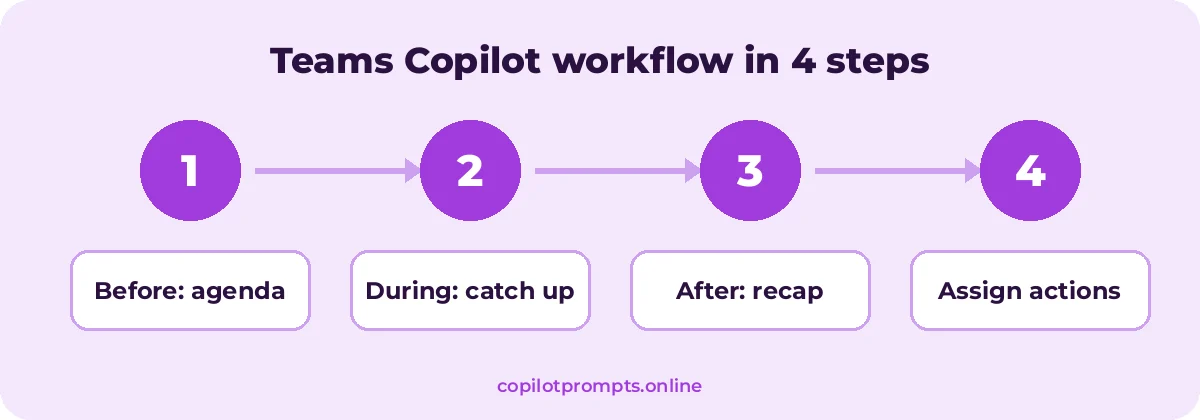
Run each step as its own prompt and check the result before moving on. For official feature details, see Copilot in Teams meetings.
Frequently asked questions
Does Copilot in Teams need the meeting to be recorded?
Copilot generally needs transcription to work after a meeting. Some organizations allow Copilot during the meeting without keeping a transcript. Recording video is not the same as transcription; check your meeting options.
Can I use Copilot on a meeting I missed?
If the meeting was transcribed and you were invited, you can usually open the meeting’s recap or chat and ask Copilot about it afterward.
Can Copilot tell me who said what?
Yes, when the transcript identifies speakers. Accuracy depends on the transcript quality, so double-check important attributions.
Is Copilot in Teams meetings available on the free version of Teams?
In-meeting Copilot and intelligent recap require eligible paid licenses. Availability depends on your organization’s plan and settings.
Can Copilot create tasks automatically?
Copilot can list action items and draft follow-ups. Depending on your setup you may need to add tasks to Planner or To Do yourself.
Do Copilot prompts for Teams meetings need transcription turned on?
For the most complete answers, yes. Some Copilot features work during the meeting without saving a transcript, depending on your organizer settings.
Conclusion
The more you reuse and refine copilot prompts for teams meetings, the better your results get.
Copilot turns Teams meetings into clear recaps, decisions and action items, as long as transcription is on and your questions are specific. Use copilot prompts for teams meetings before, during and after your next meeting and you will spend less time on notes and more time on the work itself. For more, see our 100+ best Microsoft copilot prompts for teams meetings or Copilot PowerPoint prompts. Bookmark this page and come back whenever you need fresh copilot prompts for teams meetings.