Copilot Prompts for Follow Up Emails: 25 Proven Templates That Get Replies
Copilot prompts for follow up emails help you send the message most people put off: the polite nudge, the meeting recap or the “just checking in” note that actually moves things forward. This guide gives you 25 copy-ready templates for Microsoft 365 Copilot in Outlook, grouped by situation, plus a simple formula for writing your own and the review habits that keep every draft accurate.
Follow-ups feel awkward because there is a fine line between helpful and pushy. Copilot can draft the words in seconds, but it only lands on the right side of that line when you tell it what happened, what you need and how the reader should feel after reading it. That is what the prompts below are built to do.
Where Copilot Helps With Follow-Ups in Outlook
Copilot in Outlook gives you a few different starting points, and each one suits a different kind of follow-up message.
- Draft with Copilot. Start a new email or a reply and choose the Copilot option to draft. You type an instruction, Copilot writes a first version, and you can ask it to make the text shorter, more formal or more direct before you insert it. Microsoft’s guide to drafting an email with Copilot in Outlook walks through the exact buttons.
- Replying inside a thread. When you draft a reply, Copilot can use the conversation you are answering, so it knows what you asked last time and what the other person said.
- Coaching by Copilot. Write the email yourself, then ask Copilot for feedback on tone, clarity and how the reader might take it. This is useful for sensitive nudges.
- Copilot Chat. In Microsoft 365 Copilot Chat with work data, you can ask about emails, meetings and files, such as which threads are still waiting on you, then turn the answer into drafts.
Exact menus and features depend on your Microsoft 365 license, the Outlook version you use and your organization’s settings. If an option below is missing, check with your IT admin.
The Five-Part Formula Behind Every Good Follow-Up
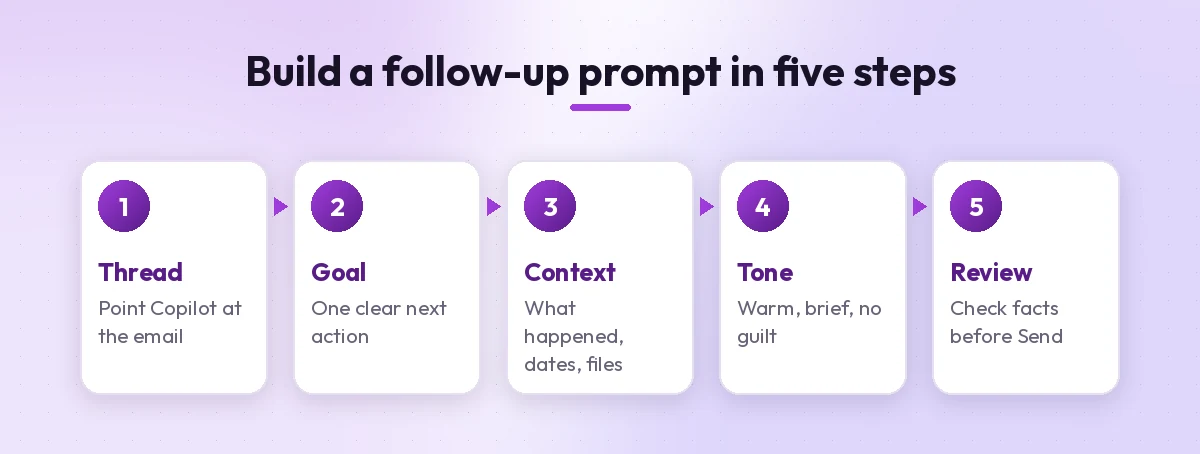
Every template in this collection of Copilot prompts for follow up emails follows the same pattern. Once you know it, you can write your own in under a minute.
- Thread. Tell Copilot which conversation or event you are following up on.
- Goal. Name the single next action you want: a reply, a decision, a signed document or a meeting slot.
- Context. Add the facts Copilot cannot guess, such as dates, file names, numbers or what changed since your last message.
- Tone. Say how it should sound: warm, brief, confident, apologetic or formal.
- Limits. Set a length and anything to avoid, like guilt-trip phrases or repeating the whole previous email.
Here is the formula in action:
Draft a follow-up to my email from last Tuesday about the Q3 vendor quote.
Goal: get a yes or no on the revised price by Friday.
Context: I attached the updated quote with a 5% discount on the second year.
Tone: friendly and confident, not apologetic. Keep it under 90 words.
End with one clear question.
Compare that with “write a follow-up email” and you can see why the results differ so much. Microsoft’s own advice on writing effective Copilot prompts uses the same idea of goal, context, source and expectations. If you want a deeper walkthrough of that structure, see our guide on how to write Copilot prompts.
After a Meeting: Recaps and Next Steps
The best time to follow up on a meeting is the same day, while everyone still remembers what was agreed. These templates turn your notes or a Teams recap into a clean email.
1. Same-day meeting recap
Write a follow-up email to the attendees of today's project kickoff.
Summarize the three decisions we made, list action items with owners
and due dates, and mention the next meeting on the 14th.
Use short bullet points. Keep the intro to one sentence.
2. Recap built from your rough notes
Turn these rough notes into a clear follow-up email for the client:
[paste notes]
Fix the grammar, group related points, and put open questions
at the end under a "Still to confirm" heading. Professional, warm tone.
3. Follow-up for someone who missed the meeting
Draft a short email to Sara, who missed today's budget review.
Explain what was decided in plain language, what she needs to do,
and offer a 15-minute call if she has questions. Under 120 words.
If you record meetings in Teams, pair these with our Copilot prompts for meeting minutes so the recap starts from an accurate summary instead of memory.
4. Thank-you note after a discovery call
Write a thank-you follow-up to the prospect I spoke with this morning.
Reference their main challenge (slow month-end reporting), confirm I will
send a demo link by Thursday, and ask who else should join the demo.
Friendly and concise.
When Nobody Replies: Gentle Nudges
Silence is rarely personal. People get busy, emails get buried, and a clear reminder often gets a quick answer. These Copilot prompts for follow up emails keep the nudge light and easy to answer.
5. First polite reminder
Reply to this thread with a polite reminder. The question I asked
a week ago is still open. Restate it in one sentence, make it easy
to answer with a yes or no, and do not say "just following up."
6. Second nudge with new value
Write a second follow-up on this thread. Add something useful:
mention that we now have the pricing sheet ready and link placeholder [LINK].
Keep it to three sentences. Polite but direct.
7. The “is this still a priority?” check
Draft a respectful follow-up asking whether this project is still
a priority for them. Offer two options: continue next month, or pause
for now. Make it clear either answer is fine. Under 80 words.
8. Final close-the-loop message
Write a final, friendly follow-up that closes the loop. Say I will
stop following up for now, leave the door open, and include one line
on how to restart the conversation later. No guilt, no pressure.
Timing matters as much as wording. A common pattern is a first reminder after a few business days, a second about a week later, and a final note after that. Adjust for urgency and for how well you know the person.
Sales and Client Follow-Ups
Client emails need to sound human, specific and focused on the reader. Give Copilot real details so the result does not read like a template.
9. After sending a proposal
Follow up on the proposal I sent to Northwind on Monday.
Ask if they had a chance to review it, offer to walk through pricing
on a short call, and suggest two time slots next week.
Confident, helpful tone. Under 100 words.
10. After a product demo
Write a follow-up after today's demo. Recap the two features they
liked most (automated approvals and audit logs), answer their question
about SSO in one sentence, and propose a trial start date.
11. Re-engaging a cold lead
Draft a short re-engagement email to a lead who went quiet three months ago.
Mention one relevant update from our side, ask a single open question
about their current priorities, and keep it under 70 words.
12. Asking for a referral or testimonial
Write a follow-up to a happy client thanking them for the smooth launch.
Ask if they would be open to a short testimonial or a referral,
and make it easy to say no. Warm and brief.
Job Search and Interview Follow-Ups
Hiring managers read a lot of follow-ups. Short, specific and grateful wins.
13. Thank-you after an interview
Draft a thank-you email to the interviewer I met today for the
operations analyst role. Mention our conversation about automating
weekly reports, restate my interest in two sentences, and keep it under 120 words.
14. Checking on the hiring timeline
Write a polite follow-up asking about the hiring timeline for the role
I interviewed for two weeks ago. Reaffirm interest briefly and avoid
sounding impatient.
15. Following up after networking
Draft a follow-up to someone I met at yesterday's industry event.
Remind them where we met, mention the topic we discussed (supply chain
analytics), and suggest a 20-minute virtual coffee.
Internal Follow-Ups With Colleagues and Managers
Inside your company, the goal is usually speed and clarity. These prompts help you chase approvals and updates without friction.
16. Chasing an approval
Write a short follow-up to my manager asking for approval on the
travel request I submitted Monday. Explain that flights go up after
Friday, and ask for a quick yes or no. Two or three sentences.
17. Requesting a status update
Draft a friendly email asking the design team for a status update on
the landing page mockups. Mention the launch date, ask for an ETA,
and offer help if they are blocked.
18. Following up on a deliverable you owe
Write a follow-up where I own the delay. Apologize once, explain
the new delivery date (Wednesday), and say what I will send in the meantime.
Honest, no over-explaining.
19. Escalating politely
Draft a follow-up that escalates an unresolved IT ticket to the team lead.
Include the ticket number placeholder [ID], the business impact in one
sentence, and a clear request. Firm but respectful.
For catching up on what is still waiting in your inbox before you write any of these, try our Copilot prompt for unread emails.
Payments, Invoices and Admin Reminders
Money conversations are where tone matters most. Be clear about the facts and kind about the person.
20. Friendly invoice reminder
Write a friendly reminder that invoice [NUMBER] for [AMOUNT] was due
on [DATE]. Include payment details placeholder, offer to resend
the invoice, and keep the tone helpful, not accusatory.
21. Overdue payment, second notice
Draft a second reminder about the overdue invoice in this thread.
State the days overdue, ask for an expected payment date,
and mention late fees only as stated in our terms. Professional tone.
22. Missing documents or signatures
Write a follow-up asking the client to sign the contract sent last week.
List exactly what is missing (signature on page 4 and the W-9),
and explain what happens next once it is signed.
Prompts That Refine Any Follow-Up Draft
Once Copilot gives you a draft, these short prompts polish it fast. They work on any follow-up, whether Copilot wrote it or you did.
23. Make it shorter and clearer
Shorten this follow-up to under 70 words. Keep the request and the
deadline. Remove filler phrases and repeated context.
24. Check the tone before sending
Review my draft. Would a busy reader find it pushy, passive-aggressive
or unclear? Suggest specific edits and give me a revised version.
25. Create three subject line options
Suggest three subject lines for this follow-up. Make them specific,
under eight words, and avoid "Following up" or "Checking in."
Quick Reference: Choosing the Right Template
Use this table to match your situation to the closest of these Copilot prompts for follow up emails, then adjust the details.
| Situation | Best template | Ideal timing |
|---|---|---|
| Meeting just ended | 1, 2 or 3 | Same day |
| No reply to a question | 5, then 6 | A few business days apart |
| Proposal or demo sent | 9 or 10 | Two to four days later |
| Interview finished | 13 | Within 24 hours |
| Approval is blocking you | 16 | When the deadline nears |
| Invoice unpaid | 20, then 21 | Due date, then a week later |
| Any draft feels off | 23, 24 or 25 | Before you hit Send |
Common Mistakes With Copilot Prompts for Follow Up Emails
Even with strong Copilot prompts for follow up emails, a few habits can undo the result. Watch for these:
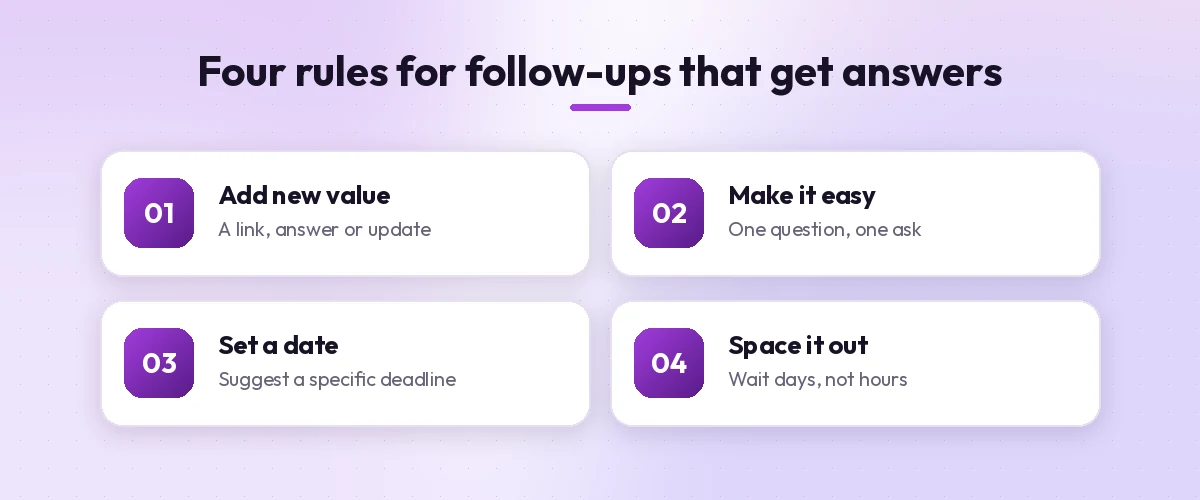
- Sending without checking facts. Copilot can misread dates, names or amounts in a thread. Read every number before you send.
- Repeating the whole last email. A follow-up should add a reminder and one new piece of value, not paste the original again.
- Too many asks. One message, one clear request. Extra questions get ignored.
- Generic openers. Lines like “I hope this finds you well” waste the first sentence. Ask Copilot to start with the point.
- Following up too fast. A nudge two hours later feels like pressure. Space messages out unless the issue is urgent.
- Sharing sensitive data carelessly. Copilot respects your organization’s permissions, but you still decide who receives the email. Double-check recipients and attachments.
Save Your Favorite Prompts for Reuse
If you send the same kinds of follow-ups every week, keep your best versions handy. You can store them in a OneNote page or a Word document, and depending on your setup you may also be able to save prompts in Copilot so they are one click away. Replace the bracketed placeholders each time, and update the tone line for each audience.
For a broader set of email tasks beyond follow-ups, browse our full list of Copilot prompts for Outlook and our guide to Outlook inbox management prompts.
Final Thoughts
A good follow-up is short, specific and easy to answer. Copilot removes the blank-page problem, but your context is what makes the draft work: which thread, what you need, by when and how it should feel. Start with whichever of these Copilot prompts for follow up emails is closest to your situation, adjust the details, and always read the draft once before you send it.
Frequently Asked Questions
What are the best Copilot prompts for follow up emails?
The best prompts name the thread, state one clear goal, add facts like dates or files, set a tone and give a length limit. For example: “Draft a polite reminder on this thread asking for a yes or no on the quote by Friday, under 80 words.”
Can Copilot in Outlook write a follow-up based on an earlier email?
Yes. When you reply inside a conversation and use Copilot to draft, it can use that thread for context. Always check names, dates and numbers in the draft before sending.
How long should I wait before sending a follow-up email?
For most business emails, a few business days is a reasonable first wait, with a second nudge about a week later. Urgent items or agreed deadlines can justify a sooner reminder.
How do I stop Copilot follow-ups from sounding pushy?
Ask for a “warm, brief, no guilt” tone, tell Copilot to avoid phrases like “just following up,” and add something useful in each nudge. You can also use Coaching by Copilot to check how the message might be received.
Do I need a paid license to use Copilot for emails?
Copilot drafting inside Outlook generally requires a Microsoft 365 plan or add-on that includes Copilot. Features vary by license, Outlook version and admin settings, so check what your account shows.
Can I reuse these follow-up templates?
Yes. Save your favorites in OneNote, Word or a saved prompt, replace the bracketed placeholders each time, and adjust the tone line for each recipient.