Copilot Prompt for Weekly Meeting: 32 Proven Templates for Better Team Syncs
A good Copilot prompt for weekly meeting work saves you the same chore every seven days: rebuilding context. Someone has to remember what was promised last week, chase updates, write an agenda, keep the conversation on track and then turn forty minutes of talk into a recap people will actually read. Microsoft 365 Copilot can carry most of that load, as long as you ask for the right thing at the right moment.
This guide covers the full rhythm of a recurring team sync, from Monday prep to Friday follow-up. You will find 32 copy-ready templates for Teams, Outlook, Word, Loop and Copilot Chat, a simple structure for writing your own, and the habits that keep summaries accurate.
Replace anything in square brackets with your own details. Then run the prompt, read the answer and add what only you know.
Why Weekly Meetings Drift Without a System
Recurring meetings rarely fail in one dramatic moment. They slide. The agenda becomes “same as last week,” updates turn into long monologues, decisions get mentioned but not written down, and the same blocker appears three Mondays in a row.
Most of that drift comes from missing memory between sessions. Nobody has time to reread last week’s chat, notes and transcript before the next call. That is exactly where Copilot helps, because it can read the meeting chat, the transcript, shared files and your email in seconds and give you a short starting point.
What it cannot do is decide what matters to your team. Treat every output as a draft you shape, not a record you sign off without reading.
How to Write a Copilot Prompt for Weekly Meeting Tasks
Microsoft’s guidance on writing effective Copilot prompts recommends giving Copilot a goal, context, sources and expectations. For a recurring team sync, those four map neatly onto questions you can answer in one line each.
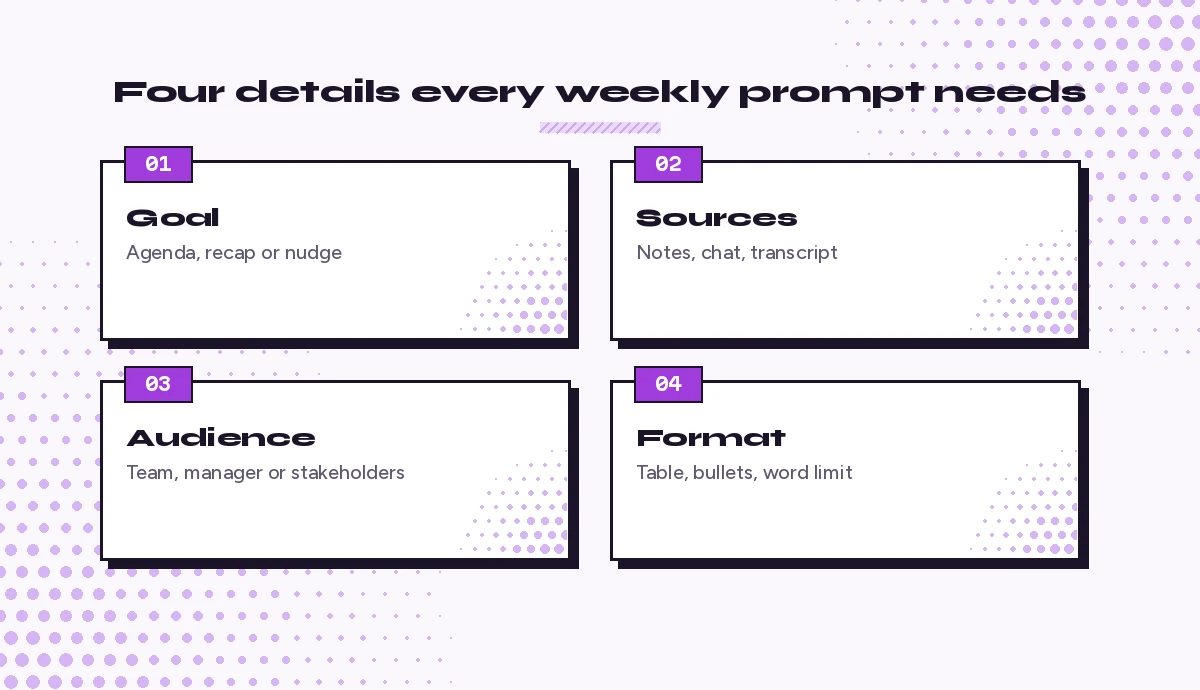
- Goal. Do you want an agenda, a live catch-up, a recap or a reminder?
- Sources. Name last week’s meeting, the team channel, a Loop page or specific emails.
- Audience. Is the output for the team, your manager or stakeholders outside the group?
- Format. Ask for a table, bullet list, timeboxed agenda or a word limit.
Here is the difference in practice:
Weak: Make an agenda for my team meeting.

Strong: Using the recap and chat from last Tuesday's [Team Name] weekly sync, build a 30-minute agenda for this week. Start with open action items and their owners, then three discussion topics in order of urgency, each with a time box. End with five minutes for blockers. Keep it under 150 words.
The strong version is a better Copilot prompt for weekly meeting prep because it tells Copilot where to look, what to include and how long the result should be. That single change does more for output quality than any clever wording.
Before the Meeting: Prep and Agenda Prompts
The best time to run a Copilot prompt for weekly meeting prep is the morning before it starts. Five minutes of preparation saves fifteen minutes of wandering discussion.
1. Pull open action items from last week
Review the recap, transcript and chat from last week's [Meeting Name] meeting. List every action item that was assigned, with the owner and due date if mentioned. Mark any item where the owner or due date is unclear.2. Draft a timeboxed agenda
Create a [30]-minute agenda for this week's [Team Name] sync. Include: review of open action items (5 min), [Topic A], [Topic B], [Topic C], and blockers (5 min). Suggest a time box for each topic based on how much discussion it needs.3. Find topics people raised since the last call
Search the [Channel Name] channel and my emails from the past seven days for questions, risks or requests that should be discussed in our weekly team meeting. Group them by theme and note who raised each one.4. Build a status update request
Write a short Teams message asking my team to post their weekly updates in the [Channel Name] channel by [Day, Time]. Ask each person for three things: what they finished, what they are working on next, and anything blocking them. Keep it friendly and under 60 words.5. Summarize posted updates into one view
Read the weekly updates posted in [Channel Name] since [Date]. Create a table with columns for team member, completed, next up and blockers. Below the table, list any blockers that need a decision in the meeting.6. Prepare your own talking points
I am running the [Team Name] weekly meeting. Based on the updates and open items, draft five short talking points I should cover, starting with the most important decision we need to make this week.7. Write the meeting invite description
Write a clear description for the recurring [Team Name] weekly sync invite. Include the purpose, the standing agenda, what attendees should prepare beforehand and a link placeholder for the shared notes page.8. Check whether the meeting is still worth having
Look at the recaps from the last four [Meeting Name] meetings. Which topics came up repeatedly without a decision? Which agenda items could be handled asynchronously in chat instead? Suggest a leaner format.These pair well with our Copilot prompts for Teams channels if your team runs most updates in a channel.
During the Meeting: Live Prompts in Teams
When transcription is on, or Copilot is set to run during the meeting, you can open Copilot in the Teams meeting window and ask questions about what has been said so far. Microsoft explains the setup options in its Copilot in Teams meetings guide. Availability depends on your licence and your organization’s meeting policies, so check with IT if you do not see the option.
9. Catch up after joining late
I joined late. Summarize what has been discussed so far in five bullet points, and tell me if any decision or question involves me.10. Check what has been decided
What decisions have been made in this meeting so far? List each decision and who agreed to it. If something sounded like a decision but was not confirmed, list it separately.11. Spot unresolved questions
List the questions raised in this meeting that have not been answered yet, and who asked each one.12. Keep time on the agenda
Compare what we have discussed so far with today's agenda. Which items have we covered, and which are still left?13. Capture different viewpoints fairly
Summarize the different viewpoints shared about [Topic], with the main reason behind each. Keep the summary neutral.14. Draft action items before the call ends
Draft the action items from this meeting so far, with a suggested owner for each based on the discussion. I will confirm them with the team before we finish.Whichever Copilot prompt for weekly meeting notes you use live, reading the action items aloud in the last two minutes is a simple habit that makes the recap far more reliable. People correct owners and dates while they still remember the context.
After the Meeting: Recap and Follow-Up Prompts
Teams can show an intelligent recap for meetings that were recorded or transcribed, depending on your licence. Copilot can then turn that raw material into something tailored to your team.
15. Write the standard weekly recap
Using the transcript of today's [Meeting Name], write a recap with three sections: decisions made, action items (owner, task, due date) and open questions for next week. Keep it under 200 words.16. Create a recap for people who missed it
Write a short summary of today's weekly sync for team members who could not attend. Focus on what changed this week and anything they need to do. Use a friendly tone and keep it under 120 words.17. Turn the recap into a stakeholder update
Turn the recap of today's [Team Name] meeting into a brief update for [Stakeholder or Manager]. Cover progress, risks and any decision we need from them. Leave out internal discussion details.18. Draft the follow-up email in Outlook
Draft a follow-up email to the attendees of today's [Meeting Name]. Thank them briefly, list the action items with owners and due dates in a table, and remind them of the date of next week's sync.19. Update the shared notes page
Add today's decisions and action items to the [Loop page or Word document name] that tracks our weekly meetings. Keep the existing format and put the newest week at the top.20. Nudge owners midweek
Check the action items from Tuesday's weekly meeting. For each item that has not been mentioned as done in the [Channel Name] channel or my email, draft a polite one-line reminder to the owner.21. Prepare a carry-over list
List every action item from this week's meeting that is still open, and flag those that have carried over from previous weeks. I will use this to start next week's agenda.For deeper note-taking templates, see our guide to Copilot prompts for meeting minutes, and our list of prompts for meeting action items for tighter follow-through.
Prompts for Special Weekly Formats
Not every recurring call is a classic status meeting. These templates adapt the same approach to other common formats.
22. Weekly stand-up for remote teams
Create a 15-minute weekly stand-up format for a remote team across [Time Zones]. Include an async pre-read in chat, a short live round of blockers only and a recap posted afterward.23. Weekly leadership sync
Summarize the key updates from each department lead's email this week into a one-page brief for our weekly leadership sync. Highlight the top three decisions needed and any cross-team dependencies.24. Weekly client check-in
Using my email thread with [Client Name] and notes from last week's call, draft an agenda for this week's client check-in. Include progress since last time, items waiting on the client and next milestones.25. Weekly project review
Review the [Project Name] tracker in [File Name] and summarize progress against this week's milestones. List tasks that are late, at risk or blocked, and suggest which need discussion in the weekly project meeting.26. Weekly sales pipeline meeting
From the [Pipeline File Name] spreadsheet, summarize deals that moved stage this week, deals with no activity in 14 days and deals expected to close this month. Format it as three short tables.27. Weekly one-to-one with your manager
Prepare my notes for this week's one-to-one with [Manager Name]. Summarize what I completed, where I need help and one topic about my growth. Use my sent emails and the meeting chats from this week.If one-to-ones are a big part of your week, our Copilot prompts for 1:1 meetings go into more detail.
Prompts to Improve the Meeting Itself
The real payoff from each Copilot prompt for weekly meeting work comes when you use Copilot to make the meeting better over time, not just faster to document.
28. Measure where time goes
Based on the transcripts of the last three [Meeting Name] meetings, estimate roughly how time was split across status updates, discussion and decisions. Suggest one change to spend more time on decisions.29. Collect anonymous-style feedback questions
Write five short survey questions I can send to my team about our weekly meeting: whether it is useful, the right length and what they would change. Keep the questions neutral.30. Rotate facilitation fairly
Create a rotation schedule for who facilitates our weekly team meeting over the next eight weeks, using the names [Name 1, Name 2, Name 3, Name 4]. Include a one-paragraph guide for the facilitator role.31. Write team meeting norms
Draft a short set of norms for our weekly team sync: being on time, posting updates beforehand, keeping cameras optional, and how we record decisions. Keep it to six bullet points.32. Plan a quarterly reset
Review the recaps from our weekly meetings this quarter. Summarize the main themes, wins and repeated blockers, and propose three goals for next quarter's meetings.Common Mistakes and How to Avoid Them
Even a well-written Copilot prompt for weekly meeting recaps can produce a weak answer if the inputs are thin. Watch for these problems:
| Mistake | What happens | Better approach |
|---|---|---|
| No transcript or notes | Copilot has little to summarize | Turn on transcription or keep a shared notes page |
| Vague request | Long, generic summary | Ask for specific sections and a word limit |
| Skipping review | Wrong owners or dates spread | Confirm action items before sending |
| Same agenda every week | Meetings feel routine | Build the agenda from open items and new topics |
| Sharing sensitive detail widely | Private discussion reaches the wrong people | Write a separate, trimmed stakeholder version |
Copilot works within your existing Microsoft 365 permissions, so it only uses meetings, chats and files you can already access. It can still misattribute a comment or miss a decision when people talk over each other, so a quick check of names and dates is worth the minute it takes.
Build a Reusable Weekly Meeting Routine
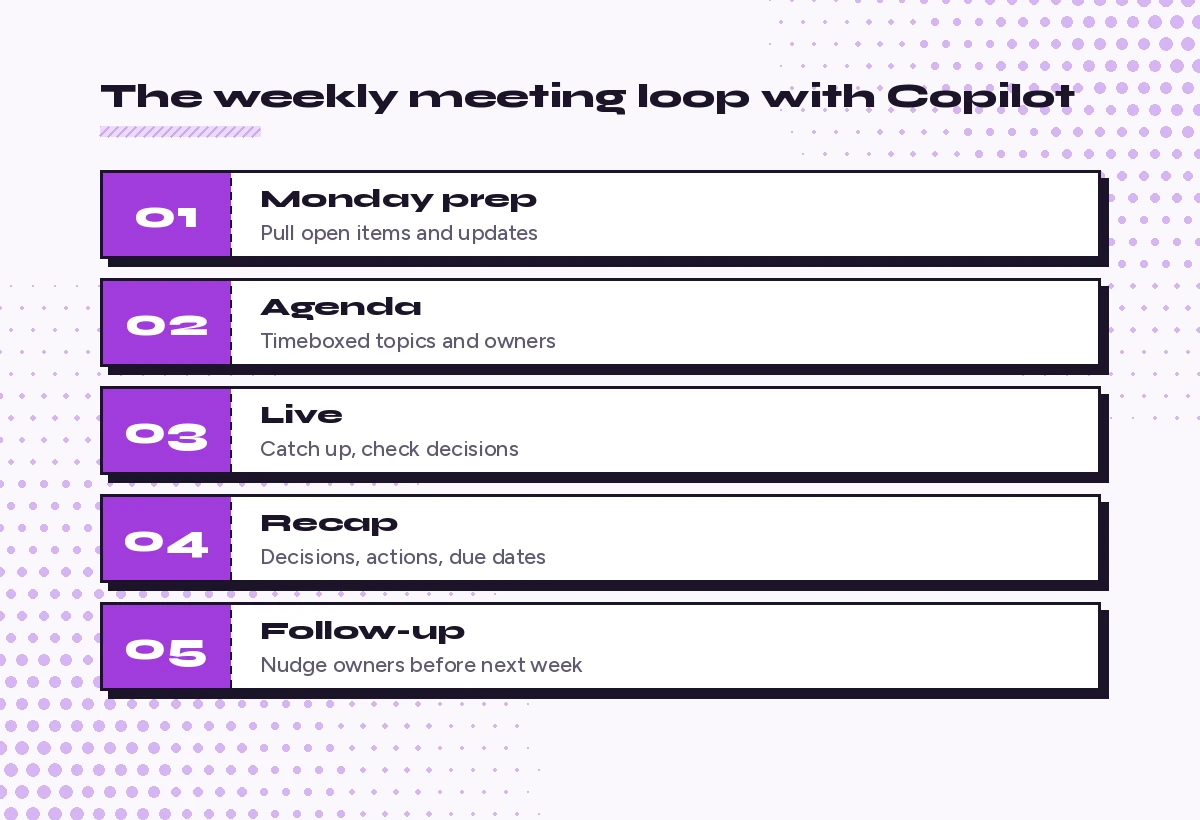
The easiest way to make this stick is to save four templates you use every week: one for prep, one for the agenda, one for the recap and one for midweek follow-up. Keep them in a OneNote page, a Word document or a Loop page, and adjust them whenever the output misses.
A simple rhythm looks like this:
- The morning before: run the open items and updates prompts, then build the agenda.
- During the call: use live catch-up and decision checks when needed.
- Right after: generate the recap and follow-up email, review them, then send.
- Midweek: check progress on action items and nudge owners.
If you are just getting started, our Copilot prompts for beginners guide explains the basics, and the guide to summarizing a meeting transcript shows how to get cleaner recaps from long calls.
Frequently Asked Questions
What is the best Copilot prompt for weekly meeting preparation?
Ask Copilot to list open action items from last week’s recap and chat, then build a timeboxed agenda that starts with those items. Naming the specific meeting and channel gives it the right sources.
Can Copilot summarize a Teams meeting I missed?
Yes, if the meeting was transcribed or recorded and your organization has Microsoft 365 Copilot. Open the meeting recap in Teams and ask Copilot for decisions, action items and anything that involves you.
Does Copilot need transcription turned on to work in meetings?
Copilot in Teams meetings works with transcription, or with an option that lets it run only during the meeting without keeping a transcript, depending on the settings your organizer and IT team choose.
How do I get Copilot to assign owners to action items?
Ask it to list each action item with the person who agreed to it and the due date if mentioned, and to flag items where the owner is unclear. Confirm owners with the team before you send the recap.
Can I use these prompts without a Microsoft 365 Copilot licence?
Prompts that read your meetings, chats and email need a Microsoft 365 Copilot licence. You can still paste your own notes into the free Copilot Chat and use the agenda, recap and email templates on that text.
How long should a weekly meeting recap be?
Most teams read recaps of 150 to 200 words with three sections: decisions, action items and open questions. Add a word limit to your prompt so Copilot keeps it short.

One Comment