Copilot Prompts for Beginners: 40 Easy Templates to Get Great Results Fast
Copilot prompts for beginners do not need special syntax, secret phrases or a course in prompt engineering. They need one habit: telling Copilot what you want, why you want it and what a good answer looks like, in plain sentences. If you can explain a task to a new coworker, you can write a prompt that works.
Most people who give up on Copilot after a week typed something short like “write an email” or “summarize this,” got a bland answer and decided the tool was overhyped. The fix is rarely a cleverer trick. It is usually two more sentences of context.
This guide walks you through that habit step by step. You will learn the four parts of a strong request, see weak and strong versions side by side, and get 40 starter templates you can copy for email, documents, meetings, spreadsheets, learning and everyday planning. Square brackets mark the parts to replace with your own details.
What Copilot Is (and Which One You Are Using)
“Copilot” is the name Microsoft uses for several assistants, and knowing which one is in front of you saves a lot of confusion.
- Microsoft Copilot (the free app and website) is a general chat assistant. It can answer questions, draft text and create images, but it cannot see your work email or files unless you upload them.
- Microsoft 365 Copilot Chat is the version many workplaces turn on. It runs in a browser, in the Microsoft 365 app and in Teams, and it is protected by your organization’s sign-in.
- Microsoft 365 Copilot (the paid license) adds Copilot inside Word, Excel, PowerPoint, Outlook and Teams, and it can work with the documents, emails, chats and meetings you already have permission to open.
- GitHub Copilot is a separate product for writing code. If you are a developer, our guide to GitHub Copilot prompts covers that side.
The prompts below work in all of the Microsoft versions. Where a template depends on your files or mailbox, it will only work if your version can reach them; otherwise paste or upload the content first.
The Four Parts of a Good Prompt
Microsoft’s own guidance on learning about Copilot prompts breaks a strong request into four ingredients. You do not need all four every time, but each one you add makes the answer more useful.
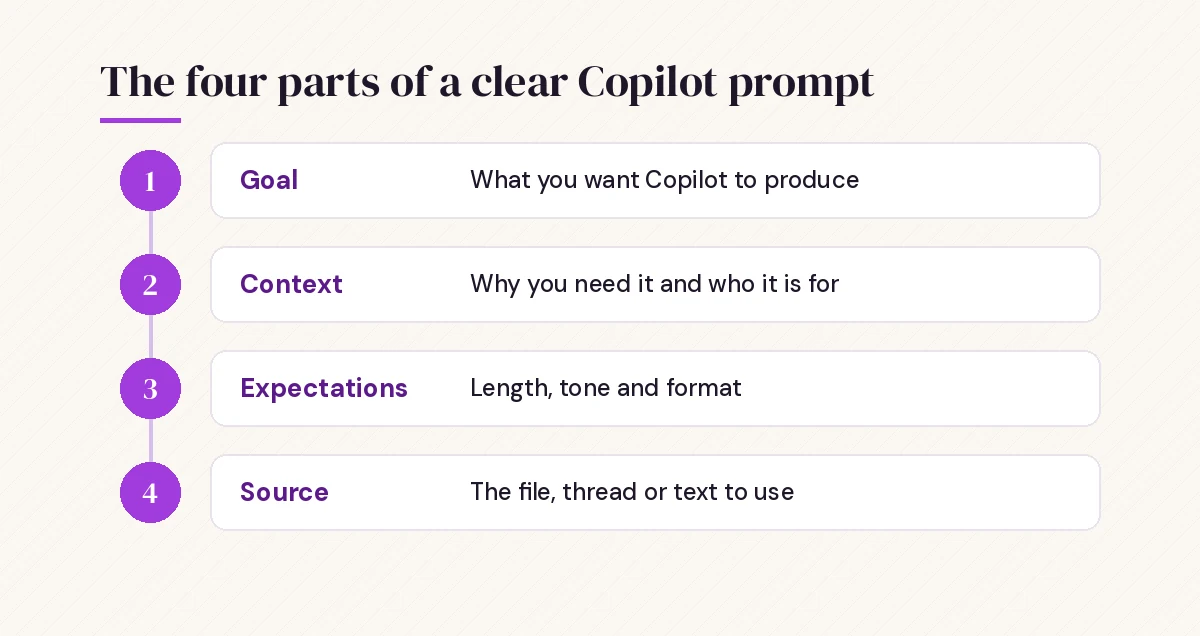
- Goal: what you want Copilot to produce. “Draft a reply,” “list the risks,” “explain this term.”
- Context: why you need it and who it is for. “My manager wants a quick update before Friday.”
- Expectations: how the answer should look. Length, tone, format, reading level.
- Source: what Copilot should work from. A file, an email thread, a meeting, a website or text you paste in.
Here is the same request written two ways.
Weak:
Write an email about the project delay.

Strong:
Draft a short email to my client, Sara, explaining that the website launch will move from
June 3 to June 17 because testing found payment bugs. Keep it calm and professional,
under 120 words, and end by offering a 15-minute call this week.
The strong version takes twenty extra seconds to type and usually saves several rounds of fixing the draft afterward.
Copilot Prompts for Beginners: Your First Five Minutes
If you have never used it before, start with low-stakes tasks where you already know what a good answer looks like. That way you can judge the quality instead of trusting it blindly.
Explain what you can help me with at work. I am a [job title] who spends most of my day
on [main tasks]. Give me 8 concrete examples, one sentence each.
I want to practice writing better requests. Ask me three questions about a task I need to
finish today, then write a prompt I could use for that task.Explain the difference between a summary, an outline and a draft, using a short example
of each based on a team lunch announcement.Notice that the second template asks Copilot to interview you. When you are unsure what details matter, letting it ask questions first is one of the easiest shortcuts there is.
Starter Templates for Email
Email is where most people feel the benefit first. If you use Outlook with a work license, you can run these from the Copilot pane; otherwise paste the message into Copilot Chat. For a deeper set, see our full collection of Copilot prompts for Outlook.
1. Draft a polite reply to this email declining the meeting invite. Suggest two other
   times next week and keep it under 80 words.
   [paste email]
2. Rewrite my draft below so it sounds friendly but firm. Keep every fact and date the
same. Do not add new promises.
[paste draft]3. Summarize this long email thread in five bullet points: what was decided, what is
still open, and who owns each open item.4. Write a short thank-you email to [name] for helping with [task]. Mention one specific
thing they did well.5. Turn these rough notes into a clear status update email for my team. Use three
headings: Done, Next, Blockers.
[paste notes]6. Check this email for tone. Tell me if any sentence could come across as rude or
unclear, and suggest a softer version of each one.7. Draft a follow-up email to [name] about [topic]. It has been a week since my last
message. Keep it short and give them an easy way to reply.Starter Templates for Documents and Writing
Word and Copilot Chat are good partners for first drafts, rewrites and proofreading. The key for new users is to keep your own voice in charge: ask for a draft, then edit it, rather than publishing what comes back.
8. Create an outline for a two-page document about [topic] for [audience]. Include
   section headings and one sentence describing each section.
9. Draft an introduction paragraph for this document. The reader is [audience] and the
main point is [key message]. Keep it under 100 words.10. Rewrite this paragraph in plain English for someone outside my industry. Keep it
the same length or shorter.
[paste paragraph]11. Proofread the text below. List spelling, grammar and clarity issues in a table with
three columns: original, suggested fix, reason.12. Summarize /[document name] in one paragraph, then list the three points a busy
manager most needs to know.13. Give me five alternative titles for this article. Make them clear and specific,
not clickbait.14. Turn this bullet list into a short, well-organized paragraph that flows naturally.In Microsoft 365 Copilot Chat, typing a forward slash lets you pick a file, person or email to reference, which is why template 12 starts with /. If that option does not appear, upload or paste the document instead. When you are ready for more advanced document work, our Copilot prompts for Word guide picks up from here.
Starter Templates for Meetings and Teams
If your organization records and transcribes meetings, Copilot in Teams can answer questions about what was said. Even without that, it can help you prepare before a meeting and tidy your notes afterward.
15. Help me prepare for a 30-minute meeting about [topic]. Suggest an agenda with time
    for each item and three questions I should ask.
16. Summarize the key decisions from this meeting and list action items with owners
and due dates if they were mentioned.17. What questions were raised in this meeting that did not get an answer?18. I missed the first 15 minutes of this meeting. What did I miss, in five bullets?19. Turn my meeting notes below into a short recap message I can post in the team chat.
[paste notes]For a structured approach to recaps, our guide to the Copilot prompt for meeting minutes shows a full format you can reuse.
Starter Templates for Excel and Numbers
Copilot in Excel works best when your data is formatted as a table with clear column headers. New users often skip that step and then wonder why requests fail, so select your data and press Ctrl+T first.
20. Describe what this table contains, what each column seems to mean, and anything
    that looks unusual or missing.
21. Which [category] had the highest total [value] this year? Show the top five.22. Add a column that calculates [description of calculation] and explain the formula
in one sentence.23. Highlight rows where [column] is greater than [number].24. Create a chart that shows [value] by month and tell me the main trend in two
sentences.25. Explain this formula step by step as if I were new to Excel:
[paste formula]Always spot-check one or two numbers yourself before you share a result. For more ideas once you are comfortable, browse our Copilot prompts for Excel collection.
Starter Templates for Learning Something New
One of the most underrated uses for a new user is simple tutoring. You can ask for explanations at your own pace without feeling like you are bothering anyone.
26. Explain [topic] to me like I am completely new to it. Use one everyday example and
    avoid jargon.
27. Give me a five-question quiz on [topic] to check my understanding. Wait for my
answers before you reveal the correct ones.28. Create a two-week study plan for learning [skill], with 20 minutes a day.29. What are the most common mistakes beginners make with [tool or skill], and how do
I avoid each one?30. Compare [option A] and [option B] in a simple table: what each is best for, cost,
and learning curve. Tell me where your information might be out of date.The last line of template 30 is a good habit. Asking Copilot to flag uncertainty nudges it to separate what it knows well from what you should verify.
Starter Templates for Planning and Everyday Tasks
These are general-purpose requests that help with the small jobs that fill a workday.
31. Here is my to-do list. Group it by priority and suggest what to do first today.
    [paste list]
32. Break this project into steps I can finish one at a time: [project]. Estimate how
long each step might take.33. Brainstorm ten ideas for [goal]. Then pick the three most practical ones and
explain why.34. Help me write a short message asking my manager for a deadline extension on
[task]. Be honest and suggest a new date.35. Turn this checklist into a simple step-by-step guide a new team member could follow.36. Give me the pros and cons of [decision] in a two-column table, then ask me one
question that might help me decide.Templates That Improve Copilot’s Answers
The first response is rarely the final one. Follow-up requests are where most of the quality comes from, and they are the part new users most often skip.
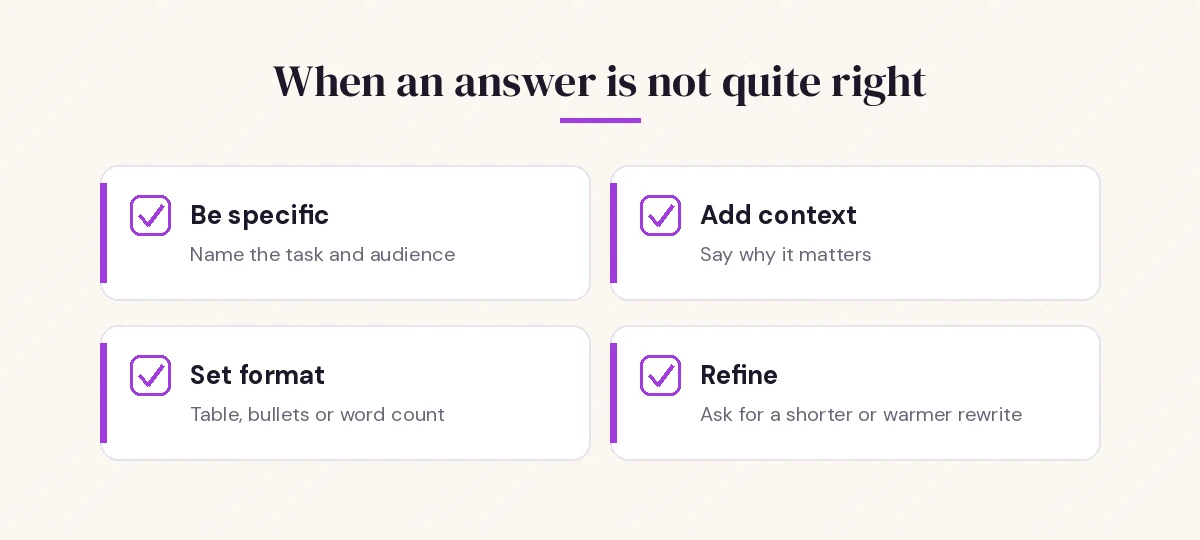
37. Make that shorter and more direct. Keep the main point in the first sentence.38. That is too formal. Rewrite it the way a friendly coworker would say it.39. Put that in a table with columns for [column 1], [column 2] and [column 3].40. What information would you need from me to make this answer better? Ask me up to
three questions.Think of Copilot as a conversation, not a search box. Each reply builds on the last, so you can steer it gradually instead of trying to write a perfect request on the first attempt.
Common Beginner Mistakes (and Quick Fixes)
| Mistake | What happens | Quick fix |
|---|---|---|
| Typing two or three words | Generic, vague answers | Add who it is for and what good looks like |
| Asking for everything at once | Long, unfocused replies | Split the job into smaller steps |
| Not saying the format | Wall of text when you wanted bullets | Name the format: table, list, email, 100 words |
| Forgetting the source | Copilot guesses or uses the web | Point it to the file, thread or pasted text |
| Accepting the first draft | Answers that sound like a robot | Ask for a rewrite in your tone |
| Not checking facts | Errors end up in real documents | Verify names, numbers and dates yourself |
The last row matters most. Copilot can sound confident while being wrong, especially about recent events, numbers and anything it inferred rather than read in your files. Treat it as a fast first draft, not a final authority.
How to Build Your Own Prompt Library
Once a template works well for you, save it so you never have to rewrite it. Microsoft offers a Copilot Prompt Gallery where you can browse examples and, depending on your version, save your own favorites. A simple note in OneNote or a pinned chat message works just as well.
A few tips for keeping a personal collection useful:
- Name each prompt by its job, such as “weekly status email” or “explain a formula,” so you can find it in seconds.
- Keep placeholders in square brackets so you can see at a glance which parts to change.
- Note what went wrong the last time a prompt disappointed you, and adjust the wording.
- Review the list every month and delete anything you no longer use.
When you are ready to move past starter templates, our guide on how to write Copilot prompts goes deeper into structure, and our list of the best Microsoft Copilot prompts offers more than a hundred ready-made ideas.
Staying Safe While You Learn
A few common-sense rules keep you out of trouble while you experiment:
- Use the version your workplace approves for anything involving work data. The free consumer app is not the same as your company’s protected Copilot Chat.
- Do not paste passwords, personal ID numbers or confidential customer data into any tool unless your organization has said it is allowed.
- Read before you send. Copilot drafts; you are still the author.
- Check your company’s AI policy. Many organizations publish one, and your IT team can tell you which features are switched on.
Conclusion
The fastest way to get comfortable with Copilot is to pick three templates from this list and use them on real tasks this week. Start with email or meeting recaps, add a sentence of context each time, and ask for a rewrite whenever the answer feels off. Within a few days, writing clear requests will feel as natural as explaining a task to a colleague, and these copilot prompts for beginners will become a starting point you customize rather than a script you follow.
Frequently Asked Questions
What are the easiest Copilot prompts for beginners to start with?
Start with a task you already understand, such as replying to an email or summarizing a document. Tell Copilot what you want, who it is for and how long it should be, then judge the result against what you would have written yourself.
Do I need to learn prompt engineering to use Copilot?
No. Clear, complete sentences work better than special tricks. Including a goal, some context, your expected format and the source material covers most of what people call prompt engineering.
Why does Copilot give me generic answers?
Short requests leave Copilot guessing. Add details about your audience, purpose, tone and format, and point it to the specific file, email or text it should use.
Can free Copilot read my work emails and files?
The free consumer Copilot cannot see your work mailbox or files unless you paste or upload content. Microsoft 365 Copilot with a work license can use the emails, chats and documents you already have permission to open.
How long should a Copilot prompt be?
Long enough to include what matters, usually one to four sentences. A few extra words about context and format often save several rounds of corrections.
Is it safe to put company information into Copilot?
Use only the version your organization approves for work data, and follow its AI policy. Avoid pasting passwords, personal ID numbers or confidential customer details unless you are sure it is permitted.