Copilot Prompts for Accountants: 30 Proven Templates for a Faster Close
Copilot prompts for accountants turn the repetitive parts of the job, like tying out schedules, writing journal entry support and answering the same client questions, into minutes of work instead of hours. This guide collects 30 tested templates for Microsoft 365 Copilot, organized around the real accounting cycle: month-end close, reconciliations, accruals and adjustments, audit support, tax season and client communication.
Each template uses square brackets for the parts you swap out, such as [entity], [period] or [GL account]. Open the right workbook or document first, paste the prompt, then review the answer the way you would review a junior staff member’s work. Copilot drafts quickly and explains clearly, but your ledger, your standards and your professional judgment still decide what gets booked.
Why Copilot Prompts for Accountants Save Real Time
Accounting work is detail work. A typical day mixes careful number checking with a surprising amount of writing: memos, emails to budget owners, notes for reviewers, explanations for auditors. Microsoft 365 Copilot helps on both sides because it lives inside the apps you already use.
- Excel is where most of the value shows up. Copilot can explain an inherited formula, write a new lookup, add a calculated column, highlight outliers and build a PivotTable from a clean table. Microsoft’s guide to getting started with Copilot in Excel explains the setup it expects, including saving files to OneDrive or SharePoint.
- Word turns rough bullets into technical memos, policy updates and engagement letters.
- Outlook summarizes long approval threads and drafts polite follow-ups for missing receipts or late invoices.
- Teams recaps close meetings and pulls out who owes what by when.
If you work in corporate finance more broadly, our collection of Copilot prompts for finance teams covers budgeting, forecasting and board reporting. This article stays closer to the ledger: the debits, credits and tie-outs that accountants own.
How to Write an Accounting Prompt That Gets a Usable Answer
Generic requests produce generic output. “Analyze this” rarely helps an accountant. The answers improve sharply when you give Copilot the same context you would give a new team member on their first close.
Start with the source: name the sheet, table or attached file. Add the period and whether your fiscal year differs from the calendar year. State the standard or policy that applies, for example US GAAP, IFRS or your capitalization threshold. Define materiality so Copilot knows what to flag. Finally, describe the output you want, whether that is a table, a list of exceptions or a one-paragraph explanation.
One more habit pays off quickly: ask Copilot to show its work. A line such as “list the columns and formulas you used” makes every answer easier to verify and keeps you from trusting a number you cannot trace.
Month-End Close Prompts
The close is a sequence of small deadlines, and each step has its own bottlenecks. The workflow below shows where an assistant helps most, from collecting exports to presenting results.
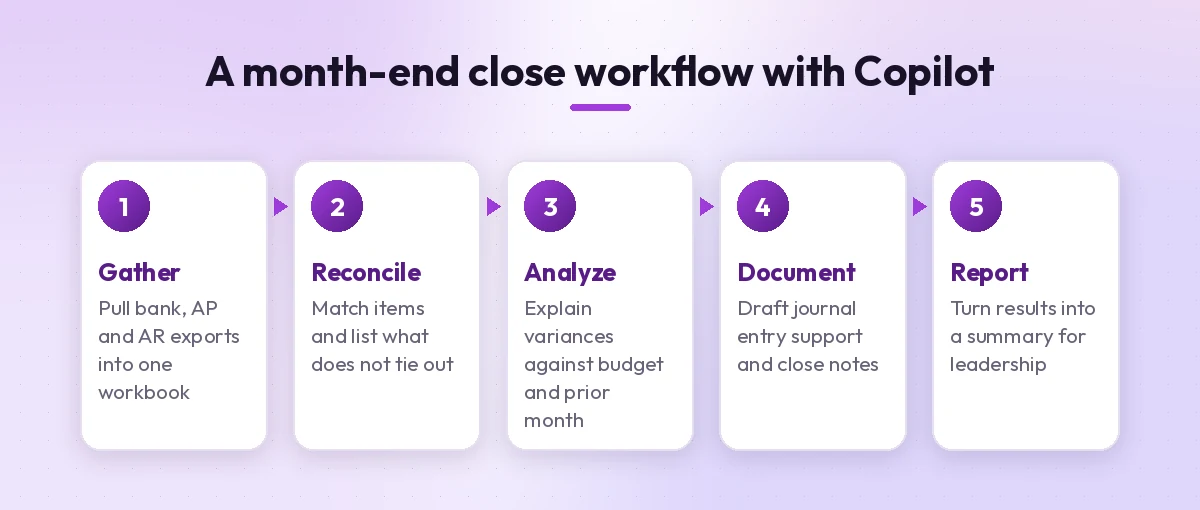
Use these copilot prompts for accountants to keep the checklist moving.
1. Build a close checklist
Create a month-end close checklist for [entity] with columns for task, owner, due day (business day 1-5), dependency and status. Include cash, AR, AP, payroll, accruals, prepaid amortization, fixed assets, intercompany and final review.2. Summarize where the close stands
Using the Status column in this checklist table, summarize which tasks are complete, which are late, and which late items block other tasks. Group the answer by owner.3. Compare the trial balance to last month
Compare the [current month] trial balance with [prior month] in this workbook. Add a column for dollar change and percent change, then flag any account where the change is above [amount] and [percent]. List the flagged accounts in a separate table.4. Explain a flux in plain language
For the accounts flagged in the variance table, draft a one-sentence explanation for each based on the notes in column [X]. Where there is no note, write "Explanation needed" instead of guessing.5. Spot unusual entries
Review this journal entry export. Highlight entries posted on weekends, entries just below the [amount] approval limit, round-dollar entries and entries with blank descriptions. Return a list with entry number, preparer and reason flagged.That last template is a quick screen, not a fraud test. Treat its list as a starting point for your own review.
Reconciliation Prompts
Reconciliations are where Copilot in Excel earns its keep. It is good at matching, explaining mismatches and writing the formulas you would otherwise look up. For more on lookups, see our walkthrough of Copilot prompts for VLOOKUP.
6. Match bank and book records
In this workbook, the Bank sheet and the Ledger sheet both have date, amount and reference columns. Add a formula to the Ledger sheet that finds a matching bank transaction by amount and reference within 3 days. Mark each row Matched or Unmatched.7. List reconciling items
Using the Unmatched rows, create a reconciling items table with columns for type (deposit in transit, outstanding check, bank fee, error), amount and suggested action. Total each type.8. Tie a subledger to the general ledger
Compare the AR aging total on the Subledger sheet with GL account [number] on the TB sheet for [period]. Show the difference and list the customer balances that could explain it, largest first.9. Reconcile intercompany balances
These two tables show intercompany balances from [Entity A] and [Entity B]. Match receivables to payables by counterparty and currency, show differences above [amount], and suggest whether each looks like a timing difference or an error.10. Write the reconciliation sign-off note
Draft a short reconciliation note for [account] as of [date]: balance per GL, balance per supporting schedule, reconciling items with amounts, and any open items older than 60 days. Keep it under 120 words.Journal Entries, Accruals and Adjustments
Much of the effort behind an adjusting entry is documentation. These prompts help you draft the support while you keep control of the numbers.
11. Draft journal entry support
Write the support memo for a journal entry that [describe entry]. Include purpose, accounts debited and credited, amount, calculation method, source documents and reversal date if applicable.12. Estimate an accrual from history
Using the last 12 months of invoices in this table, calculate the average monthly cost for [vendor or expense type] and show how a [month] accrual would be estimated. Explain the method in two sentences so a reviewer can follow it.13. Build a prepaid amortization schedule
Create a prepaid amortization schedule for a [amount] payment covering [start date] to [end date]. Show monthly expense, remaining balance and the journal entry for each month.14. Check a fixed asset roll-forward
Build a fixed asset roll-forward by asset class: beginning balance, additions, disposals, depreciation and ending balance. Flag any additions below our [amount] capitalization threshold.15. Calculate straight-line depreciation
Add a formula column that calculates monthly straight-line depreciation using cost in column [B], salvage value in column [C] and useful life in years in column [D]. Explain the formula in one sentence.Always recompute a sample by hand. A formula that looks right can still reference the wrong column after someone inserts a row.
Audit and Compliance Support
Audits run smoother when requests are tracked, documents are consistent and explanations are ready before anyone asks. Copilot is helpful here mainly as a writing and organizing partner.
16. Organize a PBC request list
Turn this list of auditor requests into a tracker with columns for request number, description, owner, due date, file location and status. Sort it by due date.17. Draft a technical accounting memo
Draft a technical memo on how we account for [transaction] under [US GAAP/IFRS]. Structure it as background, issue, relevant guidance, analysis and conclusion. Mark any place where I need to insert the exact standard reference.Copilot can describe accounting concepts well, but it may paraphrase or mix up paragraph numbers. Cite the authoritative text yourself.
18. Write a process narrative
Using my notes, write a process narrative for [process, e.g., vendor payments] that covers who initiates, who approves, which system records it and which controls apply. Keep each step to one or two sentences.If you maintain step-by-step procedures as well, our guide on Copilot prompts for SOP documents shows how to turn narratives into checklists.
19. Map controls to risks
Create a table that maps each control in this document to the risk it addresses, the assertion it supports (existence, completeness, accuracy, cutoff, valuation) and how often it runs.20. Prepare for an audit meeting
Summarize the open items from this email thread with our auditors. List each item, who owns it, what has been sent and what is still missing.Tax Season and Client-Facing Prompts
For firms serving clients, half the battle is communication. These templates cover the messages that pile up between January and the filing deadline.
21. Request missing documents
Draft a friendly email to [client] asking for the documents still missing for their [tax year] return: [list]. Give a clear deadline of [date] and explain in one sentence why each item is needed.22. Explain a result in plain English
Explain to a non-accountant client why their [tax bill/refund] changed compared with last year, based on these notes. Avoid jargon, keep it under 150 words and end with one clear next step.23. Build an organizer checklist
Create a document checklist for an individual client who has [W-2 income, a rental property, freelance income]. Group the items by category and add a short note next to each.24. Summarize a new rule for clients
Using the attached article, write a short client newsletter section that explains what changed, who it affects and what action they should consider. Include a line that they should contact us before acting.Tax rules change and vary by jurisdiction. Verify every technical point against official guidance before a client sees it.
25. Prepare for a client meeting
Review my emails and files about [client] from the last 30 days and give me a one-page brief: open questions, documents received, deadlines and anything they seemed concerned about.Reporting and Excel Analysis Prompts
Once the books close, the numbers need a story. These prompts help you go from tables to commentary. For deeper techniques, read our guide to Copilot prompts for Excel data analysis.
26. Draft management commentary
Using the variance table, write three short paragraphs of management commentary for [period]: revenue, gross margin and operating expenses. Mention the two biggest drivers in each paragraph and keep the tone factual.27. Build a ratio summary
From the balance sheet and income statement sheets, calculate current ratio, quick ratio, debt-to-equity, gross margin and days sales outstanding for the last four quarters. Show the formulas used.28. Analyze AR aging
Summarize this AR aging report: total by bucket, top 10 overdue customers and the share of the balance older than 90 days. Suggest which accounts to prioritize for collection calls.29. Clean up a messy export
This ERP export has merged headers, blank rows and amounts stored as text. Tell me the steps to clean it into a proper Excel table, and convert the amount column to numbers.30. Create a chart for the close pack
Create a clustered column chart comparing actual versus budget by department for [period], with a clear title and data labels. Suggest one sentence I can use as the slide headline.Accuracy and Data-Protection Checks
Speed matters only if the output holds up. Before anything Copilot produces goes into a workpaper, a client email or a financial statement, run a quick review.
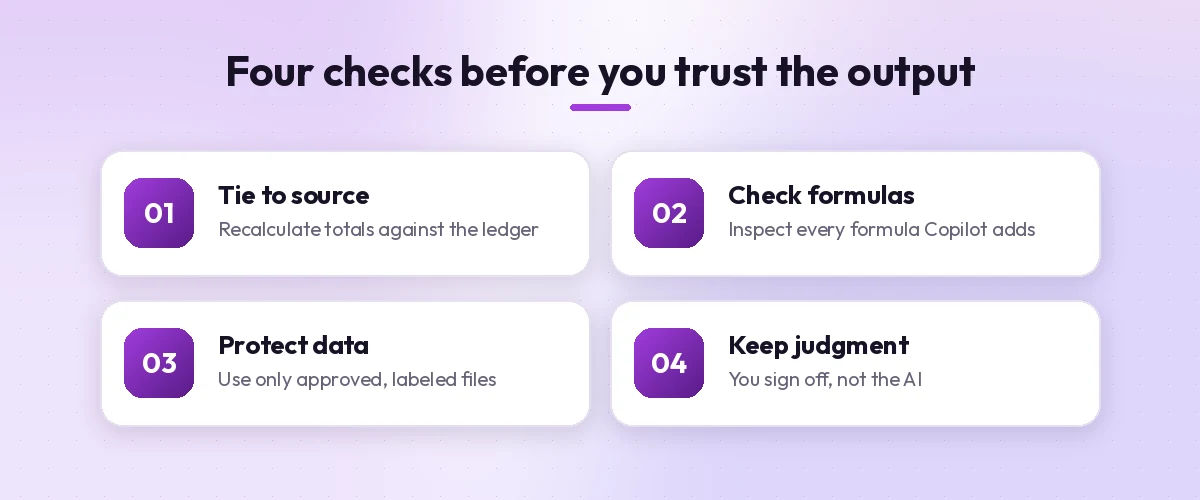
| Check | What to do | Why it matters |
|---|---|---|
| Tie to source | Recalculate key totals from the ledger or subledger | Copilot can misread ranges or skip rows |
| Inspect formulas | Click into each new formula and follow the references | Inserted rows and hidden columns break logic |
| Confirm the standard | Compare any guidance claims with the authoritative text | Summaries can blur nuance |
| Protect client data | Use only files your firm approves for Copilot | Confidentiality rules still apply |
| Document review | Note that you reviewed and adjusted the output | Reviewers and auditors need evidence |
On privacy, Microsoft explains in its Microsoft 365 Copilot data, privacy and security documentation that Copilot works within the permissions your organization already set. That is reassuring, but it also means that badly shared folders get surfaced. Ask IT to review sharing settings before rolling Copilot out across the team.
Building a Shared Prompt Library for Your Team
The fastest teams do not start from a blank chat box, and the best copilot prompts for accountants are usually the ones a team has refined over several closes. They save the prompts that worked and reuse them each period. A simple approach:
- Keep a shared Word or OneNote page with prompts grouped by close step.
- Add the file or sheet each prompt expects, so new staff know where to run it.
- Record any edits you always make to the output, then fold those edits back into the prompt.
- Review the library after each quarter-end and remove anything nobody used.
New to writing prompts at all? Our primer on how to write Copilot prompts covers the basic structure in a few minutes.
Final Thoughts
Copilot will not replace the review, judgment and skepticism that define good accounting. What it does replace is the blank page: the first draft of a memo, the formula you half remember, the email you have rewritten three times. Start with the close prompts above, measure how much time they save across one or two periods, and expand from there. The templates in this list of copilot prompts for accountants are meant to be edited, so adapt the wording to your chart of accounts, your policies and your clients.
Frequently Asked Questions
Can Copilot post journal entries in my accounting system?
Standard Microsoft 365 Copilot works in Office apps, so it can draft entry support, calculations and upload templates, but it does not post to your ERP. Microsoft’s Finance agent connects to some ERP systems for tasks such as reconciliation; check what your company licenses.
Is it safe to use client data with Copilot?
Microsoft 365 Copilot respects your organization’s existing permissions and data protections, but your firm’s confidentiality policies still apply. Use only approved files, and confirm with IT how Copilot is configured before using client records.
Which Copilot prompts help most during month-end close?
Trial balance comparisons, flux explanations, reconciliation matching and close status summaries usually save the most time because they repeat every period.
Does Copilot in Excel need a specific file setup?
It works best when data is in a formatted Excel table with clear headers and the workbook is saved to OneDrive or SharePoint so Copilot can access it.
Can Copilot interpret GAAP or IFRS for me?
It can summarize concepts and help structure a technical memo, but it can misstate details or references. Always confirm conclusions against the authoritative standard and your firm’s guidance.
How do I get consistent results every month?
Save prompts that worked in a shared library, include the sheet names and thresholds you use each period, and refine the wording whenever you find yourself making the same edit to the output.