Copilot Excel Pivot Table Prompts: 30 Proven Ideas to Summarize Data Fast
Copilot Excel pivot table prompts let you describe the summary you want in plain English instead of dragging fields around the PivotTable Field List. You say what to total, how to group it and what to compare, and Copilot builds the table for you, usually on a new worksheet. The quality of the result depends almost entirely on how clearly you ask.
This guide gives you 30 copy-ready Copilot Excel pivot table prompts for building, reshaping, comparing and explaining PivotTables, plus the data preparation that stops Copilot from guessing. Replace anything in square brackets with your own column names and values.
What Copilot Can Do with PivotTables
Copilot in Excel works from the data in your workbook. According to Microsoft’s guide to creating PivotTables with Copilot in Excel, you open Copilot, ask for the PivotTable you want, and add more detail if the first attempt doesn’t match. Microsoft’s own sample requests are short, such as “Create a PivotTable” or “PivotTable with sum of sales with month in rows and category in columns.”
Short requests work, but they leave decisions to Copilot. Detailed Copilot Excel pivot table prompts make those decisions for it. Which column counts as “sales”? Should dates be grouped by month or by quarter? Should returns be included? The more of those decisions you make in the prompt, the less cleanup you do afterward.
Here is a quick view of where Copilot helps and where you still need to check its work:
| Task | How well it suits Copilot | What to check |
|---|---|---|
| Building a first summary | Very well | The right value column and the right aggregation |
| Grouping dates or numbers | Well, when you name the grouping | Fiscal year vs calendar year |
| Filtering and sorting | Well | That no category was dropped by accident |
| Percent of total and rankings | Well, when you say which total | Row total vs column total vs grand total |
| Explaining what changed | Good starting point | Every claim against the actual cells |
If your version of Excel can’t apply a change directly, ask Copilot for step-by-step instructions instead. You still save time, because it tells you exactly which field goes where.
Prepare Your Data Before You Prompt
Most failed Copilot Excel pivot table prompts trace back to messy source data, not weak wording. Microsoft’s page on formatting data for Copilot in Excel says your data should be an Excel table or a supported range, and the file needs AutoSave turned on. A supported range has one header row, unique and non-blank headers, consistent formatting, no subtotals, no empty rows or columns, and no merged cells.
A two-minute checklist before you start:
- Format as a table. Select any cell, then choose Home and Format as Table. Give the table a clear name like
SalesData. - Use plain headers. “Order Date” and “Net Revenue” beat “Col F” or “Rev (adj) v2”.
- Keep one type per column. Dates in a date column, numbers stored as numbers, not text.
- Remove manual totals. A grand total row inside the data gets counted twice.
If the data needs work first, our guide to Copilot prompts for Excel data analysis covers cleanup requests you can run before you summarize anything.
The Four-Part Pivot Prompt Formula
Every useful PivotTable request answers four questions, and they map directly to the four areas of the Field List.
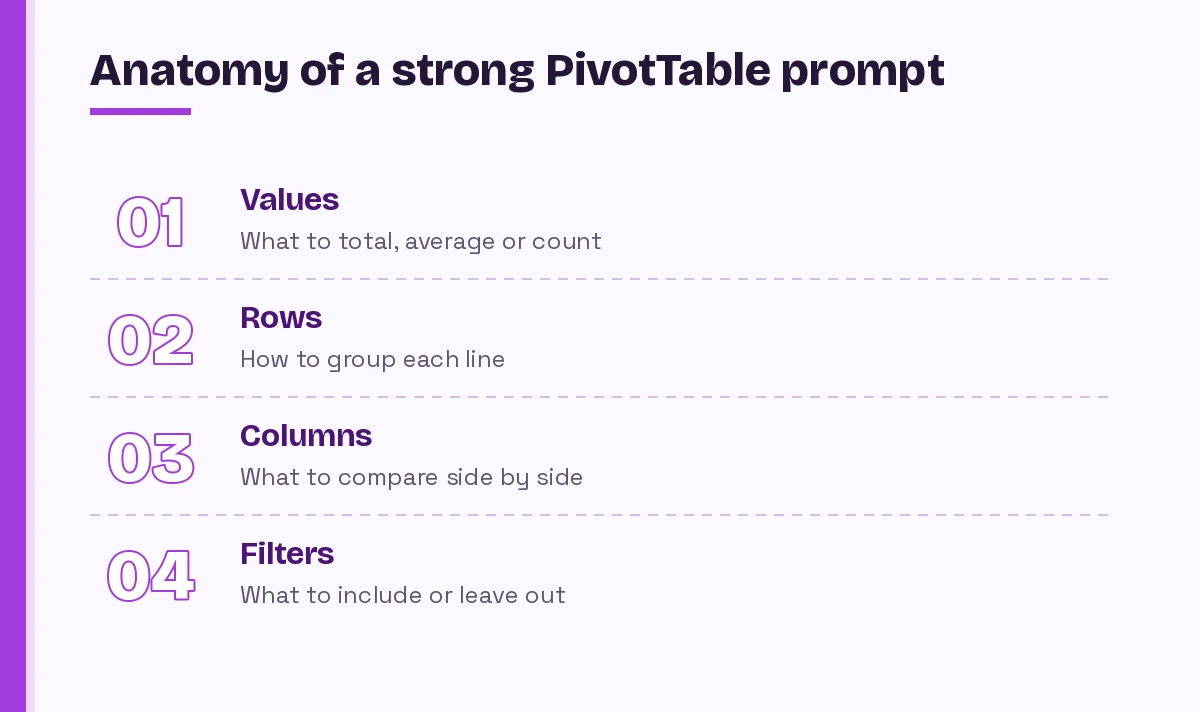
- Values: what number to show and how to calculate it (sum, average, count, distinct count).
- Rows: how to group each line of the summary.
- Columns: what to compare side by side, if anything.
- Filters: what to include or leave out.
Put together, a base version of Copilot Excel pivot table prompts looks like this:
Create a PivotTable from the [SalesData] table on a new sheet. Show the sum of [Net Revenue] as values, [Region] in rows and [Order Date] grouped by quarter in columns. Only include orders where [Status] is "Completed". Sort regions from highest to lowest total.You won’t always need all four parts. A simple count by category only needs values and rows. But naming each part removes the guesswork that leads to the wrong column or the wrong aggregation.
Copilot Excel Pivot Table Prompts to Build Your First Summary
Start here when you have raw data and want a quick overview.
1. The quick overview
Create a PivotTable that summarizes this table. Use [Category] in rows and the sum of [Amount] as values. Put it on a new worksheet named "Summary".2. Count instead of sum
Build a PivotTable that counts the number of [Order ID] values for each [Customer Segment]. I want the number of orders, not the sum of order IDs.3. Average per group
Create a PivotTable showing the average [Deal Size] by [Sales Rep]. Format the values as currency with no decimals.4. Two-level breakdown
Make a PivotTable with [Region] and then [Product Line] in rows, and the sum of [Units Sold] as values. Show subtotals for each region.5. Side-by-side comparison
Create a PivotTable with [Product] in rows, [Channel] in columns and the sum of [Revenue] as values. Include a grand total for each row and column.6. Several measures at once
Build a PivotTable by [Region] with three values: sum of [Revenue], sum of [Cost] and count of [Order ID]. Label the columns "Revenue", "Cost" and "Orders".7. Let Copilot suggest the layout
I want to understand which factors drive [Revenue] in this table. Suggest two or three PivotTable layouts that would be most useful, explain why, then create the first one.Prompt 7 works well when you are new to a dataset. Copilot proposes a structure, and you decide whether it makes sense before anything gets built.
Prompts to Group, Filter and Sort
Once a PivotTable exists, most of the work is reshaping it. These requests change the view without starting over.
8. Group dates by month
In the PivotTable on the "Summary" sheet, group [Order Date] by month and year so each month appears once in order.9. Fiscal quarters
Our fiscal year starts in [July]. Group [Order Date] into fiscal quarters (Q1 = July to September) and show revenue by fiscal quarter.10. Number bands
Group [Order Value] into bands of [100]: 0 to 99, 100 to 199 and so on. Show the count of orders in each band.11. Top performers only
Filter the PivotTable to show only the top [10] [Products] by sum of [Revenue]. Sort them from highest to lowest.12. Exclude noise
Remove blank and "Unknown" values from the [Region] field, and exclude any rows where [Status] is "Cancelled" or "Test".13. Add a slicer
Add a slicer for [Region] and another for [Year] connected to this PivotTable so I can filter it quickly.14. Tidy the layout
Switch this PivotTable to tabular layout, repeat item labels, hide the "+/-" buttons and rename "Sum of Revenue" to "Revenue".Small layout requests like prompt 14 matter more than they look. A PivotTable with clear labels is much easier to share with people who never saw the source data.
Pivot Table Prompts for Comparisons and Percentages
Raw totals rarely answer the real question. Most business questions are about share, change or rank, and that is where clear pivot table prompts save the most time.
15. Percent of total
Show [Revenue] by [Region] as a percentage of the grand total, alongside the actual revenue values.16. Share within each group
For each [Region], show each [Product Line] as a percentage of that region's total, not the overall total.17. Month-over-month change
Add a column showing the difference in [Revenue] from the previous month, and another showing the percentage change.18. Year-over-year comparison
Create a PivotTable with [Month] in rows and [Year] in columns showing sum of [Revenue], then add the percent change between [2025] and [2026] for each month.19. Rank within a list
Add a rank for each [Sales Rep] based on sum of [Revenue], largest = 1.20. Budget versus actual
Using the [Budget] and [Actual] columns, build a PivotTable by [Department] that shows budget, actual, the variance (actual minus budget) and variance as a percentage of budget.21. Running total
Show a running total of [Units Sold] by month for the current year so I can see cumulative progress toward the annual target of [50,000] units.Prompt 16 is where vague wording causes the most trouble. “Percentage” can mean share of the row, the column, the parent group or the grand total, and each gives a very different answer. Always name the total you mean.
Prompts for PivotCharts and Dashboards
A PivotChart stays linked to its PivotTable, so filters and slicers update both together.
22. Chart from the PivotTable
Create a clustered column PivotChart from the PivotTable on the "Summary" sheet. Put [Region] on the horizontal axis and add a clear chart title.23. Trend line view
Build a line PivotChart showing monthly [Revenue] for each [Product Line] as separate lines. Keep the legend at the bottom.24. One-page summary sheet
On a new sheet called "Dashboard", create three PivotTables from [SalesData]: revenue by region, revenue by month and top 10 products. Add a PivotChart for each and connect one [Year] slicer to all three.Prompt 24 asks for several steps at once. If Copilot does only part of it, run the pieces one at a time. For more layout ideas, see our collection of Copilot prompts for Excel dashboards.
Prompts to Explain and Troubleshoot Results
A finished PivotTable is only useful if you understand it. These prompts turn numbers into findings and help you fix tables that look wrong.
25. Plain-English summary
Look at the PivotTable on the "Summary" sheet and write three to five bullet points describing the most important patterns. Use the actual figures and don't speculate about causes.26. Spot the outliers
Which [Products] or [Regions] in this PivotTable are unusually high or low compared with the rest? List them with their values and explain why they stand out.27. Drill into one number
The [West] region shows [Revenue] much lower in [March] than other months. Which rows in the source data make up that total, and is anything missing or unusual?28. Fix a total that looks wrong
The grand total in this PivotTable doesn't match the sum of the [Revenue] column in the source table. List the likely reasons, such as filters, blank cells or text values, and check which applies here.29. Refresh guidance
I added new rows to [SalesData]. Explain how to make sure this PivotTable includes them, and whether the source range needs to change.30. Explain a PivotTable someone else built
Explain what this PivotTable shows: which fields are in rows, columns, values and filters, which calculations are used, and any filters currently hiding data.Treat Copilot’s written summaries as a draft. Check each figure it quotes against the cells, especially when the table has filters applied, because a hidden filter changes every total.
Copilot Excel Pivot Table Prompts for Real Roles
The same structure fits almost any job. A few examples show how small wording changes adapt it:
- Sales manager: “Sum of [Revenue] by [Sales Rep] in rows and [Quarter] in columns, sorted by total, with a slicer for [Territory].”
- Finance analyst: “Sum of [Amount] by [Cost Center] and [GL Account], filtered to [FY2026], showing variance against [Budget].”
- HR partner: “Count of [Employee ID] by [Department] and [Tenure Band], excluding contractors.”
- Operations lead: “Average [Days to Ship] by [Warehouse] and month, highlighting any month above [3] days.”
- Marketer: “Sum of [Leads] and [Spend] by [Campaign Type], plus cost per lead as a calculated field.”
If you work in finance, our Copilot prompts for finance guide has more reporting ideas that pair well with these summaries.
Common Mistakes and How to Avoid Them
Using vague column names. “Show sales by area” fails when your columns are called “Net_Rev” and “Terr_Code”. Use the exact header text, or rename headers first.
Asking for everything in one prompt. A request for five tables, three charts and a slicer often gets partly done. Build in steps and confirm each one.
Forgetting the aggregation. Excel defaults to Count when a column contains text or blanks. If you want a sum, say “sum of”.
Skipping filters. Test orders, cancellations and internal accounts quietly inflate totals. Name what to exclude.
Trusting the first answer. Spot-check at least one total by filtering the source table yourself. It takes a minute and catches most errors.
Sharing sensitive data carelessly. Copilot works within your organization’s Microsoft 365 settings, but before you share a PivotTable, check that it doesn’t expose salary, customer or other confidential detail to people who shouldn’t see it.
How to Build Your Own Pivot Prompts
When none of the 30 templates fits, write your own in this order:
- Name the source: the table or sheet.
- Name the measure and math: “sum of”, “average of”, “count of”, “distinct count of”.
- Name the groupings: rows first, then columns.
- Name the scope: date range, statuses or categories to include or exclude.
- Name the presentation: sort order, number format, location and labels.
Keep a short text file of the Copilot Excel pivot table prompts that work for your recurring reports. Next month you paste the same prompt, change the date and get an identical layout. For the wider Excel toolkit, browse our main collection of Copilot prompts for Excel, and for lookup formulas, see our VLOOKUP prompt guide.
Final Thoughts
Good Copilot Excel pivot table prompts read like instructions to a careful colleague: here is the data, here is the number I care about, group it this way, leave these rows out and sort it like this. Prepare your table first, use the four-part formula, ask for percentages with the exact total named, and verify one figure before you share anything. Start with templates 1, 8, 15 and 25, and you will cover most everyday reporting in minutes.
Frequently Asked Questions
What are the best Copilot Excel pivot table prompts?
The best ones name four things: the value to calculate and how (for example “sum of Revenue”), the field for rows, the field for columns, and any filters. A prompt such as “Sum of Revenue by Region in rows and quarter in columns, completed orders only, sorted highest first” leaves Copilot very little to guess.
Can Copilot create a PivotTable in Excel?
Yes. Open Copilot in Excel and ask for the PivotTable you want. Copilot usually places it on a new worksheet. If the result isn’t right, add more detail and ask again. Copilot requires an eligible Microsoft 365 license and may be limited by your organization’s settings.
Why won’t Copilot create a PivotTable from my data?
The most common reasons are data that isn’t an Excel table or supported range, merged cells, blank or duplicate headers, empty rows, or AutoSave being turned off. Format the data as a table with clear headers, save it to OneDrive or SharePoint so AutoSave works, and try again.
Can Copilot add calculated fields or percentages to a PivotTable?
You can ask for percent of total, percent of row or column, differences from a previous period, running totals and simple calculated fields. Always state which total a percentage should use. If Copilot can’t apply a change directly in your version, ask it for step-by-step instructions.
Does Copilot update a PivotTable when my data changes?
A PivotTable doesn’t update itself when source data changes. You refresh it, or set it to refresh when the file opens. If your source is an Excel table, new rows are included when you refresh. Copilot can explain these steps or check whether the source range covers your new data.
Is it better to use Copilot or build PivotTables manually?
Copilot is faster for a first draft, quick comparisons and explaining unfamiliar tables. Manual building gives you exact control for complex reports. Many people use both: ask Copilot for the starting layout, then fine-tune fields and formatting by hand.