Copilot Prompts for IT Support: 30 Proven Templates for Faster Help Desk Tickets
Copilot prompts for IT support give a busy help desk a faster way through the work that surrounds every fix: reading a messy ticket, asking the right follow-up questions, writing the reply, documenting the solution and explaining a change to people who don’t speak in error codes. The troubleshooting still depends on your skills and your tools. What changes is how much time you spend typing around it.
This guide collects 30 copy-ready Copilot prompts for IT support for service desk analysts, desktop support technicians and small IT teams. They’re grouped by the stage of a ticket, from first contact to the knowledge base article you write once it’s closed. Replace anything in square brackets with your own details, and strip out names, passwords and other sensitive values before you paste anything into a chat.
Where Copilot Prompts for IT Support Fit in Your Workflow
Think of Copilot as a fast, patient writing partner that sits next to your ticketing system rather than inside it. In Microsoft 365, Copilot Chat can work with text you paste, files you attach and, with a work license, content it’s allowed to reach through Microsoft Graph, such as email threads and Teams messages. It doesn’t see your monitoring dashboards or remote session unless you bring that information to it.
That boundary is useful. It means the best Copilot prompts for IT support are the ones built on text: user descriptions, log snippets, change notes, chat transcripts and draft replies. Microsoft’s own guidance to learn about Copilot prompts recommends giving a goal, context, expectations and a source, and that structure maps neatly onto a support ticket.
If you’re new to writing requests like these, our walkthrough on how to write Copilot prompts explains the basics in more depth.
The Anatomy of a Strong Help Desk Prompt
Good Copilot prompts for IT support share one habit: they hand over context. A weak request such as “fix this printer issue” gets you a generic checklist you already know. A strong request reads like a handover note to a colleague who’s about to take the ticket.
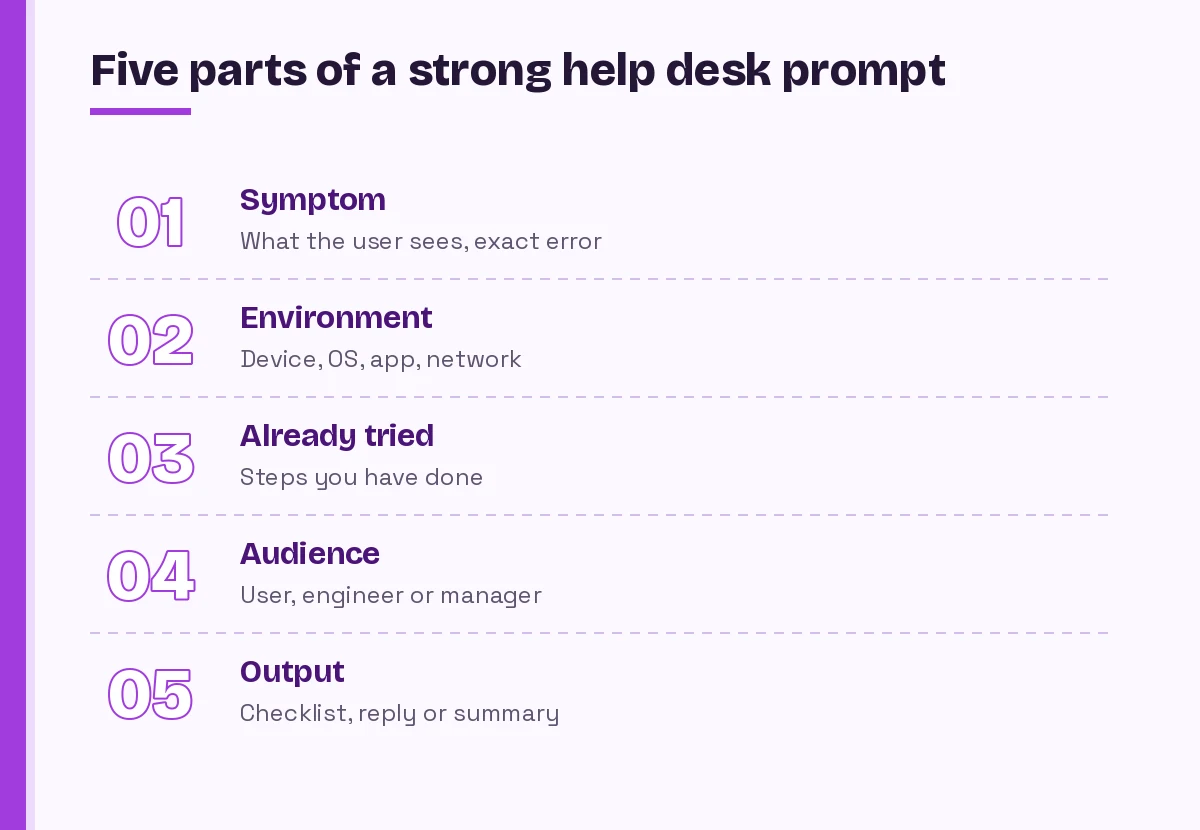
- Symptom: what the user sees, in their words, plus any exact error text.
- Environment: device type, OS version, app version, network, and whether it’s one user or many.
- Already tried: the steps you or the user have completed, so Copilot doesn’t suggest them again.
- Audience: a non-technical employee, a fellow engineer or a manager who needs a status update.
- Output: a numbered checklist, a short reply, a table, a script outline or a summary under 100 words.
Here’s that structure in one block you can reuse:
I'm working a help desk ticket. Symptom: [what the user reports, including exact error text]. Environment: [device, OS and version, app and version, network, number of users affected]. Already tried: [steps completed]. Suggest the next five diagnostic steps in order from least to most disruptive, and explain in one line what each step rules out.Prompts for Triage and First Contact
The first few minutes of a ticket decide whether it closes quickly or bounces back and forth for days. These Copilot prompts for IT support help you sort, prioritize and ask better questions.
1. Turn a vague ticket into clear facts
Here is a ticket written by a user: [paste ticket]. Rewrite it as a short technical summary with these headings: reported symptom, likely affected component, missing information, and urgency signals. Don't guess at a cause yet.2. Draft clarifying questions
A user reported: "[paste description]". Write five clarifying questions I can send them, in plain language, that will help me narrow the cause. Avoid jargon and keep each question to one sentence.3. Suggest a priority level
Using this priority matrix: [paste your impact and urgency definitions], suggest a priority for the following ticket and explain your reasoning in two sentences: [paste ticket]. Flag anything that might make it more urgent than it looks.4. Spot duplicate or related issues
Below are the subject lines of today's open tickets: [paste list]. Group the ones that may share a root cause, name each group, and note which ticket has the most useful detail for investigating it.5. Write the first acknowledgment
Write a short first reply to a user whose ticket says: [paste]. Confirm what we understood, tell them what happens next, give a realistic time window of [time], and ask them for [specific item]. Friendly, under 80 words.Troubleshooting Prompts for Common Problems
These troubleshooting Copilot prompts for IT support are thinking aids, not answers. Use them to make sure you haven’t skipped an obvious branch, then test each step against your own environment and documentation.
6. Build a diagnostic tree
Create a step-by-step troubleshooting tree for this problem: [symptom] on [device and OS]. Start with the quickest checks, and for each step say what result points to the next branch.7. Explain an error message
Explain this error message in plain terms and list the most common causes: [paste exact error]. It appears when [action] in [app and version]. Say which causes are most likely given that [relevant detail].8. Read a log excerpt
Here is a log excerpt with names and IP addresses removed: [paste]. Point out the lines that look like the start of the problem, explain what each one means, and suggest what I should check next. Tell me if the excerpt isn't enough to say.9. Compare a working and a broken setup
Compare these two configurations, one from a working machine and one from a failing machine: [paste both]. List every difference in a table and mark which differences could plausibly cause [symptom].10. Network and connectivity checks
A user can't reach [internal site or service] from [location or VPN]. Others on the same network can. Give me an ordered list of checks for a single-user connectivity problem, with the command or setting to look at for each one on [Windows or macOS].11. Account and sign-in problems
A user is stuck in a sign-in loop for [app] after [recent change, such as a password reset or new device]. List the likely causes and the order I should check them in, starting with ones the user can safely try themselves.12. Slow device complaints
A user says their laptop is "really slow" since [date or event]. Write a short set of questions to pin down what slow means for them, then a checklist of things I can check remotely, grouped into storage, memory, startup programs, updates and network.If the problem turns out to be in code your team maintains, our guide to GitHub Copilot prompts for debugging covers that side of the work.
Prompts for Writing to End Users
Clear communication is half of good support. A correct fix explained badly still produces a follow-up ticket. The Copilot prompts for IT support below help you write instructions that non-technical people can actually follow.
13. Step-by-step instructions
Write step-by-step instructions for a non-technical employee to [task] on [device and OS]. Number every step, describe what they'll see on screen in plain words, and add a note on what to do if a step doesn't match.14. Simplify a technical explanation
Rewrite this explanation for someone with no IT background, keeping it accurate and under 120 words: [paste technical explanation].15. Reply to a frustrated user
A user has written an annoyed message about a problem that's taken three days to fix: [paste]. Draft a calm, honest reply that acknowledges the delay without blaming anyone, explains the current status as [status], and gives the next update time as [time].For more help with tense conversations, see our set of Copilot prompts for difficult emails.
16. Closing message with prevention tips
Write a closing message for a resolved ticket about [issue]. Summarize the fix in one sentence, give two simple tips to stop it happening again, and ask them to reply if anything still isn't working.17. Translate a reply
Translate this support reply into [language], keeping technical terms such as [terms] in English and the tone friendly and clear: [paste reply].Prompts for Outages and Incident Communication
When something breaks for many people at once, the pressure shifts from fixing to informing. Copilot prompts for IT support teams can produce a clean first draft while you stay focused on the incident.
18. Initial outage notice
Draft a short outage notice for all staff. Service affected: [service]. Impact: [what people can't do]. Started: [time]. Workaround: [if any]. Next update: [time]. No speculation about the cause. Plain language, under 100 words.19. Status update from rough notes
Turn these rough incident notes into a status update for managers: [paste notes]. Use three headings: what's happening, what we're doing, and what you should do. Keep it factual.20. Resolution notice
Write a resolution notice for [service]. It was unavailable from [start] to [end]. Root cause, if confirmed: [cause, or "still under review"]. Tell people what to do if they still have problems.21. Post-incident review draft
Using this incident timeline: [paste timeline], draft a blameless post-incident review with sections for summary, impact, timeline, contributing factors, what went well, and follow-up actions with owners as placeholders. Don't invent details that aren't in the timeline.If your team coordinates incidents in Teams, these pair well with our Copilot prompts for Teams channels.
Knowledge Base and Documentation Prompts
The best time to write a knowledge article is right after a fix, and it’s also when you least want to. These Copilot prompts for IT support make that step quick enough to actually happen.
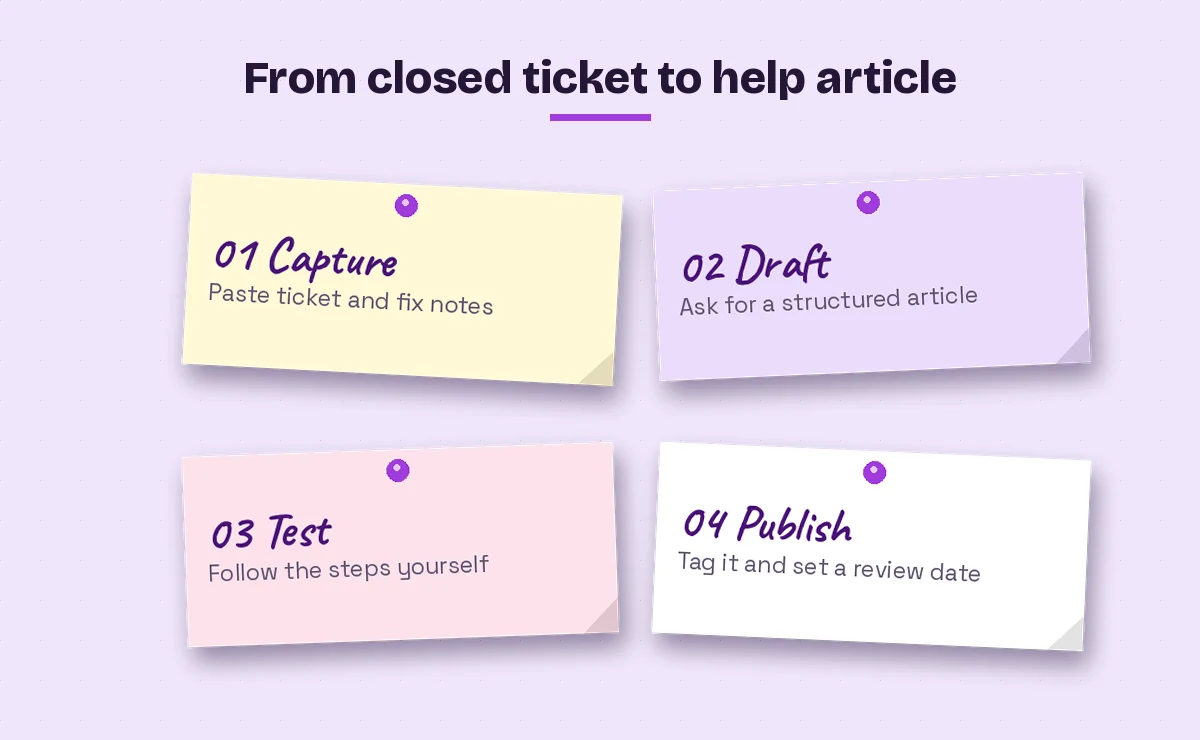
22. Ticket to knowledge article
Turn this resolved ticket and my notes into a knowledge base article: [paste]. Use the headings: symptoms, cause, resolution steps, and how to confirm it's fixed. Write the steps so a first-line analyst could follow them without asking me.23. User-facing self-help page
Write a self-help article for employees on [common task, such as setting up MFA on a new phone]. Include a short intro, numbered steps, a "common problems" section with three items, and when to contact the service desk.24. Standard operating procedure
Draft a standard operating procedure for [process, such as onboarding a new laptop]. Include purpose, scope, prerequisites, numbered steps, verification checks and an owner placeholder.Our dedicated guide to Copilot prompts for SOP writing goes further on structure and review.
25. Audit an old article
Review this knowledge base article for gaps and outdated steps: [paste]. List anything that seems unclear, missing or likely to be out of date, and suggest a revised version with changes marked.Prompts for Scripts, Changes and Planning
These prompts help with the planning and paperwork around technical changes. Treat any script Copilot produces as a starting draft to review and test in a safe environment, never as something to run straight in production.
26. Outline a script
Outline a PowerShell script that [task, such as reporting disk space on a list of machines]. Explain each section in comments, include basic error handling, and list the permissions it would need. Don't include any credentials.27. Explain an existing script
Explain what this script does line by line, flag anything risky or destructive, and say what I should test before running it: [paste script with secrets removed].28. Change request summary
Write a change request summary for [change]. Include the reason, systems affected, risk level with justification, rollback plan, testing done, and a short user communication. Use my notes: [paste].29. Onboarding and offboarding checklist
Create an IT onboarding checklist for a new [role] starting on [date]. Group items into before day one, day one and first week, covering accounts, devices, licenses, access and security training.30. Weekly service desk report
Here is this week's ticket data as a table: [paste]. Summarize volume, the top three categories, any repeat issues and two suggestions for reducing tickets next week. Keep it under 200 words for a manager.Keeping Support Data Safe
Safety matters more than speed when you use Copilot prompts for IT support. Help desk work is full of sensitive material: usernames, device names, IP addresses, personal details and sometimes passwords typed into tickets by mistake. Before pasting anything, remove or mask what Copilot doesn’t need. A placeholder like “[user A]” or “10.x.x.x” usually gives the same quality of answer.
Use the version of Copilot your organization has approved. Microsoft explains how Microsoft 365 Copilot handles prompts and organizational data in its documentation on data, privacy and security for Microsoft 365 Copilot. If your company has its own AI policy, that comes first.
Building a Shared Prompt Library for the Team
Prompts get better when a whole team refines them. A simple shared library keeps the good ones from living only in one analyst’s notes.
| Library field | What to record | Why it helps |
|---|---|---|
| Name | A short, searchable title | People find it in seconds |
| Use case | The ticket type it suits | Avoids using the wrong template |
| Prompt text | The full prompt with placeholders | Copy and go |
| Inputs needed | What to gather first | Fewer weak answers |
| Owner | Who maintains it | Keeps it current |
| Last reviewed | A date | Flags stale prompts |
Start with the five Copilot prompts for IT support your team uses most, store them somewhere everyone already looks, and review them every month or so. Drop the ones nobody uses and tighten the ones that keep needing extra edits.
Mistakes to Avoid
- Pasting raw tickets with personal data. Mask names, emails and device identifiers first.
- Trusting commands without checking them. Confirm syntax and impact against official documentation before running anything.
- Leaving out what you’ve already tried. You’ll get the same basic suggestions back.
- Asking for everything at once. Split triage, troubleshooting and the user reply into separate prompts.
- Skipping the human review. Read every reply as the user would before you send it.
Final Thoughts
The value of Copilot prompts for IT support isn’t that an assistant can fix a laptop. It’s that the writing, sorting and documenting around each fix stops eating your day. Start with the triage and knowledge base prompts, since they save time on almost every ticket, then add the outage and planning ones as your team gets comfortable.
Keep your own judgment at the center. You know your environment, your users and your policies, and Copilot only knows what you give it. Used that way, these 30 Copilot prompts for IT support can help a small team answer faster, write clearer and leave behind documentation the next analyst will thank you for.
Frequently Asked Questions
Can Copilot fix IT problems on its own?
No. Copilot can’t see your devices, consoles or monitoring tools unless you give it that information. It helps you think through steps, explain errors and write replies, while you do the actual diagnosis and fix.
Is it safe to paste tickets into Copilot?
For Copilot prompts for IT support, use the version your organization has approved and remove personal data, passwords, IP addresses and device names first. Placeholders usually give answers that are just as useful.
Which Copilot works best for help desk tasks?
Copilot Chat with a Microsoft 365 work account is a good starting point because it can work with pasted text and files. Some admin tools, such as Microsoft Intune, have their own Copilot features if your organization has enabled them.
Can Copilot write PowerShell scripts for IT support?
It can outline and draft scripts, but treat them as starting points. Review every line, remove anything destructive you don’t understand, and test in a safe environment before using them in production.
How do I get better troubleshooting answers from Copilot?
Give the exact error text, the environment, how many users are affected and what you’ve already tried. Asking for steps ordered from least to most disruptive also produces more practical results.
Can Copilot help write knowledge base articles?
Yes. Paste a resolved ticket and your notes, then ask for an article with symptoms, cause, resolution and verification headings. Check the steps yourself before publishing.