GitHub Copilot Slash Commands: Ultimate Cheat Sheet With 30 Examples
GitHub Copilot slash commands are short shortcuts you type in the chat box, such as /explain, /fix or /tests, that tell Copilot exactly what kind of job you want done. Instead of writing a long instruction every time, you start with a slash, add a few words of context and let the command fill in the rest. This cheat sheet covers the commands that matter in VS Code, Visual Studio, JetBrains, Xcode, GitHub.com and the Copilot CLI, plus 30 copy-ready examples you can paste straight into chat.
GitHub Copilot slash commands change fast. New ones appear, a few are renamed and some only show up in certain modes. So treat this page as a working map, and when in doubt type / in your own chat box to see the live list for your editor, plan and organization.
What GitHub Copilot Slash Commands Actually Do
A slash command is a pre-built intent. When you type /tests, Copilot already knows you want unit tests, that it should look at your selection or active file and that the answer should be code you can drop into a test file. Your extra words only need to cover what’s special about this case.
That makes GitHub Copilot slash commands useful in three situations:
- Speed. Repetitive requests like “explain this” or “write tests for this” shrink to a single word.
- Consistency. Every developer on a team gets similar output for the same command, which makes reviews easier.
- Control. Some commands don’t generate code at all. They manage the chat itself: clearing it, compacting context, switching models or opening settings.
It also helps to know what they are not. GitHub Copilot slash commands are different from chat variables (the # items such as #file or #selection, which attach context) and chat participants (the @ items such as @terminal or @vscode, which route the question to a specialist). The strongest requests often combine all three.
The Core Commands in Every Editor
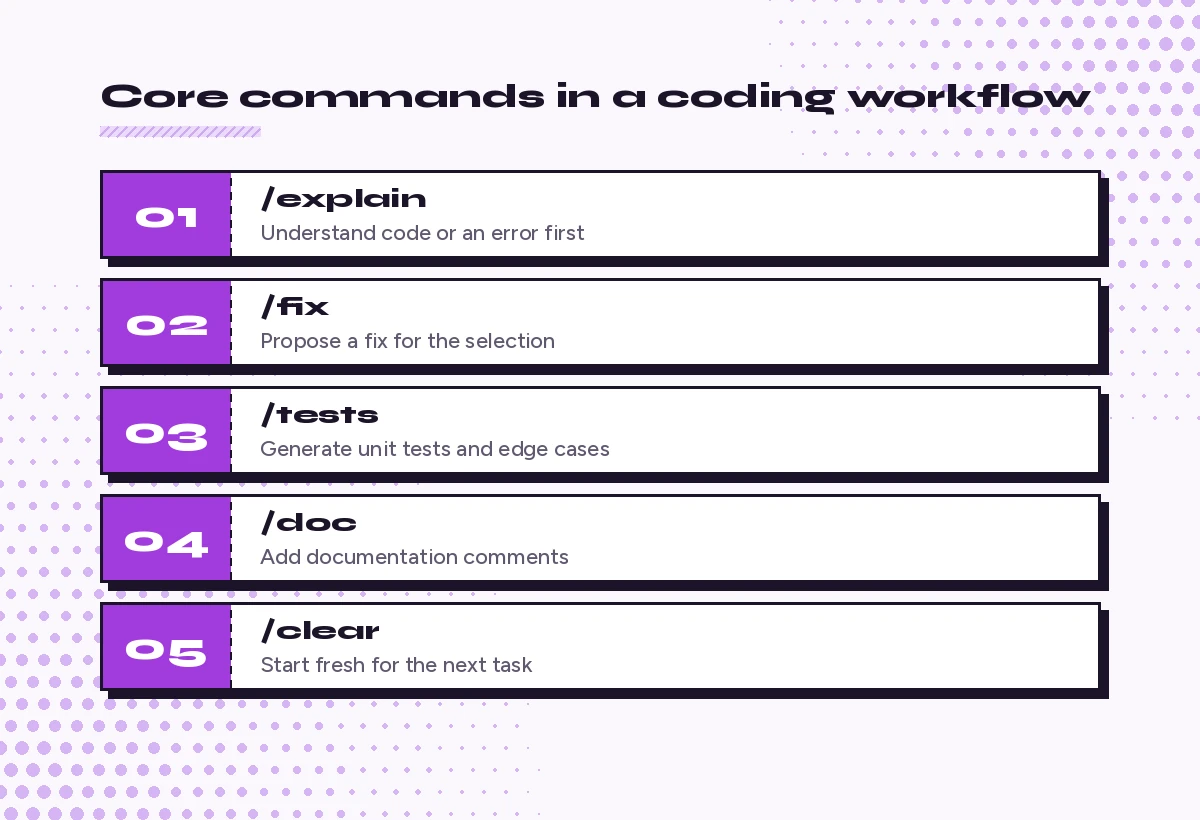
GitHub’s official Copilot Chat cheat sheet lists the most common commands for each environment. A handful show up almost everywhere you code:
| Command | What it does | Best moment to use it |
|---|---|---|
/explain | Explains the selected code or the code in your active editor | Reading unfamiliar code or a confusing error |
/fix | Proposes a fix for problems in the selected code | A bug or compiler error lives in a few lines |
/tests | Generates unit tests for the selected code | After writing a new function or before a refactor |
/doc | Adds documentation comments for a symbol | Before opening a pull request |
/help | Quick reference for using Copilot | You’re unsure what your setup supports |
/clear | Starts a fresh chat session | The topic changes or answers start to drift |
If you only learn these six GitHub Copilot slash commands, you will already cover most daily coding chores.
Slash Commands by Environment
Each editor ships its own set of GitHub Copilot slash commands, and that list keeps growing. Here’s what each official reference describes at the time of writing.
VS Code
VS Code has the longest list. Beyond the core set, its Copilot features reference documents commands such as:
/planto research a task and propose an implementation plan before any code changes./newand/newNotebookto scaffold a workspace, file or Jupyter notebook./setupTests(experimental) to help choose and configure a test framework./compactto compress a long conversation’s context, and/forkto branch a chat with its history./modelsand/toolsto open the model picker or configure tools for a local chat./initto generate or update workspace instructions in a local agent session./prompts,/instructions,/skills,/agentsand/hooksto configure each customization type./troubleshootand/debugfor analyzing agent logs or opening the Chat Debug view.
Older material also mentions /fixTestFailure, which GitHub’s cheat sheet still lists for VS Code. In newer builds, the Fix Test Failure action in Test Explorer often does the same job.
Visual Studio
Visual Studio keeps a compact list: /doc, /explain, /fix, /help, /optimize and /tests. The standout is /optimize, which analyzes the selection and suggests ways to improve running time. Visual Studio also lets you reference files and line ranges with #, for example #MyFile.cs: 66-72.
JetBrains IDEs
JetBrains supports /explain, /fix, /tests and /help. If you run Copilot CLI sessions inside the IDE, you also get CLI commands such as /compact there.
Xcode
Xcode lists /doc, /explain, /fix, /tests and /simplify. That last one is handy for Swift code that has grown too clever for its own good.
GitHub.com
In Copilot Chat on the GitHub website the commands are about managing conversations: /new, /clear, /delete and /rename. The real power there comes from @ mentions for issues, pull requests, files and repositories.
Copilot CLI
The terminal agent has its own set focused on session control. GitHub’s Copilot CLI guide describes /login, /add-dir to trust another directory, /resume to return to a saved session, /agent to pick a custom agent, /mcp add to connect an MCP server, /usage for session statistics, /settings, /feedback, and /every and /after for scheduling prompts.
How to Write Better Slash Command Prompts
GitHub Copilot slash commands work on their own, and a bare command is fine, but a command with context works much better. The pattern is simple:
/[command] [scope] [goal] [constraints] [output format]Here’s how that looks in practice:
/tests #selection Cover empty input, null values and a list of 10,000 items. Use pytest and parametrize where it fits. Do not mock the database layer.The command sets the job, #selection sets the scope, and the rest tells Copilot what “good” looks like. Without the extra sentence you would get generic happy-path tests. With it you get the edge cases you actually care about.
Three habits make the biggest difference:
- Always attach scope. Select code first or add
#file,#selectionor#function. Copilot can’t fix what it can’t see, and this matters more for GitHub Copilot slash commands than for free-form chat. - Say what must not change. Public APIs, test expectations and dependencies are common things to protect.
- Ask for reasoning before edits on risky code. A short “explain your plan first” avoids surprise rewrites.
If you want a deeper foundation, our guide to GitHub Copilot prompts covers the full anatomy of a good coding request.
30 Ready-to-Use Slash Command Examples
The GitHub Copilot slash commands examples below are grouped by the job you’re trying to do. Copy any of these, replace the square brackets and adjust to your stack.
Understanding Code With /explain
1. Plain-language walkthrough
/explain #selection Walk through this function line by line for a developer who is new to this codebase. Point out any side effects.2. Explain the “why”, not just the “what”
/explain #file Why might the original author have structured this module this way? List the trade-offs of this design.3. Decode an error
/explain What does this error mean and what are the three most likely causes in #selection?
[paste error message]
4. Map data flow
/explain Trace how the value of [variable] changes from the moment it enters #function until it is returned.5. Regex or SQL translation
/explain Translate this regular expression into plain English and give two strings it matches and two it rejects.Fixing Problems With /fix
6. Targeted fix with guardrails
/fix #selection The function returns [actual] for input [input] but should return [expected]. Keep the public signature unchanged.7. Diagnosis before patch
/fix #selection First explain the root cause and how confident you are. Only then propose the smallest change that fixes it.8. Compiler or type errors
/fix Resolve these TypeScript errors without using "any" or disabling strict mode.
[paste errors]
9. Null and boundary safety
/fix #function Add handling for null, empty and out-of-range inputs. Return clear error messages instead of throwing generic exceptions.10. Security smell
/fix #selection Check this code for SQL injection or unsafe input handling and rewrite it using parameterized queries.For longer bug hunts, our list of GitHub Copilot prompts for debugging goes step by step from symptom to verified fix.
Generating Tests With /tests
11. Edge-case coverage
/tests #selection Cover the happy path plus empty input, maximum values and invalid types. Use [framework].12. Match existing style
/tests #function Follow the naming and structure used in #file:[existing_test_file]. Reuse existing fixtures.13. Regression test from a bug
/tests Write a failing test that reproduces this bug before any fix is applied: [describe bug and input].14. Table-driven tests
/tests #selection Write table-driven tests with one row per scenario and a short description for each case.15. Set up a framework (VS Code)
/setupTests Recommend a test framework for this project, explain why, and list the config files it needs.Want a bigger library of testing requests? See our GitHub Copilot prompts for unit tests.
Documenting With /doc
16. Docstrings with examples
/doc Add a docstring to #function with parameters, return value, raised errors and one usage example.17. Team convention
/doc Use JSDoc format and keep each description under two lines. Do not restate the function name.18. Explain the tricky part
/doc Add an inline comment only where the logic is non-obvious, explaining why it works this way.Our Copilot prompts for documentation cover READMEs, API references and architecture notes beyond code comments.
Improving Code With /optimize and /simplify
19. Speed (Visual Studio)
/optimize #selection Improve running time for inputs of about [size]. Explain the complexity before and after.20. Memory
/optimize Reduce memory allocations in this loop without changing output. Show a short benchmark I can run.21. Readability (Xcode)
/simplify Make this Swift function easier to read. Prefer guard statements and remove nested optionals.22. Behavior-safe cleanup
/fix #selection Refactor for readability only. Behavior, public names and return types must stay identical.For larger restructuring, our GitHub Copilot prompts for refactoring show how to work in small, testable steps.
Planning and Scaffolding
23. Plan before code
/plan Add rate limiting to the public API. List affected files, risks and a step-by-step plan. Do not edit anything yet.24. New project
/new Create a minimal [framework] project with linting, a test runner and a README. Keep dependencies to the essentials.25. Notebook
/newNotebook Create a notebook that loads [data.csv], profiles missing values and plots the three most important columns.26. Workspace instructions
/initRun it once in a local agent session, then review the generated file. Our guide to the Copilot instructions file explains what belongs in it.
Managing the Chat Itself
27. Fresh start
/clearUse it whenever you switch topics. Old context from a previous task is one of the most common reasons answers go off track.
28. Shrink a long session
/compact29. Explore an alternative
/fork Try the same refactor using a strategy pattern instead of a switch statement.30. Check what’s available
/helpCreate Your Own Slash Commands With Prompt Files
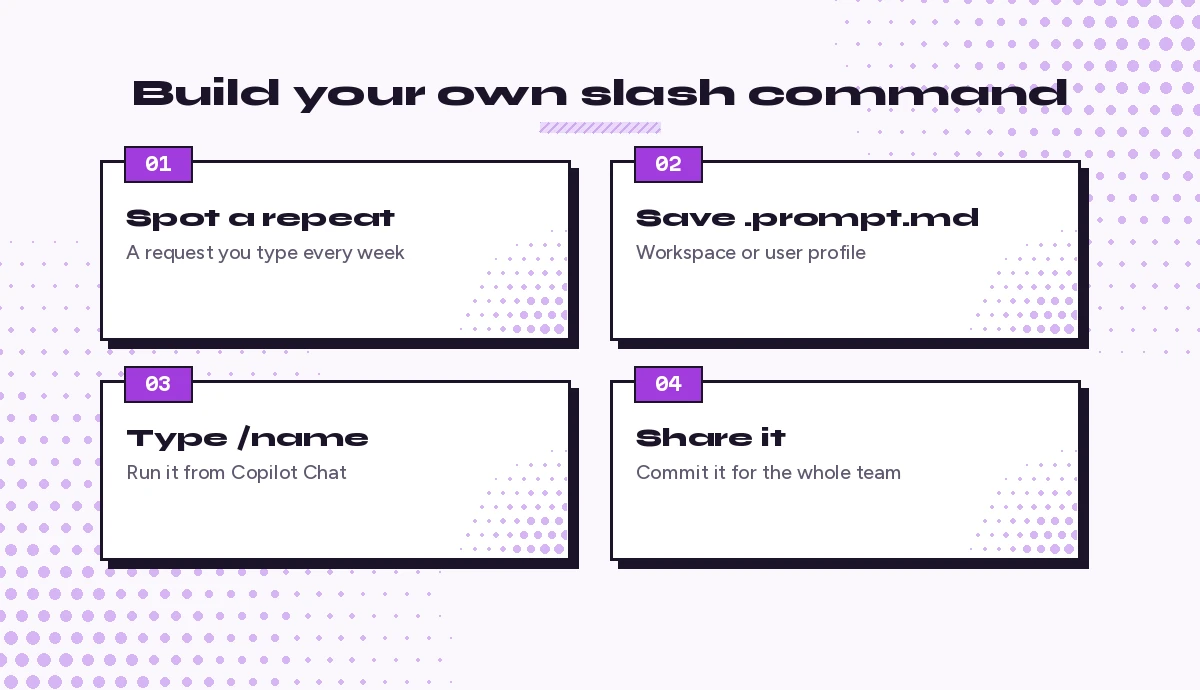
The built-in list is only the start. In VS Code you can save any reusable request as a prompt file, a Markdown file ending in .prompt.md, and run it from chat by typing / followed by the file name. A file called review-api.prompt.md becomes /review-api.
A simple example:
---
description: Review an API handler for our team standards
---
Review #selection against these rules:
1. Every handler validates input and returns typed errors.
2. No database calls inside loops.
3. Log with the shared logger, never console.log.
List each violation with the line and a suggested fix.
Type /prompts in the Chat view to open the prompt file menu quickly. Store workspace prompt files in the repository so the whole team shares them, or keep personal ones in your user profile. Microsoft’s prompt files documentation covers the full header options, and our Copilot prompt files walkthrough has more ready-made examples.
This is where GitHub Copilot slash commands become a team asset. Your best review checklist, your test template and your release-notes format can each become one short command.
Common Mistakes to Avoid
Even experienced developers using GitHub Copilot slash commands trip over the same few issues:
- No selection. Running
/fixwith nothing selected makes Copilot guess at scope. Select code or attach#file. - Wrong mode. Some commands only appear in Ask, agent or local sessions. If a command is missing, check the mode picker.
- Stale context. After a long thread, use
/clearor/compactrather than piling on more corrections. - Trusting without running. Generated tests and fixes still need to compile, pass and make sense. Run them before you commit.
- Copying old lists. Blog posts from early Copilot days list commands that have since changed. Your editor’s
/menu is the source of truth.
When an answer looks wrong, a quick follow-up like “explain why you chose this approach” is often faster than starting over. For review-stage checks, our Copilot prompt for code review pairs well with /fix.
A Simple Daily Workflow
Here is one way to chain GitHub Copilot slash commands through a normal feature:
/planthe change and agree on the files involved.- Write the code with inline suggestions or agent mode.
/explainanything you didn’t write yourself./testsfor new functions, then run them./fixwhat fails, with the error pasted in./docthe public pieces./clearbefore the next task.
That loop uses six commands and covers most of the work in a typical pull request. Once it feels natural, save your favourite variations as prompt files and the set of GitHub Copilot slash commands you rely on becomes truly yours.
Frequently Asked Questions
What are GitHub Copilot slash commands?
They are shortcuts typed in Copilot Chat that start with a forward slash, such as /explain, /fix and /tests. Each one tells Copilot what kind of task you want so you can write shorter prompts and get more consistent results.
How do I see every slash command available to me?
Type a single forward slash in the Copilot Chat input box. Your editor shows the commands available for your current mode, plan and organization settings, including any custom prompt files you have created.
Why is a slash command missing in my editor?
Each editor supports a different list, and some commands only appear in certain modes or sessions. Update the Copilot extension, check the chat mode picker and confirm your organization has not disabled the related feature.
What is the difference between slash commands, chat variables and participants?
Slash commands set the task, chat variables starting with # attach context such as a file or selection, and participants starting with @ send the question to a specialist like @terminal or @vscode. You can combine all three in one prompt.
Can I create my own custom slash commands?
Yes. Custom GitHub Copilot slash commands are built from prompt files. In VS Code you can save a reusable prompt as a .prompt.md file and run it by typing / followed by the file name. Workspace prompt files can be committed to your repository so the whole team can use them.
Do slash commands work in Copilot on GitHub.com and in the CLI?
Yes, but the lists are different. On GitHub.com they mainly manage conversations, such as /new and /clear, while the Copilot CLI offers session commands like /resume, /agent, /mcp and /usage.
2 Comments