Copilot Prompts for Rewriting: 35 Proven Templates for Clearer, Sharper Text
Copilot prompts for rewriting help you turn a clumsy first draft into text that reads cleanly, sounds like you, and gets to the point. Used well, they save more editing time than almost any other kind of prompt. Most people already ask Copilot to “make this better,” and most people get back something that is longer, blander and full of words they would never use. The fix is not a magic phrase. It is telling Copilot exactly what to change and, just as important, what to leave alone.
This guide gives you 35 copilot prompts for rewriting, written as copy-ready templates for Microsoft 365 Copilot in Word, Outlook and Copilot Chat. They are grouped by the job you are actually doing: tightening, changing tone, simplifying, restructuring, adapting for a new audience and polishing the final version. Each group explains when to reach for it and what to watch in the output.
Replace anything in square brackets with your own details. Keep your original draft open next to the result, because the best edits often come from mixing the two.
Why Most Rewrite Requests Disappoint
A rewrite request without direction forces Copilot to guess. When it guesses, it tends to do three things: add words, soften claims and swap your plain verbs for corporate ones. You asked for “better” and received “more.”
Good editing is the opposite. A human editor asks: who is reading this, what should they do after reading it, and what is getting in the way? Your prompt should answer those questions before Copilot starts.
There is also a trust issue. When Copilot rephrases a paragraph, it can quietly change meaning. “We may delay the launch” can become “the launch will be delayed.” A deadline can drift. A caveat can vanish. That is why every template below includes some version of “keep the facts and meaning the same,” and why you should still read the result line by line.
The Rewrite Brief Behind Good Copilot Prompts for Rewriting
Before you paste anything, decide on these five inputs. You do not need all five every time, but the more you give, the less cleanup you do afterward.
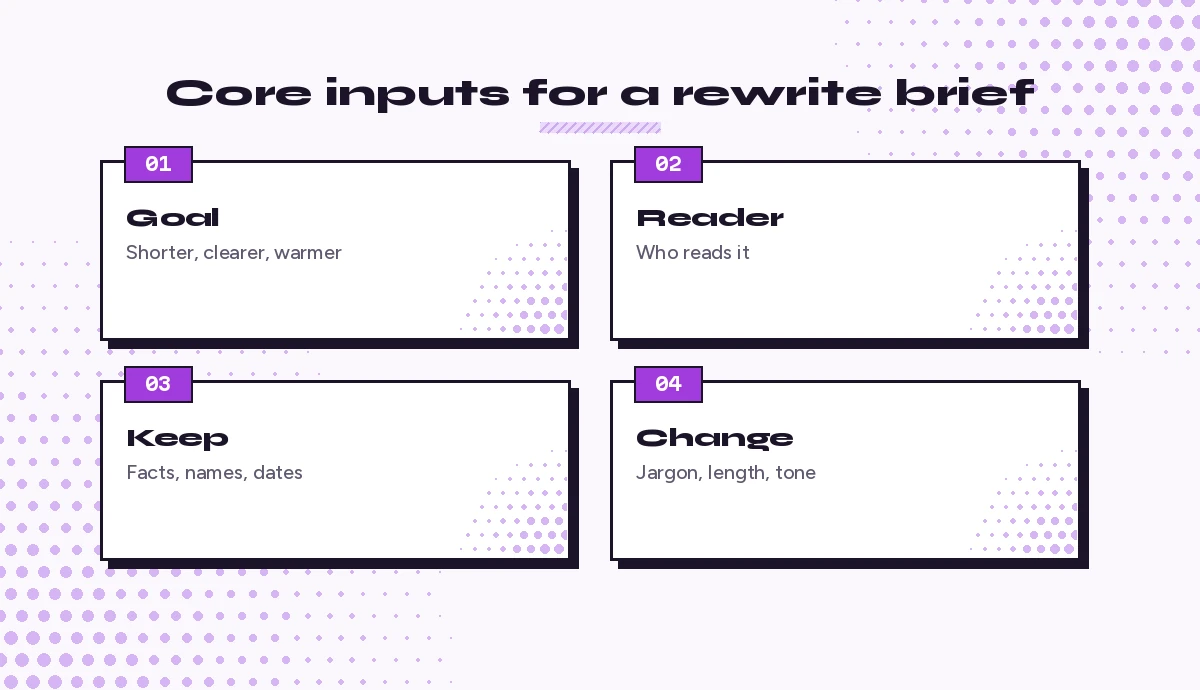
- Goal. Shorter, clearer, warmer, more formal, more persuasive, easier to scan? Pick one main goal.
- Reader. A customer, your manager, a regulator, a new hire, a non-native English speaker. The reader decides vocabulary and tone.
- Keep. Facts, figures, names, dates, legal wording, your key phrases, or your voice. Say it explicitly.
- Change. Passive voice, jargon, filler, long sentences, hedging, the opening line. Name the problem you see.
- Length. A word count, a percentage cut, or a format such as “three bullets” or “two sentences.”
Microsoft’s own guidance on writing effective Copilot prompts frames this as goal, context, source and expectations. The rewrite brief is simply that framework applied to editing. If you want the fuller version, our guide on how to write Copilot prompts breaks each part down with examples.
A reusable master template for copilot prompts for rewriting looks like this:
Rewrite the text below.
Goal: [shorter / clearer / more formal / friendlier / more persuasive].
Reader: [who will read it and what they already know].
Keep exactly: [facts, numbers, names, dates, phrases that must not change].
Fix: [the specific problems, e.g. long sentences, jargon, passive voice].
Length: [target word count or format].
After the rewrite, list any place where the meaning might have shifted.

Text:
[paste text]
That last line is the most useful habit in this whole article. Asking Copilot to flag possible meaning changes turns it from a silent editor into one that shows its work.
Where Rewriting Happens in Microsoft 365
You can run copilot prompts for rewriting in several places, and each has its own strengths.
| Where | Best for | How you start |
|---|---|---|
| Word | Paragraphs and sections inside a longer document | Select text, then use the Copilot option that appears beside it, or open the Copilot pane and describe the change |
| Outlook | Emails and replies before you send them | Use Copilot while drafting to adjust tone and length, or ask it to coach you on the draft |
| Copilot Chat | Any text you paste in, from any source | Paste the text and give a full rewrite brief |
| PowerPoint | Slide text and speaker notes | Ask Copilot in the pane to tighten or reword a slide |
In Word, selecting a passage usually gives you a quick rewrite option that offers a few alternative versions you can replace, insert or regenerate. That button is handy for small fixes. For anything with a specific goal, typing a full prompt into the Copilot pane gives far better control. Menu labels change between updates, so if your screen looks a little different, look for the Copilot icon next to your selection or in the ribbon.
If most of your editing happens in documents, our collection of Copilot prompts for Word covers drafting and summarizing alongside rewriting.
Prompts to Tighten and Shorten Text
Cutting is the most common rewrite job, so it is a sensible place to start with copilot prompts for rewriting. It is also the job Copilot does best, as long as you tell it how far to go and what must survive.
1. Cut by a set amount
Cut this text by about 40% without losing any facts, numbers or decisions. Remove filler, repetition and throat-clearing phrases. Keep my original wording where it already works.

[paste text]
2. Hit a hard word limit
Rewrite this to fit in [100] words or fewer. Keep the main point, the deadline and the action I need from the reader. Show the final word count.

[paste text]
3. Remove filler words only
Edit this text lightly. Remove filler and weak words such as "just," "really," "very," "in order to," "it is important to note that." Do not change the structure or the tone.

[paste text]
4. Shorten long sentences
Find every sentence over 25 words in this text and split or shorten it. Leave shorter sentences as they are. Return the full edited text with changed sentences in bold.

[paste text]
5. Turn a wall of text into a summary line plus detail
Rewrite this so the first sentence states the main point in plain words. Put the supporting detail after it in no more than three short paragraphs.

[paste text]
Prompt 4 is worth remembering. Asking Copilot to bold what it changed makes review much faster than comparing two versions by eye.
Prompts to Change Tone Without Changing Meaning
Tone is where unguided rewrites go wrong most often, and where specific copilot prompts for rewriting pay off fastest. “More professional” frequently becomes stiff, and “friendlier” can become gushing. Describe the tone with two or three concrete adjectives and, when you can, an example of what you do not want.
6. Make it more formal
Rewrite this in a formal, respectful tone suitable for [a senior client / a regulator / a board]. Avoid slang and contractions. Do not add flattery or extra pleasantries. Keep every fact unchanged.

[paste text]
7. Make it warmer but still professional
Rewrite this so it sounds warm and human but still professional. Use contractions and plain words. No exclamation marks, no "I hope this email finds you well."

[paste text]
8. Make it more confident
Rewrite this to sound more confident. Remove unnecessary hedging such as "I think," "maybe," "just wanted to." Keep genuine uncertainty where the facts are not settled, and tell me which hedges you kept and why.

[paste text]
9. Soften a blunt message
This message is accurate but sounds harsh. Rewrite it to be direct and kind. Keep the decision and the deadline exactly as they are. Do not apologize more than once.

[paste text]
10. Remove defensiveness
Rewrite this reply so it does not sound defensive. Acknowledge the concern in one sentence, state the facts calmly, and end with a clear next step.

[paste text]
11. Match my usual voice
Here are two examples of how I normally write: [paste examples]. Rewrite the text below so it sounds like the same person wrote it. Keep my sentence length and level of formality.

Text to rewrite:
[paste text]
Tone prompts matter most in email. For trickier messages, our guide to Copilot prompts for difficult emails goes deeper into refusals, escalations and bad news.
Prompts to Simplify Complex Writing
Technical, legal and policy writing often needs a plain-language version. Copilot is good at this, but simplifying is also the riskiest kind of rewrite because precise terms carry precise meaning.
12. Plain-language version
Rewrite this for a reader with no background in [topic]. Use short sentences and everyday words. If a technical term is necessary, keep it and explain it in brackets the first time.

[paste text]
13. Set a reading level
Rewrite this so a typical high school student could follow it. Keep all the steps and conditions. Flag any sentence where simplifying would change the meaning, and leave that sentence closer to the original.

[paste text]
14. Strip out jargon
List every piece of jargon, acronym or buzzword in this text. Then rewrite the text replacing each one with plain wording, except for terms our readers will definitely know: [list terms to keep].

[paste text]
15. Explain a policy as instructions
Rewrite this policy section as clear instructions for employees. Use "you" and "must" or "should" exactly as the original requires. Do not turn any requirement into a suggestion or any suggestion into a requirement.

[paste text]
16. Write for non-native English readers
Rewrite this for readers who use English as a second language. Use simple sentence structures, avoid idioms and phrasal verbs, and keep one idea per sentence.

[paste text]
Prompt 15 shows why the “keep” instruction matters. In policy text, “must” and “should” mean different things, and an eager rewrite can blur them. Always check modal verbs when simplifying anything with rules in it.
Prompts to Restructure and Reorganize
Sometimes the words are fine and the order is the problem. These copilot prompts for rewriting ask Copilot to move things around rather than rephrase them.
17. Lead with the conclusion
Reorganize this so the conclusion or request comes first, followed by the reasons, then the background. Change as few words as possible.

[paste text]
18. Convert paragraphs to bullets
Turn this into a short intro sentence plus a bulleted list. Each bullet should start with a verb or a key noun and be no longer than 15 words.

[paste text]
19. Turn bullets into flowing prose
Rewrite these bullet points as two connected paragraphs. Add only the linking words needed for the ideas to flow. Do not add new information.

[paste bullets]
20. Add useful headings
Suggest descriptive headings for this document so a reader can scan it. Then reorder sections if the current order is confusing, and explain each move in one line.

[paste text]
21. Separate facts from opinion
Reorganize this text into two clearly labeled parts: what is known (facts, data, decisions) and what is my view or recommendation. Keep the original wording inside each part.

[paste text]
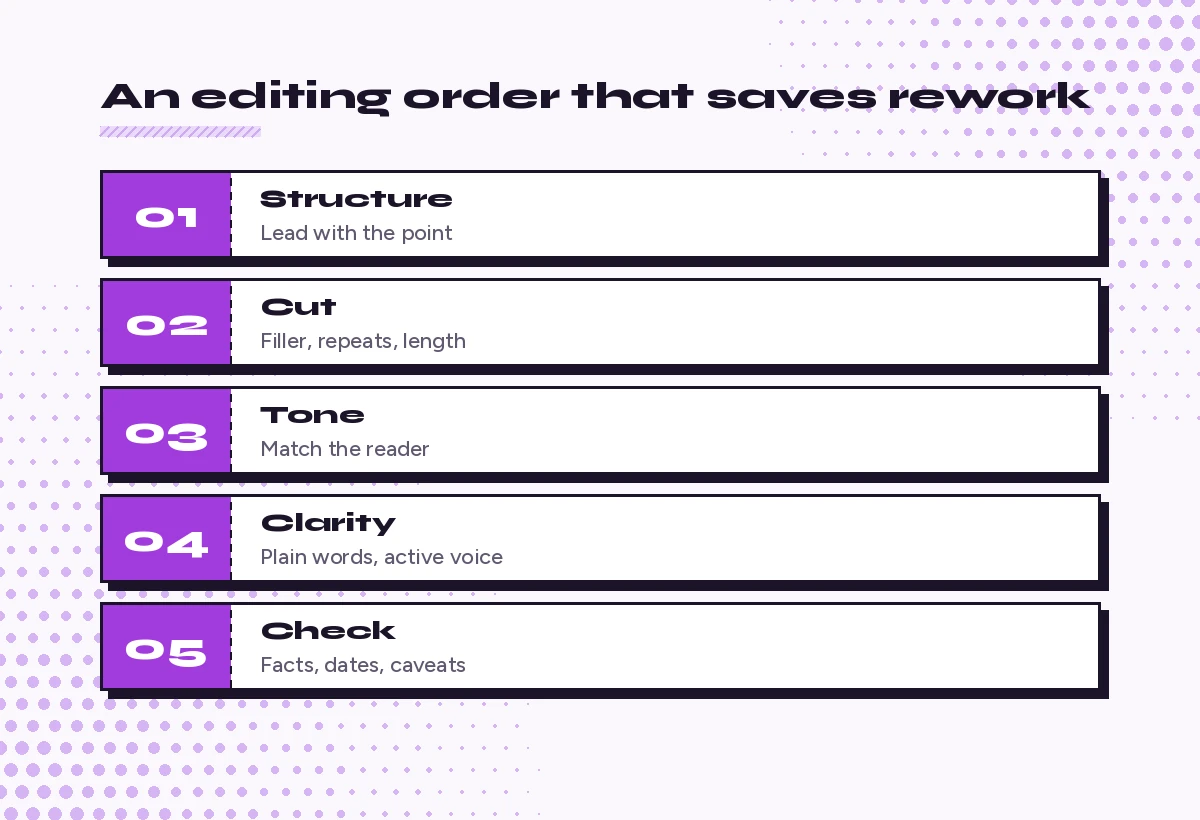
Notice the order in the graphic above. Fixing structure first saves effort, because there is no point polishing sentences in a paragraph that will be cut or moved.
Prompts to Adapt Text for a New Audience or Format
The same information often needs to reach several groups. Rather than writing each version from scratch, use copilot prompts for rewriting to adapt one solid source for each audience.
22. Executive version
Rewrite this for a senior executive with two minutes to read it. Lead with the decision needed, then the impact in business terms, then the risk. Maximum 120 words.

[paste text]
23. Customer-facing version
Rewrite this internal update for customers. Remove internal names, project codes and blame. Explain what changes for them, when, and what they need to do, if anything.

[paste text]
24. Team chat version
Turn this email into a short Teams message: two or three sentences and one clear ask. Keep it friendly and skip the formal greeting and sign-off.

[paste text]
25. Social or newsletter version
Rewrite this announcement as a short newsletter item of about 80 words with a clear headline. Keep the facts; drop internal detail readers do not need.

[paste text]
26. Slide-ready text
Turn this paragraph into slide text: a headline that states the takeaway, plus no more than four bullets of under eight words each. Put the detail I removed into speaker notes.

[paste text]
If your rewrites usually end up in an inbox, the Copilot prompts for email writing collection pairs well with prompts 22 to 24.
Prompts for Clarity and Final Polish
Once the structure and tone are right, a final round of copilot prompts for rewriting catches small problems a reader would trip over.
27. Proofread without rewriting
Proofread this text. Fix only spelling, grammar and punctuation. Do not change word choice or style. List each change you made.

[paste text]
28. Find ambiguous sentences
Find any sentence in this text that a reader could interpret in more than one way. For each one, explain the two readings and suggest a clearer version.

[paste text]
29. Active voice pass
Change passive sentences to active voice where it makes the sentence clearer, and make sure it is obvious who does what. Leave passive voice where the actor is unknown or unimportant.

[paste text]
30. Consistent terms
Check this document for inconsistent terms, such as the same thing called by different names, or mixed spellings and capitalization. Suggest one standard term for each and rewrite the affected sentences.

[paste text]
31. Stronger opening line
Give me three alternative opening sentences for this text. Each should state the main point in under 20 words. Do not change the rest of the text.

[paste text]
Prompts to Compare and Choose Between Versions
Rewriting is easier when you can see options side by side and understand the trade-offs.
32. Three versions, three styles
Rewrite this paragraph three ways: (1) shortest possible, (2) most formal, (3) most conversational. Keep the facts the same in all three. Add one line under each about when it would fit best.

[paste text]
33. Explain the edits
Rewrite this text to be clearer, then give me a short table showing the main changes you made and why each one helps the reader.

[paste text]
34. Check the rewrite against the original
Compare the original and the rewritten version below. List any fact, number, date, commitment or caveat that changed, was added or went missing.

Original:
[paste original]

Rewrite:
[paste new version]
35. Reader test
Read this text as [the intended reader]. Tell me in two sentences what you think it asks you to do. Then point out any part that was confusing or that you would skip.

[paste text]
Prompt 34 is your safety net. Run it on anything going to a client, a regulator or a large audience. It takes seconds and catches the quiet meaning changes that are easy to miss when a rewrite reads smoothly.
A Worked Example of Copilot Prompts for Rewriting
Here is a realistic first draft of an internal update:
Just wanted to quickly give everyone a heads up that due to some unforeseen issues that came up with the vendor during the integration testing phase, it is looking like the go-live which was originally planned for the 14th may potentially need to be pushed back, possibly by around a week or so, but we are still working on confirming this.
Using the master template, the prompt was:
Rewrite the text below.
Goal: clearer and shorter.
Reader: project team and two department heads who need to plan around the date.
Keep exactly: the original date (the 14th), the estimated delay of about a week, and the fact that it is not yet confirmed.
Fix: one long sentence, filler phrases, vague cause.
Length: under 50 words.
After the rewrite, list any place where the meaning might have shifted.

Text:
[the draft above]
A good result looks something like this:
Our go-live, planned for the 14th, will likely move by about a week. Vendor issues surfaced during integration testing. We have not confirmed the new date yet and will update you as soon as we do.
The meaning check is the interesting part. In a case like this, Copilot should point out that “may potentially need to be pushed back” became “will likely move,” which is slightly stronger. That is exactly the kind of shift you want flagged. You can then decide whether “will likely” is fair or change it back to “may.”
Common Rewriting Mistakes to Avoid
Even with strong copilot prompts for rewriting, a few habits cause most of the trouble.
- Rewriting everything at once. Long documents produce uneven results. Work section by section, especially for structure and tone.
- Accepting the first version. Regenerate or ask for alternatives. The second or third try is often better, and comparing them sharpens your own judgment.
- Letting your voice disappear. If every rewrite sounds generic, give Copilot samples of your writing, as in prompt 11, or tell it which phrases to keep.
- Skipping the fact check. Numbers, names, dates, commitments and legal wording must be checked against the original every time.
- Pasting what you should not. Microsoft 365 Copilot works within your organization’s security settings, but confidential or personal data still deserves care. Follow your company’s rules about what can be shared.
- Over-polishing. Text that is too smooth can read as machine-written. A slightly plain sentence that sounds like you often lands better than a perfect one that does not.
Building a Personal Rewrite Toolkit
You will notice that a handful of these copilot prompts for rewriting cover most of your weekly editing. Save those few somewhere easy to reach. Depending on your setup, Copilot lets you save prompts for reuse, or you can keep them in a OneNote page or a pinned document. Our Copilot prompt template guide shows a simple way to store and adapt them.
A practical starter kit is five prompts: the master template, the hard word limit, the tone fixer for your most common situation, the proofread-only pass and the version comparison. Together they handle drafting cleanup, length limits, tone, typos and safety checks.
Over time, edit the saved versions with your own preferences, such as “never use the word leverage” or “British spelling.” Small standing instructions like these make every later rewrite closer to what you would have written yourself on a good day.
Frequently Asked Questions
Can Copilot rewrite text directly inside Word?
Yes. In Word you can select text and use the Copilot rewrite option that appears beside it to get alternative versions, or open the Copilot pane and type a specific rewrite instruction. Exact menu names can change with updates, but both routes work on selected text.
How do I stop Copilot from changing the meaning when it rewrites?
Tell it exactly what to keep, such as facts, numbers, dates and commitments, and ask it to list any place where the meaning might have shifted. Then compare the rewrite with your original, or use a comparison prompt that lists every changed fact.
Why does Copilot make my text longer when I ask it to improve it?
A vague request like “make this better” leaves Copilot to guess, and it often adds detail and pleasantries. Give a clear goal and a length target, such as “cut by 40%” or “under 100 words,” and it will tighten instead of expand.
Can Copilot rewrite text in my own writing style?
It can get closer if you show it examples. Paste two short samples of your normal writing and ask it to match their sentence length, formality and word choice. You will still need to edit, but the result usually sounds less generic.
Is it safe to paste confidential documents into Copilot for rewriting?
Microsoft 365 Copilot works within your organization’s security and permission settings, but you should still follow your company’s policies on confidential and personal data. When in doubt, remove sensitive details before asking for a rewrite.
What are the best copilot prompts for rewriting text?
Among all copilot prompts for rewriting, a short brief that states the goal, the reader, what to keep, what to fix and the target length works for almost any rewrite. Ending it with a request to flag possible meaning changes makes the result much safer to use.