Copilot in Excel VBA: 30 Powerful Prompts to Write, Fix and Speed Up Macros
Copilot in Excel VBA work is less about a magic button and more about a fast, patient pair programmer that writes the first draft of your macro, explains code you inherited and helps you hunt down the line that keeps throwing “Run-time error 1004”. If you have ever copied a macro from an old forum thread and hoped for the best, this approach is a big step up.
This guide shows where Copilot actually fits in a VBA workflow, how to phrase requests so the code works on your real workbook, and 30 copy-ready prompts for writing, explaining, debugging and hardening macros. You will also find a worked example, a safety checklist and the situations where Office Scripts or Python make more sense than VBA.
What Copilot in Excel VBA Work Looks Like Today
When people search for Copilot in Excel VBA help, they usually mean one of three tools. It helps to be clear about what each Copilot can and cannot touch, because the answer shapes how you work.
- Copilot in the Excel ribbon works on the grid: formulas, tables, charts, PivotTables, highlighting and analysis. At the time of writing it does not open the Visual Basic Editor (VBE) or edit modules for you. If you want help with formulas instead of macros, our guide to the COPILOT function in Excel covers the in-cell side.
- Microsoft 365 Copilot Chat or the free Copilot app is where most macro writing happens. You describe the task, Copilot returns VBA code, and you paste it into a module.
- GitHub Copilot in VS Code can suggest VBA as you type if you keep exported
.basor.clsfiles in a project folder. It is handy for people who already live in an editor, though you still import the code back into Excel to run it.
Features change by licence, version and region, so check what your own account shows on Microsoft’s Copilot support hub. The prompts below are plain text and work in any of these chat surfaces.
One more boundary: VBA runs in Excel for Windows and Mac desktop apps, not in Excel for the web. If your team works mostly in the browser, skip ahead to the section on Office Scripts.
Set Up Excel Before You Ask for Any Macro
Five minutes of setup prevents most “the code doesn’t work” moments.
- Show the Developer tab. Go to File, Options, Customize Ribbon and tick Developer.
- Open the editor. Press Alt+F11 (Option+F11 or Fn+Option+F11 on many Macs), then choose Insert, Module.
- Save as a macro-enabled file. Use
.xlsm. A normal.xlsxfile silently drops your code when you save. - Keep a backup copy. Macros cannot be undone with Ctrl+Z, so test on a duplicate workbook.
- Learn the macro security rules. Office blocks macros in files downloaded from the internet by default. Microsoft explains why in its note on macros from the internet being blocked.
How to Prompt Copilot in Excel VBA Tasks So Code Runs First Time
Generic requests produce generic macros that assume a sheet called “Sheet1” with data starting in A1. Your workbook almost never looks like that. Good VBA prompts describe the workbook as clearly as you would to a colleague who cannot see your screen.
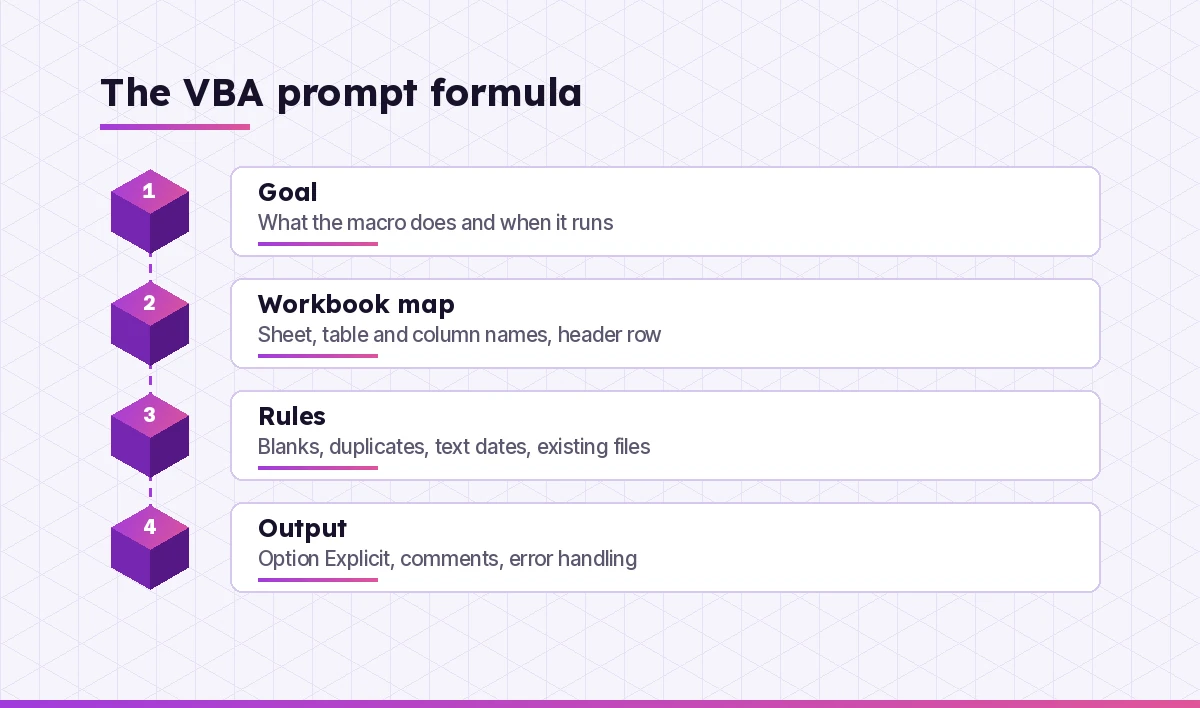
- Goal. One sentence on what the macro should accomplish, and when it runs (button, workbook open, on demand).
- Workbook map. Sheet names, table names, header row, which columns hold what, and roughly how many rows.
- Rules. Edge cases such as blank rows, duplicates, dates stored as text, or files that may already exist.
- Output. Ask for
Option Explicit, comments, error handling and a short explanation of how to install and run it.
Here is the difference in practice.
Weak: Write a macro to delete duplicates.

Strong: Write an Excel VBA macro for Windows Excel 365. Sheet "Orders"
has headers in row 1 and data in A2:H (about 20,000 rows, the count changes).
Column B is OrderID. Remove rows where OrderID is duplicated, keeping the
first occurrence. Ignore blank OrderIDs. Use Option Explicit, turn off
ScreenUpdating while it runs, add comments, and show a message box with the
number of rows removed. Explain how to add it to a module and run it.
The strong version names the sheet, the key column, the scale and the result you expect. That is usually the difference between code you run once and code you rewrite three times.
Copilot in Excel VBA Prompts to Write New Macros
Use these when you know what you want automated but do not want to write the loops yourself.
1. Automate a repetitive cleanup
Write a VBA macro for sheet "[sheet]" that trims extra spaces in columns
[columns], converts text dates in column [col] to real dates (format
dd/mm/yyyy), and deletes completely empty rows. Data starts at row [n].
Use Option Explicit and comments.
2. Split one sheet into many
I have a sheet "[sheet]" with headers in row 1. Write a macro that creates
a new worksheet for each unique value in column [col], copies matching rows
with headers, and names each sheet after the value (cleaning any characters
Excel does not allow in sheet names).
3. Combine many sheets into one
Write a VBA macro that stacks the data from every worksheet in this workbook
except "[summary sheet]" into "[summary sheet]". All sheets share the same
headers in row 1. Add a column showing which sheet each row came from.
4. Merge files from a folder
Write a macro that asks me to pick a folder, opens every .xlsx file in it,
copies the used range from the first sheet (without repeating headers) into
the active workbook's sheet "[sheet]", then closes each file without saving.
Handle an empty folder gracefully.
5. Export each sheet as a PDF
Write a macro that saves every visible worksheet as a separate PDF in the
same folder as this workbook, named "[prefix] - <sheet name> - <yyyy-mm-dd>.pdf".
Skip sheets that are empty.
6. Build a monthly report on a button
Write a macro I can assign to a button that refreshes all queries and
PivotTables, copies the "Report" sheet as values into a new workbook,
and saves it as "Report <Month Year>.xlsx" in [folder path].
7. Email from Excel through Outlook
Write VBA that creates one Outlook draft per row in sheet "[sheet]":
To = column A, Subject = column B, Body = column C. Do not send, only
display or save as drafts. Explain any reference I need to enable, or use
late binding so no reference is needed.
8. Add a timestamp when a cell changes
Write a Worksheet_Change event for sheet "[sheet]" that puts the current
date and time in column [col] whenever a value in column [col] changes.
Prevent the event from triggering itself and tell me which module the code
must go in.
9. Create a simple input form
Help me build a UserForm for entering [record type] with fields [list].
Give the control names to add, the code to validate required fields, and
the code to write each entry to the next empty row of table "[table]".
10. Protect and unprotect safely
Write two macros: one that protects every sheet with a password stored in a
constant, allowing users to sort and filter, and one that unprotects them.
Add a warning comment about storing passwords in code.
Prompts to Understand Code You Inherited
Explaining code is one of the most underrated uses of Copilot in Excel VBA projects. Many people meet VBA for the first time in a workbook someone else built. These prompts turn mysterious modules into something you can maintain.
11. Plain-English walkthrough
Explain this VBA code line by line in plain English for someone who knows
Excel but not programming. Then summarize what the macro does in 3 bullet
points. [paste code]
12. Find what the macro touches
List every sheet, range, named range, file path and external application this
macro reads or changes. Flag anything hard-coded that would break if the
workbook layout changed. [paste code]
13. Map a whole project
Here are all the modules from one workbook. Describe how they connect: which
procedures call which, which run on events, and which ones look unused.
[paste modules]
14. Add comments without changing logic
Add clear comments to this code and rename unclear variables, but do not
change what it does. Show the full revised code. [paste code]
15. Write documentation for the team
Write a one-page guide for this macro: purpose, how to run it, inputs it
expects, what it changes, and what to do if it fails. [paste code]
Debugging Prompts for Copilot in Excel VBA
Copilot is at its best when you give it the code, the exact error and the line that is highlighted. Without those three, it can only guess.
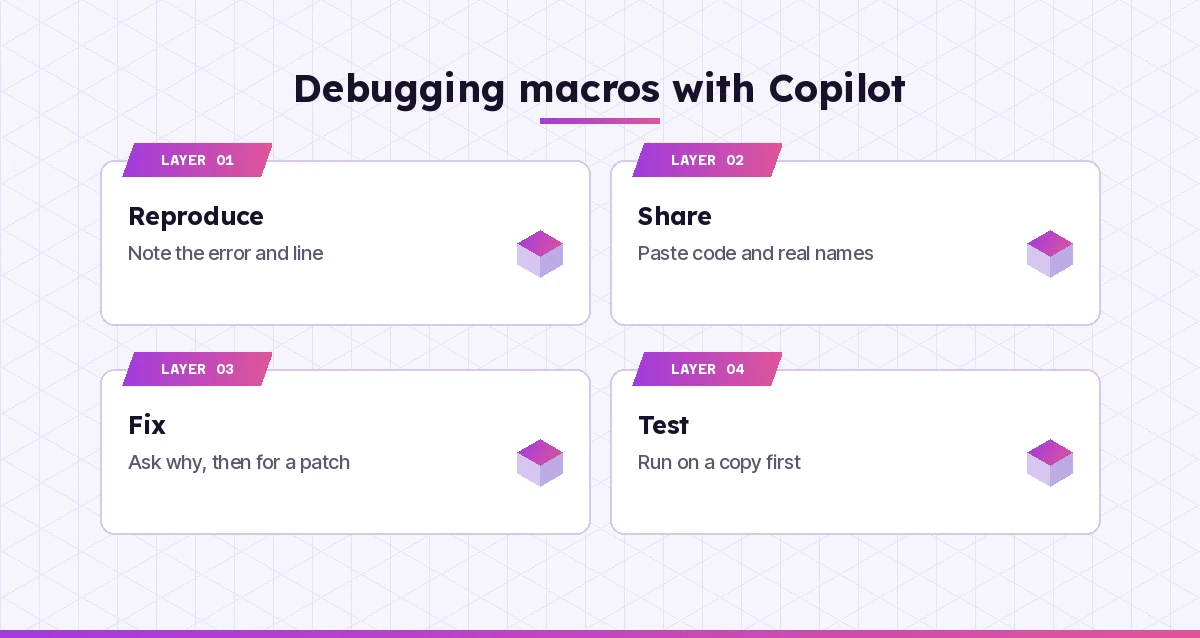
16. Explain an error message
My macro stops with "[exact error text and number]" on this line:
[paste line]. Here is the full procedure: [paste code]. Explain the likely
causes in this context and give a corrected version.
17. Fix “subscript out of range”
I get Run-time error 9: Subscript out of range. My sheets are named [list
exact names]. Find where the code refers to a sheet or array that may not
exist and make it fail with a clear message instead. [paste code]
18. Stop reliance on Select and Activate
This recorded macro uses Select, Activate and ActiveSheet everywhere, which
breaks when I click elsewhere while it runs. Rewrite it to use fully
qualified worksheet and range references. [paste code]
19. Find the last row correctly
My code misses data because it finds the last row the wrong way. Rewrite the
last-row logic so it works with blank cells in the middle of column [col]
and with an Excel table named "[table]". [paste code]
20. Add proper error handling
Add structured error handling to this macro: an On Error GoTo handler that
restores ScreenUpdating, Calculation and EnableEvents, shows a useful
message with Err.Number and Err.Description, and exits cleanly.
[paste code]
21. Add debug output
Insert Debug.Print lines at key steps in this macro so I can follow values
in the Immediate window, and tell me how to step through it with F8 and
breakpoints. [paste code]
Prompts to Speed Up and Harden Slow Macros
A macro that takes four minutes is a macro people stop using. Excel automation often slows down for the same few reasons, and Copilot can spot them quickly.
22. Find the bottlenecks
This macro takes several minutes on about [n] rows. Identify the slowest
parts and explain why (cell-by-cell loops, Select, recalculation, screen
updates). Then give an optimized version. [paste code]
23. Switch to arrays
Rewrite this loop to read the range into a Variant array, process it in
memory and write the results back in one step. Keep the same output.
[paste code]
24. Use a Dictionary for lookups
My macro uses nested loops to match IDs between two sheets. Rewrite it with
a Scripting.Dictionary using late binding so it works without adding a
reference. [paste code]
25. Make it layout-proof
Replace hard-coded column letters in this macro with lookups by header name
so the code still works if someone inserts or moves columns. [paste code]
26. Review for risky actions
Review this macro for anything that could delete data, overwrite files,
send emails or run without confirmation. Suggest safeguards such as a
confirmation prompt or a backup copy before changes. [paste code]
Prompts for Cross-Platform and Modern Alternatives
Leaning on Copilot in Excel VBA tasks is not always the right route. Sometimes the honest answer is that VBA is not the best tool. These prompts help you decide and convert.
27. Check Mac compatibility
Will this macro run on Excel for Mac? List anything Windows-only (file
dialogs, paths, ActiveX, Windows API calls, CreateObject libraries) and
suggest Mac-safe alternatives. [paste code]
28. Convert VBA to Office Scripts
Convert this VBA macro to an Office Script (TypeScript) that runs in Excel
for the web. Point out anything that cannot be converted directly, such as
UserForms or file system access. [paste code]
29. Replace a macro with formulas
Could this macro be replaced with formulas such as FILTER, UNIQUE, XLOOKUP
or LET, or with Power Query? If yes, show the formula or steps. If not,
explain why VBA is still the better fit. [paste code]
30. Decide between VBA, Power Query and Python
I need to [describe task] every [frequency] with about [n] rows from
[source]. Compare VBA, Power Query, Office Scripts and Python in Excel for
this job on setup effort, speed, sharing with colleagues and maintenance.
Recommend one.
If Python is a contender, our list of Copilot prompts for Python will help you write that version, and the Copilot Excel data cleaning prompts cover tidy-up jobs that need no code at all.
A Worked Example: From Request to Working Macro
Here is how a typical session goes when you treat Copilot as a collaborator rather than a vending machine.
Step 1: Describe the job. A finance analyst pastes this into Copilot Chat:
Windows Excel 365. Workbook has one sheet per region (North, South, East,
West) with identical headers in row 1: Date, Rep, Product, Units, Revenue.
Write a macro that builds a sheet called "All Regions" with every row from
the four sheets plus a Region column, sorted by Date. If "All Regions"
already exists, clear it first. Option Explicit, comments, error handling.
Step 2: Read before running. Copilot returns a procedure that loops through the region sheets, copies each used range below the last row and sorts the result. Ask a follow-up before you trust it.
Walk me through what happens if one region sheet is empty, and if someone
adds a fifth sheet called "Notes". Adjust the code so it only uses the four
named regions.
Step 3: Test on a copy. Paste the code into a module in a duplicate workbook, press F5 and compare row counts. If the totals match the four sheets added together, you are close.
Step 4: Fix what breaks. Say the Date column sorts as text because some dates were typed manually. Paste the symptom back: “Dates sort wrong, some are text like 03/07/2025.” Copilot can add a conversion step and explain which date format it assumed, which is exactly the assumption you need to check.
Step 5: Save and document. Save as .xlsm, add a button, and use prompt 15 to write a short guide for whoever opens the file next.
Safety Checklist for Copilot in Excel VBA Code
Code from any source, including Copilot in Excel VBA sessions, deserves the same caution as code from a stranger.
| Check | Why it matters |
|---|---|
| Run on a copy first | Macros cannot be undone with Ctrl+Z |
| Read every Delete, Kill, SaveAs and Send line | These change data, files or other people’s inboxes |
| Look for hard-coded paths and names | They break on another person’s machine |
| Confirm the target sheet and range | A wrong reference can overwrite good data |
| Never paste confidential data into a personal account | Use your work account with enterprise data protection for business files |
| Keep macro security settings on | Enabling all macros globally opens the door to malicious files |
For the official object model, Microsoft’s Excel VBA reference is the place to confirm that a method or property Copilot used really exists and behaves the way it claims.
Common Mistakes to Avoid
- Hiding the error.
On Error Resume Nextacross a whole procedure makes bugs invisible. Ask Copilot to scope it to single lines or remove it. - Skipping the workbook map. Copilot cannot see your file. Sheet and table names are the most useful detail you can give.
- Accepting the first draft. Ask “what could go wrong with this code?” after every answer. It often catches its own assumptions.
- Mixing platforms. Mention whether you use Windows or Mac, because file paths and dialogs differ.
- Forgetting other users. If colleagues run the macro, ask for clear messages and confirmations rather than silent changes.
For more spreadsheet prompts beyond macros, browse our main collection of Copilot prompts for Excel, and if you write code in VS Code as well, the GitHub Copilot prompts guide applies the same habits to larger projects.
Final Thoughts
Copilot in Excel VBA work will not replace knowing what your macro should do, but it removes most of the typing, guessing and forum searching that used to make VBA painful. Describe your workbook precisely, read the code before you run it, test on a copy and keep asking follow-up questions. Do that consistently and you will spend far less time fighting run-time errors and far more time with automation that quietly saves you hours each month.
Frequently Asked Questions
Can Copilot write VBA macros for Excel?
Yes. Microsoft 365 Copilot Chat, the free Copilot app and GitHub Copilot can all generate VBA code from a plain-English description. You then paste the code into a module in the Visual Basic Editor (Alt+F11) and run it in a macro-enabled .xlsm workbook.
Does Copilot work inside the Visual Basic Editor?
At the time of writing, Copilot in the Excel ribbon works on the worksheet rather than inside the VBA editor, so most people generate code in Copilot Chat and paste it in. Check your own Excel version, because Microsoft adds features regularly.
Is it safe to run VBA code written by Copilot?
It can be, if you treat it like code from any unfamiliar source. Read it first, test on a copy of the workbook, look closely at any lines that delete data, save files or send email, and keep Excel’s macro security settings switched on.
Why does my Copilot-generated macro throw an error?
Usually because the code assumes sheet names, ranges or data layouts that differ from your workbook. Paste the exact error message, the highlighted line and the full procedure back into Copilot along with your real sheet and column names, and ask for a corrected version.
Can I use VBA in Excel for the web?
No. VBA macros run only in the desktop versions of Excel for Windows and Mac. For browser-based automation, ask Copilot to convert your macro to an Office Script, which uses TypeScript and runs in Excel for the web.
Should I learn VBA if Copilot can write it for me?
Learning the basics is still worth it. Knowing how ranges, loops and error handling work lets you spot mistakes, describe problems clearly and adapt Copilot’s code to your workbook instead of running it blindly.