Copilot Prompt to Generate Infographic: 35 Proven Prompts for Clear Visuals
A good copilot prompt to generate infographic visuals does two jobs at once: it hands Copilot the facts you want shown, and it describes the layout those facts should sit in. Skip either half and you get a pretty poster full of made-up numbers, or a correct set of points squeezed into a picture nobody can read.
This guide gives you 35 copy-ready prompts for Microsoft Copilot, grouped by infographic type: timelines, processes, comparisons, lists, data highlights, hierarchies and cheat sheets. You will also find a reusable template, a two-step workflow that keeps the content accurate, a PowerPoint route for editable versions, and fixes for the problems people hit most often, such as garbled text and crowded layouts.
How Copilot Handles Infographics
There are really three ways to build an infographic with Copilot, and each one suits a different goal.
Image generation in Copilot chat. You describe the graphic and Copilot draws it as a single picture. This is the fastest way to see a visual concept, and newer image models handle short labels far better than they used to. Microsoft explains the basics in its guide to using image generation in Copilot. The catch is that the result is a flat image: you cannot click a word to fix a typo.
Copilot in PowerPoint. You ask for a slide or a short deck, and Copilot builds it from shapes, text boxes and icons you can edit. Microsoft’s walkthrough on how to create a presentation with Copilot in PowerPoint covers the setup. This is the better choice when the graphic will be shared, printed or updated later.
Copilot as a content planner. Before anything is drawn, Copilot can turn a report, a meeting transcript or a spreadsheet into a tight outline: a title, five points, one number per point, and a suggested layout. Many of the best results come from doing this step first.
The prompts below work across all three. Where a prompt is meant for a specific route, it says so.
A Copilot Prompt to Generate Infographic Layouts: The Template
Most disappointing infographics start with a prompt like “make an infographic about remote work.” Copilot then invents the points, picks random statistics and crams in decoration. A structured prompt removes the guesswork.
Fill in the brackets and use this as your base copilot prompt to generate infographic images:
Create a [vertical / horizontal / square] infographic titled "[short title]".
Audience: [who will read it].
Layout: [timeline / numbered steps / two-column comparison / grid of icons].
Sections (use this exact text):
1. [Heading] - [one short line]
2. [Heading] - [one short line]
3. [Heading] - [one short line]
Style: flat illustration, simple icons, [brand colors or hex codes], white background.
Keep text large and minimal, generous spacing, no extra words or numbers.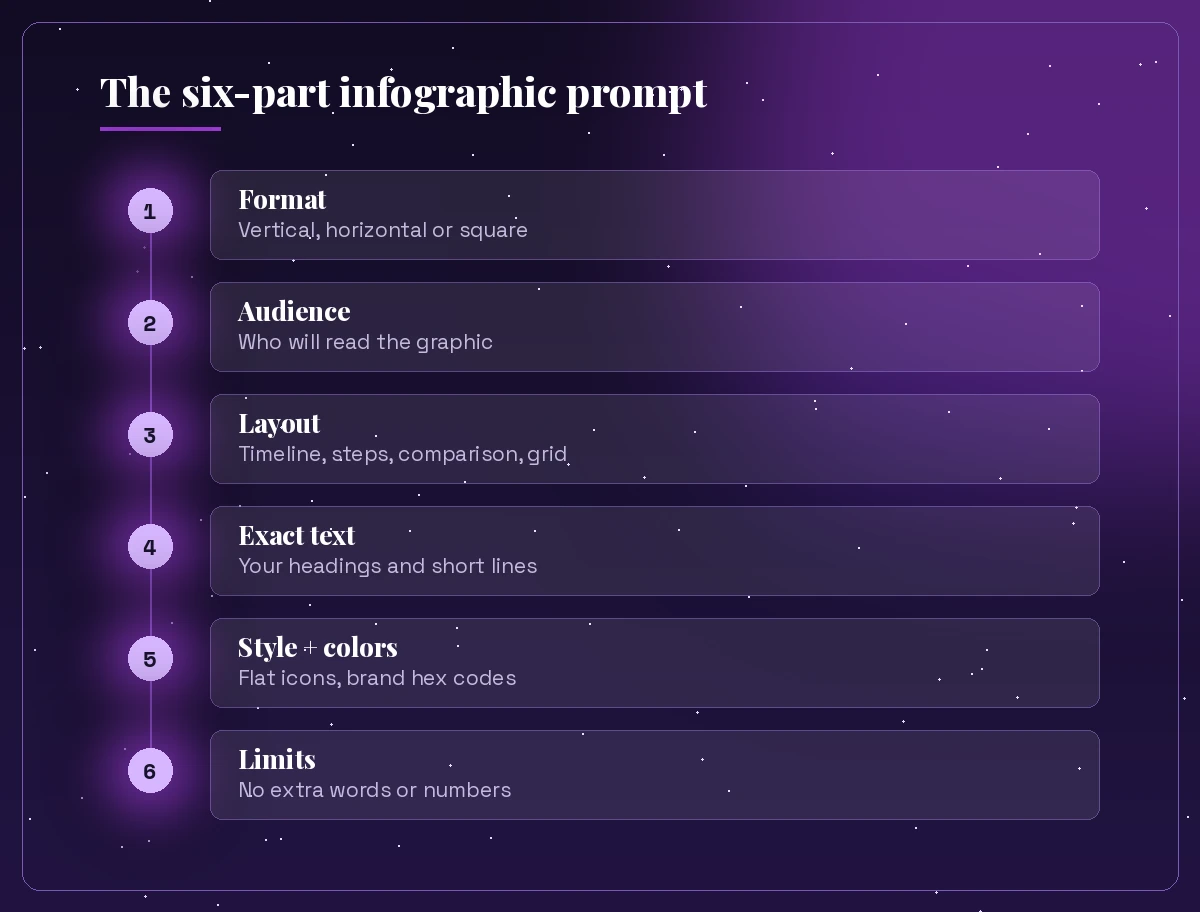
Two lines in that template matter more than they look. “Use this exact text” tells Copilot not to write its own copy, and “no extra words or numbers” stops it from filling empty space with invented labels. If you want the reasoning behind structured prompts like this, our breakdown of Copilot prompt ingredients explains goal, context, source and expectations in detail.
Step One: Let Copilot Plan the Content First
Asking for the picture straight away is the most common mistake. A better habit is to have Copilot draft and trim the content, check it yourself, and only then ask for the visual.
Read the attached report and pull out the 5 most important points for a one-page
infographic. For each point give a heading of 4 words or fewer and one supporting
line under 12 words. Only use facts that appear in the document. List the page or
section each point came from.
Turn these meeting notes into infographic content: a title under 8 words, 4 sections
with short headings, and one icon idea per section. Flag anything that is an opinion
rather than a decision.I want to make an infographic from this table. Suggest the 3 numbers that tell the
clearest story, explain why in one sentence each, and recommend the best layout
(bar comparison, big-number tiles, or timeline).Shorten this text for an infographic. Keep the meaning, cut every line to 10 words
or fewer, and remove jargon a general audience would not know.Review this infographic outline for accuracy and balance. Point out any claim that
needs a source, any section that is much longer than the others, and any heading
that is unclear.Once you are happy with the outline, paste it into the template’s “Sections” block. Because the text is already short and checked, the generated graphic has far less room to go wrong.
Timeline Infographic Prompts
Timelines are one of the easiest formats for Copilot to draw well, since the structure is simple and repetitive. A short copilot prompt to generate infographic timelines only needs the dates, the labels and a style.
Create a horizontal timeline infographic titled "Our Product Journey". Five milestones
on one line with circular markers: 2019 Founded, 2020 First Customer, 2022 Series A,
2024 Global Launch, 2026 AI Features. Flat style, purple and grey, white background.
Design a vertical timeline infographic showing the 6 stages of a hiring process, from
job posting to first day. Small icon beside each stage, short labels only, clean
corporate style, navy and teal.Make a simple project roadmap infographic for Q1 to Q4. One row per quarter, one key
goal per quarter in a rounded box, arrows linking the quarters, pastel colors.Create an infographic of a typical workday for a remote employee as a clock-style
timeline: 9 AM planning, 11 AM deep work, 1 PM lunch, 3 PM meetings, 5 PM wrap-up.
Friendly flat illustration, warm colors.Design a history timeline infographic for a school poster with 5 dates and short
captions I provide below. Large readable text, illustrated markers, light background.Process and How-To Infographic Prompts
Numbered steps are ideal for onboarding guides, SOPs and customer instructions. Keep it to six steps or fewer so each one gets enough room, and list the steps in the order you want them drawn.
Create a step-by-step infographic titled "How to Submit an Expense Claim" with 5
numbered steps in a zigzag path: Take a photo, Open the app, Add details, Attach
receipt, Submit for approval. Simple icons, green and white.
Design a circular process infographic showing a continuous improvement cycle: Plan,
Do, Check, Act. Four segments around a ring, one icon per segment, minimal text.Make a vertical how-to infographic for resetting a work password in 4 steps. Each step
in its own card with a number badge, plenty of white space, blue brand color.Create an onboarding infographic for new employees covering the first week: Day 1
setup, Day 2 team intros, Day 3 tools training, Day 4 first task, Day 5 check-in.
Cheerful flat style.Design a customer journey infographic with 5 stages from awareness to loyalty, shown
as a path with signposts. One short line under each stage. Modern, soft gradients.Comparison Infographic Prompts
Side-by-side layouts help readers make decisions quickly. The trick is to keep both columns the same length.
Create a two-column comparison infographic: "Remote Work" vs "Office Work". Four
matching rows: Commute, Focus time, Collaboration, Flexibility. One short phrase per
cell, check and cross icons, split background in two colors.
Design a comparison infographic of three subscription plans (Basic, Pro, Team) as
three vertical cards with a highlighted middle card. List 4 features per plan using
the text I paste below.Make a "Do vs Don't" infographic for writing professional emails, 5 rows each side,
green for do and red for don't, simple and readable.Create a before-and-after infographic showing a messy workflow on the left and a
streamlined one on the right, with 3 labeled steps each. Flat illustration.Design a pros and cons infographic for moving to a four-day work week, 4 pros and 4
cons, balanced layout, neutral colors with one accent color.List and Tips Infographic Prompts
Tip sheets are popular on LinkedIn and intranet pages. A grid of icons usually reads better than a long vertical list.
Create a square infographic titled "7 Habits of Productive Teams" with a 2-column grid
of icon tiles, each tile showing one habit in 3 words or fewer. Bright, modern, flat.
Design an infographic of 6 cybersecurity tips for employees: strong passwords, MFA,
spot phishing, lock your screen, update software, report incidents. Shield icons,
dark blue and white.Make a wellbeing tips infographic for a staff newsletter with 5 tips, soft pastel
illustrations, rounded shapes and calm colors.Create an infographic checklist for preparing a client presentation, 8 checkbox items,
clean layout that could be printed on A4.Design a "Quick Wins" infographic with 4 large numbered circles, each with a short tip
for saving time in Microsoft Teams. Purple accent color.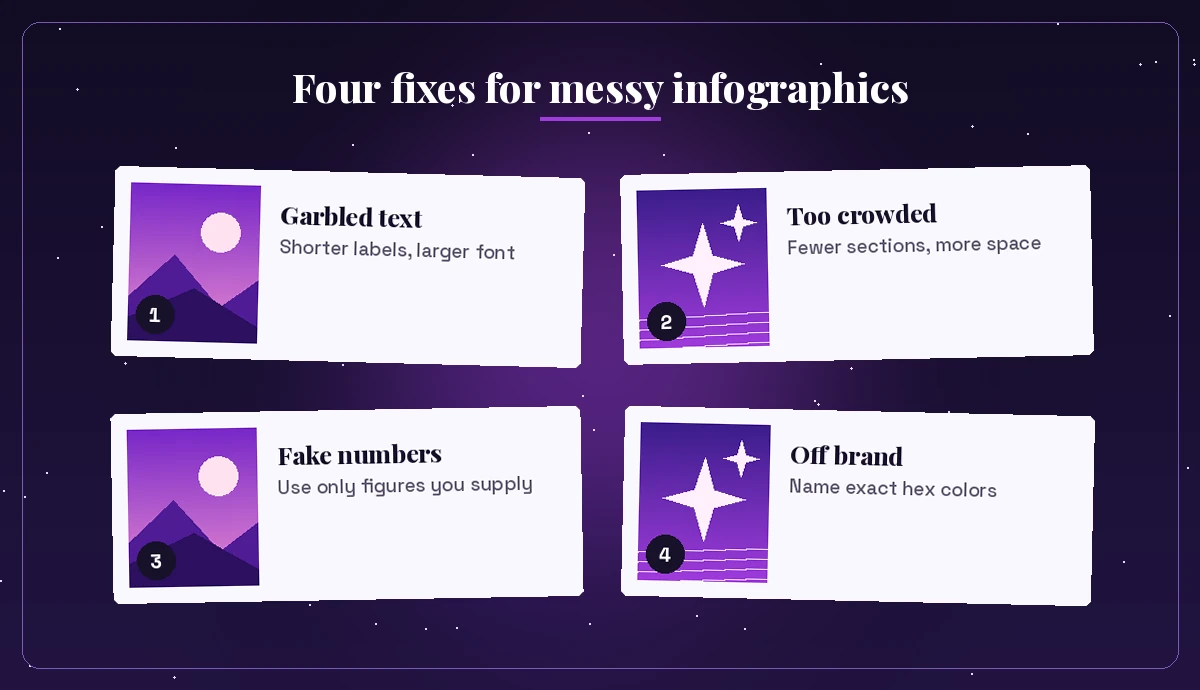
Data and Statistics Infographic Prompts
This is the category where accuracy matters most. Any copilot prompt to generate infographic charts should carry its own numbers. Always supply the numbers yourself and tell Copilot not to add any. Image generators can draw a chart shape that does not match the values, so check every bar and percentage before you share it.
Create a big-number infographic with 3 tiles using only these figures: 1,240 new
customers, 18% growth, 4.7 average rating. Large bold numbers, short label under each,
no other statistics.
Design a simple bar chart infographic comparing sales by region using exactly these
values: North 42, South 35, East 28, West 51. Label each bar with its value. Clean
flat style.Make an infographic summarizing our survey results with the numbers below. Use icon
rows (like 7 out of 10 people icons) instead of pie charts. Add the note "Source:
2026 staff survey" at the bottom.Create a one-page data infographic for an annual report: title, 4 key figures I
provide, one short sentence of context per figure, company colors navy and gold.For charts that need to be exact, a safer path is to build the chart in Excel first and then drop it into a designed slide. Our guide to Copilot prompts for Excel charts shows how to get accurate charts from your own data.
Hierarchy, Org and Concept Infographic Prompts
Pyramids, layers and mind maps explain how ideas relate. Keep labels short because these layouts have little room for text, and when you write a copilot prompt to generate infographic diagrams like these, say the order of levels explicitly.
Create a pyramid infographic with 4 levels for a learning framework: Remember,
Understand, Apply, Create, from bottom to top. Gradient from light to dark purple.
Design a mind map style infographic with "Customer Experience" in the center and 6
branches: Speed, Clarity, Empathy, Follow-up, Channels, Feedback. Hand-drawn feel.Make a layered infographic showing the parts of a marketing funnel, wide at the top
and narrow at the bottom, 5 stages with one short line each.Create a Venn diagram infographic with three circles: Skills, Passion, Market Need.
Label the center "Ideal Career". Soft overlapping colors, minimal text.Building an Editable Infographic in PowerPoint
When the graphic needs to be updated, translated or reused, a slide built from real shapes beats a flat picture. In PowerPoint, open Copilot and try prompts like these.
Create a single slide infographic titled "Our 5-Step Support Process" using numbered
shapes connected by arrows. Use the steps from the attached Word document and keep
each label under 6 words.
Turn this slide's bullet points into an infographic layout with icons and short
labels. Keep my brand colors and do not add new content.Add a timeline graphic to this slide showing the 4 project phases listed in the
notes, with dates under each phase.From there you can use Designer to try alternative layouts and fix any text by hand. Our PowerPoint prompts collection has more slide-level ideas, and if you prefer a pure illustration, the guide to Copilot prompts for image generation covers styles, lighting and composition.
Worked Example: From Report to Finished Graphic
Here is how the two-step workflow plays out for a quarterly HR update, using one planning prompt and one copilot prompt to generate infographic output.
First, the planning prompt:
From the attached Q3 HR summary, give me infographic content: a title under 8 words
and 4 sections, each with a 3-word heading and a line under 10 words. Use only
figures that appear in the document.
Copilot returns a title like “Q3 People Highlights” with sections on hiring, training, engagement and retention. You check each number against the source, swap one heading that sounds vague, and then send the visual prompt:
Create a vertical infographic titled "Q3 People Highlights". Layout: 4 stacked cards
with an icon on the left. Use this exact text: [paste the 4 sections]. Style: flat,
company purple #A13CDD with grey, white background, large text. No other words or
numbers.
If one card comes out with a misspelled word, ask Copilot to regenerate that version, or recreate the layout in PowerPoint and type the text yourself. The whole job usually takes a few rounds rather than one perfect attempt.
Fixing Common Infographic Problems
Even a well-written copilot prompt to generate infographic designs will sometimes miss. These follow-ups solve most issues.
| Problem | What to ask Copilot |
|---|---|
| Misspelled or invented words | “Use only the text I provided, shorter labels, larger font” |
| Too crowded | “Reduce to 4 sections and add more white space” |
| Wrong colors | “Use only #A13CDD and dark grey on white” |
| Made-up statistics | “Remove every number I did not supply” |
| Hard to read on phones | “Make it vertical with one section per row” |
A few habits also help. Keep each label under about six words, because longer phrases are where image text tends to break. Ask for fewer sections rather than more. And if spelling must be perfect, generate the layout without text and add the words yourself in PowerPoint or another editor.
Accessibility and Sharing Tips
Infographics are often shared as images, which screen readers cannot read. Add a short alt text that summarizes the key message, and include the main points as plain text in the email, post or page around the image.
Copilot can draft that for you:
Write alt text under 150 characters for this infographic, then write a 3-sentence
plain-text summary of its main points for people who cannot see the image.
Check color contrast too. Light text on pastel backgrounds can look stylish but becomes hard to read when printed or viewed on a dim screen. Asking for “high contrast, dark text on light background” in your prompt avoids most of these issues. Finally, if you created a logo or brand mark with Copilot as well, our logo design prompts explain how to keep it consistent across graphics like these.
Frequently Asked Questions
Can Microsoft Copilot create infographics?
Yes. Copilot can draw infographic-style images from a text description in chat, and Copilot in PowerPoint can build editable infographic slides from shapes, icons and text. It can also plan the content first by summarizing a document into short headings and points.
What is the best copilot prompt to generate infographic images?
The best prompts name the format, the audience, the layout type, the exact text for each section, the colors and a limit such as “no extra words or numbers.” Supplying your own text and figures is the single biggest improvement you can make.
Why does Copilot misspell words in my infographic?
Image generators draw letters as shapes, so longer labels can come out wrong. Keep labels short, ask for larger text, or generate the layout without text and add the words yourself in PowerPoint.
Can Copilot use my real data in an infographic?
You can paste figures into your prompt or attach a document for Copilot to summarize. Always tell it to use only the numbers you provide, then check every value in the final image, because a drawn chart may not match the data exactly.
Is it better to make infographics in Copilot chat or PowerPoint?
Use chat image generation for quick concepts and social posts. Use Copilot in PowerPoint when the graphic must be editable, updated later or printed, since every shape and text box can be changed by hand.
How do I keep infographics on brand with Copilot?
Name your brand colors with hex codes, describe the style you want (for example flat icons and rounded cards), and reuse the same prompt template for every graphic so the results stay consistent.