Copilot Prompt for Image Generation: 50 Proven Prompts for Stunning, On-Brief Images
A good copilot prompt for image generation reads less like a search query and more like a short brief to a photographer or illustrator. Tell Copilot what to make, who or what is in the picture, where it happens and how it should feel, and the first result is usually close. Type three vague words and you get something generic that takes five rounds of fixing.
This guide gives you 50 copy-ready image prompts for Microsoft Copilot, grouped by what you are actually trying to make: realistic photos, illustrations, social posts, slide visuals, icons, product shots and edits to an image you already have. Before the prompts, there is a simple six-part formula and a quick tour of the settings that matter, and after them a worked example that shows how to refine a picture instead of starting over.
Where You Create Images in Copilot
There are two everyday ways to make pictures with Microsoft Copilot, and both respond to the same kind of prompt.
- Copilot chat. Type a request such as “Create an image of…” in the normal chat box. Microsoft’s guide to using image generation in Copilot notes that you can also upload a picture and ask Copilot to transform it.
- The Create section of the Copilot app. Here you choose Create an image, describe what you want, and then pick a style, a color palette and a size. Work and school accounts may see a Brand and color option instead, which applies an organization’s brand kit if one has been set up.
According to Microsoft’s walkthrough on creating AI-generated images in the Copilot app, the Create section currently offers three shapes: square (1024 x 1024), portrait (1024 x 1536) and wide (1536 x 1024). Your finished images are kept in the Copilot Library, so you can come back to them later. Menus and limits change over time and depend on your plan, so treat these details as a snapshot rather than a promise.
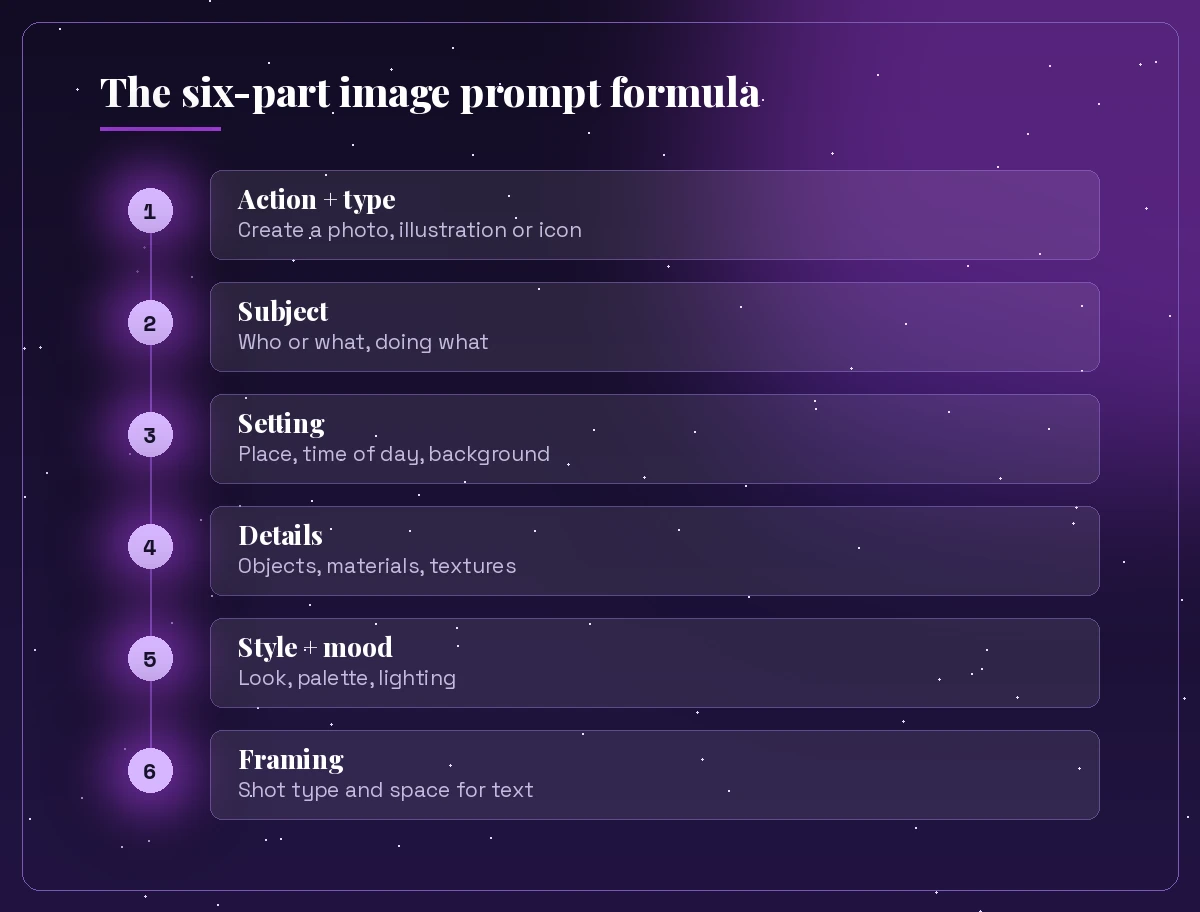
The Six-Part Copilot Prompt for Image Generation Formula
Microsoft’s own image prompting advice boils down to two habits: start with a clear action word, and use plenty of descriptive words rather than filler. You can turn that into a repeatable structure with six parts.
- Action and image type. Start with Create, Generate, Illustrate or Draw, and say what kind of picture it is: a photo, a watercolor, a flat vector icon, a 3D render.
- Subject. Who or what is in the frame, and what are they doing?
- Setting. The place, the time of day and the background.
- Details. Clothing, materials, props, textures, the objects that make the scene specific.
- Style and mood. The look, the color palette and the lighting: soft morning light, moody neon, bright and cheerful.
- Framing. Close-up, wide shot, top-down, eye level, plus any empty space you need for a headline.
You will not need all six every time. A quick icon might only need three. But when a result feels off, the missing part of the formula is usually the reason.
Here is the formula filled in as a reusable template. Save it somewhere handy and treat it as your default copilot prompt for image generation:
Create a [photo / illustration / 3D render / icon] of [subject doing something],
set in [place, time of day, background].
Include [specific details, objects, textures].
Style: [style], [color palette], [lighting], [mood].
Framing: [close-up / wide / top-down], [space left for text on the left/right/top].
If you want a deeper look at how instructions, context and format work together in text prompts too, our guide to Copilot prompt ingredients covers the same thinking for documents and email.
Realistic Photo Prompts
When your copilot prompt for image generation asks for a photo, borrow the vocabulary of photography: light direction, lens feel, depth of field and time of day.
Create a photorealistic image of a small independent coffee shop at 7 a.m.,
soft window light, a barista wiping the counter, steam rising from a fresh cup,
warm brown and cream tones, shallow depth of field, eye-level shot.
Generate a realistic photo of a modern home office with a standing desk,
a laptop, a leafy plant and a notebook, late afternoon sunlight through blinds,
calm and tidy mood, wide shot with empty wall space on the right.Create a lifelike photo of a hiker resting on a rocky ridge above a misty valley
at sunrise, seen from behind, orange and violet sky, wide landscape framing.Generate a photorealistic close-up of fresh pasta being dusted with flour on a
wooden board, overhead angle, natural daylight, rustic Italian kitchen feel.Create a realistic image of a busy city street after rain at night,
reflections of shop signs in puddles, people with umbrellas, cinematic lighting,
blue and magenta tones.Generate a photo-style image of a diverse team of four colleagues reviewing
sticky notes on a glass wall, bright open-plan office, natural expressions,
candid documentary feel, medium shot.Create a photorealistic aerial view of a coastal town with white houses,
turquoise water and small fishing boats, midday sun, crisp and vivid colors.If you need people, describe actions and setting rather than a real person’s face or name. For a portrait-style image of yourself, our Copilot prompt for a professional headshot goes into lighting, background and wardrobe in more detail.
Illustration and Art Style Prompts
Illustrations give you more control over mood and are often a better fit for blogs, newsletters and training material than photos. Name one clear style rather than mixing four.
Illustrate a cozy reading nook by a rainy window, a cat curled on a blanket,
stacks of books, warm lamp light, gentle watercolor style, muted autumn palette.
Create a flat vector illustration of a person juggling a laptop, a calendar and
a coffee cup, simple shapes, purple and soft yellow palette, white background.Draw a whimsical children's book illustration of a small fox exploring a giant
vegetable garden at dusk, soft pastel colors, hand-drawn texture.Generate an isometric illustration of a tiny city block with a bakery, a park
and a bus stop, clean lines, bright cheerful colors, light grey background.Create a retro 1970s travel poster style artwork of a mountain lake with a
sailboat, bold flat colors, sun rays, slightly grainy print texture.Illustrate a futuristic greenhouse on Mars with astronauts tending plants,
soft sci-fi concept art style, warm red landscape outside, glowing interior.Create a minimalist line-art drawing of a hand holding a lightbulb that sprouts
a small plant, single continuous line, black on cream background.Generate a comic book scene of a superhero cat rescuing a kite from a tree,
bold outlines, halftone shading, dynamic angle, speech bubble left empty.Social Media and Marketing Image Prompts
For social graphics, a copilot prompt for image generation should say where the image will be used and leave room for your own text. Microsoft’s tutorial on creating images even suggests naming the space in the prompt, such as “open space for a headline”, so the picture works as a banner or post.
Create a bright square image for an Instagram post announcing a summer sale for
a sandal brand, sandals on warm sand with a beach towel, top-down shot,
coral and turquoise palette, open space at the top for a headline.
Generate a wide banner image for a LinkedIn post about remote work, a laptop on
a balcony table with city rooftops behind, morning light, calm professional mood,
empty space on the left for text.Create a festive flat-lay image of holiday cookies, pine branches and twine on a
dark wooden table, cozy warm lighting, space in the center for a short message.Generate a playful image for a bakery's weekend special: a stack of cinnamon
rolls with icing dripping, pastel pink background, bright and appetizing.Create an eye-catching image for a fitness class promo, a woman mid-jump with a
skipping rope in a sunlit studio, energetic motion blur, bold orange accents.Generate a clean product-style image for a podcast episode cover about personal
finance, a jar of coins with a small plant growing from it, soft green palette,
square format, room at the bottom for the episode title.Create an autumn-themed email header image with orange leaves, a steaming mug
and a knitted scarf on a windowsill, wide format, soft focus background.Copilot can be unreliable at spelling words inside an image, so ask for empty space and add your headline afterward in PowerPoint, Designer, Canva or whichever tool you use.
Presentation and Slide Visual Prompts
A slide image should support one idea and stay quiet enough that text on top is still readable. Ask for simple compositions and a wide shape.
Create a wide abstract background image for a presentation title slide,
smooth flowing purple and blue gradients with subtle light streaks,
plenty of empty space in the center for a title.
Generate a simple illustration of a winding road with milestones and flags,
representing a project roadmap, flat style, wide format, white background.Create a conceptual image of a puzzle with one glowing missing piece being put
into place, representing problem solving, clean 3D render, soft lighting.Generate an image of a small team climbing steps made of bar charts toward a
flag, representing growth, flat vector style, company-friendly colors.Create a calm, minimalist photo of a single paper boat on still water,
representing a fresh start, wide format, lots of negative space on the right.Illustrate a lightbulb made of connected network nodes, representing innovation,
dark navy background with glowing teal and purple lines.Once you have the visuals, you can drop them into a deck built with our Copilot PowerPoint prompts for the outline and speaker notes.
Icon, Logo Concept and Sticker Prompts
Icons and stickers need very little, so keep this kind of copilot prompt for image generation short: one object, one style, a plain background. Extra detail tends to make them muddy.
Create a flat vector icon of a calendar with a checkmark, rounded corners,
purple and white, simple shapes, plain white background.
Generate a set of four matching line icons for email, chat, phone and video
call, thin consistent strokes, dark grey on white, arranged in a row.Create a cute sticker of a smiling coffee cup with tiny arms giving a thumbs up,
thick white outline, bright colors, transparent-looking plain background.Generate a minimalist logo concept for a bakery called "Rise", a stylized sun
rising over a loaf of bread, two colors only, simple and scalable.Create a 3D clay-style icon of a shield with a padlock, soft shadows,
pastel purple, centered on a light background.Generate a badge-style emblem for a running club with a mountain and a winding
trail, vintage outdoor patch style, three colors.Treat logo results as concepts to explore, not a finished brand mark. A designer should redraw any logo you plan to register or print.
Product and Mockup Prompts
Product shots benefit from clear material words: matte, glossy, brushed metal, recycled paper. Describe the surface it sits on and the light.
Create a photorealistic product shot of a matte black water bottle on a mossy
rock beside a stream, morning light, shallow depth of field.
Generate a clean studio image of a skincare jar with a frosted glass finish on
a pale pink podium, soft shadows, minimal and premium mood.Create a mockup-style image of a hardcover notebook with a blank cover lying on
a wooden desk next to a pen and glasses, top-down view, natural daylight.Generate a lifestyle image of wireless earbuds in an open charging case on a
café table, latte in the background, warm tones, close-up.Create an image of a reusable tote bag hanging on a chair in a bright
apartment, blank front panel, Scandinavian interior style.Prompts to Edit and Restyle an Existing Image
When you upload a picture or refine one Copilot already made, short and specific follow-ups work best. Change one thing at a time so you can see what each instruction does.
Keep everything the same but change the time of day to sunset.Make the background plain white and keep the product exactly as it is.Turn this photo into a watercolor painting with soft edges.Remove the extra people in the background and keep the couple in focus.Make the colors warmer and brighten the lighting slightly.Change the style to flat vector illustration with a purple and teal palette.Zoom out to show more of the room and leave empty space at the top.Add a small potted plant on the left side of the desk.Fixing Images That Miss the Mark
Most disappointing results come from a handful of predictable problems. Microsoft’s guide on how to make an AI picture warns against cramming every detail into the first prompt, and that one mistake causes most of the problems below.
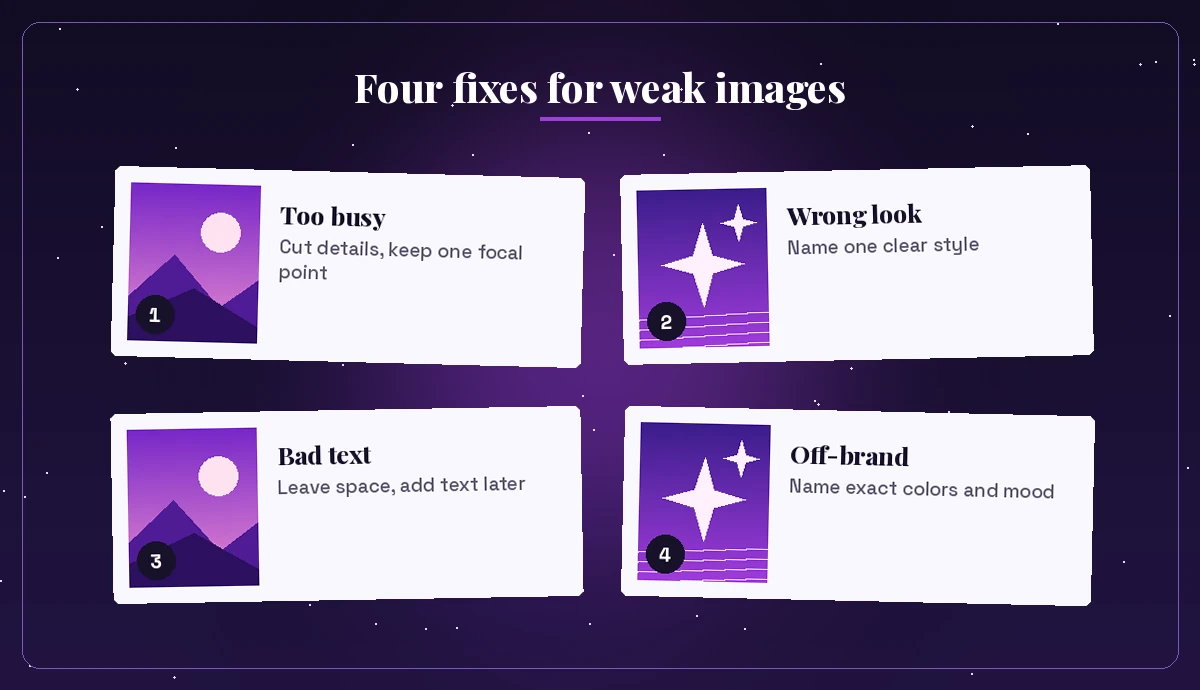
| Problem | Likely cause | What to try |
|---|---|---|
| Scene looks cluttered | Too many objects in one prompt | Keep one focal point and two or three supporting details |
| Style feels random | No style named, or several mixed | Name one style, such as watercolor or flat vector |
| Spelling inside the image is wrong | Text rendering is unreliable | Ask for empty space and add text in another tool |
| Colors clash with your brand | Palette left to chance | Name colors and mood, or use brand settings if available |
| Wrong shape for the slot | Default size used | Pick square, portrait or wide before generating |
| Subject is cropped | Tight framing words | Ask for a wide shot or “full figure visible” |
It also helps to check the result before you share it. Hands, reflections, signs and small background objects are where generated images most often look slightly wrong, so zoom in once before posting.
Worked Example: From Rough Idea to Final Image
Say you need a header image for an internal newsletter about a new hybrid work policy. A first attempt might be:
Create an image about hybrid work.That copilot prompt for image generation gives Copilot almost nothing to work with, so you will probably get a generic laptop on a desk. Using the formula instead:
Create a warm, modern illustration of three colleagues collaborating: one in a
bright office, one at a kitchen table at home and one on a video call on a
large screen between them. Flat vector style with soft shadows, purple, peach
and light grey palette, friendly and optimistic mood. Wide shot with empty space
across the top for a headline.
The result is much closer. Now refine it with short follow-ups instead of rewriting everything:
Make the home worker's room a little brighter and add a plant on the windowsill.Simplify the background in the office so it doesn't compete with the people.Switch to the wide size and keep the empty space at the top.Three small nudges usually beat one giant prompt. Save the version you like, add the headline in your newsletter tool, and keep the final prompt in a note so the next issue matches. If you build a habit of saving winners, a personal library like the one in our Copilot prompt gallery guide makes repeat work much faster.
Tips to Get Better Images Every Time
- Lead with the action. Starting with Create or Generate tells Copilot you want a picture, not an explanation.
- Spend words on description, not politeness. Adjectives about light, texture and mood do more than “please could you”.
- Name the use. “For a LinkedIn banner” or “for a slide background” quietly shapes composition and format.
- Reuse what works. Keep a short list of style phrases that suit your brand, such as “flat vector, soft shadows, purple and peach palette”.
- Iterate in small steps. Change lighting, then background, then style, so you know which instruction caused which change.
- Respect people and brands. Avoid prompts built around real individuals, copyrighted characters or another company’s logo, and follow your organization’s AI use policy for anything public.
For more ready-made templates across Word, Excel, Outlook and Teams, our roundup of the best Microsoft Copilot prompts is a good next stop.
Working on a brand mark rather than a scene? Our guide to the Copilot prompt for logo design has 40 prompts built for clean, simple logo concepts.
Final Thoughts
Every copilot prompt for image generation rewards a little structure. Describe the type of image, the subject, the setting, a few concrete details, one clear style and the framing, then refine with short follow-ups rather than starting from scratch. Copy the prompts above, swap in your own subject and colors, and keep the ones that work in a saved list so every new image starts from a proven base.
Frequently Asked Questions
What is a good Copilot prompt for image generation?
A good image prompt starts with an action word like Create or Generate, then names the image type, subject, setting, a few specific details, one style and the framing. For example: “Create a flat vector illustration of a person juggling a laptop and a calendar, purple and yellow palette, white background.”
Where do I generate images in Microsoft Copilot?
You can type an image request straight into Copilot chat, or open the Create section of the Copilot app, choose Create an image, describe it and then set the style, color and size before generating.
What sizes can Copilot images be?
In the Create section of the Copilot app, Microsoft currently lists square (1024 x 1024), portrait (1024 x 1536) and wide (1536 x 1024). Options can change over time and may depend on your plan.
Why does Copilot get the text in my image wrong?
Generated images often misspell words or distort letters. Ask Copilot to leave empty space for a headline, then add the text yourself in PowerPoint, Designer or another design tool.
Can I edit an image Copilot already created?
Yes. Use short follow-up prompts such as “change the time of day to sunset” or “make the background plain white”. Changing one thing at a time makes it easier to steer the result.
Can I use Copilot images for business or marketing?
Many teams use them for posts, slides and newsletters, but check your organization’s AI policy and Microsoft’s current terms first, avoid real people, logos and copyrighted characters, and review every image before publishing.