Copilot Prompts for Photo Editing: 40 Proven Prompts for Stunning Photos
Copilot prompts for photo editing work best when you describe the result you want to see, not the slider you would move in a traditional editor. Upload a picture, say “make the sky warmer and remove the person on the left,” and Copilot does the fiddly part. Say “make it better” and you usually get a random filter.
This guide collects 40 copy-ready prompts for fixing, cleaning up and restyling your own pictures with Microsoft Copilot. They are grouped by job: light and color, removing distractions, backgrounds, portraits, product shots, creative styles and social formats. You will also find a quick map of where photo editing lives in Copilot, a simple four-part editing formula, and a worked example that shows how to refine an image in rounds instead of starting again.
Where Photo Editing Lives in Copilot
Microsoft has spread AI image editing across a few places, and the same kind of prompt works in most of them. Menus and limits change often and depend on your plan, so treat this as a snapshot.
- Copilot chat. Drag a photo into the conversation box and type what you want changed. Microsoft’s own guide on how to make an AI picture suggests requests like removing the background for a clean studio look or making a shot look like it was taken at golden hour.
- The Create section of the Copilot app. Choose Edit an image, upload your file and pick from tools such as crop, adjustments, auto enhance, erase, background changes, text and filters. Microsoft documents the steps in Edit an image with the Microsoft Copilot app, and notes that an eligible subscription is needed.
- The Photos app on Windows. Generative erase and background tools are built in, and Copilot+ PCs add extras such as Restyle Image, Relight and Super resolution for upscaling.
The Copilot prompts for photo editing below are written for chat-style editing, where you describe the change in words. In the Create editor and the Photos app, the same wording works as a checklist: it tells you which tool to reach for and what the finished picture should look like.
The Four-Part Photo Edit Formula
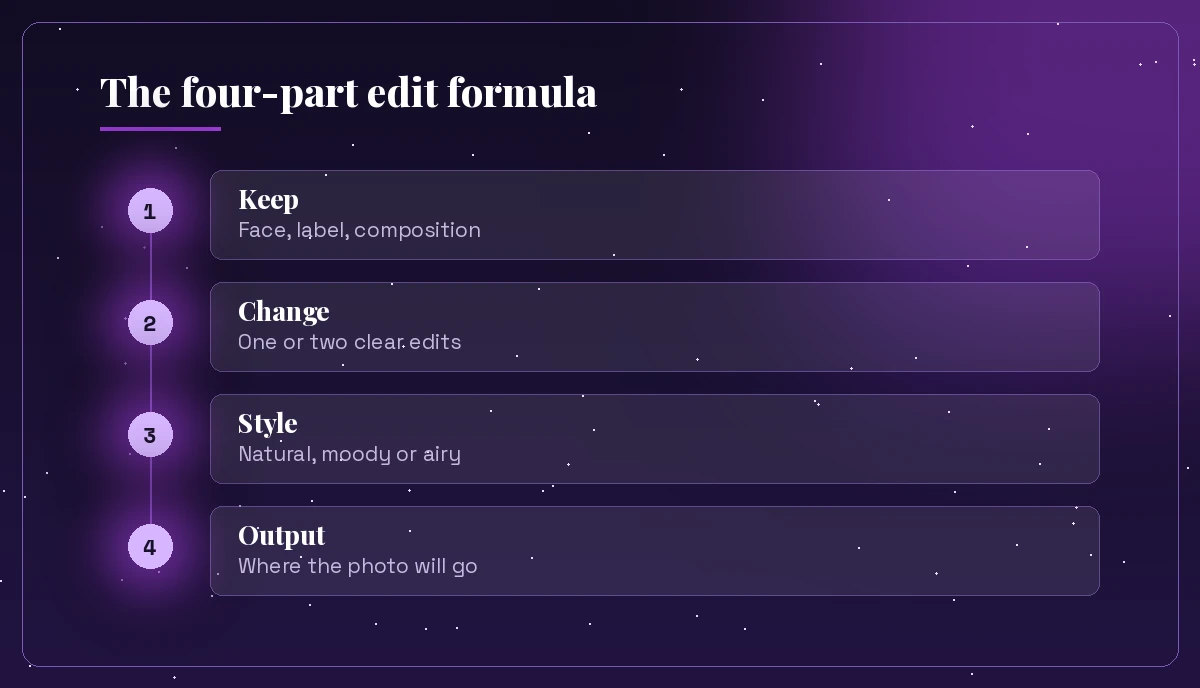
Most weak edit requests are missing one of four things. Cover all four and Copilot has far less to guess.
- Keep. What must stay exactly as it is: the person’s face, the product label, the composition.
- Change. The specific edit: brighter, warmer, remove an object, swap the background.
- Style. The look you are after: natural, moody, bright and airy, film, studio.
- Output. Where the photo is going: a LinkedIn banner, an Instagram square, a print, a product page.
Here is the formula as a template you can reuse:
Edit this photo. Keep [what must not change].
Change [the specific edit, one or two at most].
Style: [natural / moody / bright and airy / film look].
Output: [where it will be used and the shape, e.g. square for Instagram].
The “keep” line matters more than people expect. Generative edits sometimes alter faces, hands or small text, so stating what must stay untouched protects the parts you care about. If you want the general thinking behind instructions, context and format, our guide to Copilot prompt ingredients covers it for every kind of task.
Light, Exposure and Color Fixes
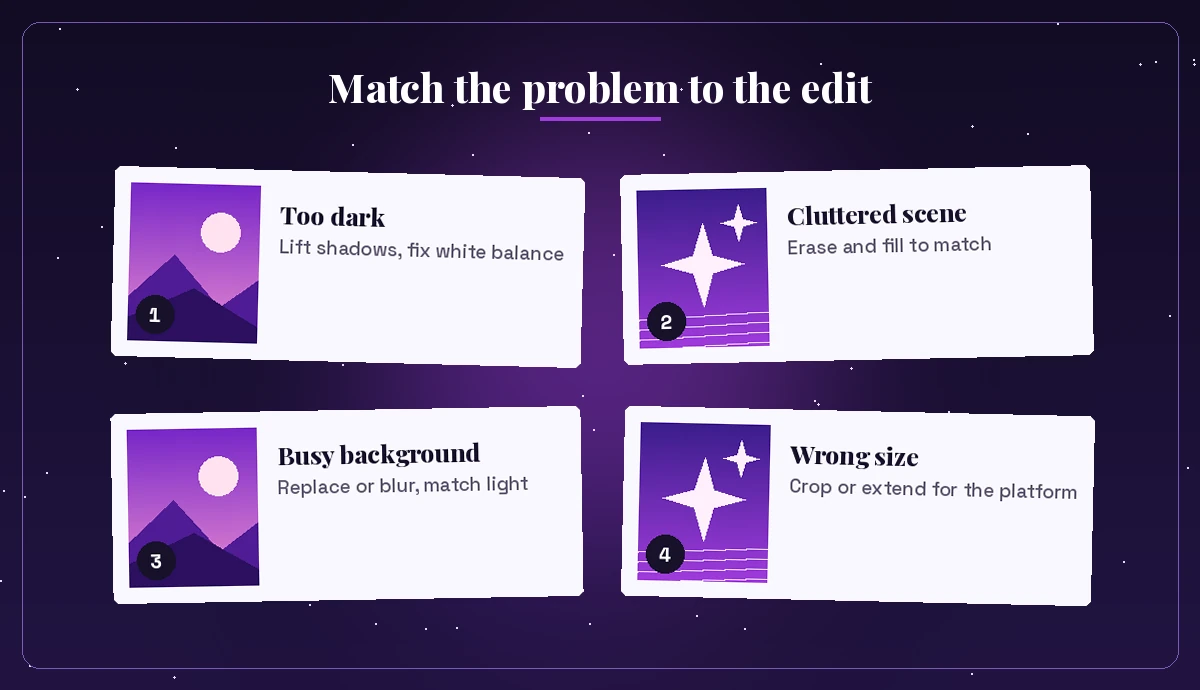
Start here for everyday snapshots that look flat, dark or slightly off. These are the safest edits because they adjust what is already in the frame rather than inventing new content.
Brighten this photo slightly and lift the shadows so the faces are clear.
Keep the colors natural and do not change anyone's features.
This picture was taken indoors and looks yellow. Correct the white balance
so whites look neutral, and keep the skin tones realistic.Make this landscape look like it was taken at golden hour: warm, soft light,
gentle long shadows, slightly richer orange and gold tones. Keep the scene the same.Add a little contrast and clarity so the details stand out, but avoid an
over-sharpened or HDR look. Keep it subtle.The sky in this photo is washed out. Restore some blue and cloud detail
in the sky only, without changing the buildings or people.Give this photo a calm, muted color grade with soft greens and creams,
like a lifestyle magazine. Keep the exposure as it is.A useful habit: ask for slightly or subtle when you want a natural result. Without that word, Copilot may push an effect further than you intended.
Removing Objects and Distractions
Cleanup edits are where AI saves the most time, and they are among the most useful copilot prompts for photo editing. A stray bin, a photobomber or a power line used to take careful cloning; now a one-line request handles most cases.
Remove the person walking in the background on the right side.
Fill the space so it matches the street behind them. Keep everything else unchanged.
Erase the power lines across the sky and the small sign on the left wall.
Keep the building and trees exactly as they are.Clean up this desk photo: remove the cables, the coffee cup and the sticky notes,
so only the laptop, plant and notebook remain.Remove the date stamp in the bottom right corner and repair that area naturally.Tidy this room photo for a rental listing: remove the clutter on the counter
and the laundry on the chair. Do not add or move any furniture.If the patch looks smudged, follow up with “the area where the person was looks blurry, make the texture match the surrounding wall.” In the Photos app, generative erase lets you brush over the exact spot, which helps with small or oddly shaped objects.
Background Edits That Look Real
Background changes are popular for profile pictures, product shots and slides. The trick to Copilot prompts for photo editing in this category is matching light: a new background with the wrong light direction is the fastest giveaway.
Remove the background from this photo and replace it with a plain white
studio background. Keep soft, natural edges around the hair.
Replace the busy background with a softly blurred modern office.
Match the lighting so it comes from the left, the same as on the person.Blur the background of this photo to create a shallow depth-of-field look,
keeping the main subject sharp.Change the background to a light grey gradient suitable for a company website.
Keep the person, their clothes and their pose exactly as they are.Put this product on a light wooden table with a softly blurred kitchen behind it.
Keep the product label sharp and readable, and add a natural shadow under it.For profile and team photos specifically, our Copilot prompt for a professional headshot goes deeper on clothing, framing and backgrounds that suit LinkedIn.
Portrait and People Prompts
Edits to people need the most care, and copilot prompts for photo editing that involve faces should always be gentle. Ask for gentle changes, protect identity in the “keep” line, and always review faces closely before you share anything.
Lightly retouch this portrait: reduce shine on the forehead and soften
harsh shadows under the eyes. Keep skin texture natural and do not change the face shape.
Improve the lighting on this portrait so it looks like soft window light from the left.
Keep the person's features, expression and hair exactly as they are.Straighten this group photo, crop it a little tighter and brighten everyone evenly.
Do not remove or change any person.Turn this casual photo into a clean headshot crop: head and shoulders,
centered, with a little space above the head.Remove the red-eye and the slight blur from motion, keeping the photo realistic.Only edit photos of people who would be comfortable with the change, and be honest about edited images where it matters, for example on a dating profile, an ID-style photo or anything used as evidence. Some requests involving real people may be declined by Copilot’s safety rules, which is expected behavior.
Product and Business Photos
Small businesses can get a lot from a phone photo plus a precise prompt. The key is to protect the product itself: its shape, color and any text on it.
Clean up this product photo for an online store: white background,
even lighting, centered, no reflections. Keep the product's true color.
Create a lifestyle version of this candle photo: place it on a bedside table
with soft evening light and a book nearby. Keep the label unchanged.Make this food photo look more appetizing: warmer light, slightly richer colors,
a little steam. Keep the portion and plating exactly the same.Straighten the lines in this interior photo so the walls are vertical,
brighten the room evenly and make the windows less blown out.Add empty space on the right side of this product photo so I can place
a headline and price there. Extend the background naturally.For brand assets that start from scratch rather than a photo, see our Copilot prompt for logo design, which pairs well with these product edits.
Creative Styles and Restyling
Sometimes you do not want a fix, you want a transformation. These prompts turn an ordinary photo into something new while keeping the original composition recognizable.
Turn this photo into a soft watercolor painting, keeping the same composition
and the main shapes. Use gentle pastel colors.
Restyle this city photo as a vintage travel poster with flat colors,
bold shapes and a cream border. Leave space at the top for a title.Make this photo look like it was shot on 35mm film: slight grain,
warm highlights, faded blacks.Convert this photo to a high-contrast black and white image with deep shadows,
like classic street photography.Turn my pet's photo into a cute cartoon illustration with thick outlines
and bright colors. Keep the markings and collar the same.Apply a moody cinematic look to this night photo: teal shadows,
orange streetlights, slightly darker overall.On a Copilot+ PC, Restyle Image in the Photos app accepts both preset styles and your own description, so these same phrases work there as custom style prompts.
Crops and Formats for Social Media
Getting the shape right is half the job when a photo is headed for a specific platform. Tell Copilot the destination and what must stay in frame.
Crop this photo to a square for Instagram, keeping the person centered
and their full head in frame.
Turn this landscape photo into a tall 9:16 version for a story.
Extend the sky at the top and the ground at the bottom so nothing important is cut off.Make a wide banner from this photo for a LinkedIn cover, with the subject
on the right and calm empty space on the left for text.Create three versions of this photo: a square, a vertical story and a wide banner.
Keep the subject in focus in every version.Add a simple caption bar at the bottom of this photo with the text
"Open house this Saturday" in a clean white font.Copilot can sometimes misspell text inside images, so check every word. For important headlines, add the text yourself in the Create editor’s Text tool or in PowerPoint.
A Worked Example: Editing in Rounds
With copilot prompts for photo editing, good results usually come from two or three short rounds, not one giant prompt. Here is how a typical edit of a cafe photo for a small business website might go.
Round 1, the main fix.
Edit this cafe photo. Keep the barista and the counter exactly as they are.
Brighten the room, correct the yellow indoor light, and remove the trash bin by the door.
Style: warm and natural. Output: wide image for a website header.
Round 2, the detail. The result is brighter, but the windows are now too white.
Good. Now bring back some detail in the windows and make the wood counter
slightly warmer. Keep everything else the same.
Round 3, the format.
Extend the left side of the image with more of the cafe wall so there is
room for a headline. Keep the new area consistent with the rest of the room.
Each round changes one or two things and repeats the “keep” instruction. That habit stops Copilot from undoing earlier progress. If a round goes wrong, go back to the previous version rather than piling on corrections.
Tips for Better Copilot Prompts for Photo Editing
A few habits make the difference between a usable edit and a strange one.
- Upload the best original you have. AI can improve a photo, but a sharp, well-exposed starting point gives it far more to work with.
- Name locations in the frame. “The person on the left” or “the sign in the top corner” works better than “that thing.”
- Limit each request. Two edits per prompt is a good ceiling. Long lists often get half-done.
- Protect what matters. Faces, logos, product labels and text are the parts most likely to change unexpectedly, so name them in the keep line.
- Compare before and after. The auto enhance tool in the Create editor includes a slider for exactly this reason.
- Keep the original. Save the edit as a copy so you can always return to the untouched file.
Common Mistakes to Avoid
- Vague requests. “Make it pop” gives Copilot nothing concrete. Say brighter, warmer, sharper or cleaner.
- Asking for impossible rescues. A badly blurred or tiny image may never look truly sharp. Upscaling helps, but it adds detail by estimation, which is not the same as real detail.
- Ignoring rights. Only edit photos you took or have permission to use, and be careful with images of other people.
- Passing edits off as untouched. For news, legal, insurance or real estate uses, heavy edits can mislead. Follow the rules of the platform or industry you are posting to.
- Skipping the final check. Zoom in on hands, edges, text and faces before you publish anything.
Once you have a set of copilot prompts for photo editing that work for your pictures, save them alongside your other favorites. Our best Microsoft Copilot prompts collection and the Copilot prompt for image generation guide are good companions when you move from editing existing pictures to creating new ones.
Frequently Asked Questions
Can Microsoft Copilot edit my own photos?
Yes. You can upload a photo into Copilot chat and describe the change you want, or use Edit an image in the Create section of the Copilot app, which offers tools such as crop, adjustments, auto enhance, erase and background changes. Availability depends on your account and plan.
What is the best prompt to remove an object from a photo in Copilot?
Name the object and its position, ask Copilot to fill the area so it matches the surroundings, and say what must stay unchanged. For example: “Remove the person on the right and fill the space to match the street. Keep everything else the same.”
Can Copilot change the background of a picture?
Yes. Ask it to remove or replace the background and describe the new one, including where the light should come from so the subject blends in. The Create editor and the Photos app on Windows also include background removal and blur tools.
Why did Copilot change the face in my photo?
Generative edits can alter details they were not asked to touch, especially faces, hands and text. Add a clear instruction such as “keep the person’s face and features exactly as they are,” make smaller edits per prompt, and compare against the original.
Is Restyle Image in the Photos app the same as Copilot chat?
Not exactly. Restyle Image is a Photos app feature on Copilot+ PCs that applies preset or custom styles to a photo, while Copilot chat edits images through a conversation. The style descriptions in this guide work well in both.
Can Copilot add text to a photo?
It can, but AI-generated text inside images is sometimes misspelled. For headlines or prices, use the Text tool in the Copilot Create editor or add the words in another app so you control the exact wording.