Copilot Prompts for Managers: 27 Proven Templates to Lead Your Team Better
These Copilot prompts for managers are built for the people side of the job: running one-on-ones, giving feedback, delegating, keeping a team informed and protecting your own calendar. Most managers don’t lack ideas. They lack the hour it takes to turn scattered notes, chat threads and half-remembered conversations into something clear enough to send. That is the gap Microsoft 365 Copilot fills well, as long as you ask for the right thing.
This guide is for team leads, line managers, department heads and new supervisors who use Copilot in Outlook, Teams, Word or Copilot Chat. If you run projects with charters, schedules and risk registers, our Copilot prompts for project managers guide covers that work. Here, the focus is leading people.
Every template uses square brackets for the details you swap in. Copy a prompt, replace the brackets, and run it.
What Copilot Can and Can’t Do for a Manager
Copilot is strongest when it has material to work with. In Microsoft 365, it can draw on emails, meetings, chats and files you already have permission to open. That makes it useful for summarizing what happened while you were out, drafting a message from rough bullets, or pulling the open items out of a long thread.
It is weaker at judgment calls. It doesn’t know that one engineer is quietly burning out or that two leads haven’t spoken since the reorg. Treat its output as a first draft that you edit with what only you know.
A few ground rules keep the output trustworthy:
- Name your sources. Say which meeting, thread or file to use instead of hoping it finds the right one.
- Ask it to flag gaps. Add “tell me what’s missing” so it doesn’t fill holes with guesses.
- Keep sensitive details out of shared spaces. Health information, pay and disciplinary notes deserve extra care. Follow your company’s HR and data policies before pasting anything personal.
- Check names, dates and numbers. Always, before anything leaves your outbox.
How to Write Copilot Prompts for Managers That Sound Like You
Generic output usually comes from a generic request. Microsoft’s own guidance on writing effective Copilot prompts suggests stating a goal, giving context, naming sources and setting expectations. For leadership tasks, it helps to add one more layer: the relationship.
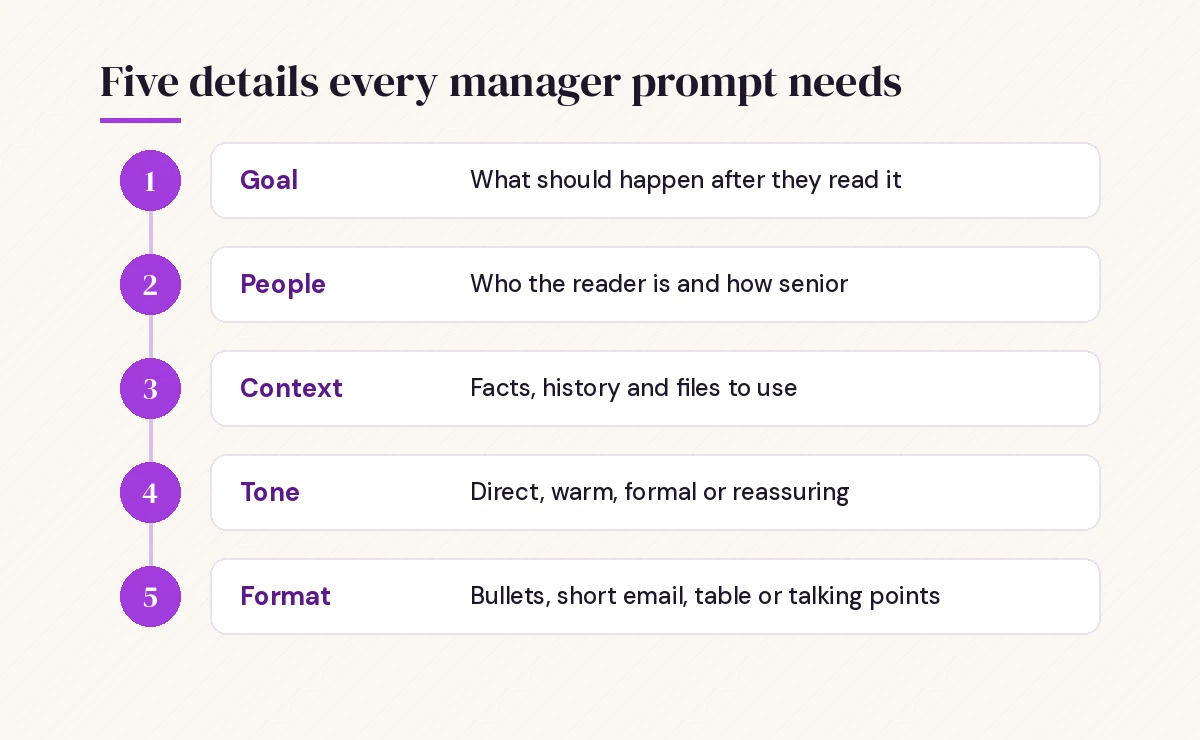
- Goal. What should happen after someone reads this? A decision, a change in behavior, a calmer team?
- People. Who is the reader, how senior are they, and how well do they know the topic?
- Context. The facts, the history and the files Copilot should use.
- Tone. Direct, warm, formal, reassuring. Say it plainly.
- Format. Bullets, a short email, a talking-points list, a table.
Here is the difference in practice:
Weak: Write an email to my team about the new process.

Strong: Write a short email to my team of 8 support agents explaining that
starting [date], escalations go through the new [tool] queue instead of
direct messages. Use the details in [file]. Tone: friendly and clear, not
corporate. Include why we're changing, what they need to do on day one,
and who to ask for help. Keep it under 150 words.
If you want a deeper walk-through of prompt structure, see how to write Copilot prompts.
One-on-One Meeting Prompts
One-on-ones are where trust is built, and they’re also the meetings most likely to drift. These prompts help you show up prepared and follow through afterward.
1. Prepare for a one-on-one
I have a one-on-one with [name] tomorrow. Using our emails, chats and
meetings from the last [two weeks], list what they've been working on,
anything they asked me for that I haven't answered, and any wins I should
recognize. Then suggest 3 open questions I could ask.
2. Build a recurring agenda
Create a simple one-on-one agenda template for a [weekly / biweekly]
30-minute meeting with a direct report. Include sections for their topics
first, progress and blockers, growth, and feedback both ways. Keep it to
one page I can paste into a shared Loop page or OneNote.
3. Draft better coaching questions
[Name] says they feel stuck on [problem]. Give me 8 coaching questions that
help them find their own answer instead of me solving it. Avoid yes/no
questions. Order them from easiest to most reflective.
4. Summarize the conversation and next steps
Here are my rough notes from a one-on-one with [name]: [paste notes].
Turn them into a short recap I can send them, with what we discussed,
what each of us agreed to do, and by when. Keep it warm and under
120 words. Leave out anything marked "private".
Feedback and Recognition Prompts
Feedback lands best when it’s specific and timely. Copilot can help you find the right words quickly, which removes the main excuse for putting it off.
5. Turn a vague impression into specific feedback
I want to give [name] feedback that their status updates are hard to
follow. Help me rewrite this into specific, behavior-based feedback using
the situation, behavior, impact format. Suggest one concrete change they
could try. Keep the tone supportive.
6. Write a recognition message
Write a short Teams message recognizing [name] for [specific contribution]
in [project]. Mention the impact: [impact]. Make it sincere, not generic,
and suitable for posting in our team channel. Under 80 words.
7. Prepare a difficult conversation
I need to talk to [name] about [issue, such as missed deadlines over the
last month]. Help me plan the conversation: an opening line that's direct
but kind, the two or three facts I should share, questions to understand
their side, and how to agree on next steps. Also list things I should
avoid saying.
8. Ask for upward feedback
Draft a short message asking my team for honest feedback on how I can
support them better. Offer an anonymous option using [Microsoft Forms].
Include 4 questions about communication, priorities, workload and
recognition. Tone: open and genuinely curious.
When review season comes around, our Copilot prompt for performance review guide has templates for self-reviews, manager summaries and goal write-ups.
Delegation and Goal-Setting Prompts
Delegating well means handing over the outcome, not just the task. These prompts help you explain the work clearly enough that people can run with it.
9. Write a clear delegation brief
I'm handing [task] to [name]. Write a short delegation brief covering
the outcome I need, why it matters, the deadline, the decisions they can
make on their own, when to check with me, and the resources available.
Use plain language and bullets.
10. Turn priorities into team goals
Using [file with department priorities], suggest 4 team goals for
[quarter] for a team of [size] doing [function]. Write each as a
measurable goal with a target and a simple way to track it. Flag any goal
that depends on another team.
11. Match work to strengths
Here's a list of upcoming tasks: [list]. And here's what each person on
my team is strongest at and wants to grow in: [list]. Suggest who could
take each task, balancing strengths with growth opportunities. Point out
anyone who would be overloaded.
12. Create a development plan
[Name] wants to move toward [role or skill] in the next [12 months].
Draft a development plan with 3 goals, practical activities for each
(stretch assignments, shadowing, courses), and a check-in rhythm. Keep it
realistic for someone working full time.
Team Communication and Update Prompts
Much of a manager’s week goes into translating information: from leadership to the team, from the team to leadership, and sideways to peers.
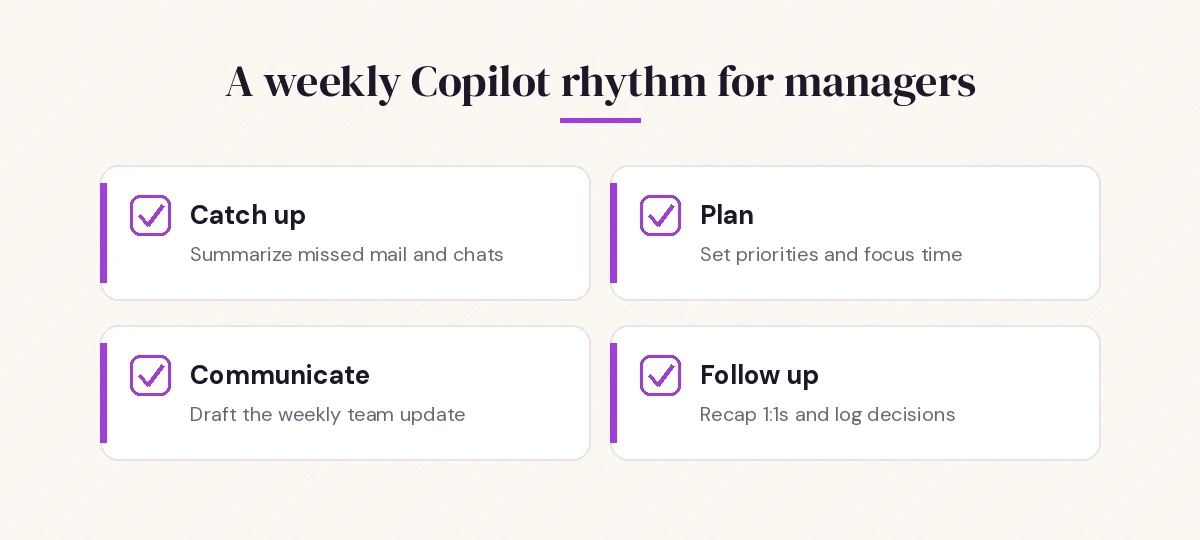
13. Write a weekly team update
Draft a weekly update for my team using the last week of our team channel,
my sent emails and [file]. Include wins, what's changing, priorities for
next week and any deadlines. Make it skimmable with short headings.
Under 250 words.
14. Explain a leadership decision
Leadership has decided [decision]. Here's the internal announcement:
[paste or reference file]. Help me explain it to my team in plain language:
what's changing, why, how it affects them, and what stays the same.
Acknowledge that some people may be disappointed. Avoid spin.
15. Summarize for your own manager
Write a short update to my manager about my team's progress this month.
Use [files, meetings, threads]. Lead with the two most important outcomes,
then risks, then anything I need from them. Keep it under 200 words and
in bullets.
16. Prepare for an all-hands question
I expect my team to ask about [topic, such as the hiring freeze] at our
next meeting. List the 6 questions they're most likely to ask and draft
honest, short answers based on [source]. Mark any answer where I need
to confirm the facts first.
For catch-ups after a long meeting, the Copilot prompts for Teams meetings guide shows how to pull decisions and owners from a recap.
Hiring and Onboarding Prompts
Hiring is one of the highest-impact things a team lead does, and onboarding sets the tone for everything after.
17. Write a job description
Write a job description for a [role] on my [team]. Must-have skills:
[list]. Nice-to-have: [list]. Describe the day-to-day work honestly and
what success looks like after 6 months. Use inclusive language and avoid
jargon. Under 400 words.
18. Build structured interview questions
Create 8 structured interview questions for a [role], focused on
[competencies]. For each, add what a strong answer would include and a
follow-up question. Avoid anything that touches on protected
characteristics.
19. Plan a new hire’s first two weeks
Draft a two-week onboarding plan for [name], joining as [role] on [date].
Include who they should meet, which tools and documents to review, a small
first task they can finish in week one, and daily check-ins for the first
three days.
If you work closely with HR on these steps, the Copilot prompts for HR guide has templates for policies, offer letters and onboarding checklists.
Prompts for Your Own Time and Focus
Being available to everyone can leave no time for the work only you can do. Copilot in Outlook and Teams can help you take some of that time back.
20. Catch up after time off
I was out from [date] to [date]. Summarize the emails, chats and meetings
I missed that need my attention. Group them into: needs a decision from
me, needs a reply, and just FYI. Include who asked and by when.
21. Triage a full inbox
Look at my unread email from the last [3 days]. Which messages come from
my direct reports or my manager and need a response? List them by
urgency with a one-line summary of each.
22. Plan a focused week
Here are my priorities for next week: [list]. Looking at my calendar,
suggest where I could block focus time, which meetings I could shorten or
decline, and what I could delegate. Explain your reasoning briefly.
23. Turn a meeting into a decision log
From the [meeting name] recap on [date], list every decision we made, who
owns the follow-up, and anything still unresolved. Format as a table I can
paste into our team's tracking page.
For more inbox shortcuts, the guide to Copilot prompts for Outlook inbox management goes deeper on filtering, flags and reply drafts.
Team Health and Culture Prompts
Culture comes from small habits repeated. These prompts help you plan the habits.
24. Plan a team retrospective
Plan a 45-minute team retro for [team] after [event or quarter]. Suggest a
simple format, 4 discussion questions, a way to make it safe for quieter
people to contribute, and how to turn ideas into 2 or 3 actions.
25. Read the mood from a survey
Here are the open-text answers from our team pulse survey: [paste,
anonymized]. Group them into themes, note how often each theme appears,
and quote 2 representative comments per theme. Don't guess at who wrote
what.
26. Handle a conflict between two people
Two people on my team, [role A] and [role B], disagree about [issue] and
it's affecting the team. Help me plan a mediated conversation: how to open,
ground rules, questions that get to the underlying interests, and how to
end with a shared agreement.
27. Write a farewell or team change message
[Name] is leaving the team on [date] to [new role or company]. Draft a
warm message to the team announcing it, thanking them for [contributions],
and explaining how their work will be covered. Under 120 words.
Quick Reference: Which App to Use
| Task | Best place to run it | Why |
|---|---|---|
| One-on-one prep | Copilot Chat (work) | Can pull from emails, chats and meetings together |
| Recognition message | Copilot in Teams | Drafts right where you’ll post it |
| Delegation brief or job description | Copilot in Word | Easy to edit, share and reuse as a template |
| Catch-up after time off | Copilot in Outlook or Copilot Chat | Sees your inbox and calendar |
| Decision log from a meeting | Copilot in Teams recap | Works from the transcript and notes |
| Survey themes | Copilot in Excel or Chat | Handles long lists of comments |
Features differ by license and admin settings, so if an option doesn’t appear for you, check with your IT team.
Mistakes to Avoid
Even good prompts go wrong in predictable ways.
- Sending without reading. A draft that sounds confident can still have the wrong name or date.
- Letting it decide for you. Ask Copilot for options and trade-offs, then make the call yourself.
- Over-polishing. A message that sounds too corporate can feel distant. Add “write it the way a friendly manager would speak.”
- Ignoring privacy. Don’t paste medical details, salary data or disciplinary notes into chats that others can see.
- Using one prompt for every person. Adjust the tone for the reader. A new graduate and a senior engineer need different messages.
Microsoft’s Copilot Scenario Library has more role-based ideas if you want to explore how other teams use these tools.
Build Your Own Manager Prompt Library
The fastest way to get value from Copilot prompts for managers is to save the ones that work. Keep a Word document or OneNote page with your best versions, already filled in with your team’s names, tools and tone. Over a month, you’ll have a set of a dozen prompts that cover most of your recurring tasks.
Start small. Pick three from this list: one-on-one prep, the weekly team update and the catch-up after time off. Use them for two weeks, edit the wording until the output needs little cleanup, and then add more. For a wider set of examples across apps, browse our list of the best Microsoft Copilot prompts.
Frequently Asked Questions
What are the best Copilot prompts for managers to start with?
Start with three that save time every week: preparing for a one-on-one from recent emails and chats, drafting a weekly team update, and summarizing what you missed after time off. They’re easy to reuse and quickly show whether Copilot can see the right sources.
Can Copilot write performance feedback for my team?
It can help you draft feedback and organize your notes into a clear structure, but the judgment and examples must come from you. Give it specific facts, ask for a supportive tone, and always edit the result before sharing it.
Does Copilot have access to my direct reports’ files and emails?
No. Microsoft 365 Copilot only uses content you already have permission to see, such as your own mailbox, meetings you attended and files shared with you. It doesn’t open private mail or files that belong to someone else.
Which Copilot app is best for people management tasks?
Copilot Chat in work mode is the most flexible because it can combine emails, chats, meetings and files. Copilot in Teams is handy for recaps and channel posts, Outlook for inbox work, and Word for longer documents like job descriptions.
Is it safe to paste sensitive employee information into Copilot?
Follow your organization’s data and HR policies first. As a general habit, keep health details, pay data and disciplinary records out of prompts unless your company has approved that use, and anonymize survey comments before analysis.
How do I make Copilot messages sound less robotic?
Tell it who you are writing to, the tone you want and the length limit, and paste a short sample of your own writing as a style guide. Asking it to write the way a friendly manager would speak also helps a lot.