Copilot Prompts for Email Writing: 40 Proven Templates for Clear, Professional Emails
Copilot prompts for email writing turn a blank compose window into a usable first draft in seconds, as long as you tell Copilot what the email is for, who will read it and what they should do next. Most people type “write an email about the meeting” and then spend ten minutes fixing a stiff, generic result. A slightly better request saves that time.
This guide gives you 40 copy-ready templates organized by the kind of message you send every week: requests, status updates, introductions, client replies, scheduling notes, thank-you messages and team announcements. You’ll also get a four-part formula for writing your own, a short edit loop for polishing any draft, and the mistakes that make AI-written emails easy to spot. Replace everything in square brackets with your own details before you run a prompt.
Why Most AI Email Drafts Fall Flat
An email is a small piece of persuasion. The reader is busy, skims the first two lines and decides whether to act now, later or never. When a draft fails, it’s rarely because the grammar is wrong. It fails because the main point is buried, the tone doesn’t fit the relationship, or the ask is so soft that nobody realizes there is one.
Copilot can’t guess any of that from a one-line request. It doesn’t know that your reader is a new client rather than a teammate you’ve worked with for five years, or that the deadline is Friday, not “soon.” When the prompt is thin, the output fills the gaps with polite filler: “I hope this email finds you well,” three sentences of background and a vague closing line.
The fix is to write Copilot prompts for email writing the way you’d brief an assistant sitting next to you. Give it a goal, a reader, the facts and the shape you want. The templates below are built that way, so you only have to swap in the specifics.
The Four-Part Formula Behind Every Good Email Prompt
Every strong email request covers four things, and the best Copilot prompts for email writing hit all of them. You don’t need to label them, but checking for each one before you press Enter makes a visible difference.
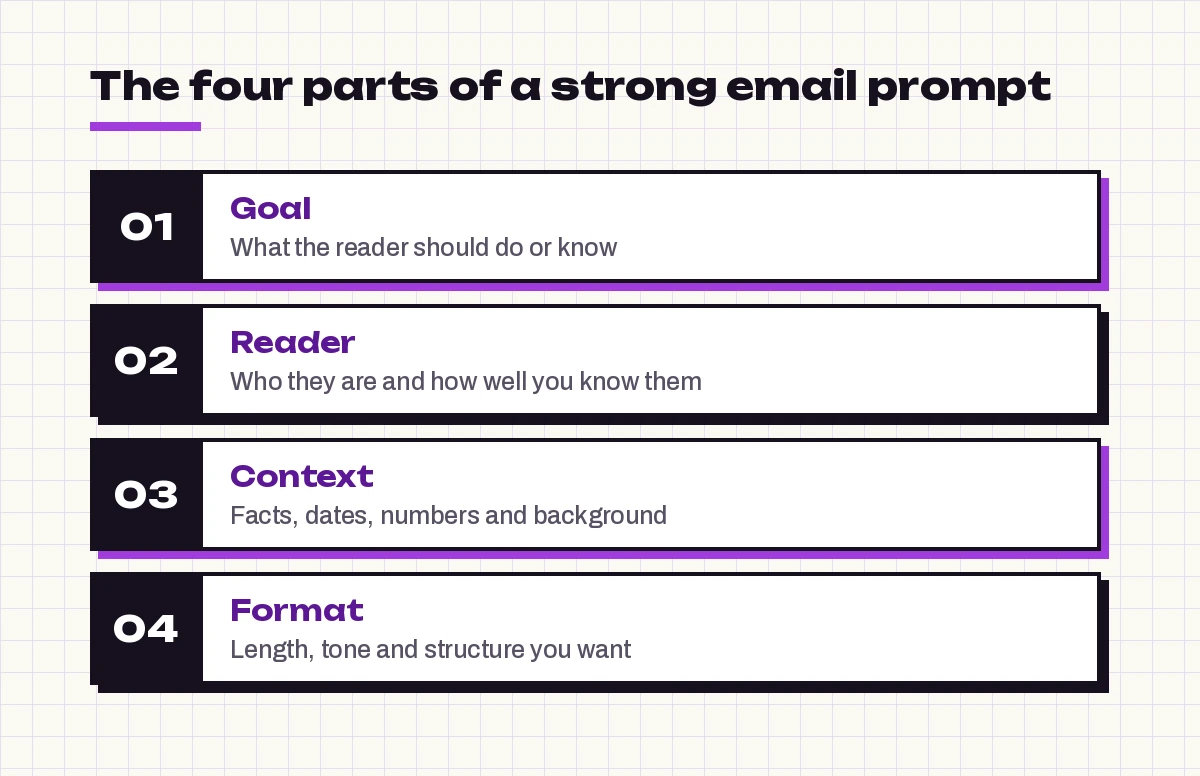
- Goal: what you want the reader to do, decide or understand after reading.
- Reader: their role, how well you know them and how formal the relationship is.
- Context: the facts Copilot can’t invent, such as dates, numbers, names and what has already happened.
- Format: length, tone and structure, for example “under 120 words, friendly, with the ask in the first line.”
Here is the formula as a reusable template you can keep in a note:
Write an email to [reader and their role]. The goal is to [action or outcome you need].
Context: [2-4 key facts, dates, numbers].
Tone: [friendly / formal / direct]. Keep it under [number] words.
Put the main ask in the first two sentences and end with a clear next step.
If you want a deeper look at prompt structure beyond email, our guide on how to write Copilot prompts breaks down each element with examples, and the Copilot prompt template collection has fill-in versions for other tasks.
Where to Use These Prompts
The same templates work in several places, but each surface behaves a little differently.
| Where | Best for | What to know |
|---|---|---|
| Draft with Copilot in Outlook | New emails and replies inside your inbox | Lets you change length and tone after the first draft, and reads the thread when you reply |
| Copilot Chat | Drafting outside your mail client, or several versions at once | Copy the result into your email app; you can paste notes or bullet points as context |
| Copilot in Word | Long announcements or newsletters | Useful when the email needs headings, sections or approval from others before sending |
Microsoft’s walkthrough on how to draft an email with Copilot in Outlook shows where the Copilot button sits in classic and new Outlook, plus how to regenerate or keep a draft. Available features depend on your Microsoft 365 license and your organization’s settings, so a button you see in a tutorial may look slightly different on your account.
Copilot Prompts for Email Writing: Requests
Requests are the emails most likely to be ignored, usually because the ask is hidden in the third paragraph. These prompts force it to the top.
- Asking a colleague for data:
Write a short email to [name], a [role] I work with often, asking for [specific data or file] by [day and time]. Explain in one sentence that I need it for [purpose]. Friendly tone, under 90 words, ask in the first line.- Requesting approval from a manager:
Draft an email to my manager [name] asking for approval to [action, e.g. buy a tool for $X]. Include the benefit in one sentence, the cost, and the date I need a decision. Make it easy to reply with a simple yes or no.- Asking someone outside your company for a favor:
Write a polite email to [name] at [company], whom I haven't met, asking if they'd be open to [favor, e.g. a 20-minute call about X]. Mention how I found them: [source]. Keep it under 120 words and make it easy to decline.- Requesting feedback on a document:
Draft an email asking [names] to review the attached [document]. I need comments by [date], especially on [2 specific sections or questions]. Keep it brief and list the questions as bullet points.- Asking for an extension:
Write a professional email to [name] asking to move the [deliverable] deadline from [old date] to [new date]. Give one honest reason: [reason]. Offer [what you can deliver by the original date]. Calm and direct tone.- Requesting access or resources:
Write an email to the [IT / admin] team requesting access to [system or folder] for [purpose]. Include my role, my manager's name [name] for approval, and the date I need it by. Keep it under 80 words.Prompts for Status Updates and Reports
Status emails are where Copilot prompts for email writing save the most time each week. Updates work best when the reader can stop after the first line and still know whether things are on track.
- Weekly project update:
Turn these notes into a weekly status email for [stakeholders]: [paste notes]. Start with an overall status (on track, at risk or blocked), then three bullets for progress, one for risks, and one for what I need from them.- Delay notice:
Write an email telling [audience] that [project or delivery] will be late by [time]. Reason: [reason]. New date: [date]. Explain what we're doing to prevent further delay. Take responsibility without over-apologizing.- End-of-day update to a manager:
Draft a short end-of-day update to [manager] covering what I finished today: [items], what's in progress: [items], and one blocker: [blocker]. Bullet points, no greeting fluff.- Milestone announcement:
Write an email announcing that we completed [milestone] on [date]. Thank [people or teams] by name for [specific contributions], and say what happens next. Upbeat but professional, under 150 words.- Summarizing results for executives:
Write an executive summary email about [initiative]. Key results: [numbers]. Lead with the single most important takeaway, then up to three supporting points, then the decision I need from them. No jargon, under 150 words.Prompts for Introductions and Networking
Introductions are short but easy to get wrong. The reader should immediately know why the connection is worth their time.
- Introducing yourself to a new team:
Write a friendly introduction email to the [team name] team. I'm joining as [role] on [date]. Mention what I'll be working on, one personal detail: [detail], and invite them to a quick coffee chat. Under 130 words.- Double opt-in introduction:
Draft an email introducing [person A, role] to [person B, role]. Explain in one line why they should talk: [shared interest or need]. Keep it short and let them take it from there.- Following up after an event:
Write a follow-up email to [name], whom I met at [event]. Reference our conversation about [topic] and suggest [next step]. Warm, specific, under 100 words.- Reaching out to a former colleague:
Write a casual email to [name], a former colleague from [company], to reconnect. Mention [shared memory or project], share one update about me, and ask how they're doing. No sales pitch.For chasing replies that never came, our set of Copilot prompts for follow-up emails covers polite nudges for every stage of silence.
Prompts for Customers and Clients
Client emails carry your company’s reputation, so Copilot prompts for email writing aimed at customers ask for clarity first and friendliness second.
- Answering a client question:
Write a reply to a client asking [question]. The answer is [facts]. Explain it in plain language, avoid internal terms, and offer a short call if they want to go deeper. Professional and warm.- Sending a proposal:
Draft an email to [client name] sending our proposal for [project]. Summarize the scope in two sentences, mention the price of [amount] and the timeline of [timeline], and ask for a decision by [date].- Onboarding a new customer:
Write a welcome email to a new customer, [name] at [company], who just signed up for [product or service]. List the first three steps they should take, who to contact for help, and when we'll check in.- Confirming an order or agreement:
Write an email confirming what we agreed with [client] on [date]: [list of points]. Ask them to reply if anything is incorrect by [date]. Clear, neutral tone, numbered list.- Requesting a testimonial:
Write a short email to [client], who was happy with [project result], asking if they'd share a two or three sentence testimonial. Offer to draft it for their approval. Make it easy to say no.- Price increase notice:
Draft an email informing customers that the price of [product] will change from [old price] to [new price] on [date]. Explain the reason honestly: [reason]. Mention what stays the same and how to contact us with questions.If a client message is tense or the news is bad, switch to our Copilot prompts for difficult emails, which are built for apologies, refusals and complaints.
Prompts for Meetings and Scheduling
These are the emails you send the most and think about the least, which makes them perfect candidates for Copilot prompts for email writing.
- Proposing a meeting:
Write an email to [name] proposing a [length] meeting to discuss [topic]. Suggest three time slots: [slots]. State the outcome I want from the meeting in one sentence.- Rescheduling:
Draft a short email to [name] asking to move our [meeting] from [old time] to [new options]. Apologize once, briefly, and keep it under 60 words.- Sending an agenda:
Write an email to attendees of [meeting] on [date] with this agenda: [items]. Add the goal of the meeting and ask people to come prepared with [preparation].- Post-meeting recap:
Turn these meeting notes into a recap email: [paste notes]. Include decisions, action items with owners and due dates, and open questions. Use headings and bullet points.- Declining a meeting politely:
Write a short email declining [meeting] because [reason]. Suggest an alternative: [async update / delegate / later date]. Friendly and brief.Prompts for Thanks and Recognition
Gratitude emails are easy to write badly, because generic praise sounds automated. Ask Copilot to name specifics.
- Thanking a colleague:
Write a thank-you email to [name] for [specific help]. Mention the concrete impact: [result]. Sincere, not over the top, under 80 words.- Recognizing a team publicly:
Draft an email to [department] recognizing [team] for [achievement]. Include two specific examples of their work and copy their manager. Warm and specific.- Thanking a client:
Write an end-of-project thank-you email to [client]. Mention one moment we enjoyed working together on: [moment], the result we delivered, and that we'd welcome future work.- Thanking an interviewer:
Write a thank-you email to [interviewer name] after my interview for [role]. Reference one topic we discussed: [topic], and restate why I'm a good fit in one sentence. Under 120 words.Prompts for Team Announcements
Announcements reach many people at once, and a confusing one creates dozens of reply-all questions.
- Policy change:
Write an email announcing a change to [policy]. What changes: [details]. Effective date: [date]. Why: [reason]. Who to ask: [contact]. Use short sections with bold labels.- Welcoming a new hire:
Draft a welcome announcement for [name], who joins as [role] on [date]. Include their background in one sentence, what they'll work on, and a fun fact: [fact].- Office or schedule update:
Write a short email telling the team about [office closure / schedule change] on [dates]. Include what people should do differently and who to contact for urgent issues.- Farewell message:
Write a farewell email to my team. My last day is [date]. Thank them for [highlights], share my personal email [address] for staying in touch, and explain who will handle my work: [name].Prompts for Replying to a Thread
When you reply inside Outlook, Copilot can draw on the message you’re answering, so your prompt only needs to state your position.
- Accepting with conditions:
Reply that I agree to [request] on the condition that [condition]. Confirm the next step and the date.- Answering several questions at once:
Reply to each question in this email in order, using numbered answers. My answers: [list]. Keep each answer to two sentences.- Redirecting to the right person:
Reply that [person] is the right contact for this, copy them in, and summarize the request in one line so they don't need to read the full thread.Prompts for Editing a Draft You Wrote
Sometimes you already have the words and want a sharper version. Paste your draft into Copilot Chat or select it in Outlook.
- Shorten:
Shorten this email by about half without losing the ask or any dates: [paste draft].- Adjust the tone:
Rewrite this email to sound [more confident / warmer / more formal], keeping my wording where possible: [paste draft].- Clarity check:
Review this email as the reader would. Tell me what is unclear, what could be misread, and whether the ask is obvious. Then suggest a revised version: [paste draft].Outlook also has Coaching by Copilot, which reviews a message you’ve written and suggests changes to tone, clarity and reader sentiment. Microsoft’s article on email coaching with Copilot in Outlook explains how to run it.
The Quick Edit Loop for Any Draft
No matter which of these Copilot prompts for email writing you start with, run the draft through the same short loop before you hit Send. It takes about a minute and catches most problems.
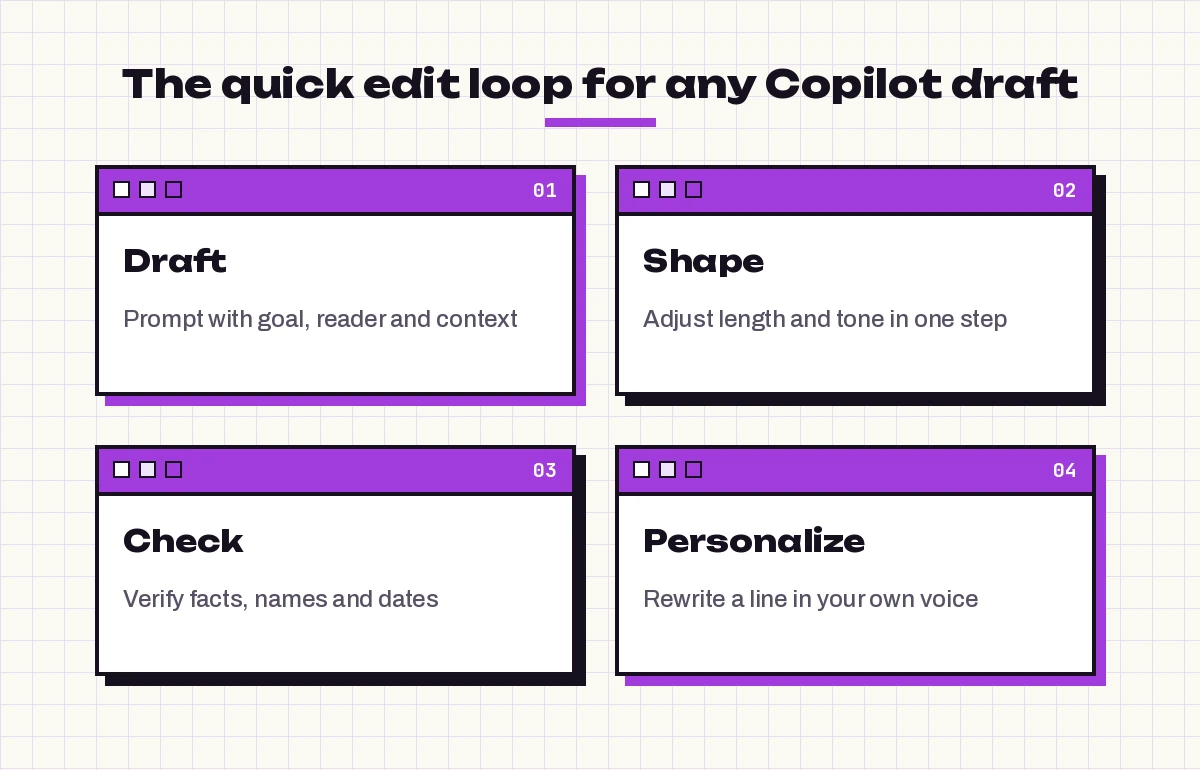
- Draft: run the template with real details, not placeholders.
- Shape: use the length and tone options, or a follow-up prompt such as “make it more direct,” instead of rewriting by hand.
- Check: confirm every name, date, number and attachment. Copilot only knows what you gave it, and it can phrase an assumption as if it were a fact.
- Personalize: change at least one sentence into words you’d actually say. Readers notice when every line sounds polished in the same way.
Make Copilot Write in Your Style
The fastest way to stop editing the same habits out of every draft is to describe your style once. Add a line like this to any template:
Style: short sentences, no exclamation marks, no "I hope this finds you well," sign off with "Thanks, [first name]."In new Outlook you can save similar instructions so Copilot applies them to future drafts. Microsoft explains the setting in its guide on how to make email drafts sound like you. Pair that with a small personal library of Copilot prompts for email writing: keep your ten most-used email templates in a OneNote page or a pinned note so they’re one copy away. Our wider collection of Copilot prompts for Outlook has more ideas for inbox tasks beyond writing.
Common Mistakes to Avoid
- Leaving placeholders in. Search the draft for square brackets before sending.
- Asking for “professional” and nothing else. Professional alone usually produces stiff text. Say “friendly and direct” or “formal but warm.”
- Skipping the reader. “Email my boss” and “email a client I’ve never met” need very different drafts.
- Pasting confidential details your company hasn’t approved for AI tools. Follow your organization’s data policies.
- Trusting facts you didn’t supply. If a date or figure appears that you didn’t provide, check it or remove it.
- Sending long emails. If the draft is over 200 words, ask Copilot to cut it, or move the detail into an attachment.
Final Thoughts
Good email writing has always been about clarity: one clear point, the right tone for the reader and an obvious next step. Copilot speeds up the typing, but your prompt decides the quality. Start with the four-part formula, save the templates you reach for most, and run every draft through the edit loop. After a week or two, these Copilot prompts for email writing will feel less like a tool and more like a habit that gives you back time in every inbox session.
Frequently Asked Questions
What are the best Copilot prompts for email writing?
The best prompts state the goal, describe the reader, include the key facts and set the format, for example: “Write a friendly email to my manager asking for approval to buy X by Friday, under 100 words, with the ask in the first line.” Specific prompts produce drafts that need far less editing.
Can Copilot write emails in Outlook?
Yes. With a supported Microsoft 365 license, Draft with Copilot in Outlook writes new emails and replies from a short prompt, and you can then adjust the length and tone or ask for a new version before inserting it.
How do I make Copilot emails sound less robotic?
Describe your style in the prompt, such as short sentences and no exclamation marks, and edit at least one sentence into your own words. In new Outlook you can also save style instructions so Copilot follows them in every draft.
Can I use Copilot Chat instead of Outlook to draft emails?
Yes. Copilot Chat can draft emails from notes you paste in, which is useful when you want several versions or are working outside your mail client. Copy the final version into your email app and review it before sending.
Is it safe to use Copilot for work emails?
Work accounts using Microsoft 365 Copilot follow your organization’s data protections, but you should still follow company policy on confidential information and review every draft before sending, since you are responsible for what goes out.
How long should a Copilot email prompt be?
Most effective prompts are two to four sentences long. That’s enough to cover goal, reader, context and format without burying the request. For complex messages, paste your notes as context and keep the instructions short.