Copilot Prompt Ingredients: 4 Essential Parts Explained With Real Examples
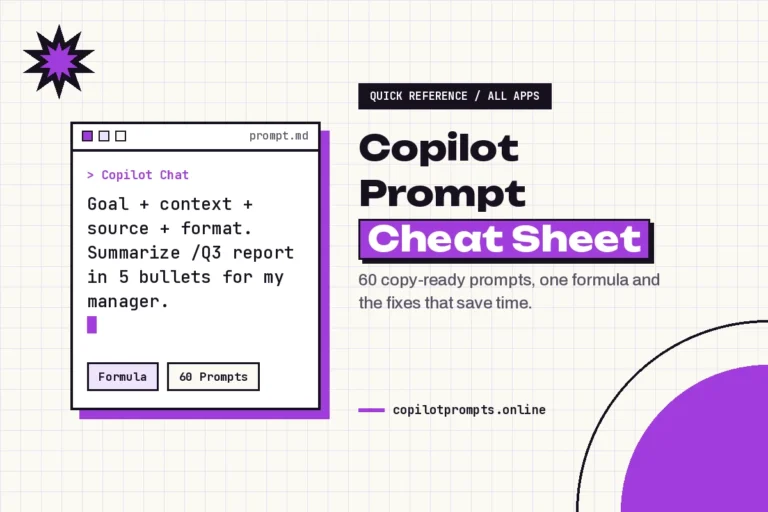
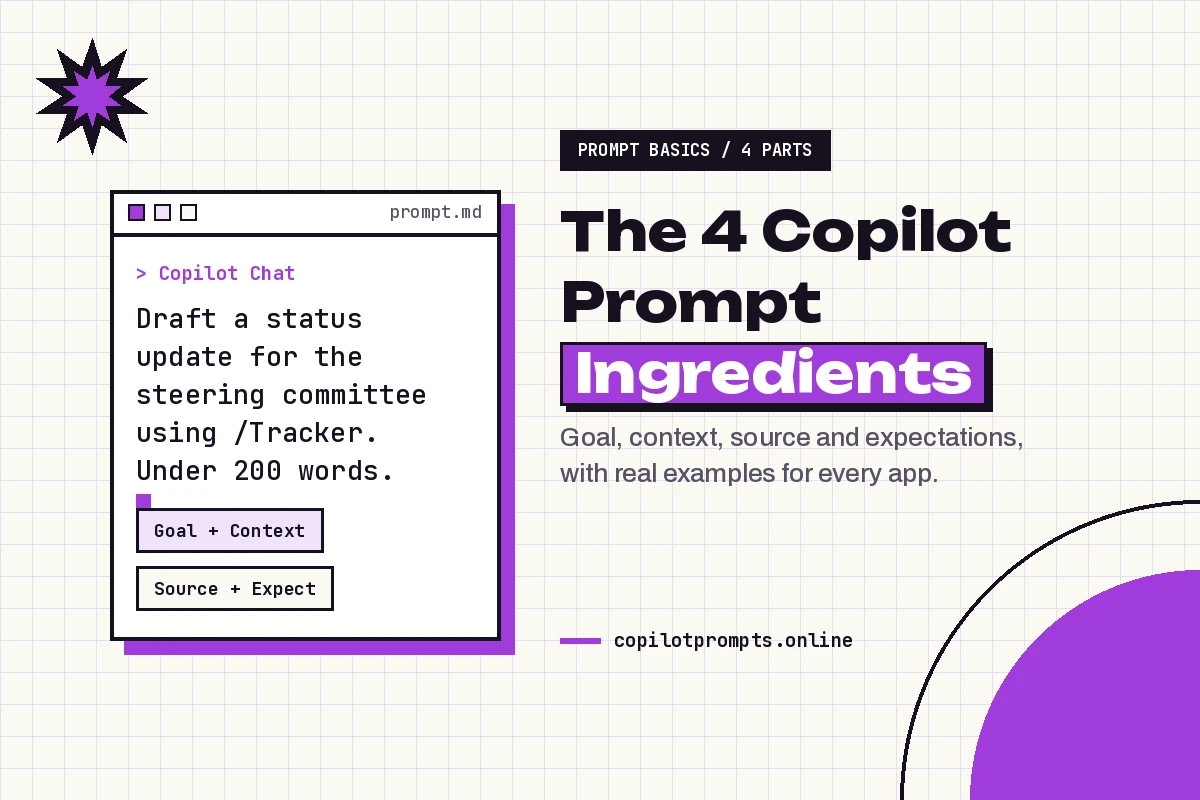
The copilot prompt ingredients are the four building blocks Microsoft recommends for every request: a goal, context, a source and expectations. Once you can spot them, you stop guessing why one prompt works and another falls flat, and you can fix a weak answer in seconds instead of starting over.
This guide goes deep on those four copilot prompt ingredients. You’ll see what each one does, the wording that makes it work, how the same request changes as you add each layer, and real examples for Word, Excel, PowerPoint, Outlook, Teams and Copilot Chat. If you just want a fast list of ready-made prompts, our Copilot prompt cheat sheet is the better page. This one explains the thinking behind them.
What Are the Copilot Prompt Ingredients?
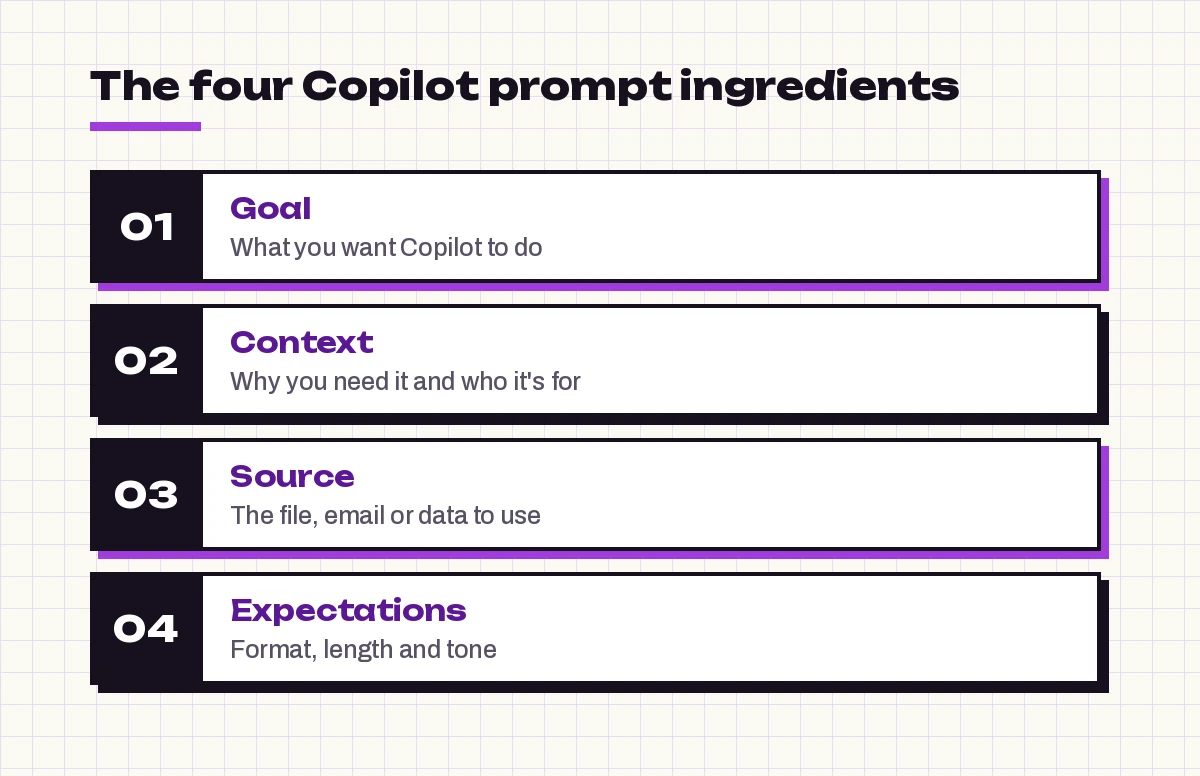
Microsoft’s support article on writing prompts in Copilot says a prompt can include four parts. Here are the Microsoft Copilot prompt ingredients in plain terms:
| Ingredient | The question it answers | Typical words |
|---|---|---|
| Goal | What do you want Copilot to do? | Summarize, draft, compare, list, rewrite |
| Context | Why do you need it, and who is involved? | For my team, before the client call, new hires |
| Source | What information should Copilot use? | This file, emails from Sam, the attached PDF |
| Expectations | How should Copilot respond? | 5 bullets, a table, friendly tone, under 150 words |
Two details in Microsoft’s guidance are easy to miss.
First, only the goal is required. You can type “Summarize this document” and get a useful answer. The other three parts are optional, but you’ll often need more than a goal to get the result you actually want.
Second, a prompt is rarely one-and-done. Microsoft expects some back-and-forth, so think of the copilot prompt ingredients as a checklist you can apply to the first prompt and to every follow-up.
Ingredient 1: Goal, the Anchor of Copilot Prompt Ingredients
The goal is the action. It tells Copilot which job to do, so it should start with a clear verb. “Help me with this report” leaves Copilot guessing. “Summarize this report” doesn’t.
Strong goal verbs fall into a few families:
- Create: draft, write, outline, generate, brainstorm
- Condense: summarize, shorten, list the key points
- Transform: rewrite, translate, reformat, turn into a table
- Analyze: compare, find trends, identify risks, explain
- Catch up: what did I miss, what decisions were made
Keep one main goal per prompt. If you ask Copilot to summarize a contract, draft a reply to the vendor and build a timeline at the same time, each part usually gets thinner. Run them as three short prompts in the same chat instead.
Here’s the difference in practice:
Weak:   Can you look at the budget?
Strong: Identify the three largest cost increases in this budget compared with last year.
The strong version still has no context, source or expectations. It already works better because the action is specific.
Ingredient 2: Context
Context explains why you need the output and who it’s for. Of all the copilot prompt ingredients, it’s the one people skip most often, and it’s usually the reason an answer feels generic.
Useful context answers questions like these:
- Audience: Who will read or hear this? Executives, customers, new hires, a technical team?
- Purpose: What decision, meeting or deadline is this for?
- Situation: Is this a first contact, a follow-up, a complaint, an apology?
- Your role: Are you the project lead, the reviewer, the person asking for a favor?
Compare these two prompts:
Draft an email about the project delay.Draft an email about the project delay. It goes to a long-standing client who was promised delivery on the 15th. We now need two more weeks because of a supplier issue, and I want to keep their trust.The second prompt gives Copilot an audience, a reason and an emotional target. The draft will be noticeably more specific, even though the goal didn’t change.
A little context goes a long way. Two or three sentences is usually enough; you don’t need to write a briefing document.
Ingredient 3: Source
The source tells Copilot which information or samples to use. This is what makes Microsoft 365 Copilot different from a general chatbot, because it can ground answers in your own content.
Depending on your account and the app, a source can be:
- The open file in Word, Excel, PowerPoint or OneNote
- A file you reference or attach, such as a report or a PDF
- Your work data in Microsoft 365 Copilot Chat: emails, chats, meetings and files you have access to
- A web page or web results
- A sample you paste in, like a past email whose style you want copied
In Microsoft 365 Copilot Chat, you can type a forward slash (/) to pick a specific file, email, meeting or person. That’s the most reliable way to point at a source, because Copilot doesn’t have to guess which “budget file” you mean.
Microsoft’s own example of a goal plus a source is short:
Write a summary based on all emails from Sam in the past two weeks.When an answer contains facts you didn’t expect, check the source ingredient first. Naming the exact file or thread, and saying “use only this document,” tends to keep the response grounded.
Ingredient 4: Expectations
Expectations describe how Copilot should respond. This covers format, length, tone, reading level and anything you want included or left out.
Common expectations include:
- Format: bullet list, table, numbered steps, email, outline, slide titles
- Length: under 100 words, one page, 5 bullets, 8 slides
- Tone: friendly, formal, direct, reassuring, neutral
- Focus: highlight risks, include dates, skip background
- Exclusions: no jargon, don’t mention pricing, avoid exclamation marks
Among the copilot prompt ingredients, expectations are the cheapest to add and often the most visible. “Keep it under 80 words” or “put it in a table with columns for owner and due date” changes the result immediately.
They’re also the ingredient you’ll adjust most in follow-ups. If the first draft is close, you rarely need to rewrite the whole prompt. Just change the expectation: “Make it shorter,” “Use a warmer tone,” or “Turn this into a table.”
Building One Prompt Layer by Layer
The easiest way to understand how the copilot prompt ingredients interact is to watch a single request grow. Imagine you need a recap of a product launch for leadership.
Goal only:
Summarize the product launch.Copilot doesn’t know which launch, what matters or how long the answer should be. You’ll get something vague.
Goal + source:
Summarize the product launch using /Launch Retrospective and the emails from Priya this month.Now the facts come from the right place, but the summary may still be long and unfocused.
Goal + source + context:
Summarize the product launch using /Launch Retrospective and the emails from Priya this month. This is for the leadership team, who want to decide whether to expand the launch to two more regions.Copilot can now prioritize what leadership needs: results, problems and readiness for expansion.
All four ingredients:
Summarize the product launch using /Launch Retrospective and the emails from Priya this month. This is for the leadership team, who want to decide whether to expand the launch to two more regions. Give me a short paragraph on overall results, then a table of what worked, what didn't and open risks. Keep it under 250 words.Each layer solved a different problem. That’s the real value of thinking in ingredients: when something is wrong, you know which layer to fix.
Copilot Prompt Ingredients Examples by App
The four parts stay the same everywhere, but each app leans on them differently. In Word, Excel and PowerPoint, the open file is often the source, so you can leave it out. In Copilot Chat, the source usually has to be named. These copilot prompt ingredients examples show the balance in each app. Replace anything in square brackets.
Word
In Word, Copilot works with the document you have open, so focus on goal, context and expectations.
Rewrite the introduction of this proposal for [client name], a hospital group that cares most about patient safety and cost. Keep the facts, cut jargon and limit it to 150 words.Draft a one-page policy on [topic] based on /[source file]. The audience is all staff, many of whom are new. Use short headings and a plain, friendly tone.For more document ideas, see our Copilot prompts for Word collection.
Excel
Copilot in Excel works best when your data is formatted as a table with clear headers. The table is the source; your goal and expectations do most of the work.
Show total [sales] by [region] and [quarter] in a PivotTable. I'm preparing for a regional review, so highlight the region with the biggest drop.Add a column that calculates [margin %] from [revenue] and [cost]. Explain the formula in one sentence so my team can check it.You’ll find more analysis prompts in Copilot prompts for Excel.
PowerPoint
In PowerPoint, the expectations ingredient matters a lot: slide count, audience and text density shape the whole deck.
Create a presentation from /[file name] for [audience]. They have 15 minutes and care about [priority]. Use about 8 slides, a title slide, an agenda and a closing slide with next steps.Outlook
Email is where context pays off fastest, because tone depends on the relationship.
Draft a reply to this email declining the meeting request. The sender is a senior partner I work with often, so keep it warm and suggest two alternative times next week. Under 100 words.Summarize this thread and list any questions that still need my answer, with who asked each one.Teams
In a Teams meeting, Copilot uses the meeting’s transcript and chat as its source. Your context should explain what you need to act on.
List the decisions made in this meeting and the action items, with the owner and due date for each, in a table. I missed the first 20 minutes and need to follow up today.Microsoft 365 Copilot Chat
Copilot Chat can reach across your work content, so the source ingredient is the one to name carefully.
Using emails and chats from [person] about [project] in the last two weeks, tell me what's blocked and what they need from me. Give me 5 bullets, most urgent first.Personal Copilot
The same four parts work with a personal account too. Microsoft’s own all-four example is a trip plan:
Plan a 3-day trip to Lisbon for two adults. We like food and walking tours, and we want a relaxed pace. Use the flight confirmation I attached to build around our arrival and departure times. Give me a day-by-day itinerary in a table.Spot the parts: goal (plan a trip), context (two adults, food, relaxed pace), source (the attached flight confirmation), expectations (day-by-day itinerary in a table).
Use Copilot Prompt Ingredients to Diagnose Weak Answers
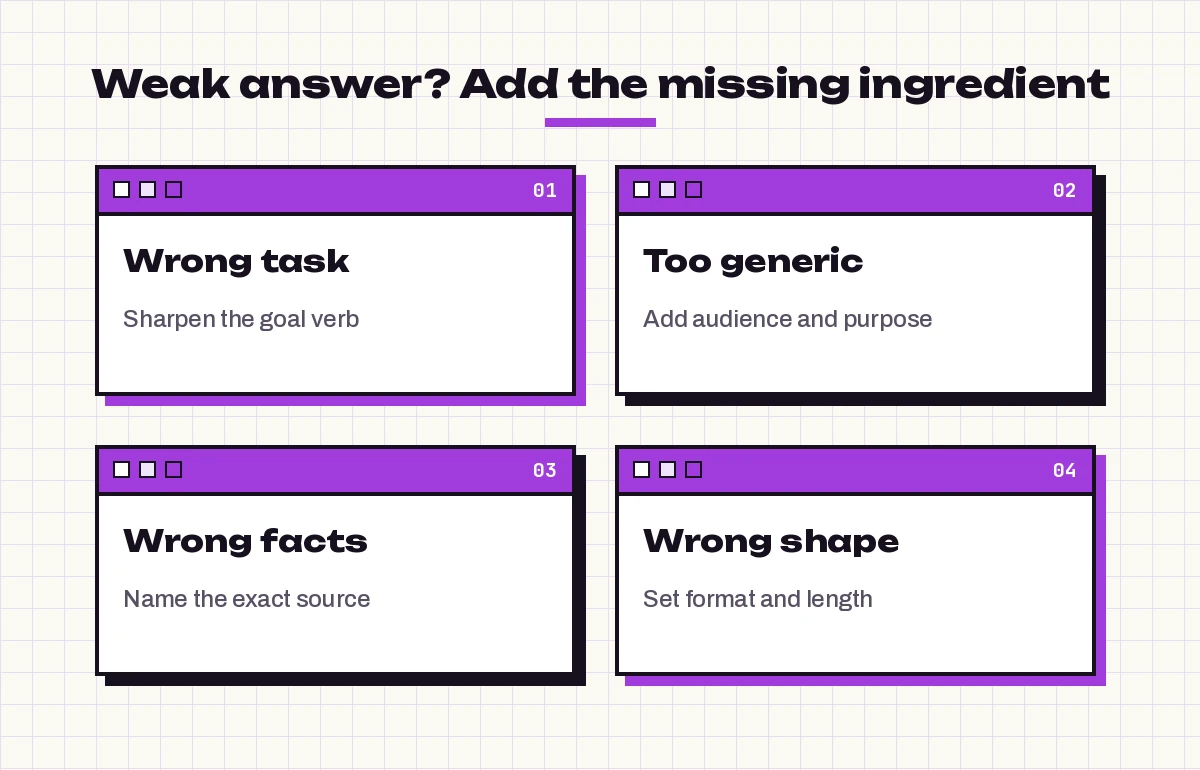
When Copilot misses, the symptom usually points straight to the missing piece. Use this as a quick checklist before you rewrite anything.
| What you see | Likely missing ingredient | Quick follow-up |
|---|---|---|
| Copilot did the wrong task | Goal | “I don’t need a summary. List the risks only.” |
| Generic, could-be-anyone answer | Context | “This is for new customers who have never used the product.” |
| Wrong facts or invented details | Source | “Use only /[file name]. Don’t add outside information.” |
| Right content, wrong shape | Expectations | “Put this in a table and keep it under 120 words.” |
| Too long or too formal | Expectations | “Cut this in half and make it conversational.” |
Follow-ups inherit everything already in the chat, so you only need to add the missing ingredient. You don’t have to repeat the whole prompt.
A Reusable Copilot Prompt Ingredients Template
If you write similar requests often, save a fill-in-the-blanks version. This copilot prompt ingredients template keeps each part on its own line, which makes it easy to see what you’ve left out:
Goal: [action verb] [what], e.g. Draft a status update
Context: This is for [audience] because [reason/deadline].
Source: Use [file / email / meeting / data], e.g. /Q3 Project Tracker
Expectations: Format as [format], about [length], in a [tone] tone. Include [must-haves]. Avoid [exclusions].
You don’t need the labels in the final prompt. Many people fill in the template, then join the lines into one or two natural sentences. Both versions work.
Here’s the template filled in:
Draft a status update for the steering committee, who meet Thursday to approve phase two. Use /Phase One Tracker and this week's emails from the project team. Keep it under 200 words, open with a one-line overall status, then list risks with owners. Neutral, factual tone.For a larger library of ready-made frames, browse our Copilot prompt template collection. It applies this same structure to dozens of everyday tasks.
Do the Same Ingredients Apply to GitHub Copilot?
The copilot prompt ingredients transfer well to coding, even though Microsoft’s four-part list was written for Microsoft 365 Copilot and the Copilot app. In GitHub Copilot Chat, the parts map like this:
- Goal: fix, refactor, explain, write tests, add error handling
- Context: the framework, constraints, why the change is needed
- Source: the selected code, an open file or a referenced file
- Expectations: language version, style rules, test framework, “explain before changing code”
Refactor the selected function to remove the nested loops. It runs on every page load, so performance matters. Keep the public signature the same, use TypeScript strict mode and explain the change in 3 bullets.For context you’d otherwise repeat in every prompt, such as coding standards, GitHub Copilot supports a repository instructions file. Think of it as a permanent context-and-expectations ingredient. Our GitHub Copilot prompts guide has more developer examples.
Common Mistakes With Copilot Prompt Ingredients
Knowing the four parts is one thing. Using them well takes a little practice. These are the slips that come up most often.
Stuffing all the copilot prompt ingredients into every prompt. A quick rewrite doesn’t need a paragraph of context. Add parts when the result needs them, not by default.
Vague sources. “The report” or “my notes” forces Copilot to guess. Reference the exact file or paste the text.
Context without a goal. A long backstory followed by “thoughts?” gives Copilot nothing to do. Lead with the action.
Contradictory expectations. “Detailed but under 50 words” pulls in two directions. Pick the one that matters more.
Restarting instead of refining. If the draft is 80% right, a one-line follow-up that adds a single ingredient is faster than a brand-new prompt.
Skipping the check. Microsoft is clear that Copilot can get things wrong. Even a prompt with all four parts can produce an incorrect name, number or date, so review anything you plan to share.
Practice: Turn Weak Prompts Into Strong Ones
Try spotting the missing pieces in these before reading the improved versions.
Weak: “Write a LinkedIn post about our event.”
Write a LinkedIn post announcing our free webinar on [topic] on [date]. The audience is HR managers at mid-size companies. Use the details in /[event brief]. Keep it under 120 words, friendly and professional, ending with a sign-up line.Weak: “Make slides about the survey.”
Create 6 slides summarizing /[survey results file] for the all-hands meeting. Employees want to know what changes are coming, so lead with the top three findings and end with next steps. Use no more than 3 bullets per slide.Weak: “Explain this spreadsheet.”
Explain what this table tracks and point out the three most important trends. I'm new to the team and need to present it on Monday, so use plain language and short bullets.Each fix added at least two missing copilot prompt ingredients. With practice, you’ll start writing prompts this way by default. If you’re still building the habit, our guide on how to write Copilot prompts covers the broader workflow, from first prompt to final edit.
Final Thoughts
The four copilot prompt ingredients aren’t a rigid formula. They’re a way to think. Start with a clear goal, add context when the answer needs to fit a real situation, name the source when facts matter and set expectations when the shape of the answer matters. When a result misses, ask which ingredient is missing and add just that piece. That habit alone will make Copilot feel far more reliable in every app you use.
Frequently Asked Questions
What are the four Copilot prompt ingredients?
Microsoft lists four parts: goal (what you want Copilot to do), context (why you need it and who is involved), source (the information or samples Copilot should use) and expectations (how Copilot should respond, such as format, length and tone).
Do I need all four ingredients in every prompt?
No. Only a clear goal is required. Add context, a source and expectations when you need a more specific result. Simple tasks like “Summarize this document” often work with just a goal.
Which ingredient fixes generic answers?
Usually context. Tell Copilot who the result is for and why you need it. If the answer contains the wrong facts, the missing piece is more likely the source, so name the exact file, email or meeting.
How do I add a source in Microsoft 365 Copilot Chat?
Type a forward slash (/) in the prompt box and pick a file, email, meeting or person. You can also attach a file or paste text directly. Naming the source keeps answers grounded in your own content.
Is there a template for the prompt ingredients?
Yes. Write one line each for goal, context, source and expectations, fill in the blanks, then join them into a sentence or two. For example: “Draft a status update for the steering committee using /Project Tracker. Keep it under 200 words and list risks with owners.”
Do the prompt ingredients work with GitHub Copilot?
The same idea works well. State the coding task as the goal, explain constraints as context, point to the selected code or file as the source and set expectations such as language version, style rules or test framework.