32 Proven Copilot Prompts for Documentation Developers Will Actually Read
Copilot prompts for documentation help you write the part of the job most developers put off until the pull request is already open. Code ships, the README stays three versions behind, and the next person on the team spends an afternoon reverse-engineering a function that one good comment would have explained.
GitHub Copilot is very good at the first draft of documentation because the source material is right there in your editor. It can read a function, see its parameters and return paths, and turn that into a docstring, a README section or an API reference. What it cannot do on its own is decide why the code exists, who the reader is, or which details actually matter. That is where your prompt comes in.
This guide gives you 32 copy-ready Copilot prompts for documentation, grouped by the kind of document you need. Replace the bracketed parts with your own file names, languages and audiences.
What Copilot Can and Cannot Document Well
Before you start, set realistic expectations. Copilot works from the context it can see: the open file, selected code, files you reference with #file or @workspace, and anything you paste into the chat.
It is strong at:
- Describing what a function or class does, line by line
- Listing parameters, return values and thrown exceptions
- Producing consistent docstring formats (JSDoc, Google style, NumPy style, XML doc comments)
- Turning scattered code into a structured README or usage guide
- Explaining legacy code that nobody on the team remembers writing
It is weaker at:
- Business reasons behind a decision (“we retry three times because the vendor API is flaky”)
- Accuracy when the code it needs is in a file it was never given
- Knowing what your readers already understand
So treat every result from Copilot prompts for documentation as a draft. You supply the intent and the audience, Copilot supplies the structure and the typing.
The Quickest Shortcut: the /doc Slash Command
If you only want a doc comment on one symbol, you may not need a long prompt at all. In supported IDEs, the /doc slash command adds a documentation comment for the selected function, class or method. GitHub lists it alongside /explain, /fix and /tests in the official Copilot Chat cheat sheet.
Select the code, open inline chat, and type:
/docYou can also steer it:
/doc Use Google-style docstrings. Mention that this function mutates the input list.For anything bigger than a single symbol, the longer templates below give you much more control.
How to Structure a Documentation Prompt
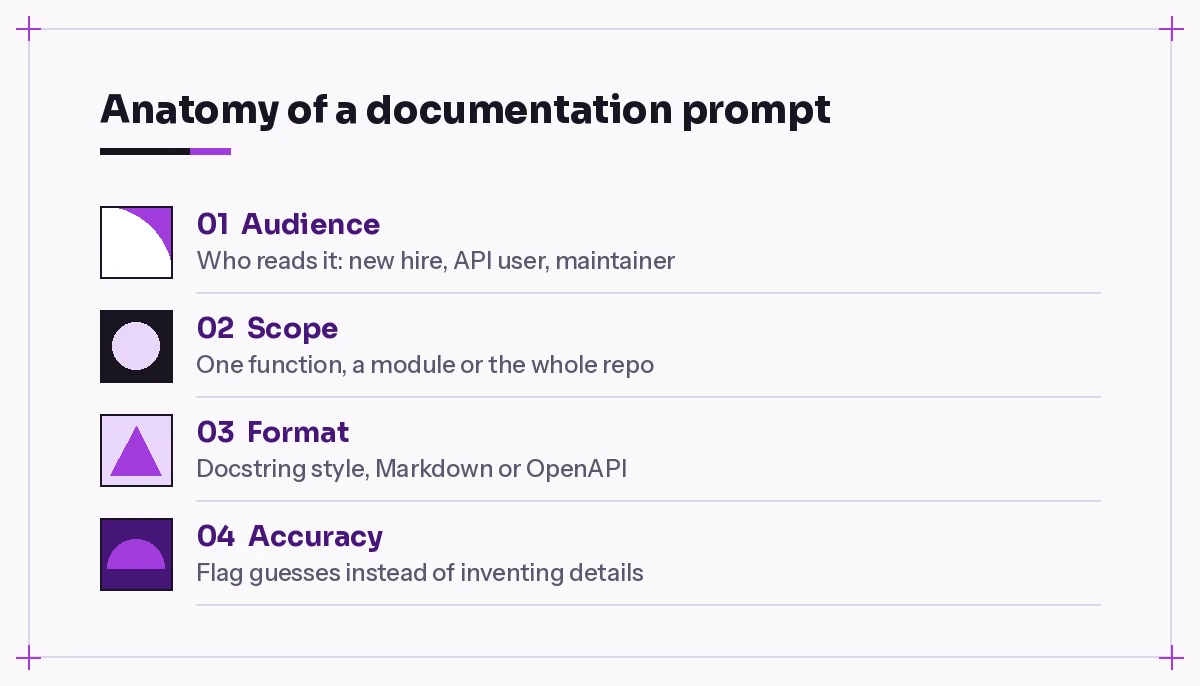
The best Copilot prompts for documentation answer four questions:
Who is reading? A new hire, an API consumer, an on-call engineer at 2 AM and a future maintainer all need different things.
What is in scope? One function, one module, the whole repo, or only the public interface.
What format? Docstring style, Markdown headings, a table, or an OpenAPI file.
How will you check it? Ask Copilot to flag anything it is unsure about instead of guessing.
That last part is the most underrated. A line like “If behavior is unclear from the code, write TODO: confirm instead of guessing” saves you from confidently wrong docs. If you want a general framework for this, our main GitHub Copilot prompts guide covers how context and specificity change Copilot’s output.
Prompts for Docstrings and Inline Comments
Start small. Function-level Copilot prompts for documentation are where Copilot is most reliable, because everything it needs is usually in the selection.
1. Standard docstring
Write a docstring for the selected function in [Google / NumPy / JSDoc / XML doc] style. Include a one-line summary, parameters with types, return value, and any exceptions it raises.2. Docstring with an example
Add a docstring to this function that includes a short usage example. The example must be runnable and use realistic values, not foo/bar.Examples are what most readers scroll to first. Asking for realistic values avoids the useless foo(1, 2) pattern.
3. Document edge cases
Read this function and list every edge case it handles (empty input, null, negative numbers, timeouts, etc.). Then add those to the docstring under a "Notes" section.4. Comment the tricky parts only
Add inline comments only where the logic is not obvious. Do not comment lines that simply restate the code. Explain the why, not the what.Over-commented code is almost as hard to read as uncommented code. This prompt keeps Copilot from narrating every i += 1.
5. Fill in a whole file
Add docstrings to every public function and class in #file:[path/to/module.py]. Skip private helpers that start with an underscore. Keep the existing style used in the file.6. Match the team’s style
Here is a docstring from our codebase that follows our conventions: [paste example]. Document the selected class in exactly the same style and tone.Giving one real example beats describing a style in words. If you write this often, put the convention into a Copilot instructions file so every request follows it automatically.
Copilot Prompts for Documentation of Legacy Code
Old code without docs is where Copilot prompts for documentation pay off most. Copilot can read it far faster than you can, and it does not get bored.
7. Explain before documenting
Explain what this code does in plain English, step by step. Then list any assumptions it makes about its inputs or environment. Don't write docs yet.Reading the explanation first lets you catch misunderstandings before they end up in a comment.
8. Turn the explanation into docs
Using your explanation above, write a module-level docstring and docstrings for each function. Mark anything you inferred rather than read directly from the code with "(inferred)".9. Map dependencies
List every external dependency this module uses: imported libraries, environment variables, config files, databases and network calls. Present it as a table with columns for name, type and where it's used.10. Document side effects
Which functions in this file have side effects (writing files, changing global state, calling APIs, mutating arguments)? Add a "Side effects" line to each of their docstrings.11. Old language, modern reader
This is [COBOL / VB6 / old PHP] code. Write documentation aimed at a developer who knows [Python / TypeScript] but has never used this language. Explain unusual syntax where it appears.Legacy docs often lead straight into cleanup work. When you are ready for that, our GitHub Copilot prompts for refactoring pick up where these leave off.
Prompts for README Files
A README is the front door of a repo, and it is one of the most useful places to apply Copilot prompts for documentation. Copilot can draft one from the code, but it needs @workspace or specific files as context to avoid generic filler.
12. README from scratch
@workspace Write a README.md for this project. Include: what it does in two sentences, prerequisites, installation, a minimal usage example, configuration options, and how to run tests. Use only commands that actually exist in this repo.That final sentence matters. Without it, Copilot may invent an npm run setup script that does not exist.
13. Quick start section
Write a "Quick start" section that gets a new developer from git clone to a running app in five steps or fewer. Base it on #file:package.json and #file:docker-compose.yml.14. Configuration reference
Find every environment variable read in this codebase. Create a Markdown table with the variable name, what it controls, whether it's required, and its default value if one is set in code.15. Update a stale README
Compare #file:README.md with the current code. List every section that is outdated or wrong, then suggest the corrected text for each one.16. Contributing guide
Draft a CONTRIBUTING.md for this repo covering branch naming, commit message style, how to run linting and tests locally, and what a good pull request description includes. Keep it under 400 words.Prompts for API Documentation
API docs have a demanding audience, so Copilot prompts for documentation of endpoints need extra precision. Consumers copy examples directly, so mistakes cost them time.
17. Endpoint reference
Document every endpoint in #file:[routes/orders.ts]. For each, give the HTTP method, path, parameters, request body, response shape, and possible error codes. Format as Markdown with one H3 per endpoint.18. OpenAPI spec
Generate an OpenAPI 3.0 YAML specification for the endpoints in this controller. Include request and response schemas, required fields, and error responses. Flag any field whose type you can't determine.GitHub publishes a full prompt file for this exact job in its Document API customization example, which is worth adapting if you document APIs often.
19. Request and response examples
For each endpoint in this file, write one example curl request and the matching JSON response. Use realistic data and include the auth header placeholder.20. Error guide
List every error this API can return, with the status code, the error message or code, what causes it, and how the client should fix it. Present as a table.21. SDK usage docs
Write usage documentation for this client library class. Show how to initialize it, the three most common operations, and how to handle errors. Include code samples in [language].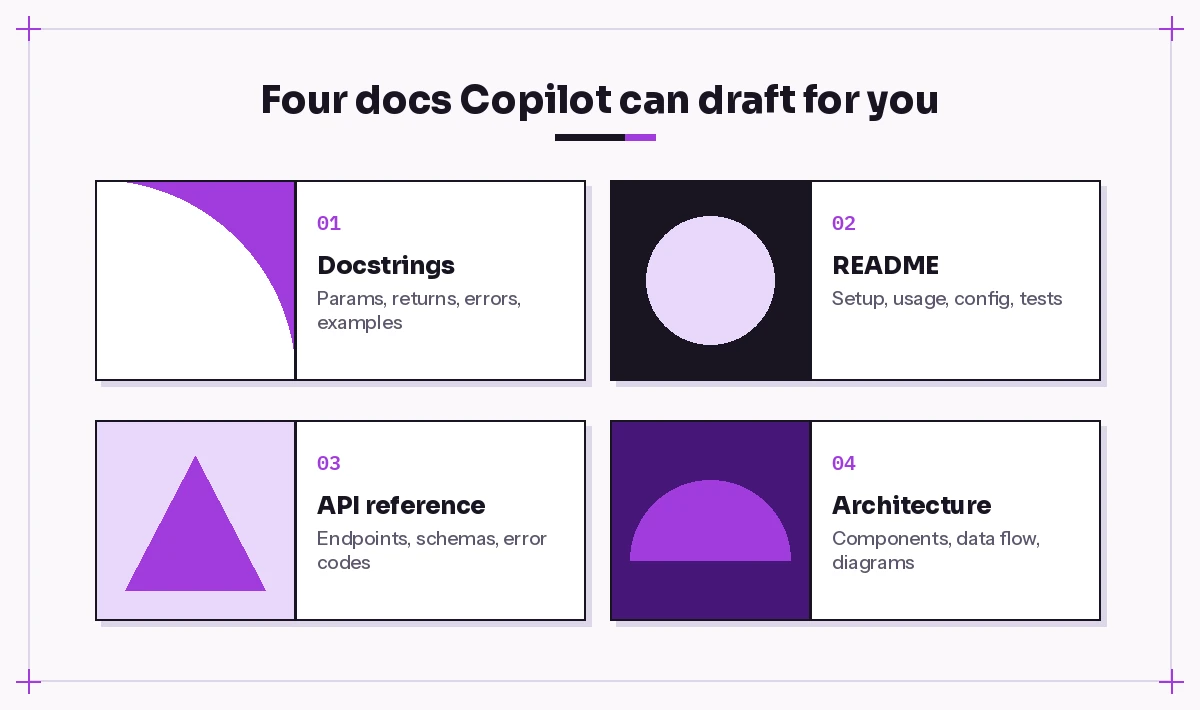
Prompts for Architecture and Onboarding Docs
These Copilot prompts for documentation cover the documents that live longest and get read by the most people. They also need the most human review.
22. Architecture overview
@workspace Describe the high-level architecture of this project. Cover the main components, how data flows between them, and where external services are called. Output as Markdown with a short section per component.23. Diagram as code
Create a Mermaid diagram showing how the modules in [src/] depend on each other. Keep it to the top-level modules only so it stays readable.Mermaid renders directly in GitHub Markdown, so the diagram lives next to the code and can be updated with it.
24. Folder guide
Write a "Project structure" section that explains what each top-level folder in this repo contains and when a developer would need to touch it.25. New developer onboarding
Write an onboarding guide for a developer joining this team. Explain the five most important files to read first, the main concepts in the domain, and common gotchas you can see in the code.26. Decision record
Draft an Architecture Decision Record for [decision, e.g. moving from REST polling to webhooks]. Use sections: Context, Decision, Alternatives considered, Consequences. Leave the Context section as bullet placeholders for me to fill in.Leaving placeholders here is deliberate. Copilot can’t know the meeting where the decision was made, so you write that part.
Prompts for Changelogs, Release Notes and Pull Requests
Documentation is not only about code structure. It also covers what changed and why.
27. Changelog entry
Summarize the changes in these commits as a changelog entry using the Keep a Changelog format (Added, Changed, Fixed, Removed). Write for users, not for developers.28. Release notes
Turn this list of merged pull requests into release notes for non-technical customers. Group by feature area, skip internal refactors, and keep each item to one sentence.29. Pull request description
Write a pull request description for the staged changes. Include what changed, why, how to test it, and any risks. Keep it scannable with short headings.Clear PR descriptions make reviews faster. Pair this with our Copilot prompt for code review templates on the reviewer’s side.
Prompts to Review and Maintain Documentation
Docs drift. These final Copilot prompts for documentation help you catch it before a reader does.
30. Accuracy check
Compare the docstrings in this file with the actual code. List every place where the documentation no longer matches the behavior, parameters or return types.31. Readability pass
Review #file:docs/[guide].md for a reader who is new to this project. Point out jargon that isn't explained, steps that are missing, and sentences longer than 30 words.32. Docs as tests
Extract every code example from #file:README.md and write a test that runs each one, so the examples break the build if they stop working.This one turns documentation into something that stays honest. If you already use Copilot for testing, our GitHub Copilot prompts for unit tests show how to keep those tests focused.
Quick Reference Table
Use this table to pick the right Copilot prompts for documentation and the context to attach.
| Document | Best context to give | Prompt numbers |
|---|---|---|
| Docstrings and comments | Selected code or one file | 1-6 |
| Legacy code docs | The file plus related modules | 7-11 |
| README and guides | @workspace, package files | 12-16 |
| API reference | Route and controller files | 17-21 |
| Architecture and onboarding | @workspace | 22-26 |
| Changelogs and PRs | Commits or staged changes | 27-29 |
| Doc maintenance | Docs file plus source | 30-32 |
Mistakes That Lead to Bad Generated Docs
A few habits cause most of the problems people hit when they use Copilot prompts for documentation and ship the output as-is.
Accepting the first draft unchecked. Copilot can describe what the code does, but if the code has a bug, the docs will describe the bug as a feature. Read the output against the code.
Giving too little context. Asking for a README with only one file open gets you a README about one file. Use @workspace or reference the files that matter.
Letting it guess commands. Install and run instructions must match your real scripts. Ask Copilot to use only commands found in the repo, then test them yourself.
Documenting everything equally. Private helpers rarely need a full docstring. Spend the words on public interfaces and confusing logic.
Forgetting the reader. “Document this” without an audience produces docs for nobody in particular. Name who will read it.
Make Documentation a Repeatable Habit
The biggest win from Copilot prompts for documentation is not any single prompt. It is making docs part of the normal workflow instead of a cleanup task.
Save the templates you use most as reusable Copilot prompt files in .github/prompts/, so anyone on the team can run the same documentation prompt with one command. Add a line to your PR checklist asking whether public functions changed and docs were updated. Run the accuracy check (prompt 30) before each release.
Start with the code you touched this week. Write the docstrings, fix one stale README section, and you will already be ahead of most repos.
Frequently Asked Questions
Can GitHub Copilot write documentation for my code?
Yes. With clear Copilot prompts for documentation, Copilot Chat can generate docstrings, inline comments, README files, API references and architecture overviews from the code you give it as context. Treat the output as a first draft and check it against the actual behavior before merging.
What does the /doc command do in Copilot?
In supported IDEs, the /doc slash command adds a documentation comment for the selected symbol, such as a function or class. You can add instructions after it, for example a docstring style or a detail to mention.
How do I get Copilot to document a whole project?
Use @workspace in Copilot Chat, or reference the key files with #file, and ask for a specific document such as a README or architecture overview. Be clear about the audience and ask Copilot to use only commands and settings that exist in the repo.
Is documentation written by Copilot accurate?
It is usually accurate about what the code does, but it cannot know business reasons or details outside its context, and it may describe a bug as intended behavior. Ask it to flag inferred details, then review every section yourself.
Which docstring formats does Copilot support?
Copilot can write common formats such as Google style, NumPy style and reStructuredText for Python, JSDoc and TSDoc for JavaScript and TypeScript, XML doc comments for C#, and Javadoc for Java. Name the format in your prompt or paste an example from your codebase.
Can Copilot keep my documentation up to date?
Not automatically, but it makes updates fast. Ask it to compare a README or docstrings with the current code and list mismatches, and save that request as a prompt file so you can rerun it before every release.
One Comment