Copilot Prompts for Project Managers: 30 Powerful Templates to Plan, Track and Report Faster
Copilot prompts for project managers are short, structured instructions that let Microsoft 365 Copilot take the first pass at the documents, updates and analysis that fill a PM’s week. Instead of starting a charter, a risk log or a status report from a blank page, you describe the project, point Copilot at the right files or meetings, and get a draft you can review and sharpen in a few minutes.
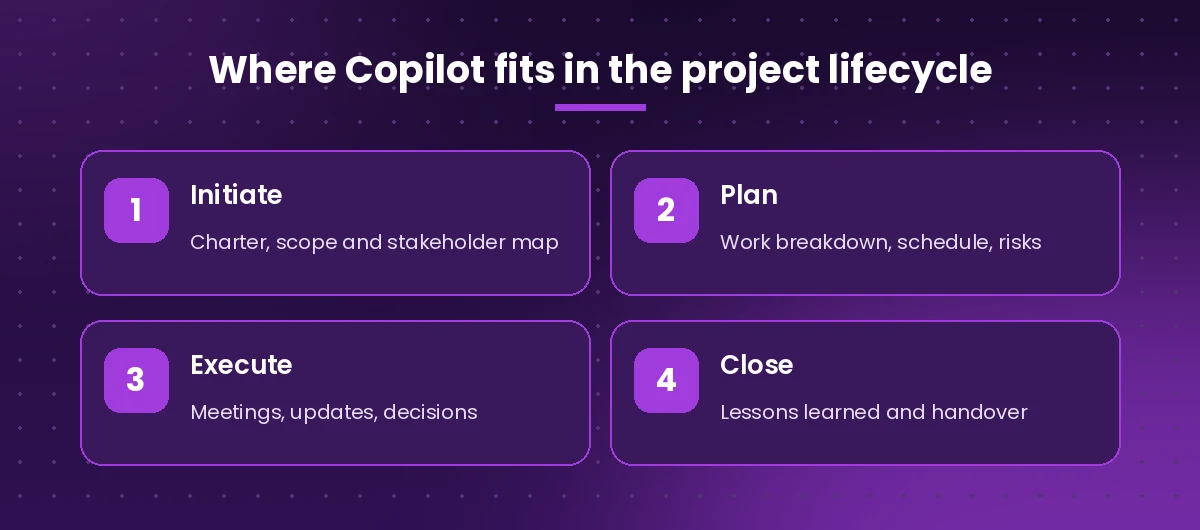
Project work is full of writing that is important but repetitive: kickoff decks, meeting recaps, weekly updates, change requests and closeout notes. None of it is hard, yet together it eats hours you would rather spend unblocking your team. The copilot prompts for project managers below are organized by project phase, so you can grab the one you need right now and adapt it to your own methodology, whether you run waterfall, agile or something in between.
Why Project Managers Should Use Copilot
A project manager’s real job is coordination: keeping scope, time, budget, people and risk in balance. Copilot does not replace that judgment, but it is very good at the supporting work around it. Used well, copilot prompts for project managers can help you:
- Summarize long email threads, chats and meeting transcripts so you catch decisions you missed.
- Turn rough notes into clean, consistent documents in your usual format.
- Suggest tasks, dependencies and risks you might have overlooked.
- Rewrite the same update for different audiences, from executives to delivery teams.
- Pull numbers out of a tracker in Excel and explain trends in plain language.
What it cannot do is know things it has not been given. It only works with what you type, the files you reference and content your Microsoft 365 account already has access to. Microsoft’s overview of Microsoft 365 Copilot explains how it uses your work data and respects existing permissions. Always check dates, owners and figures before a draft leaves your hands.
How to Write Copilot Prompts for Project Managers
The difference between a generic answer and a usable one is almost always the prompt, and that is especially true of copilot prompts for project managers, where the details of scope, dates and owners matter. A reliable project prompt has five parts, shown in the graphic below.
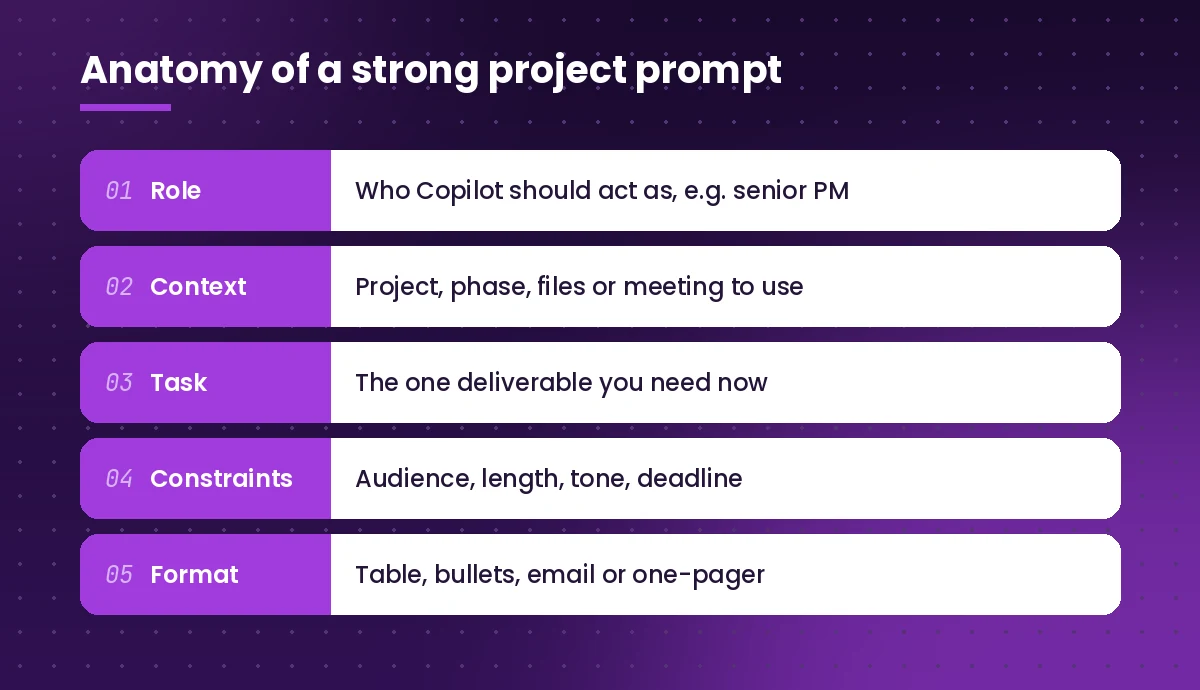
- Role: tell Copilot who to act as, such as “an experienced project manager in a software company”.
- Context: name the project, the phase, and the files, emails or meetings to draw on. In Copilot Chat you can usually type a forward slash to reference a specific file or meeting.
- Task: ask for one deliverable at a time. “Write the risk section” beats “help with my project”.
- Constraints: audience, length, tone and anything to avoid.
- Format: a table, bullet list, email, or a one-page summary with headings.
Microsoft’s own guidance on writing effective Copilot prompts follows a similar goal, context, source and expectations pattern. For a deeper walkthrough with examples from other apps, read our guide on how to write Copilot prompts.
Every one of the copilot prompts for project managers in this guide uses the same idea. Swap anything in square brackets for your own details before you run a template.
Project Kickoff and Charter Prompts
The start of a project sets expectations for everything that follows. These copilot prompts for project managers help you get the foundations written quickly so you can spend the kickoff meeting on alignment rather than dictation.
1. Draft a project charter
Act as a senior project manager. Using /[project brief document], draft a project charter with these sections: purpose, objectives (written as measurable outcomes), in-scope, out-of-scope, key deliverables, milestones, budget assumptions, stakeholders and roles, and approval criteria. Flag any section where the brief does not give enough information.2. Write SMART objectives
Rewrite these project goals as SMART objectives. For each one, show the specific outcome, how we will measure it, the target value and the deadline. Goals: [paste goals]. If a goal cannot be measured as written, suggest what data we would need.3. Build a stakeholder map
List the likely stakeholders for a [type of project] at a [industry] company of about [size] people. Put them in a table with columns for stakeholder, interest in the project, level of influence (high/medium/low), what they need from us, and the best way to keep them informed.4. Create a kickoff agenda
Create a 60-minute kickoff meeting agenda for [project name]. Include timings, an owner for each item, the decisions we need to leave with, and three questions to get quieter team members talking. Audience: [list roles].5. Turn the charter into a kickoff deck outline
Using /[project charter], outline a 10-slide kickoff presentation for the project team. For each slide give a title, three short bullet points and a suggestion for one visual. Keep the language plain and avoid jargon.If you build the deck itself in PowerPoint, our Copilot PowerPoint prompts cover turning outlines like this into finished slides.
Scope, Schedule and Planning Prompts
Planning is where copilot prompts for project managers save the most thinking time, because it can propose a first structure that you then correct. Treat every schedule it produces as a draft: it does not know your team’s capacity or your vendor lead times unless you tell it.
6. Generate a work breakdown structure
Create a work breakdown structure for [project description]. Break it into phases, then deliverables, then work packages small enough to estimate. Show it as a numbered outline (1, 1.1, 1.1.1) and mark any work package that depends on an external team.7. Identify task dependencies
Here is our task list: [paste tasks]. Identify the dependencies between them, label each as finish-to-start, start-to-start or finish-to-finish, and point out which tasks are likely on the critical path. Explain your reasoning briefly.8. Draft a high-level timeline
Propose a realistic high-level timeline for [project] starting on [date] with a team of [number and roles]. Show phases and milestones in a table with start date, end date and key output. Add a buffer where the work is most uncertain and say why.9. Plan a sprint
Act as an agile coach. Our team has [number] developers with roughly [hours] available this sprint. From this backlog: [paste items with estimates], suggest a sprint goal and which items to commit to, keeping about 20 percent of capacity free for unplanned work. List anything that should be split before it is pulled in.10. Write a change request
Draft a change request for this scope change: [describe change]. Include the reason, the impact on schedule, budget, resources and quality, the options we considered, and a clear recommendation. Keep it under one page for a steering committee audience.11. Check a plan for gaps
Review /[project plan] as a skeptical project sponsor. What is missing, unrealistic or unclear? Give me the top five concerns in order of severity and a question I should be ready to answer for each.Risk and Issue Management Prompts
Risk work suffers when it becomes a box-ticking exercise. Copilot prompts for project managers are useful here as a brainstorming partner that thinks of failure modes you have not considered, and as a formatter that keeps your risk register tidy.
12. Brainstorm project risks
List 12 realistic risks for a [project type] project with [key constraints, e.g. fixed launch date, new vendor, remote team]. Group them into schedule, budget, technical, people and external risks. For each, write it in cause, event, impact form.13. Build a risk register
Turn these risks into a risk register table with columns for ID, risk description, likelihood (1-5), impact (1-5), score, owner, mitigation, contingency and trigger. Risks: [paste list]. Sort by score, highest first.If you keep the register in Excel, our Copilot prompts for Excel show how to add scoring formulas, conditional formatting and charts to a table like this.
14. Write mitigation plans
For the top three risks in /[risk register], write a practical mitigation plan for each: actions, owner, due date and how we will know the risk is reducing. Avoid generic advice; make each action specific to our project context.15. Escalate an issue clearly
Write a short escalation email to [sponsor name] about this issue: [describe]. Structure it as: what happened, impact on scope, time and cost, what we have already tried, the decision we need from them, and the date we need it by. Tone: calm and factual.16. Run a pre-mortem
Imagine it is six months from now and [project name] has failed. Write the five most likely reasons it failed, based on what you know about the plan in /[plan document]. Then suggest one early warning sign for each reason that we could track now.Meeting and Team Collaboration Prompts
Meetings are where projects move forward or stall. If your organization records and transcribes Teams meetings, Copilot can summarize them for you; otherwise paste your own notes into the prompt. Our guide to Copilot prompts for Teams meetings goes deeper on this, and for formal records see our Copilot prompt for meeting minutes.
17. Recap a project meeting
Summarize this meeting for the project team. Include decisions made, action items with owner and due date in a table, open questions, and any risks or blockers that were raised. Keep it under 250 words.18. Prepare for a stand-up
Based on my recent emails and chats about [project name] since yesterday, list what changed, what is blocked and who I need to follow up with today. Keep it to short bullet points I can scan in one minute.19. Plan a retrospective
Design a 45-minute sprint retrospective for a team that is [describe mood, e.g. tired after a hard release]. Suggest a format, the questions to ask, how to collect input fairly, and how to turn ideas into no more than three improvement actions.20. Write a RACI matrix
Create a RACI matrix for these deliverables: [list] and these roles: [list]. Make sure every deliverable has exactly one Accountable person. After the table, point out any role that looks overloaded.Status Report and Stakeholder Communication Prompts
Every audience wants a different version of the same update. Executives want the headline and the decision they need to make; the delivery team wants detail. Good stakeholder communication means writing both without doubling your effort, and the copilot prompts for project managers in this section do exactly that.
21. Write a weekly project status report
Using /[tracker or notes] and my emails about [project name] from the last week, write a status report with: overall status (green, amber or red) and why, progress against milestones, what is planned next week, top risks and issues, and decisions needed. Use short headings and bullets.22. Create an executive one-pager
Condense this status report into an executive summary of no more than 120 words. Lead with the overall status, then the one or two things leadership needs to know or decide. No technical jargon. Report: [paste report].23. Tailor an update for different audiences
Rewrite this project update three ways: (1) for the executive sponsor in four sentences, (2) for the delivery team with full detail and next steps, and (3) for end users, focused only on what changes for them and when. Update: [paste].24. Deliver bad news
Help me write an email telling stakeholders that [milestone] will slip by [time]. Explain the cause honestly without blaming individuals, show the revised plan, what we are doing to protect the final date, and what we need from them. Keep it under 200 words.25. Answer a tough stakeholder question
A stakeholder asked: "[question]". Using what you know from /[project documents], draft a clear, honest answer. If the documents do not support a confident answer, say so and suggest what I should check before replying.Budget and Resource Prompts
Numbers need extra care. When you use copilot prompts for project managers on budget data, paste clean tables and double-check every calculation Copilot returns.
26. Explain budget variance
Here is our budget versus actuals by category: [paste table]. Calculate the variance for each line, highlight anything more than 10 percent over, and write three sentences explaining the overall position for a finance reviewer. Note any figures that look inconsistent.27. Balance team workload
Here are this month's tasks with owners and estimated hours: [paste]. Each person has about [hours] available. Show who is over or under capacity, and suggest which tasks could move to rebalance the load without breaking dependencies.Closeout and Lessons Learned Prompts
Closeout is the phase most often rushed, which is a shame because it is where the organization actually learns. These copilot prompts for project managers make it painless enough that you will do it every time.
28. Run a lessons learned review
Using /[retrospective notes] and /[status reports], summarize lessons learned from [project name]. Group them into what went well, what did not, and what we would do differently. For each lesson, suggest one concrete change to our process for the next project.29. Write a project closure report
Draft a project closure report covering: objectives and whether each was met, final scope delivered versus planned, schedule and budget outcome, outstanding items and their new owners, and a thank-you section for the team. Use a neutral, factual tone.30. Prepare a handover to operations
Create a handover checklist for passing [deliverable or system] from the project team to [operations or support team]. Include documentation, access, training, known issues, support contacts and the date ownership officially transfers.Tips for Getting Better Results
Even the best copilot prompts for project managers need a little care. A few habits make a big difference:
- Ground it in real sources. Referencing the actual plan, tracker or meeting gives far better output than asking Copilot to imagine your project.
- Ask for one deliverable per prompt. Break a big ask into steps, then refine each answer with a follow-up like “make it shorter” or “add owners”.
- Reuse your best prompts. Keep a shared library of copilot prompts for project managers that your PMO trusts. Save the versions that work in a shared document so your whole PMO writes updates in the same format.
- Verify before you send. Check every name, date and number. Copilot can misread a transcript or blend two threads together.
- Mind confidentiality. Follow your organization’s policies on what project data can be used with AI tools.
For more inspiration, Microsoft’s Copilot Scenario Library shows how different roles and departments apply Copilot to everyday work.
Final Thoughts
The goal is not to automate project management but to clear the paperwork out of the way so you can focus on people, priorities and decisions. Start with two or three templates that match your most repetitive tasks, such as the weekly status report and the meeting recap, and build from there. Within a few weeks you will have a personal library of copilot prompts for project managers that fits the way your team actually works.
Want more prompts for other roles? Browse our best Microsoft Copilot prompts collection, or see how the same ideas apply to people teams in our Copilot prompts for HR.
Frequently Asked Questions
What are the best Copilot prompts for project managers?
The most useful ones cover repeat work: drafting a project charter, building a risk register, recapping meetings with action items, and writing a weekly status report. Start with those and tailor them with your project name, audience and files.
Can Copilot create a project plan?
Copilot can draft a work breakdown structure, suggest dependencies and propose a high-level timeline. You still need to check estimates, capacity and lead times, and then build the final schedule in your planning tool.
Can Copilot write project status reports?
Yes. Point it at your tracker, notes or recent emails and ask for a report with overall status, progress against milestones, risks and decisions needed. Review the figures and status color before you share it.
Does Copilot work with Microsoft Planner and Project?
Copilot features in Planner and other Microsoft 365 apps depend on your license and on what your organization has enabled. Check with your admin or Microsoft’s documentation for the features available in your tenant.
Is it safe to use project data with Copilot?
Microsoft 365 Copilot works within your existing permissions and only uses content you can already access. Still follow your organization’s data and confidentiality policies, and avoid pasting sensitive information into consumer AI tools.
How can project managers improve their Copilot results?
Give Copilot a role, clear context, one specific task, constraints such as audience and length, and the output format you want. Then refine the answer with short follow-up prompts instead of rewriting everything from scratch.